If your domain's email is GoDaddy's Microsoft 365 Email Essentials, you won't find a catch-all switch anywhere in your GoDaddy account. You can still get one. It takes about 15 minutes in Microsoft's Exchange admin center, and this guide walks through every click.
The short answer
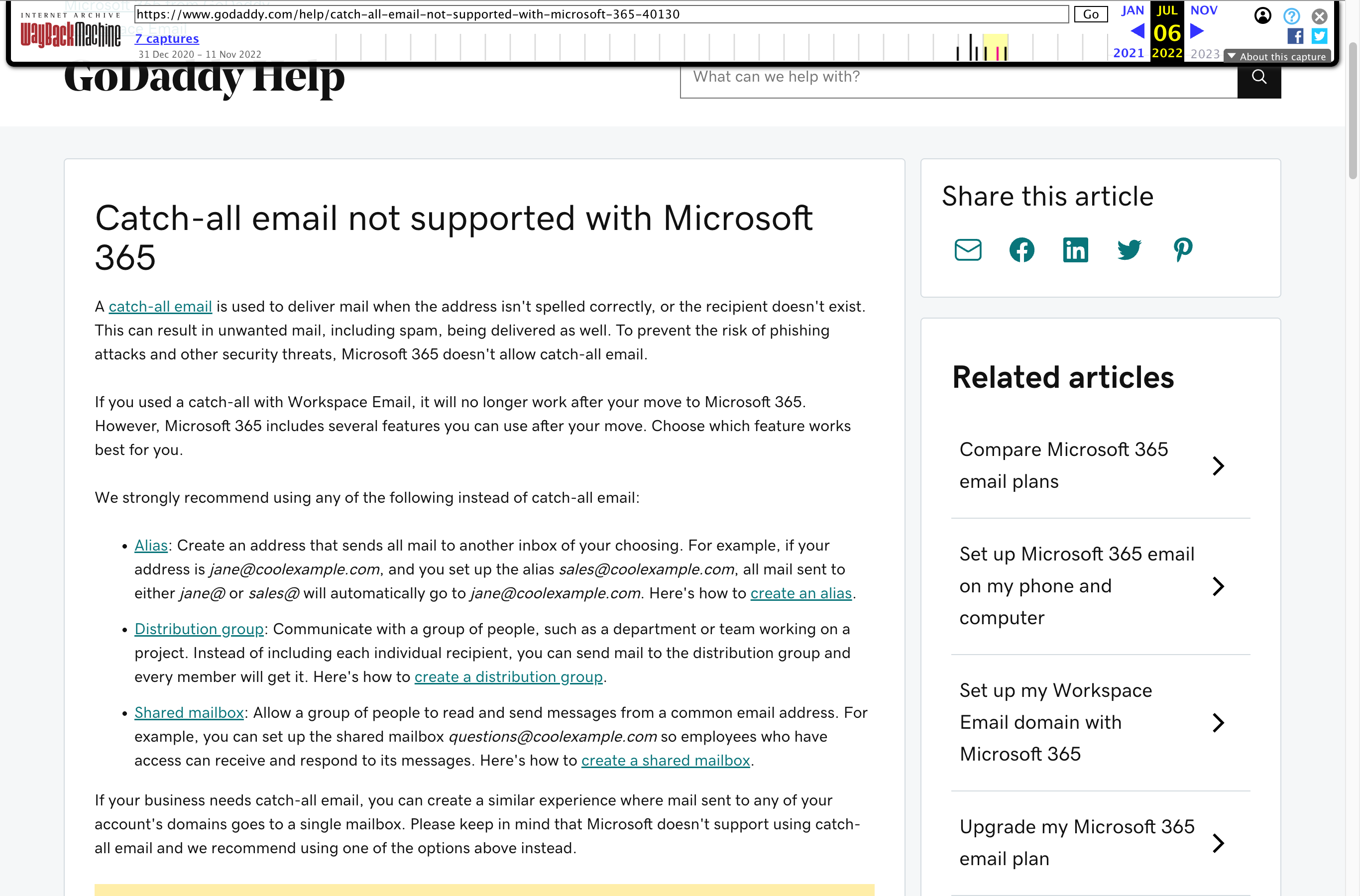
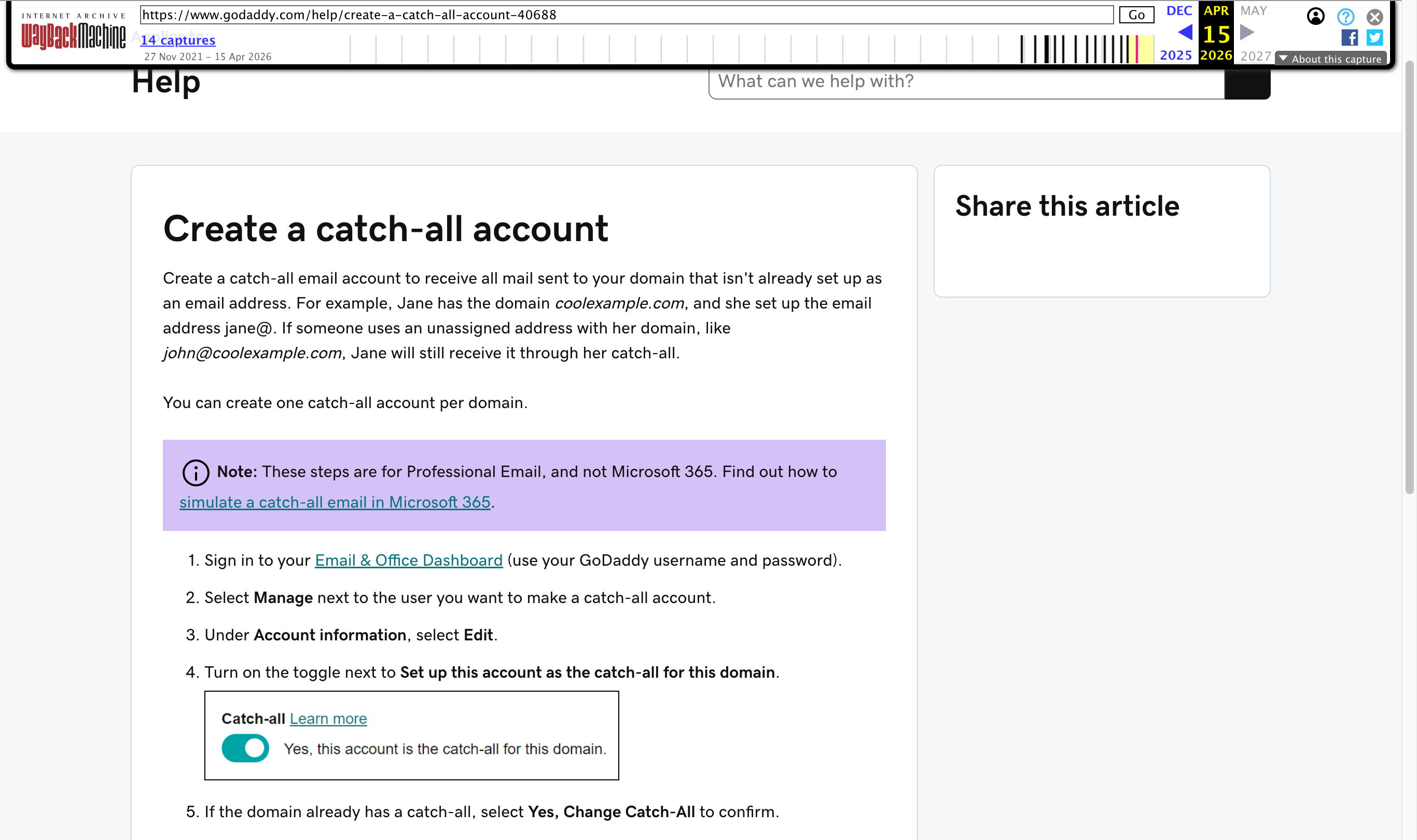
GoDaddy's catch-all toggle (in the Email & Office Dashboard) only exists for GoDaddy's Professional Email product. Microsoft 365 doesn't allow or support catch-all email, so for Email Essentials the only route is to simulate one with a mail flow rule in the Exchange admin center.
The setup has four parts:
- Set your domain to Internal relay.
- Create an "All users" dynamic distribution group, so the rule can recognize your real addresses.
- Create a mail flow rule that redirects mail for any address that isn't real to your existing email address.
- Test it from an outside account like Gmail.
You don't need a new mailbox. Catch-all mail lands straight in an inbox you already use.
Before you start
- Sign in at admin.exchange.microsoft.com with your Microsoft 365 email and password, not your GoDaddy login.
- Decide which existing email address should receive the catch-all mail, for example your own address or info@.
- In the examples, replace yourdomain.com with your own domain.
Step 1: Set your domain to Internal Relay
- Sign in at admin.exchange.microsoft.com with your Microsoft 365 email and password (not your GoDaddy login).
- Go to Mail flow > Accepted domains. Click the domain name itself (not the checkbox) so the side panel opens.
- Select Internal relay, then Save.
- Repeat for every domain you want covered.
Step 2: Create the "All users" dynamic distribution group
This group is how the rule recognizes your real addresses, so their mail is left alone. You never send mail to it, and it does not go in the rule's redirect step. It's only used in the rule's "Except if" condition.
- Go to Recipients > Groups > Add a group > Dynamic distribution > Next.
- Name: All users. Click into the Description box, or Next stays greyed out. Click Next.
- Owner: your account. Members: All recipient types. Click Next.
- Group email: [email protected]. Click Next > Create group > Close.
- Membership refreshes every 24 hours, so brand-new users won't be excluded from the catch-all until the next refresh.
Step 3: Create the mail flow rule
- Go to Mail flow > Rules > + Add a rule > Create a new rule. Name: Catch-All (don't leave the name blank).
- Apply this rule if: The sender > is external/internal > Outside the organization. Save.
- Do the following: Redirect the message to > these recipients > pick your existing email address (the inbox where you want catch-all mail to land). Save.
- Except if: The recipient > is a member of this group > pick allusers. Save.
- Click Next > Enforce > Next > Finish > Done.
- Click the new rule and switch on Enable or disable rule.
Don't pick allusers in "Redirect the message to." The group belongs only in "Except if." Choosing it as the redirect target fails with an error saying transport rules can't add distribution groups to messages.
If you can't select the group in "Except if": use Except if > The recipient > is this person instead, and pick each real mailbox. That's fine for a few users, but you'll have to add every new user to the rule by hand.
Step 4: Test it from an outside account
The rule only applies to mail from outside your organization, so test from a personal account such as Gmail:
- Send an email to an address that doesn't exist, for example [email protected]. It should land in the inbox you picked in Step 3.
- Send an email to a different real address on your domain. It should reach that person's own mailbox and not be redirected.
Troubleshooting
- "Transport rules can't add distribution groups to messages": you picked the allusers group (or another group) under "Redirect the message to." Change the redirect to a single existing mailbox and keep the group only in "Except if."
- A new teammate's mail goes to the catch-all: the All users group hasn't refreshed yet. Wait up to a day (see Caveats).
- Test mail sent from your own domain isn't caught: that's expected. The rule only catches mail from outside your organization.
Caveats
- Only outside mail is caught. The rule only applies to mail from outside your organization.
- Mistyped addresses stop bouncing. Because the domain is now Internal relay, mail to nonexistent addresses no longer bounces back to the sender.
- New users are caught for about a day. The All users group refreshes every 24 hours, and Microsoft says rules can take up to 3 more hours to see the change, so a brand-new user's mail goes to the catch-all inbox until then.
- Spam lands in your inbox too. Anything sent to a made-up address at your domain arrives mixed in with your regular mail.
While you're in your email settings, our free SPF, DKIM and DMARC checker shows whether your domain's mail is set up to reach inboxes instead of spam.
Sources
- GoDaddy Help: Catch-all email not supported with Microsoft 365 (article 40130, archived July 2022; the live URL now redirects to GoDaddy's Microsoft 365 help hub).
- GoDaddy Help: Create a catch-all account (article 40688, Professional Email only, archived April 2026; the live URL now redirects to Professional Email forwarding options).
- Microsoft Learn: Manage accepted domains, dynamic distribution groups, mail flow rule actions and conditions and exceptions (checked October 15, 2026).
Frequently asked questions
Does GoDaddy Microsoft 365 have a catch-all email?
Not as a setting. GoDaddy's catch-all toggle only exists for its Professional Email product, and Microsoft 365 doesn't support catch-all email. With Microsoft 365 Email Essentials, you simulate one with a mail flow rule in the Exchange admin center.
Do I need to create a separate catch-all mailbox?
No. The mail flow rule can redirect straight to an email address you already use, so catch-all mail lands in that inbox.
Why do I need the All users group?
It tells the rule which addresses are real, so mail to them is left alone. It's only used in the rule's "Except if" condition. Don't pick it as the redirect target, or the rule fails with an error.
Which login do I use for the Exchange admin center?
Your Microsoft 365 email address and password, not your GoDaddy account login.
Will mail to a mistyped address still bounce?
No. Once your domain is set to Internal relay, mail to addresses that don't exist no longer bounces back to the sender.
Does the catch-all work for email from my own team?
No. The rule only catches mail sent from outside your organization.
Ready to get started?
Set up your AI phone agent in minutes. Try it free for 7 days.
Try Zinng Free for 7 Days
About the Author
Timothy Bramlett
Co-Founder & CEO, Zinng
Timothy Bramlett is an American entrepreneur, software engineer, and product strategist. He is the founder of Zinng, an AI-powered phone agent platform that helps businesses never miss a customer call with intelligent call handling, real-time transcripts, and instant summaries.