This is a step-by-step walkthrough of setting up a catch-all email address in Google Workspace, so mail sent to sales@, info@, support@ or any other address at your domain lands in your inbox. Our founder Tim Bramlett recorded it on a real domain, timslawncare.shop, and every screenshot below is from that setup.
It takes about 5 minutes. You'll need admin access to Google Workspace with your email already working. If you haven't done that yet, start with how to set up custom email with Google Workspace.
Watch the video
The video runs under 7 minutes. Everything in it is written out below.
Chapters: 0:17 What a catch-all address is · 1:06 Finding Gmail routing in the Admin console · 1:20 Default routing vs. Routing · 1:41 Pattern match and the regex · 2:25 Testing the expression · 2:45 Bypassing the spam filter · 3:13 Adding your inbox as a recipient · 3:52 Custom subject prefix · 4:19 Only non-recognized addresses · 4:35 Testing it · 5:42 Wrap-up
What a catch-all address does
Google Workspace charges per user, so every real mailbox costs money. A catch-all lets you receive email at addresses that don't exist as users, like sales@, info@ or support@, without paying for them. You can print those addresses on your website or business cards, and all of it arrives in your own inbox.
The limit: you can't send as those addresses. When you reply, it comes from your real address (for Tim, [email protected]).
Google doesn't make this obvious, probably because it would rather you pay for more users. It's still simple once you know where to click.
The short answer
- In the Google Admin console, go to Apps, Google Workspace, Gmail, then Default routing, and click Configure.
- Choose Pattern match and enter @yourdomain\.com$.
- Optionally check Bypass spam filter for this message.
- Under Add more recipients, add your own address.
- In the recipient's Advanced settings, optionally prepend a subject like Catchall:.
- Under Options, select Perform this action only on non-recognized addresses and click Save.
- Send a test to a made-up address at your domain.
Step 1: Open Default routing in the Admin console
Sign in to admin.google.com with your admin account. Go to Apps, then Google Workspace, then Gmail.
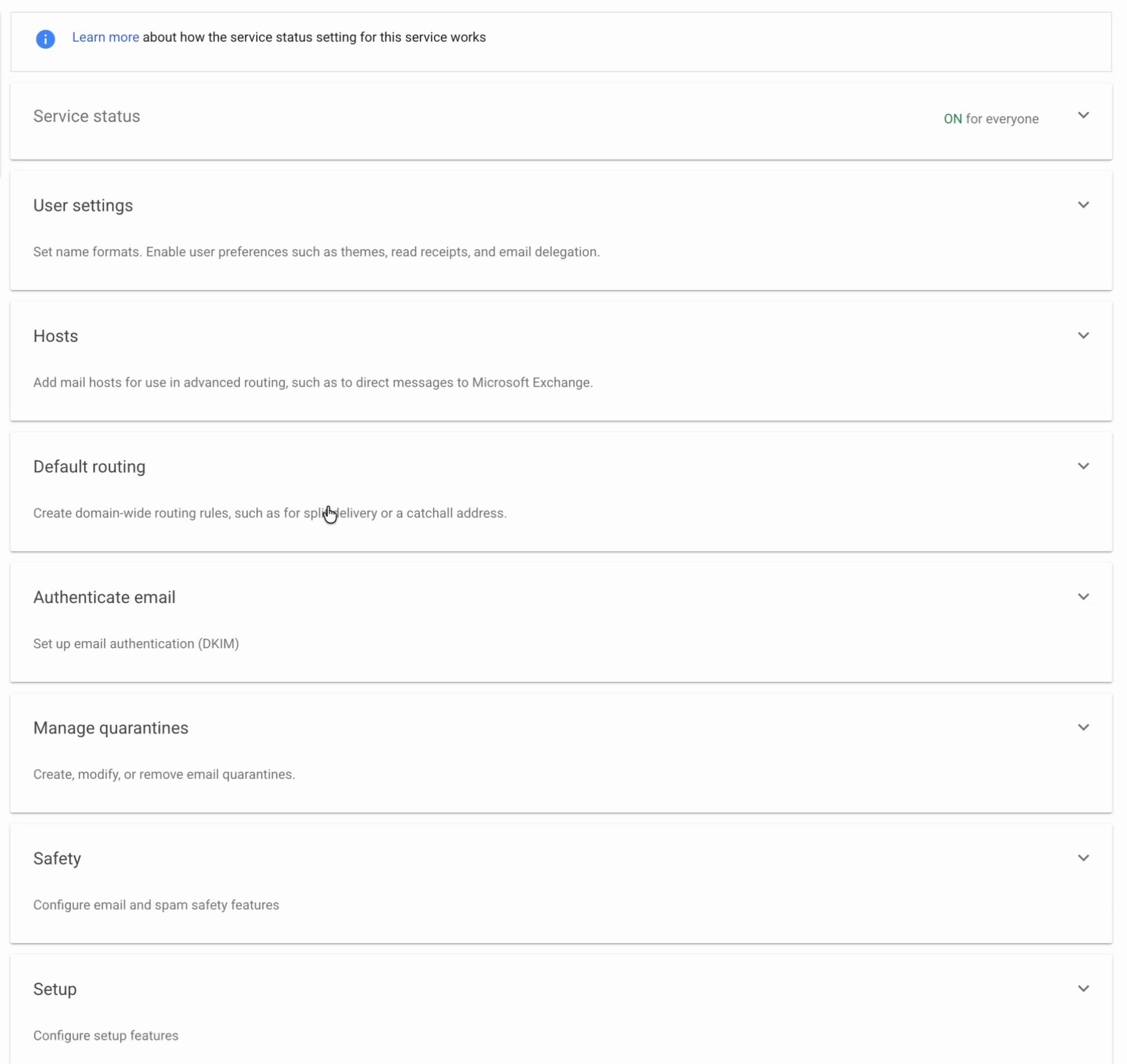
You'll see two similar settings: Routing and Default routing. Use Default routing; its description even mentions catch-all addresses. Click Configure to add a new rule.
Step 2: Choose Pattern match and add the regex
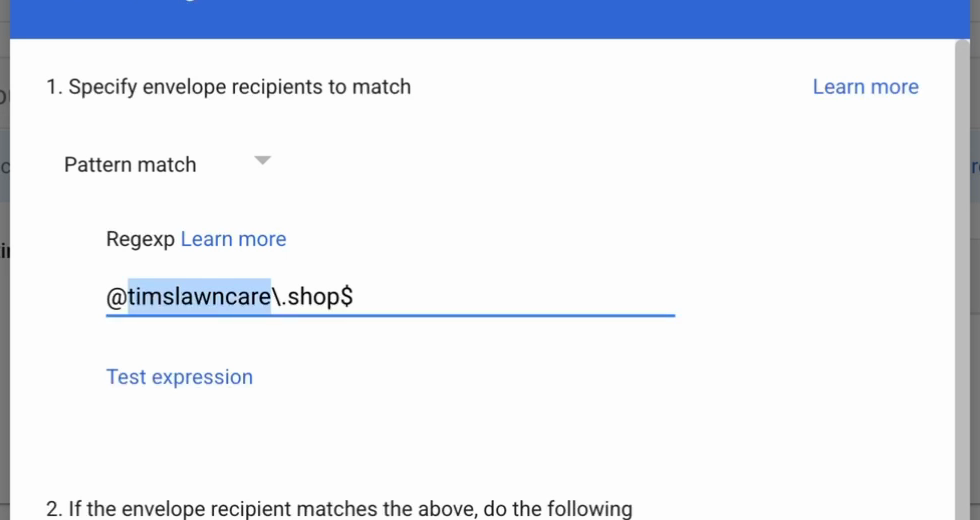
The first setting decides which addresses the rule applies to. Choose Pattern match, not Single recipient. Then paste in this regular expression:
@timslawncare\.shop$Replace it with your own domain. For amazingbusiness.com it would be:
@amazingbusiness\.com$Keep the backslash before the dot and the $ at the end. The backslash means "an actual dot," and the $ means the address has to end there. Together they match any address at your domain.
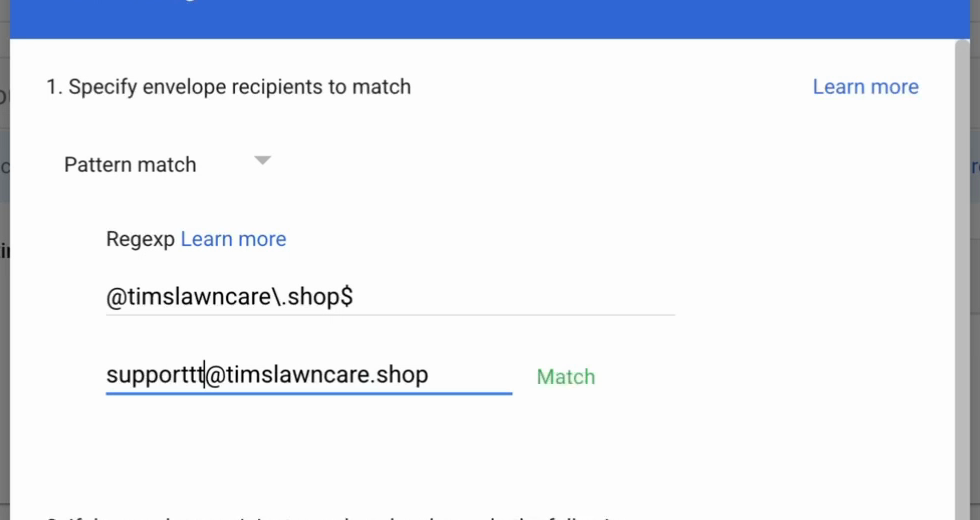
Use Test expression to check it. Type a few addresses at your domain that don't exist, like [email protected]. Each one should match.
Step 3: Decide on the spam filter
Leave the message set to Modify message and don't change the route. Tim checks Bypass spam filter for this message because he'd rather see everything sent to these addresses than have a filter quietly hide something.
If you don't want anything spammy getting through, leave it unchecked. Just keep in mind that a filter you can't see may be blocking some mail.
Step 4: Add your inbox as a recipient
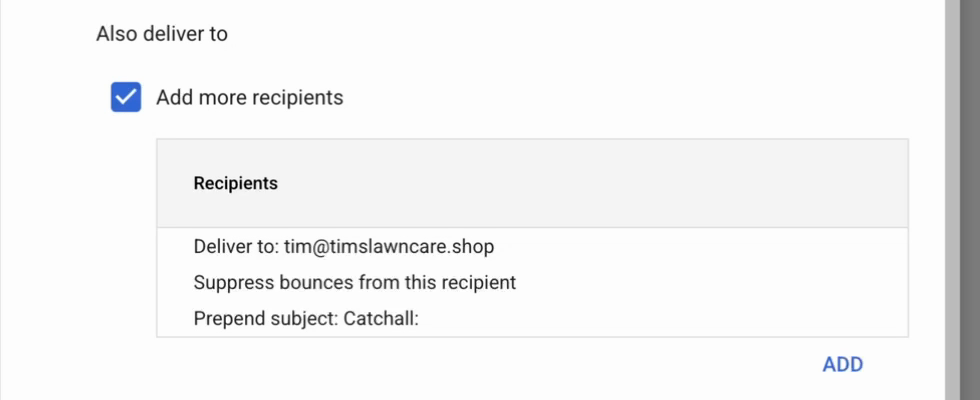
This is what actually delivers the mail. Check Add more recipients, click Add, and enter the address that should receive it. Tim used [email protected].
Click Advanced. Tim unchecks the spam option there for the same reason as above, and keeps Suppress bounces from this recipient checked.
Step 5: Optional: add a subject prefix
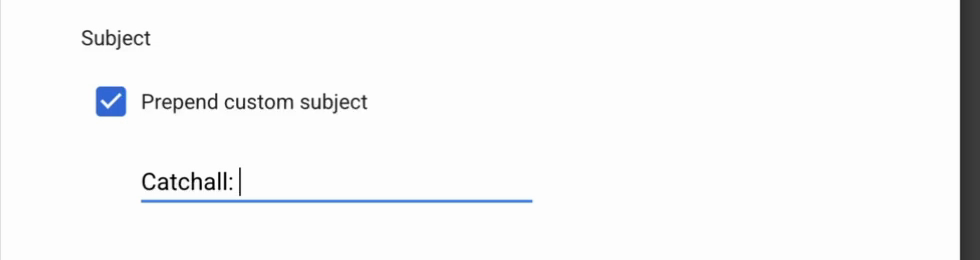
In the same Advanced settings for the recipient, Prepend custom subject adds text to the start of the subject line of every catch-all email, so you can tell at a glance that it went to one of these addresses. Tim used Catchall:. Then save the recipient.
Step 6: Turn on the key setting
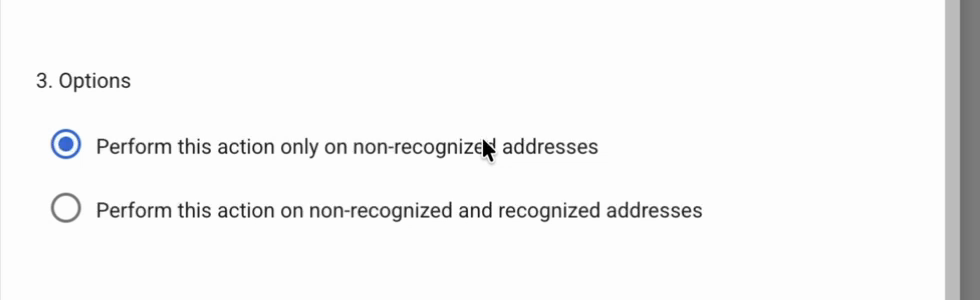
Under Options, select Perform this action only on non-recognized addresses. This is the most important setting. It makes the rule apply only to addresses that don't exist as real users, so mail to you and your team keeps arriving normally. Then click Save.
The rule is enabled as soon as you save it.
Step 7: Test it
From another email account, send a message to an address at your domain that doesn't exist. Tim sent one from his phone to [email protected]. Within a minute or two it arrived in his tim@ inbox with [Catchall:] at the start of the subject. Gmail added the brackets.
![Gmail message titled [Catchall:] It's working again!!! in the Inbox; the details show to: sales@timslawncare.shop, so mail to a non-existent address was delivered to Tim's inbox](/static-landing/landing/images/guides/google-workspace-catch-all/07-catchall-email-arrives-to-sales.png)
Open it and you'll see it was sent to sales@ but delivered to you. If you reply, the reply comes from your real address.
If something doesn't work, AI is very good at troubleshooting settings like this. Just make sure it searches the web, since Google's Admin console changes often.
On Microsoft 365 instead? See how to set up a catch-all email on GoDaddy Microsoft 365. Whichever provider you use, check your domain with our free SPF, DKIM and DMARC checker so your replies don't land in spam.
Frequently asked questions
Does Google Workspace support catch-all email?
Yes. There's no simple on/off switch, but you can create one with a Default routing rule in the Admin console (Apps, Google Workspace, Gmail, Default routing). It uses a pattern match for your domain, adds your inbox as a recipient, and applies only to non-recognized addresses.
What regex do I use for a Google Workspace catch-all?
Use @yourdomain\.com$ with your own domain, for example @amazingbusiness\.com$. Keep the backslash before the dot and the $ at the end. Check it with Test expression before saving.
Does a catch-all address cost extra?
No. Catch-all addresses aren't users, so you don't pay for them. You only pay for the real mailbox they're delivered to.
Can I send email from a catch-all address?
No. A catch-all only receives. Replies come from your real address. To send as another address, it has to be a real user or an alias.
Will a catch-all affect email to my real users?
Not if you select "Perform this action only on non-recognized addresses." With that on, the rule only applies to addresses that don't exist as users, so their mail keeps arriving normally.
Ready to get started?
Set up your AI phone agent in minutes. Try it free for 7 days.
Try Zinng Free for 7 Days
About the Author
Timothy Bramlett
Co-Founder & CEO, Zinng
Timothy Bramlett is an American entrepreneur, software engineer, and product strategist. He is the founder of Zinng, an AI-powered phone agent platform that helps businesses never miss a customer call with intelligent call handling, real-time transcripts, and instant summaries.