This is a step-by-step walkthrough of moving a GoDaddy domain's DNS to Cloudflare's free plan. Your domain stays registered at GoDaddy; you only change who manages its DNS records. Our founder Tim Bramlett recorded it on a real domain, timslawncare.shop, and every screenshot below is from that setup.
It takes about 10 minutes of work, plus a short wait for the change to take effect.
Don't have a domain yet? Start with how to buy a domain on GoDaddy.
Watch the video
The video runs under 9 minutes. Everything in it is written out below.
Chapters: 0:00 Why move your DNS to Cloudflare · 1:05 Registrar vs. DNS · 1:49 Adding your domain to Cloudflare · 2:57 The free plan is enough · 3:14 Reviewing imported DNS records · 3:48 Changing the nameservers in GoDaddy · 4:24 Waiting for propagation · 5:08 Checking DNS with the Claude Code desktop app · 6:31 Confirmation email · 7:10 Domain protected by Cloudflare · 7:36 SSL/TLS settings
The short answer
- In Cloudflare, click Add a site, then Connect domain, and enter your domain.
- Choose the Free plan.
- Review the DNS records Cloudflare imported. Keep everything your website and email use.
- Copy the two Cloudflare nameservers it gives you.
- In GoDaddy, open your domain's DNS tab, then Nameservers, Change Nameservers, choose I'll use my own nameservers, paste in Cloudflare's two, and click Continue on the warning.
- Wait for Cloudflare's "is active" email, usually within minutes and at most 24 hours.
Why move your DNS to Cloudflare?
- A faster website, free. Cloudflare caches your site and serves it from its edge network of data centers around the world, so visitors load it from somewhere close to them.
- Easier setup with other services. Cloudflare is so widely used that services like Google Workspace make adding their DNS records straightforward. Tim is moving this domain to set up Google Workspace email next.
Using GoDaddy's DNS is perfectly fine, too. This is an upgrade, not a requirement.
Registrar vs. DNS: what you're actually changing
Your registrar is where you bought and renew the domain, like GoDaddy, Namecheap or Cloudflare. DNS is the address book: when someone types your domain, DNS tells their browser which computer (IP address) to go to, and tells other servers where to deliver your email.
They don't have to be the same company. Here the domain stays registered and billed at GoDaddy; only the nameservers change, which tells the internet that Cloudflare now holds your DNS records. This is not a domain transfer. Nothing about your GoDaddy registration, renewal or ownership changes, and you can switch back any time.
By default, GoDaddy's nameservers look like ns35.domaincontrol.com and ns36.domaincontrol.com. You'll find them under your domain's DNS tab, then Nameservers.
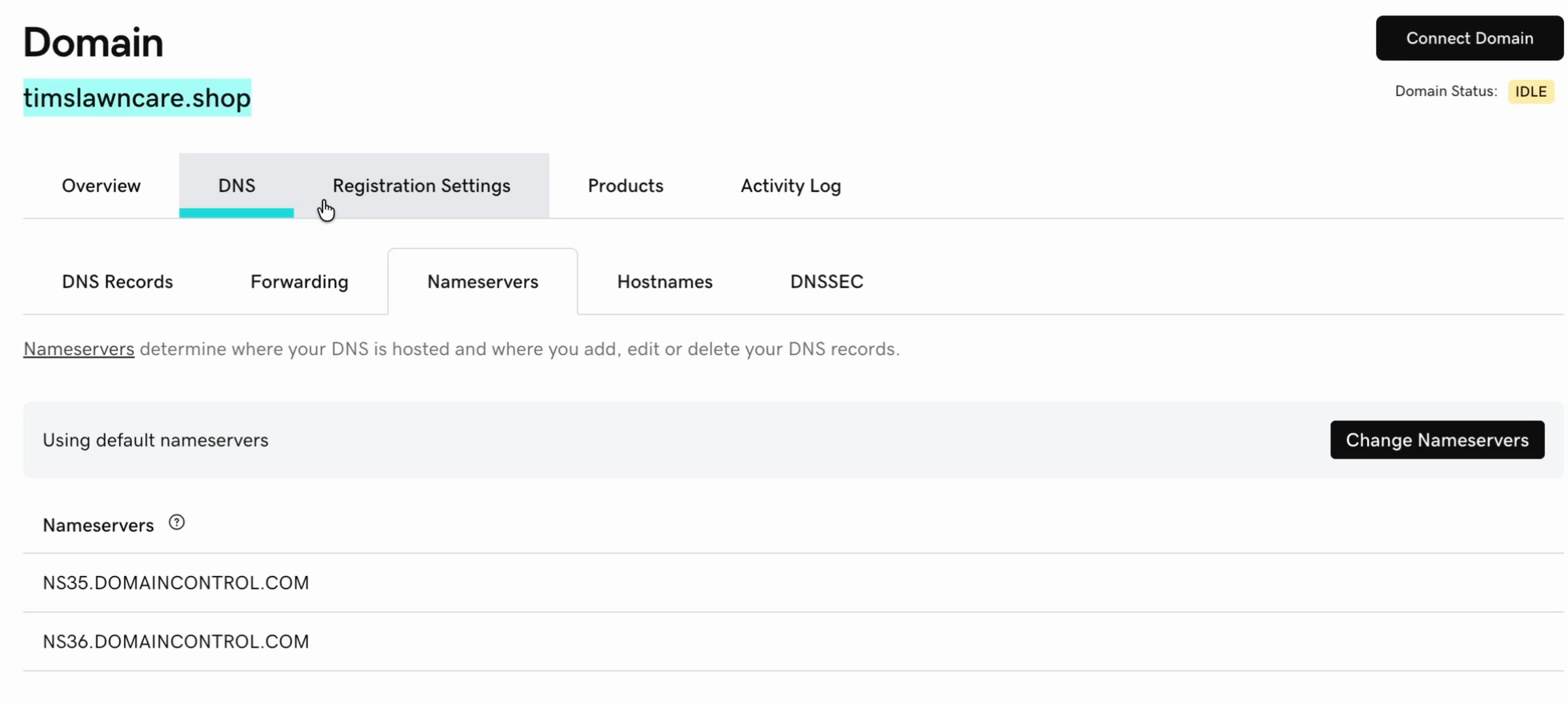
Step 1: Add your domain to Cloudflare
Sign in to Cloudflare (or create a free account), click Add a site, then Connect domain. Type your domain name.
Cloudflare then asks how to treat AI crawlers and bots. Tim's recommendations:
- Search: Allow. These bots help your site show up in search results. You definitely want them.
- Agent: Allow. These pull information from your site to answer people's questions in AI assistants. Also a yes for a business.
- Training: your call. These crawl content to train AI models. It doesn't matter much for a small business site.
- Enable Bot Preference Sync: leave it on. It adds your choices to the top of your site's robots.txt file automatically.
Leave I monetize pages that serve ads unchecked unless you run ads on your site, and leave Import DNS records on Automatic. Click Continue.
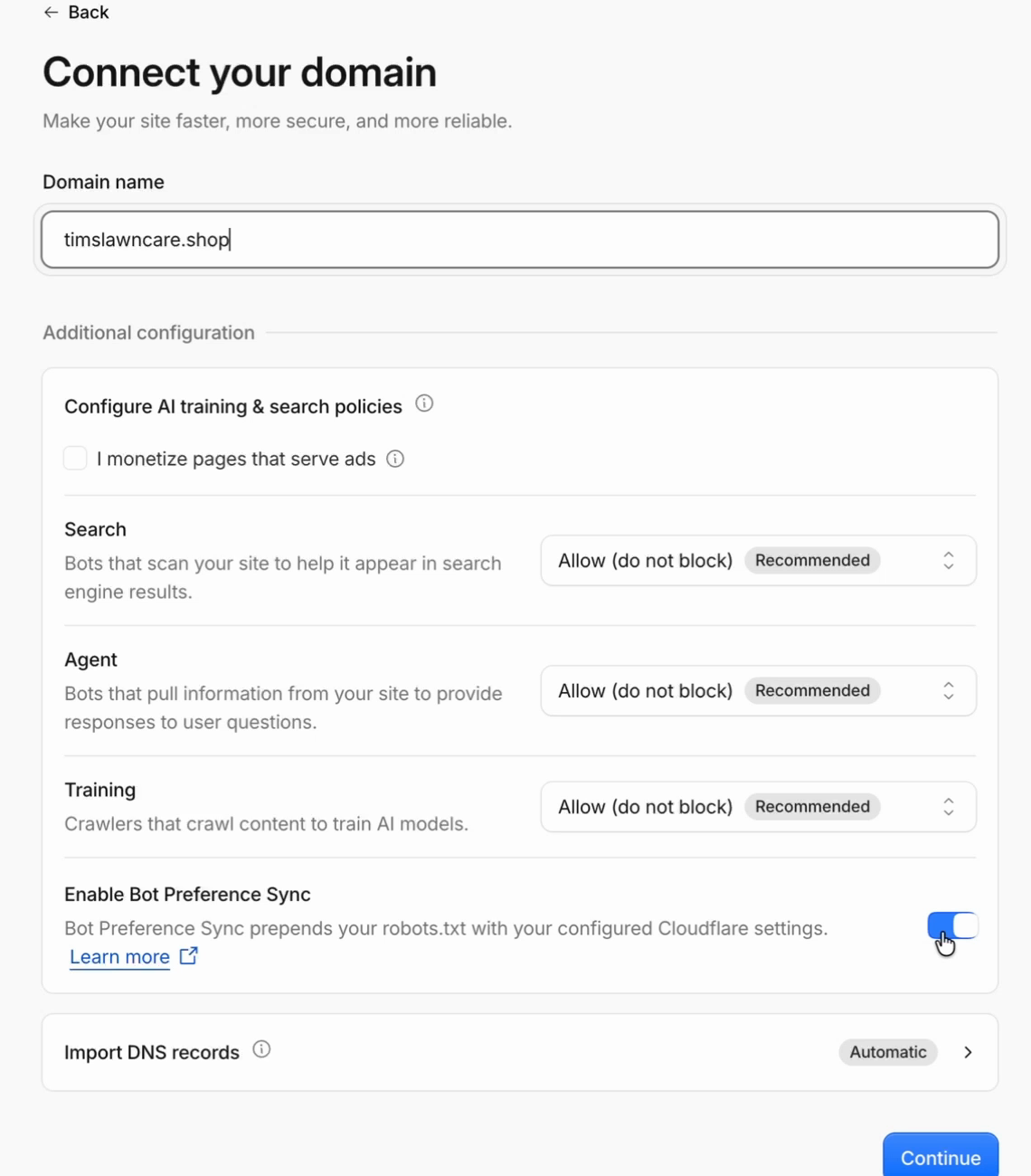
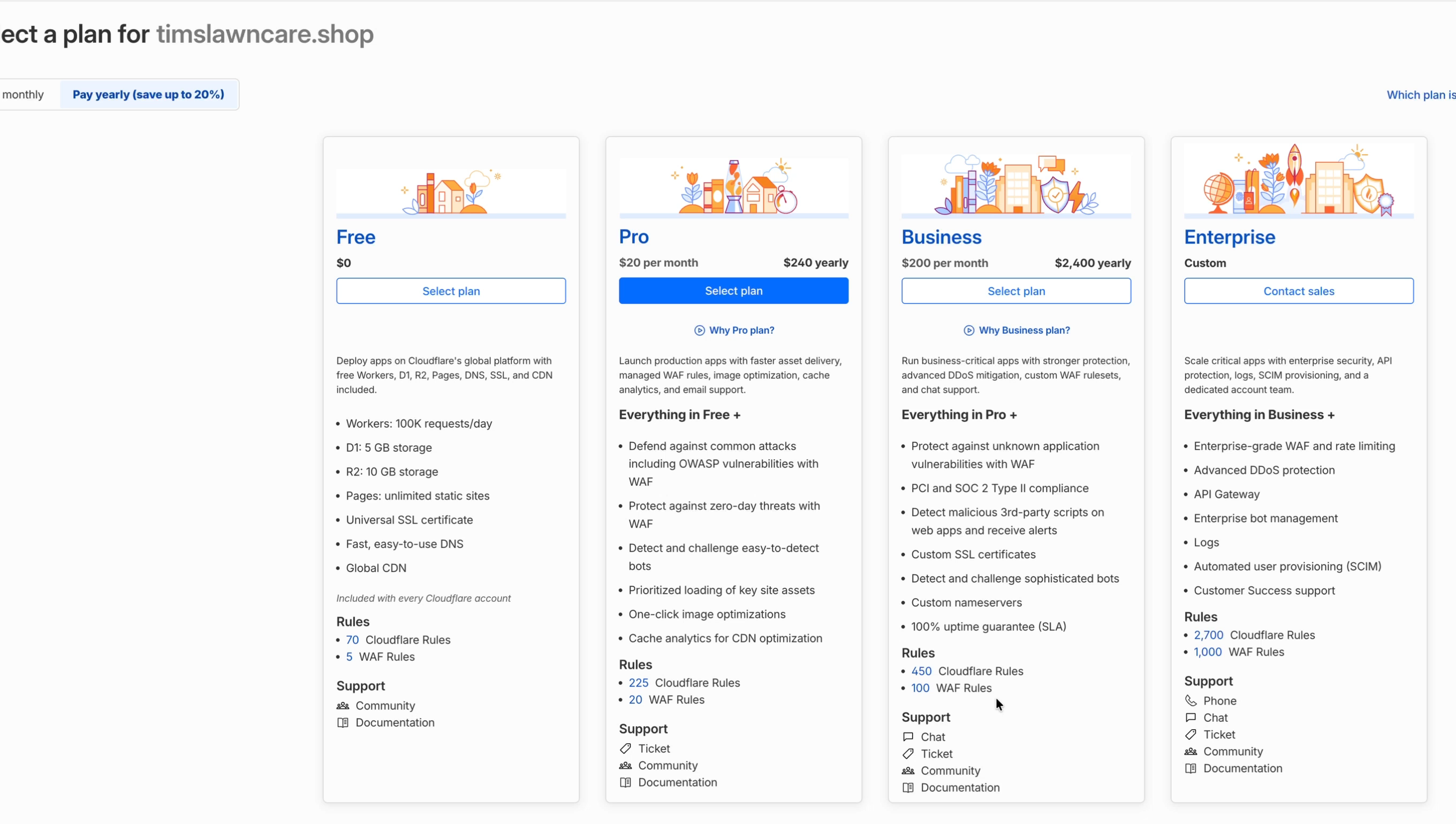
Step 2: Choose the free plan
Cloudflare shows its plans: Free ($0), Pro ($20 a month), Business ($200 a month) and Enterprise. The Free plan includes DNS, a free SSL certificate and the global CDN that speeds up your site. For a business website, you may never need anything more. Pro adds more advanced security rules and is aimed at things like SaaS apps.
Step 3: Review the imported DNS records
Cloudflare scans your current DNS and copies over what it finds. Tim's domain had 2 A records, 2 CNAME records and 1 TXT record, all GoDaddy defaults for a domain with nothing on it yet. Since nothing used them, he deleted them all and clicked Continue to activation.
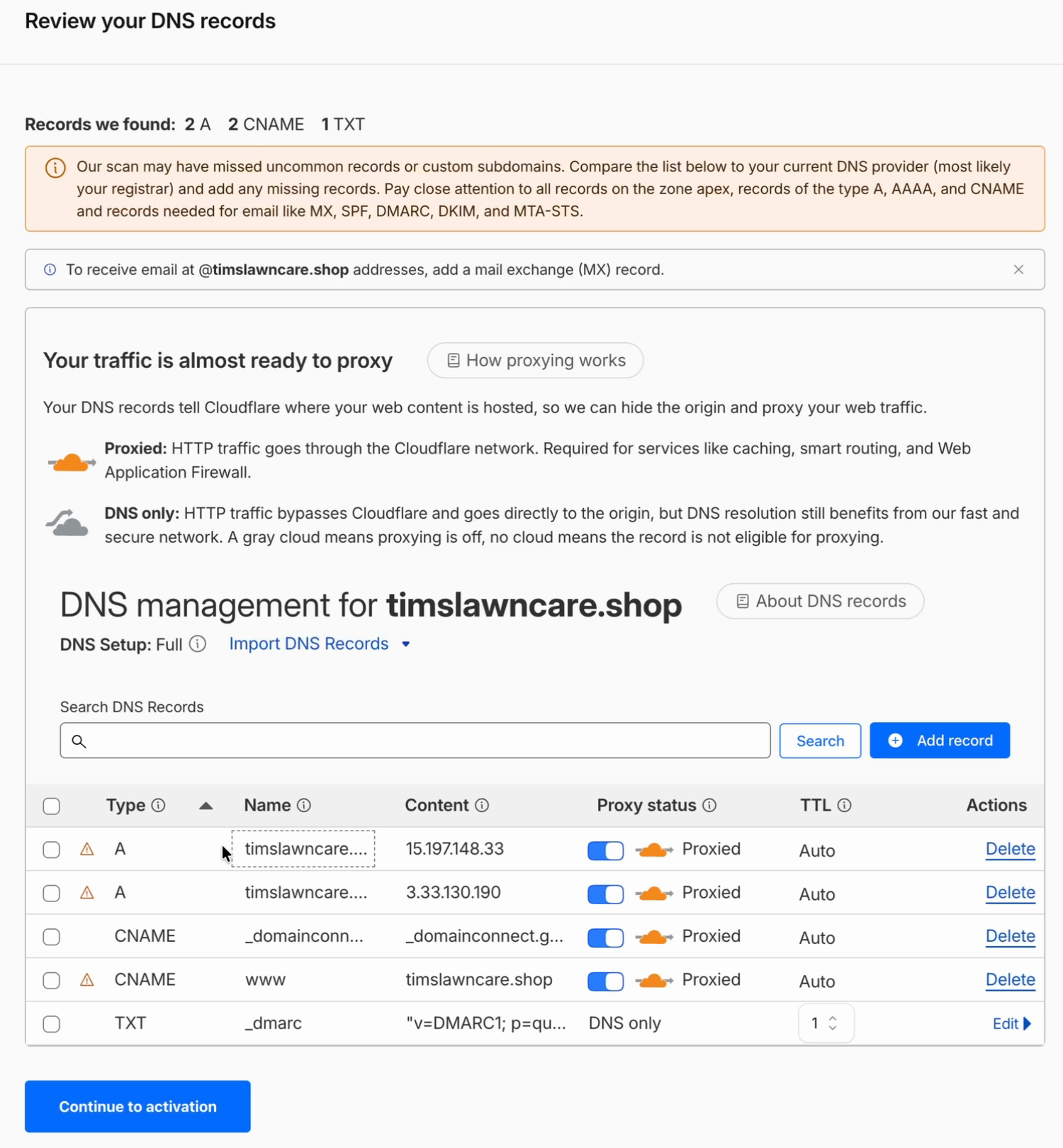
Don't delete records your domain already uses. If your website or email already works on this domain, keep those records, and compare the list with your GoDaddy DNS Records tab before you continue. Cloudflare warns that its scan can miss records. Pay special attention to email records (MX, SPF, DKIM, DMARC). A missing one can stop your email or send it to spam. After the move, you can test your email with our free SPF, DKIM and DMARC checker.
Step 4: Change your nameservers in GoDaddy
Cloudflare now shows the two nameservers assigned to your domain and the GoDaddy ones to remove. Tim's were jo.ns.cloudflare.com and woz.ns.cloudflare.com. Yours will be different, so copy them from your own Cloudflare screen.
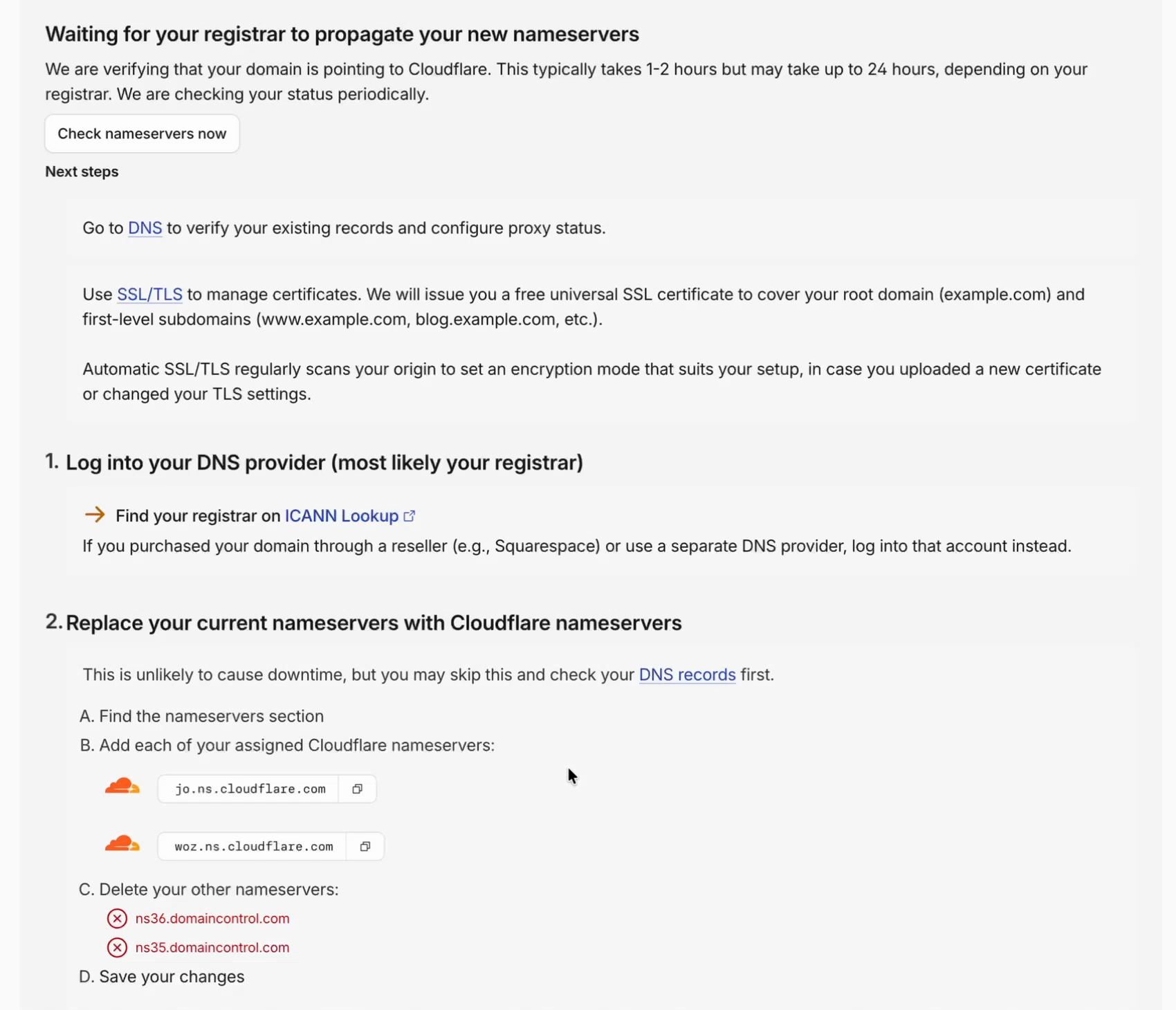
In GoDaddy, open your domain, go to the DNS tab, then Nameservers, and click Change Nameservers. Select I'll use my own nameservers.
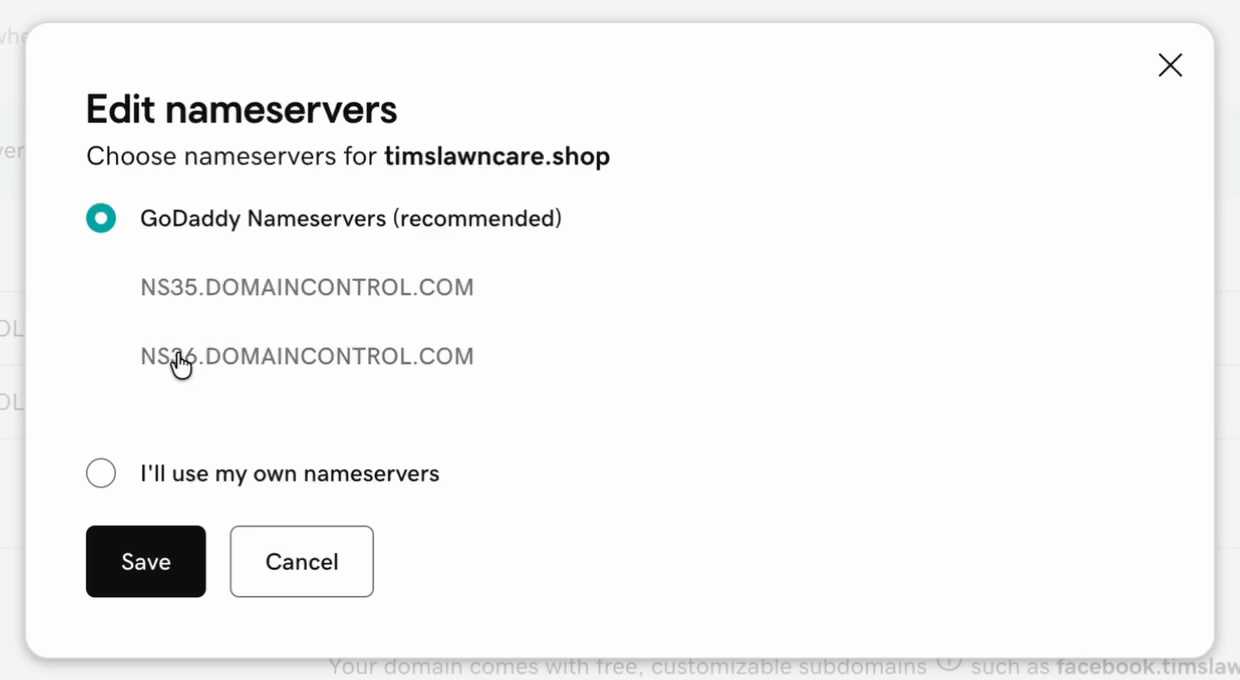
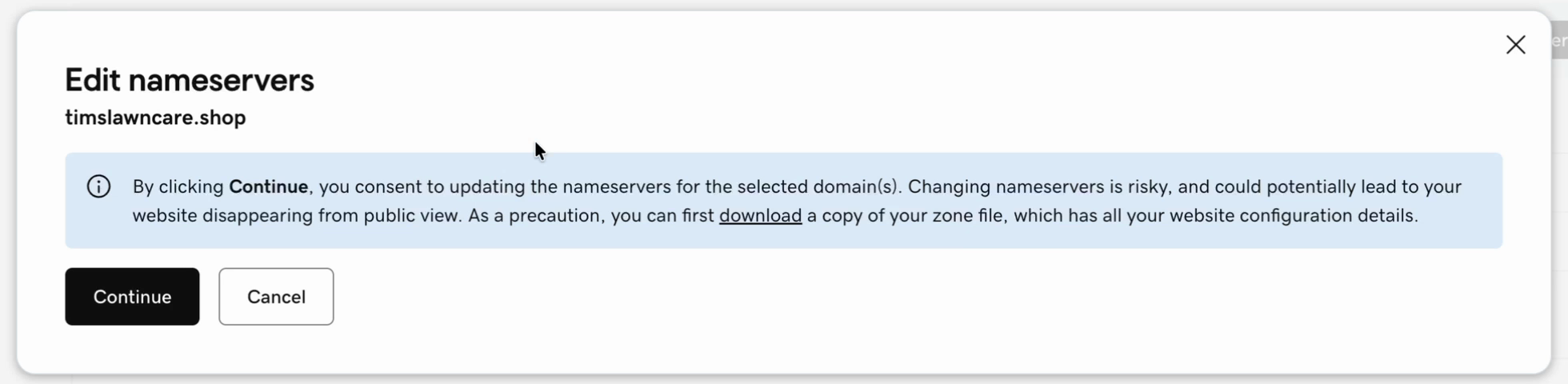
Replace the two domaincontrol.com entries with your two Cloudflare nameservers and click Save. GoDaddy warns that changing nameservers is risky and could make your website disappear from public view. That's true if records are missing in Cloudflare, which is why Step 3 matters. If your domain already runs a website or email, click the download link in the warning first to save a copy of your zone file (your current DNS records). Then click Continue.
Step 5: Wait for the change, then check it
Back in Cloudflare, click that you've updated your nameservers, then Check nameservers now. The change has to spread across the internet ("propagate"). Cloudflare says this typically takes 1 to 2 hours but can take up to 24. For Tim it took only minutes.
Check it yourself with AI
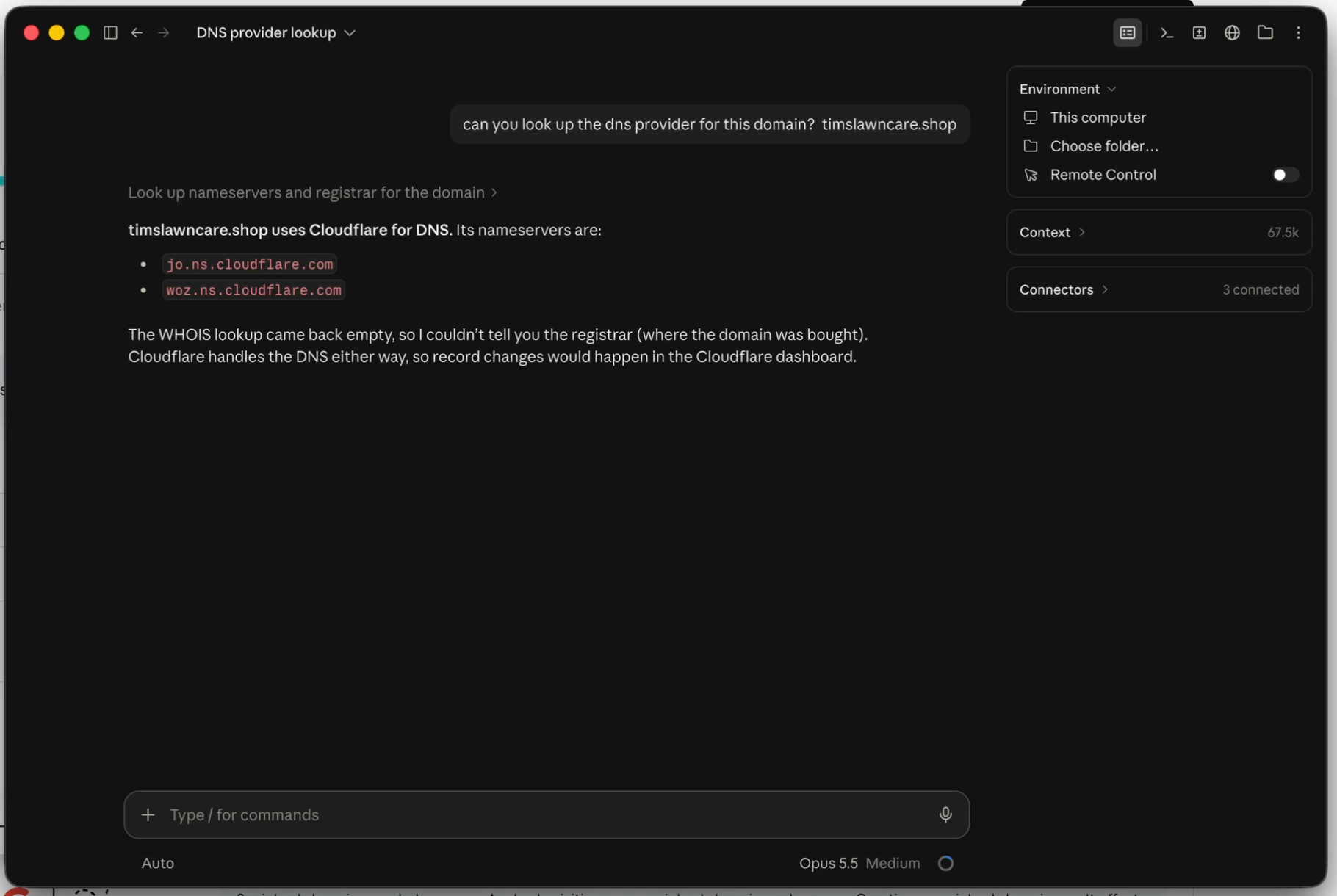
While waiting, Tim asked the Claude Code desktop app to look up the domain's DNS provider. It ran a lookup and reported that timslawncare.shop now uses Cloudflare, with the two new nameservers, so the change had already gone through. It's a handy way to troubleshoot DNS without knowing the commands. ChatGPT or Claude in the browser can often do a similar lookup.
Soon after, Cloudflare sends an email titled "[Confirmation] yourdomain is active (Free plan)." That means Cloudflare is now handling your DNS.
![Email from Cloudflare: '[Confirmation] timslawncare.shop is active (Free plan)' with 'Our network is now boosting timslawncare.shop's speed and security' and a View domain analytics button](/static-landing/landing/images/guides/godaddy-dns-to-cloudflare/09-cloudflare-active-email.png)
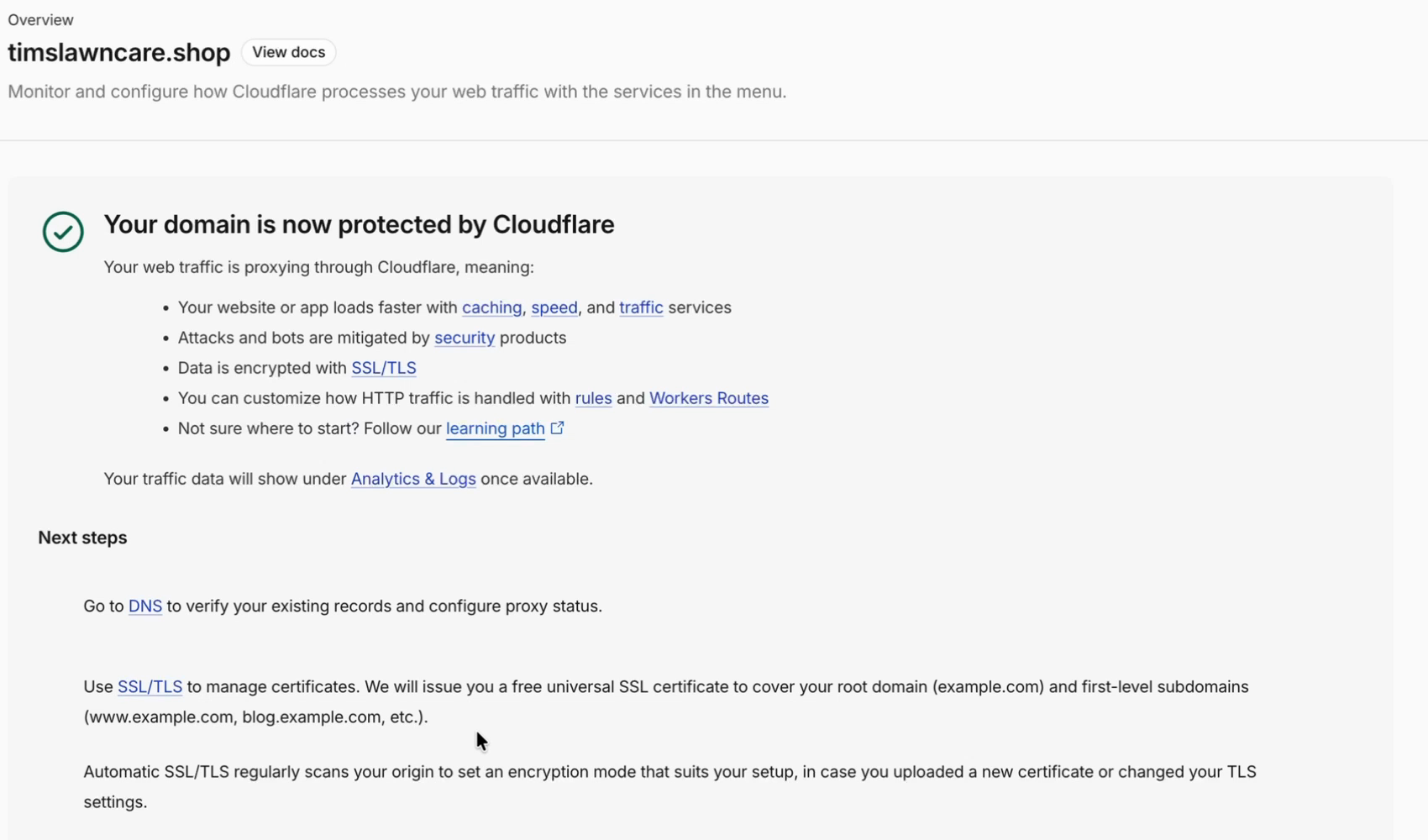
Refresh the domain's page in Cloudflare and it shows "Your domain is now protected by Cloudflare."
Step 6: Check your site and SSL/TLS settings
Make sure your website and email still work, and that your DNS records in Cloudflare look right. Then open SSL/TLS in Cloudflare. It controls how traffic is encrypted between visitors, Cloudflare and the server that hosts your site. Tim's showed Full encryption mode, and Cloudflare's automatic setting adjusts it to suit your setup.
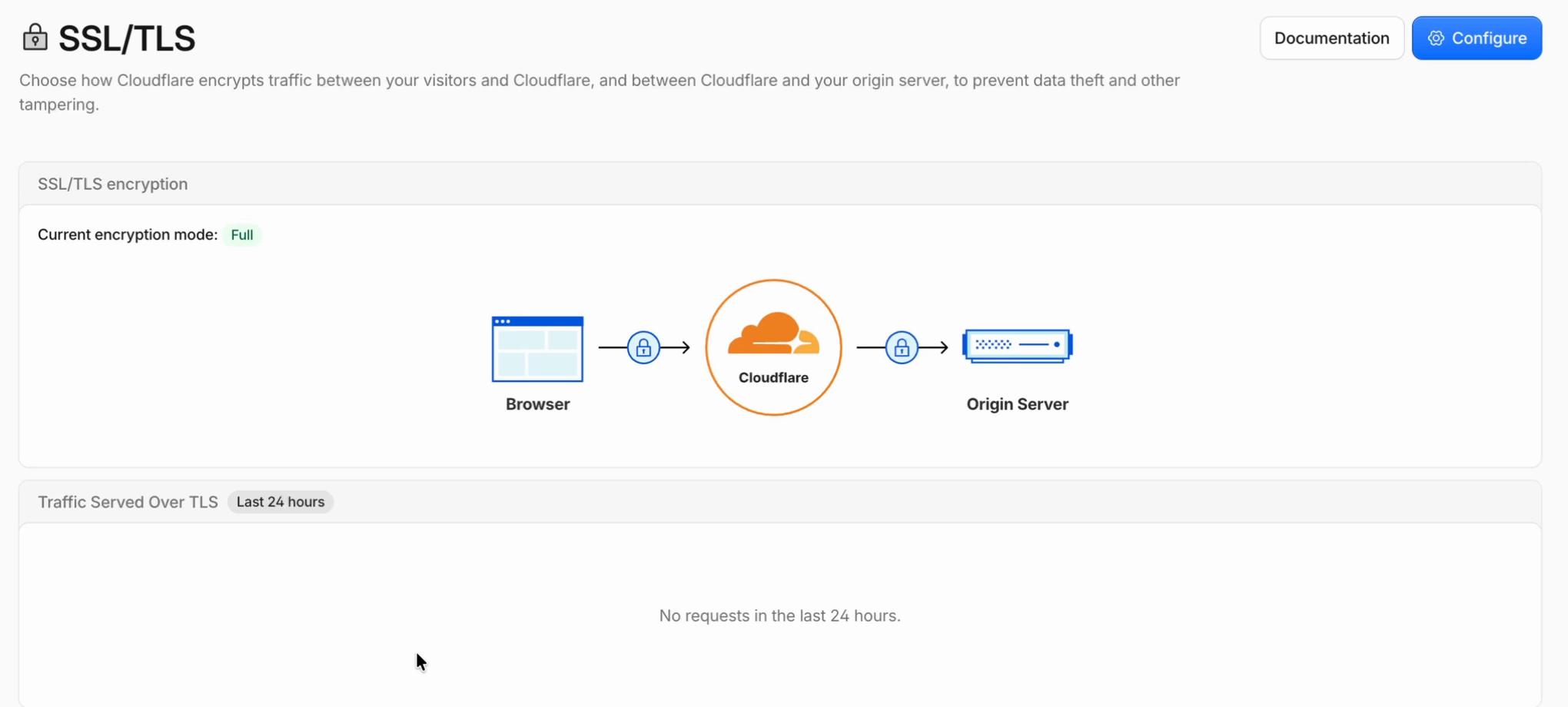
The right setting depends on how your website is hosted. If your site shows errors after the switch, this is the first place to look. An AI assistant can help you pick the right mode if you tell it where your site is hosted.
Frequently asked questions
Do I have to transfer my domain from GoDaddy to use Cloudflare?
No. You can keep the domain registered and renewing at GoDaddy and only change its nameservers to Cloudflare's. That moves DNS management to Cloudflare without transferring the domain.
How do I change nameservers on GoDaddy?
Open your domain in GoDaddy, go to the DNS tab, then Nameservers, and click Change Nameservers. Choose "I'll use my own nameservers," enter the new nameservers, click Save, then Continue on the warning.
Is Cloudflare free for a small business website?
Yes. Cloudflare's Free plan includes DNS, a universal SSL certificate and its global CDN. Most small business websites never need the paid plans, which start at $20 a month for Pro.
How long does it take for nameservers to change?
Cloudflare says it typically takes 1 to 2 hours and can take up to 24. In our setup it took only a few minutes. Cloudflare emails you when your domain is active.
Will moving DNS to Cloudflare break my website or email?
Not if all your DNS records come across. Before changing nameservers, compare Cloudflare's imported records with GoDaddy's, especially your website's A and CNAME records and your email's MX, SPF, DKIM and DMARC records. Add anything missing first.
Ready to get started?
Set up your AI phone agent in minutes. Try it free for 7 days.
Try Zinng Free for 7 Days
About the Author
Timothy Bramlett
Co-Founder & CEO, Zinng
Timothy Bramlett is an American entrepreneur, software engineer, and product strategist. He is the founder of Zinng, an AI-powered phone agent platform that helps businesses never miss a customer call with intelligent call handling, real-time transcripts, and instant summaries.