How to Forward Your Google Voice Number to Zinng
About 5 minutes, plus what to do if Google won't let you.
Heads up: Google runs a carrier check when you link a number and sometimes rejects Zinng numbers (it reads them as VoIP) with "Google Voice can't use this phone number to verify your account." It's inconsistent, and it's on Google's end, not ours. Try direct forwarding first. If Google rejects your number, jump to the fallback options (porting is the cleanest).
Direct Forwarding
- Link your Zinng number. At voice.google.com, go to Settings → Account → Linked numbers → New linked number and enter your agent's number (from AI Phone Agents → Agents).
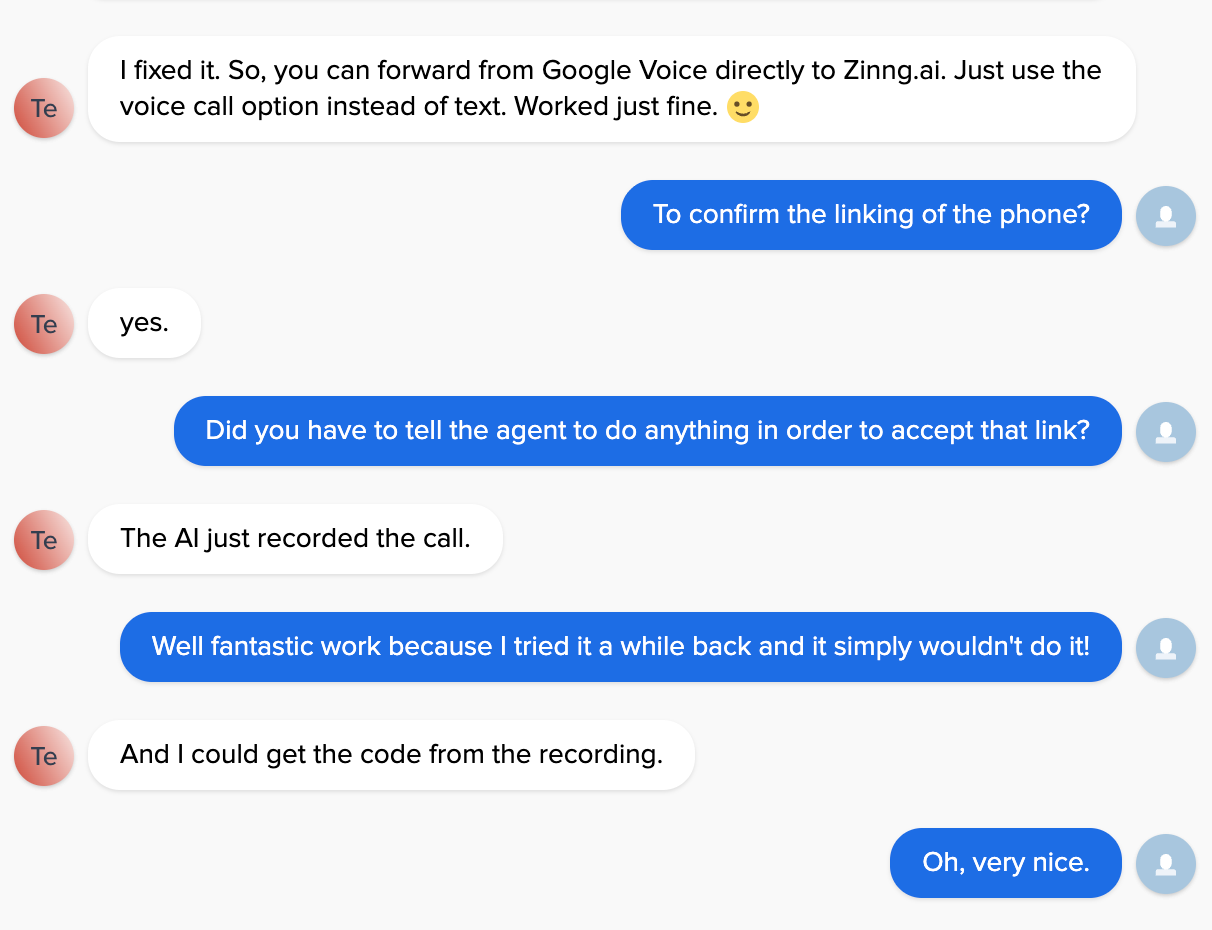
- Verify by voice call, not SMS. Google calls your Zinng number and your agent answers. Read the code off the call recording/transcript in your dashboard (it shows up within seconds) and type it back into Google Voice.
- If Google rejects the number, stop here and use the fallback options below.
- Route calls to Zinng only. In the Calls section, forward to your linked Zinng number (Google rings every linked number by default).
- Turn off Call screening (important). It's on by default and plays a “press 1 to accept” prompt your agent can't get past. Screenshots below.
- Test it. Call your Google Voice number from another phone. Your agent should answer right away, with no “press 1” prompt.
This works. A customer recently linked their Google Voice number to Zinng with no trouble. The trick was picking voice call verification and reading the code off the agent's recording, no special setup needed.
Stuck? Reach us via the chat widget or [email protected].
If Direct Forwarding Doesn't Work
If Google Voice rejected your Zinng number during verification, you have a few fallback paths. Start with Option 1 (try a different Zinng number) — it's the easiest and clears up many rejections. If you want a permanent, forwarding-free setup, Option 2 (porting) is the cleanest. Options 3 and 4 cover the remaining cases.
Option 1: Try a Different Zinng Number (Easiest)
Google's accept-or-reject decision comes down to how it classifies that specific number, and that classification varies from number to number. So the quickest fix is often to just try a different one. If Google rejected the number currently assigned to your agent, reach out and we'll issue a new Zinng number for your agent at no cost, then you can try linking that one. Many rejections clear up simply by trying a different number.
How to get a different number: reach out via the chat widget in the bottom-right of any Zinng page, call (213) 263-4777, or email [email protected]. Let us know Google Voice rejected your current number and we'll swap in a fresh one for your agent to try.
Option 2: Port Your Google Voice Number to Zinng (Recommended for a Permanent Setup)
This is the cleanest, most reliable path. Once your Google Voice number is ported into Zinng, it behaves like any other Zinng number: no forwarding chain, no call screening prompt, no Google verification checks. Calls hit Zinng directly.
What you'll need
- The Google account that owns the Google Voice number, with access to voice.google.com.
- $3 USD — Google charges a one-time porting fee to release the number.
- About 1 to 5 business days for the port to complete.
The high-level steps
- Unlock the number for porting. In Google Voice settings, go to the porting section and pay the $3 unlock fee. Google generates the information you'll need to give to Zinng (account number, port-out PIN).
- Start the port in Zinng. Send Zinng your Google Voice number along with the account number and PIN. Our team submits the port request to the underlying carrier.
- Wait for completion. Most Google Voice ports finalize within 1 to 5 business days. You'll keep using your Google Voice number normally during that window. Once the port lands, calls start flowing into Zinng automatically.
For a more detailed walkthrough of every step, including how to find the right info in Google Voice settings, eligibility edge cases, and the differences for Google Workspace Voice, see our dedicated guide on how to port your number from Google Voice to Zinng.
Our team handles the heavy lifting. If you'd like to port your Google Voice number to Zinng, reach out via the chat widget in the bottom-right of any Zinng page, call (213) 263-4777, or email [email protected]. We'll walk you through the unlock step and submit the port for you.
Option 3: Two-Hop Carrier Forwarding
If you can't port the Google Voice number (you need to keep it on your Google account for some reason), you can still route calls into Zinng by chaining a carrier number in between.
How it works
- Link a real carrier number to Google Voice (your personal cell, a spare cell, or a landline). Google accepts these because they pass the carrier verification check.
- Set up carrier-level conditional forwarding on that cell so that calls to it are forwarded to your Zinng number. Most carriers support this through codes like
**21*<Zinng number>#(unconditional forward) or**61*<Zinng number>#(forward on no answer). Specific codes vary by carrier. - Confirm the chain end-to-end. Call your Google Voice number from a different phone. Google Voice rings the linked cell, the cell forwards to Zinng, and the Zinng AI agent picks up.
Heads up on call screening. If Google Voice's Call screening setting is on (the default), it'll play a press-1 prompt into your cell phone before the cell hands off to Zinng, which breaks the chain. Disable it using the steps below.
Tradeoffs of Option 3: Two forwarding hops adds 1-3 seconds of connect delay. You'll be paying for the carrier line that sits in the middle. And the cell needs to stay reachable (powered on, in service area) for the chain to work. Porting is meaningfully cleaner if you can manage it.
Option 4: Use a Fresh Zinng Number for Your Business
If your Google Voice number hasn't been widely distributed (it's not on a thousand business cards, websites, signage, Google Business Profile, etc.), the simplest move is to just get a new number directly from Zinng and use it for the business going forward.
When this makes sense
- The Google Voice number is something you set up recently and customers haven't really memorized it.
- You want to keep Google Voice for personal or legacy use without entangling it with the business.
- You don't want to deal with porting or carrier forwarding setups.
You provision a fresh Zinng number in your dashboard, update your business listings (Google Business Profile, website, signage, business cards) to show the new number, and let the Google Voice number ride out organically. Existing customers who call the old number get whatever you've configured in Google Voice (voicemail, your cell, etc.).
Disabling Google Voice Call Screening
Whether you got direct forwarding working in Step 1 or you're using Option 3's two-hop setup, you'll want to turn off Google Voice's call screening. By default it plays a "press 1 to accept" prompt to whoever answers, which is fine for a human but breaks any forwarding chain that ends at an AI or another forwarding number.
The steps below use the Google Voice mobile app. The same setting lives at Settings → Calls → Screen calls in the web version at voice.google.com.
Step 1: Open the menu
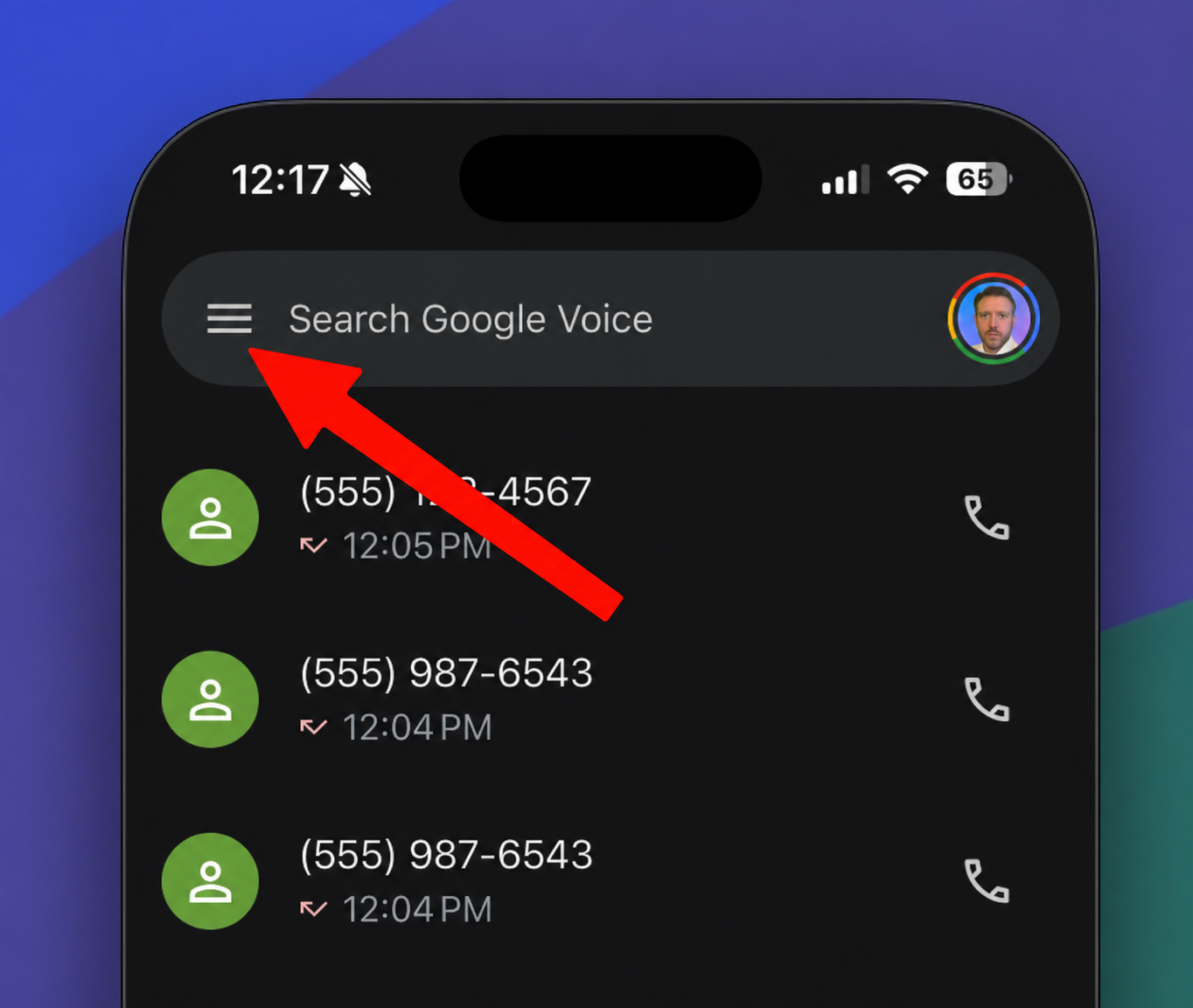
Open the Google Voice app and tap the menu icon (three horizontal lines) in the top left of the main screen.
Step 2: Tap Settings
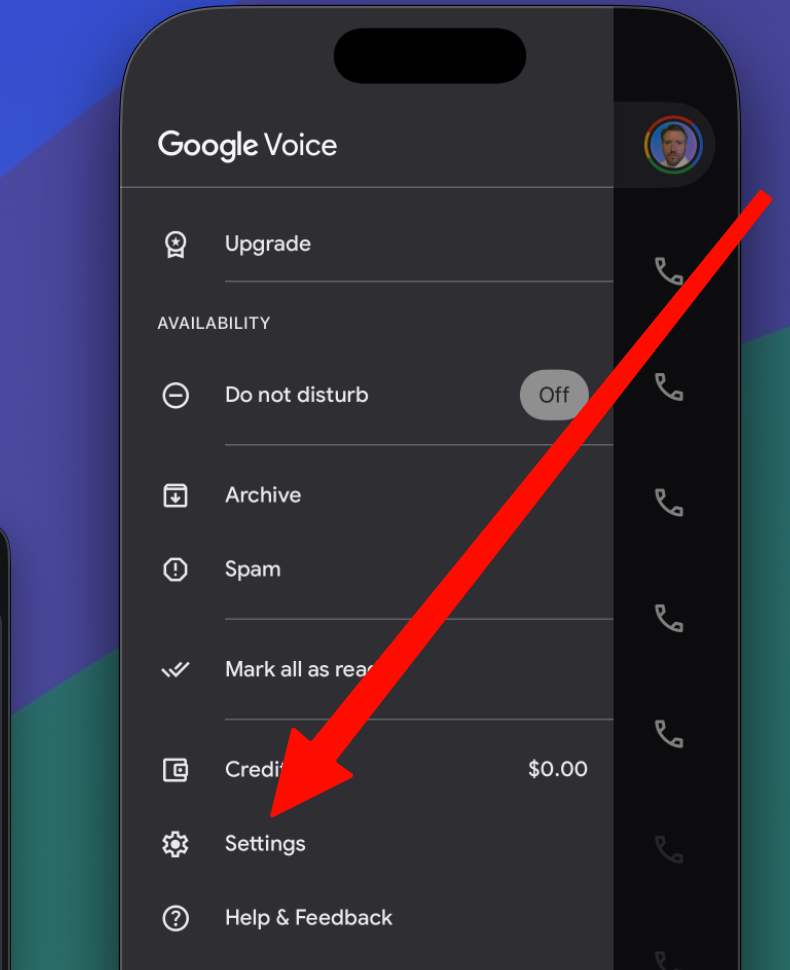
The side menu slides in from the left. Scroll to the bottom and tap Settings.
Step 3: Turn off Call screening
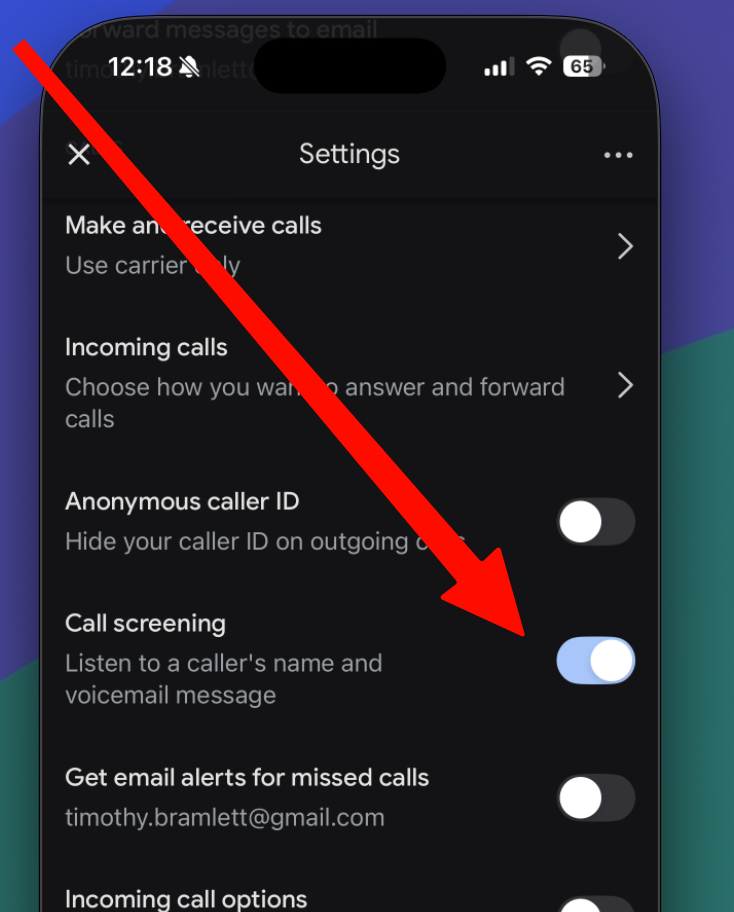
On the Settings page, find the Call screening toggle (described as “Listen to a caller's name and voicemail message”) and tap to switch it off.
Known issue: Some users have reported that the Call screening toggle in Google Voice doesn't always take effect immediately. If you disable screening but still hear the press-1 prompt on test calls, fully close the Google Voice app, reopen it, and test again. If the prompt still plays, this is a Google bug and our team can configure your Zinng agent to dismiss the prompt automatically — contact us via the chat widget, (213) 263-4777, or [email protected].
Why It Works for Some Customers and Not Others
Google Voice classifies each linked number by looking up the underlying carrier. Numbers categorized as VoIP, virtual numbers, or “SMS verification service numbers” are often rejected at the verification step, regardless of whether they can actually receive calls.
From Google's published guidance: “Land line or VoIP numbers, or SMS verification service numbers, are ineligible to use for this purpose.”
Zinng phone numbers are provisioned through cloud telephony infrastructure, which puts them in the VoIP category from Google's perspective. The wrinkle is that Google's check is inconsistent — not every Zinng number gets flagged. Some go through fine. The factors that seem to matter most are the specific number range and how recently Google's carrier database was updated. From the customer's perspective, there's no way to predict in advance whether your number will be accepted, which is why the “try first, fall back if rejected” approach is the most efficient way to set up.
A2P 10DLC registration doesn't change this. That's a separate layer governing SMS sender identity, not voice number classification.
This isn't unique to Zinng — the same dynamics apply to virtual numbers from most modern voice platforms (Twilio, Vonage, Bandwidth, Telnyx, etc.). The recommended workarounds (port out, or two-hop through a carrier number) are the same across the industry.
Frequently Asked Questions
How do I get my Zinng number for the linking step?
In your Zinng dashboard, go to AI Phone Agents → Agents. Each agent has its assigned phone number listed next to it. Use that number when adding a linked number in Google Voice.
How do I retrieve the verification code Google calls in with?
When Google Voice calls your Zinng number to verify, your Zinng agent picks up the call. The verification recording plays the code out loud. Open your Zinng dashboard, go to the agent's recent calls, and look at the call transcript or recording for the most recent inbound call — the digits will be in there. Then enter them back into the Google Voice verification screen.
Why does Google Voice initially accept the Zinng number when I'm adding it, then reject it later?
Google's initial check is just format validation (is this a valid US phone number?). The carrier classification happens when Google attempts the verification call or SMS. That's when you see the rejection message, if it's going to come.
My friend's Zinng number got accepted but mine didn't. Why?
Google's carrier classification database isn't uniform across all numbers. Different number ranges, different acquisition dates, and ongoing changes in how Google syncs with industry registries all introduce inconsistency. There's nothing different between two Zinng numbers from your side — the difference is entirely on Google's end. If your number gets rejected, the quickest fix is to try a different Zinng number (Option 1); porting (Option 2) is the permanent fix.
Will porting my Google Voice number to Zinng cancel my Google Voice account?
No. Porting the number out of Google Voice releases that one number from Google's control, but your Google account stays intact. You can continue using other Google services normally. If you have multiple Google Voice numbers, only the ported one moves.
How long does porting take?
Most Google Voice ports complete within 1 to 5 business days. You'll keep using the number through Google Voice during that window. Once the port lands, calls automatically flow to Zinng instead.
Will completing A2P 10DLC registration on my Zinng number make Google Voice accept it?
No. A2P 10DLC is about SMS sender identification (registering your brand and campaign so messages get delivered through the major US carriers' filters). Google Voice's check is a carrier-type lookup that classifies the number as VoIP or carrier-based. A2P 10DLC registration doesn't change that classification.
Can I still use texting with my Google Voice number after porting?
Once ported to Zinng, the number is owned by Zinng and SMS routes through Zinng. Whether SMS is supported on your plan depends on your specific Zinng configuration. Reach out to [email protected] if you want to confirm SMS routing before porting.
What if I want to keep the Google Voice number on Google but still route calls to Zinng?
Use Option 3 (two-hop carrier forwarding). It's the only documented path that lets you keep the number registered to your Google account while still landing calls in Zinng, if direct forwarding doesn't work for your number.
Need help?
If direct forwarding works for you, you're set. If it doesn't, porting is almost always the cleanest follow-up. Either way, our team is happy to walk you through it — contact us any time.