How to Make Your AI Agent Speak English and Spanish
With the Multilingual setting, your AI phone agent can speak and understand more than one language on the same call. Here is how to turn on English and Spanish.
1. Open the Agents page
Sign in to your Zinng dashboard. In the left sidebar, expand AI Phone Agents and click Agents.
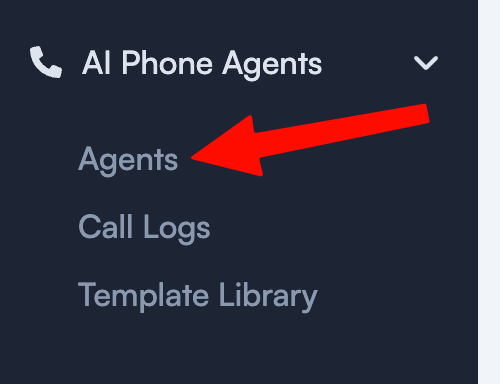
The Agents page lists every AI phone agent on your account.
2. Click the agent you want to update
On the Agents page, find the agent you want to make multilingual and click its row to open its settings.
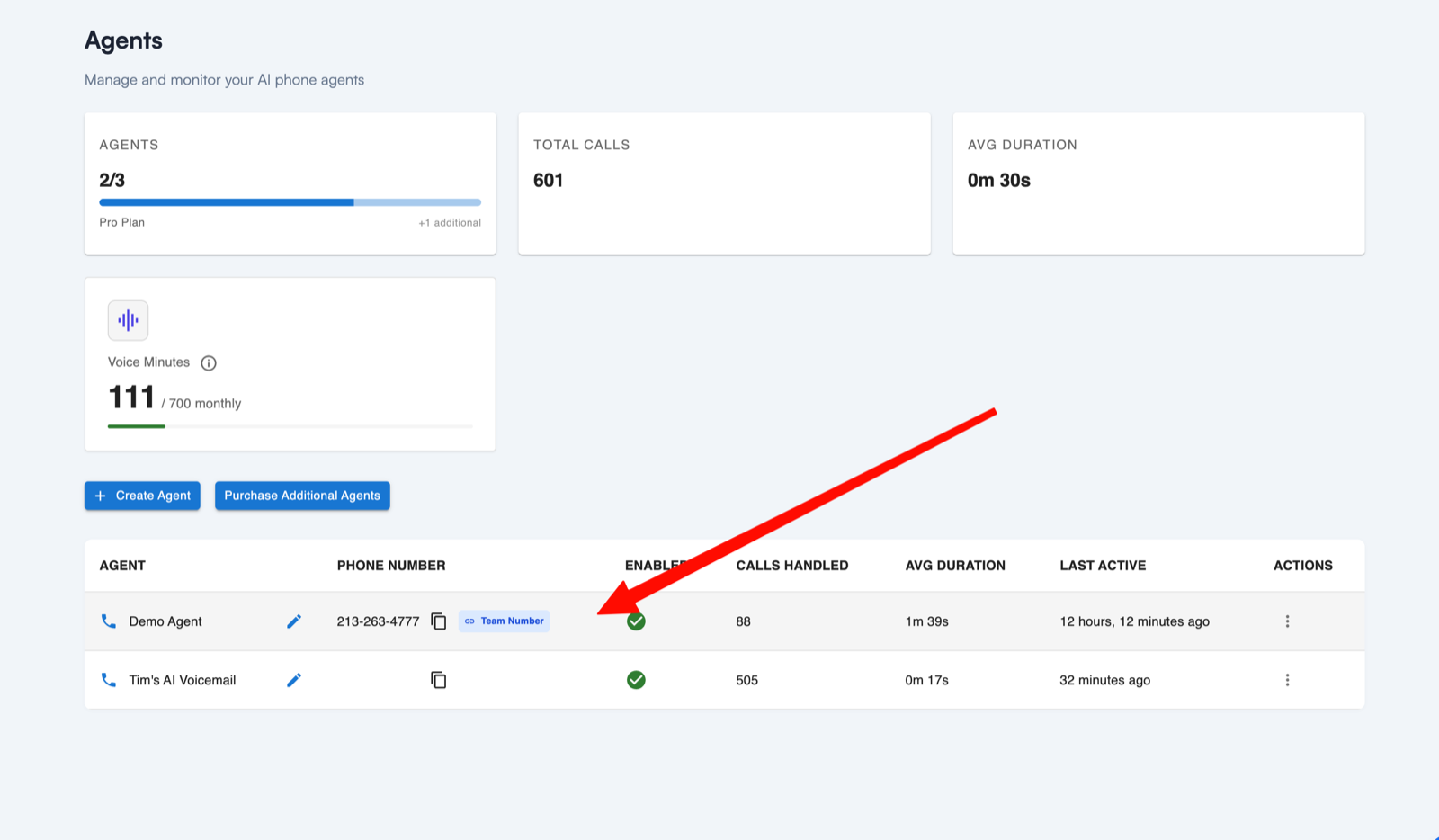
If you only have one agent, just click that one.
3. Open the language setting
On the agent settings page, scroll to the Voice Settings section. Right next to the voice picker you will see the language selector, labeled "Choose which languages the agent can speak and understand during calls." Click it to open it.
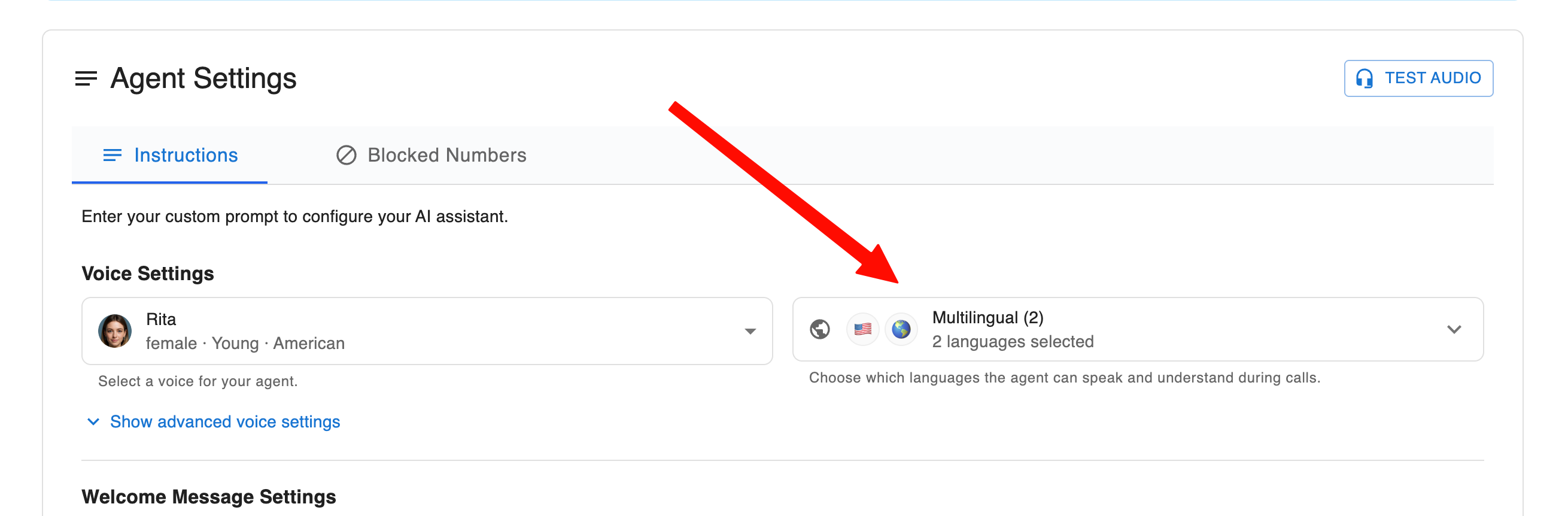
The language selector sits beside the voice picker in the Voice Settings section.
4. Click "Multiselect" to turn on more than one language
When you open the selector, it starts in Single language mode, which only lets you pick one language. To have your agent speak more than one language, click Multiselect in the top-right corner of the panel first. This one step is easy to miss, and it is what lets you choose both English and Spanish.
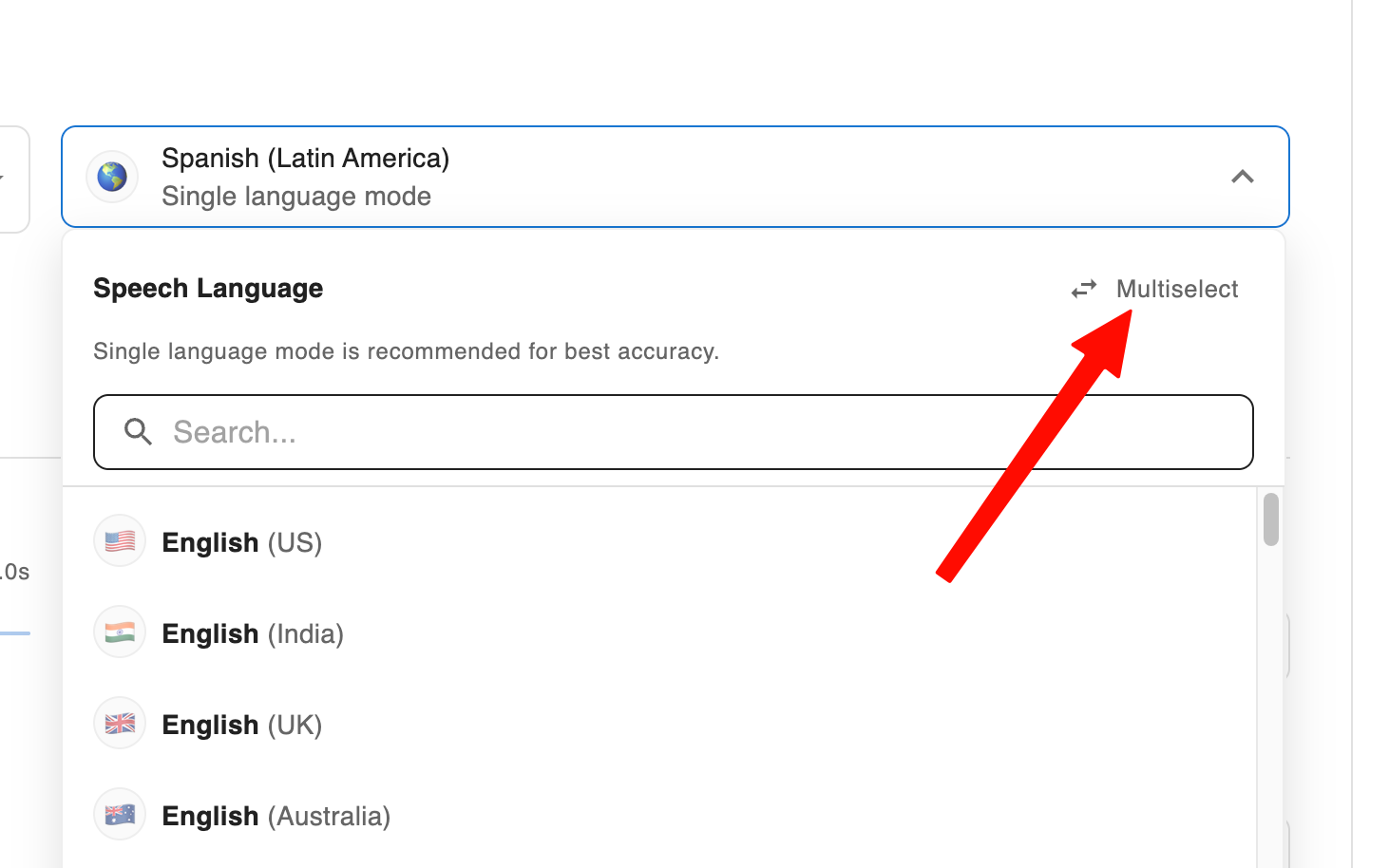
Click Multiselect before choosing your languages, otherwise you can only select one.
5. Select English and Spanish
With Multiselect turned on, select English and the Spanish option you want, for example Spanish (Latin America) or Spanish (Spain). Once two languages are selected, the selector shows "Multilingual (2)" with "2 languages selected." You can add or remove languages here at any time.
- The agent will automatically respond in whichever of the selected languages the caller is speaking.
- If a caller switches languages mid-call, the agent follows along.
6. Add a bilingual welcome message (recommended)
So callers know right away that they can speak Spanish, we recommend adding a line of Spanish to your Custom welcome message in the Welcome Message Settings section. Set the welcome message to Custom message and include a short Spanish sentence that lets the caller know Spanish is available.
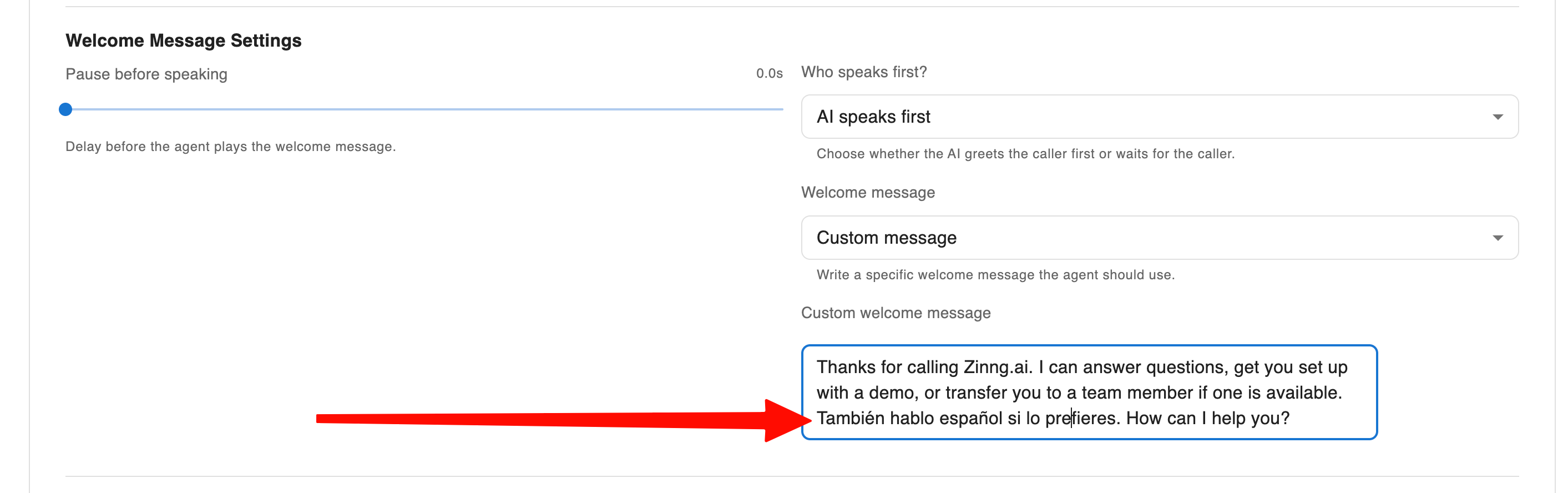
For example:
Thanks for calling [Your Business]. I can answer questions, get you set up, or transfer you to a team member if one is available. También hablo español si lo prefieres. How can I help you?
7. If needed, add a note to your prompt
Most of the time this is not necessary, it just works. But if you find your agent is not switching languages the way you want, you can add a brief instruction to your custom prompt telling it to reply in whichever language the caller uses. For example:
You can speak both English and Spanish. Always reply to the caller in the same language they speak to you. If they speak Spanish, respond in Spanish; if they speak English, respond in English.
8. You're good to go
That's it. Your agent can now speak and understand both English and Spanish on calls. Callers can speak to it in either language and it will respond naturally in the same one.
Need help?
If you run into any issues getting set up, or have questions, reach out to our team and we will be happy to help you get your agent speaking English and Spanish.