
Agent setup wizard: every step explained
Go through the agent setup wizard step by step: phone number, welcome message, voice, scheduling, call transfers and business details.
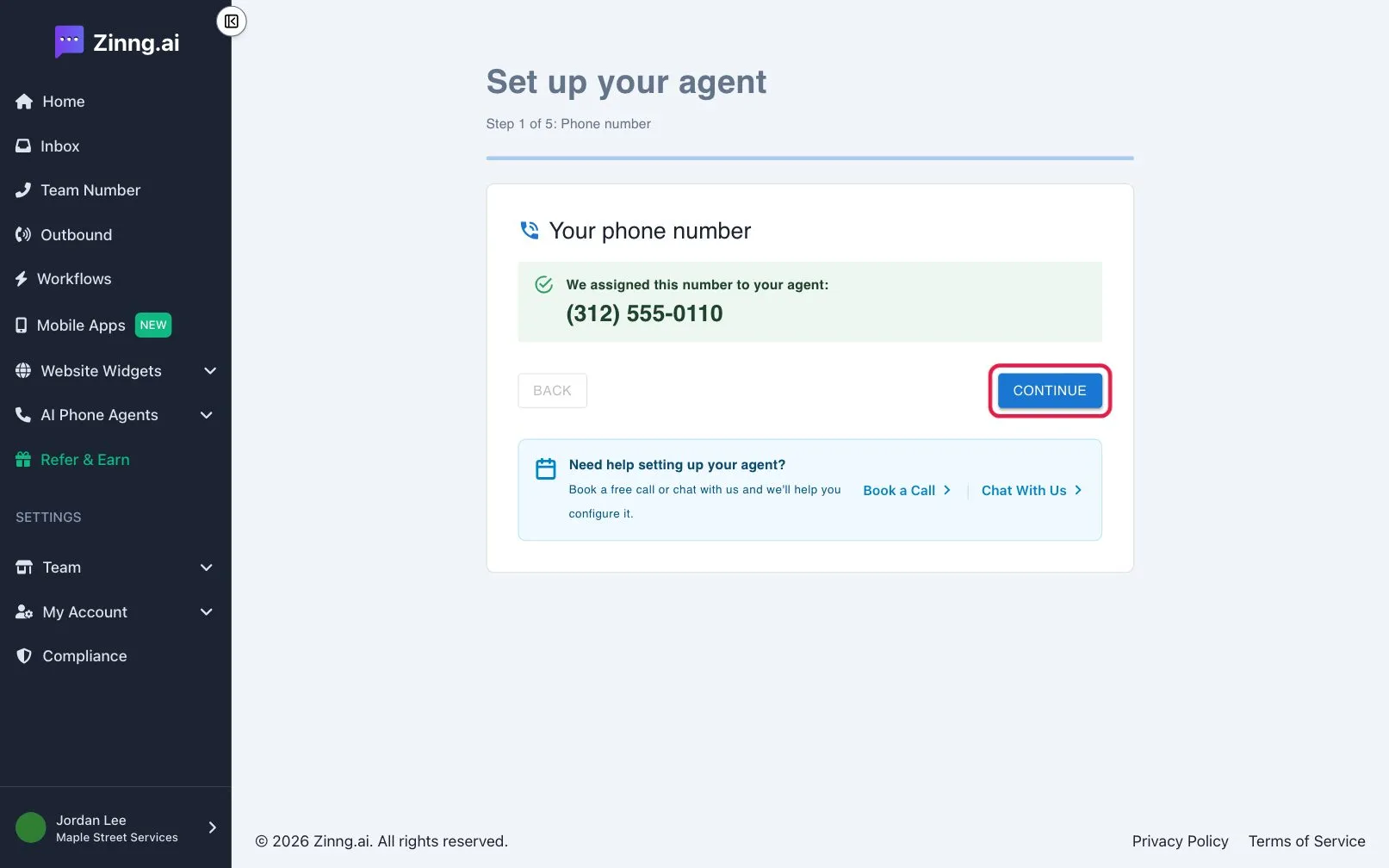
The agent setup wizard finishes your agent after you start a plan. It gives your agent a phone number and sets its greeting, voice, scheduling and call transfers. Each step is saved as you go, and the title shows Step and your place in the list.
How to open it
Section titled “How to open it”After checkout, select Set up your agent. See go live with a plan and a phone number. Use Back and Continue to move between steps, and Finish setup on the last one.
The steps
Section titled “The steps”| Step | What you set |
|---|---|
| Set up your agent | Appears first only when your agent still needs business details. |
| Phone number | Choose the number callers dial. |
| Welcome message & Timezone | The greeting your agent speaks first and your business time zone. |
| Agent voice | The voice and an optional background sound. |
| Scheduling | Whether your agent helps callers book appointments. |
| Call transfers | Whether your agent transfers callers to a person. |
| Your business | A short description of your business. Appears only when your agent needs it. |
Settings in each step
Section titled “Settings in each step”Phone number
Section titled “Phone number”Under Choose a phone number, pick your Country and Area code, select Search numbers, pick a number, then select Continue. Continue stays off until you pick a number. Once a number is assigned, the step shows Your phone number.
Welcome message & Timezone
Section titled “Welcome message & Timezone”- Business time zone: your agent uses it to know the current time and offer correct appointment times.
- The welcome message is the greeting your agent speaks first when someone calls.
Agent voice
Section titled “Agent voice”Pick a voice and an optional background sound.
Scheduling
Section titled “Scheduling”| Option | What it does | Plan |
|---|---|---|
| No appointment scheduling | Your agent does not help callers book. | |
| Send a booking link by text | Your agent texts the caller your Booking link. | |
| Book appointments live on the call | Your agent books during the call. | Pro |
Call transfers
Section titled “Call transfers”| Option | What it does | Plan |
|---|---|---|
| No call transfers | Your agent handles every caller itself. | |
| Transfer to one number | Sends all transfer requests to your Transfer phone number. | |
| Transfer to multiple numbers | Routes callers by need. Add rules under If a caller asks for…, one per person or department. | Pro |
Your business
Section titled “Your business”Describe your business under About your business.
Common tasks
Section titled “Common tasks”Pick a different phone number
Section titled “Pick a different phone number”On Phone number, change the Country or Area code and select Search numbers again.
Route calls to a person
Section titled “Route calls to a person”On Call transfers, choose Transfer to one number and enter a Transfer phone number.
Add a booking link
Section titled “Add a booking link”On Scheduling, choose Send a booking link by text and paste your scheduling address into Booking link.