How to Enable SMS Alerts for New Calls and New SMS Conversations
Get a text message whenever your AI agent finishes a call, or whenever a new SMS conversation comes into your inbox. You turn this on right from your inbox settings, and it only takes a few clicks.
1. Open the Inbox
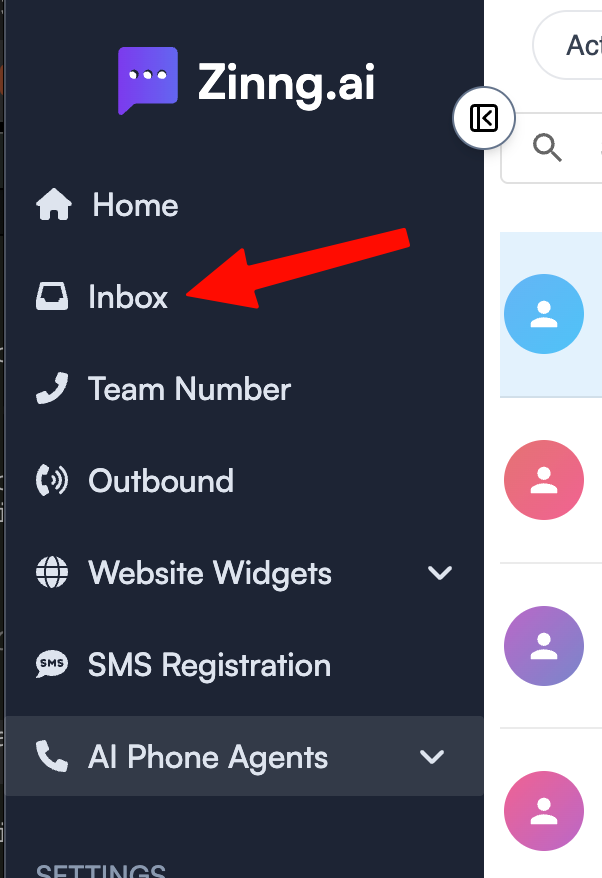
Sign in to your Zinng dashboard and click Inbox in the left sidebar.
2. Open your inbox settings
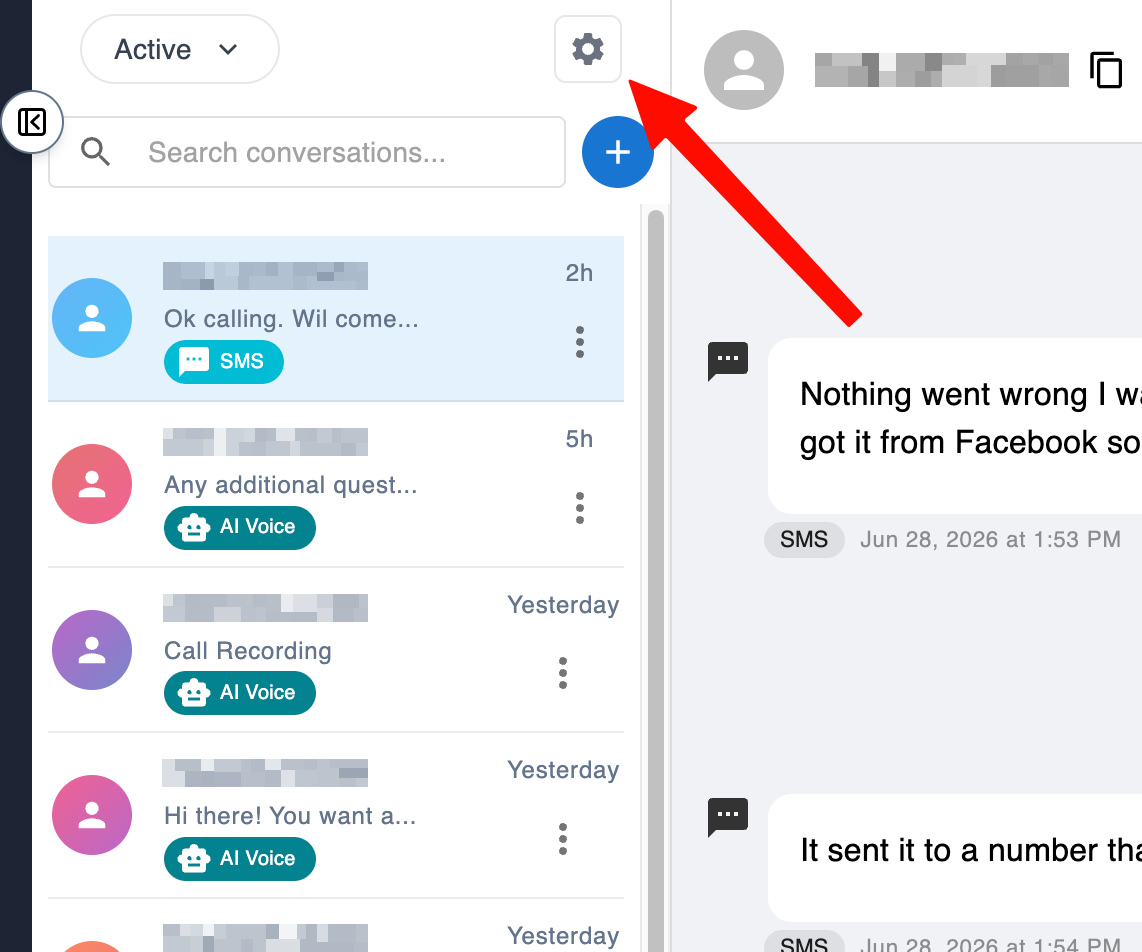
At the top of your conversation list, click the gear (settings) icon. This opens the Inbox Settings panel.
3. Turn on the SMS notifications you want
In the Inbox Settings panel, find the SMS Notifications section. There are two alerts you can turn on independently:
- AI call completed — get a text when an AI agent finishes a call.
- New SMS conversation — get a text when a new number messages your team for the first time.
Flip the toggle next to each one you want. A blue toggle means it's on. That's it, your alerts are active immediately.
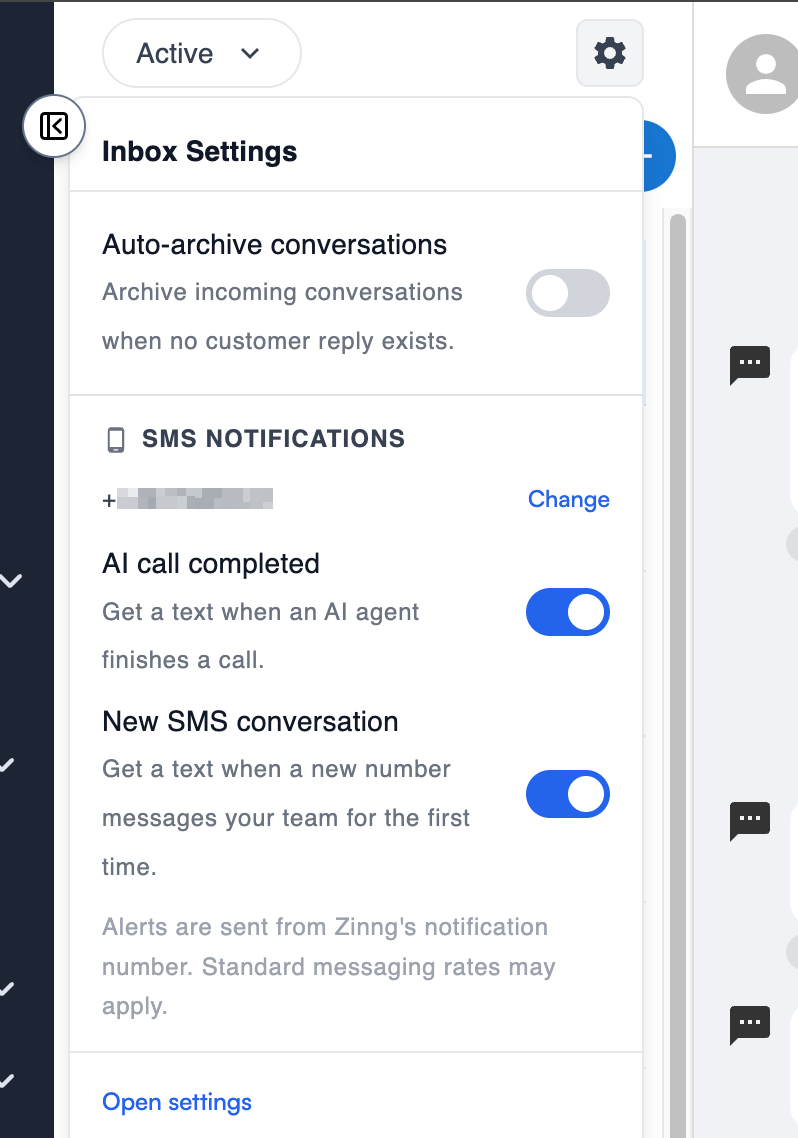
The number these alerts are sent to is shown at the top of the SMS Notifications section. To send them somewhere else, click Change and enter a different mobile number. Alerts are sent from Zinng's notification number, and standard messaging rates may apply.
Coming soon: native iOS and Android apps
We're about to make this even easier. Our native iOS and Android apps are on the way, the iOS app has already been submitted to Apple and we're just waiting on App Store approval.
Once the apps are live, you'll simply enable notifications on your device and get push notifications for every new call that comes in, plus ongoing alerts as a conversation develops, when someone replies in an existing conversation over SMS or through your website chat widget, or when a brand new conversation starts. At that point these SMS alerts become optional, the app keeps you in the loop in real time.
Need help?
If you run into any issues or have questions, contact our team. We're happy to help.