
Your agent's page
Edit an AI phone agent on one page: change it by chatting with AI Copilot, test it with a live call, and adjust its instructions and settings.
Your agent’s page is where you change how one agent sounds and what it says, and where you test it. You can type what you want in plain English and let AI Copilot make the change, or edit each setting yourself.
How do I open my agent’s page?
Section titled “How do I open my agent’s page?”Open the Agents page, then select the agent’s row or the gear icon in the ACTIONS column. The gear is off until the agent has a phone number. The page is titled Edit Phone Agent, with the subtitle Update your AI phone agent settings.
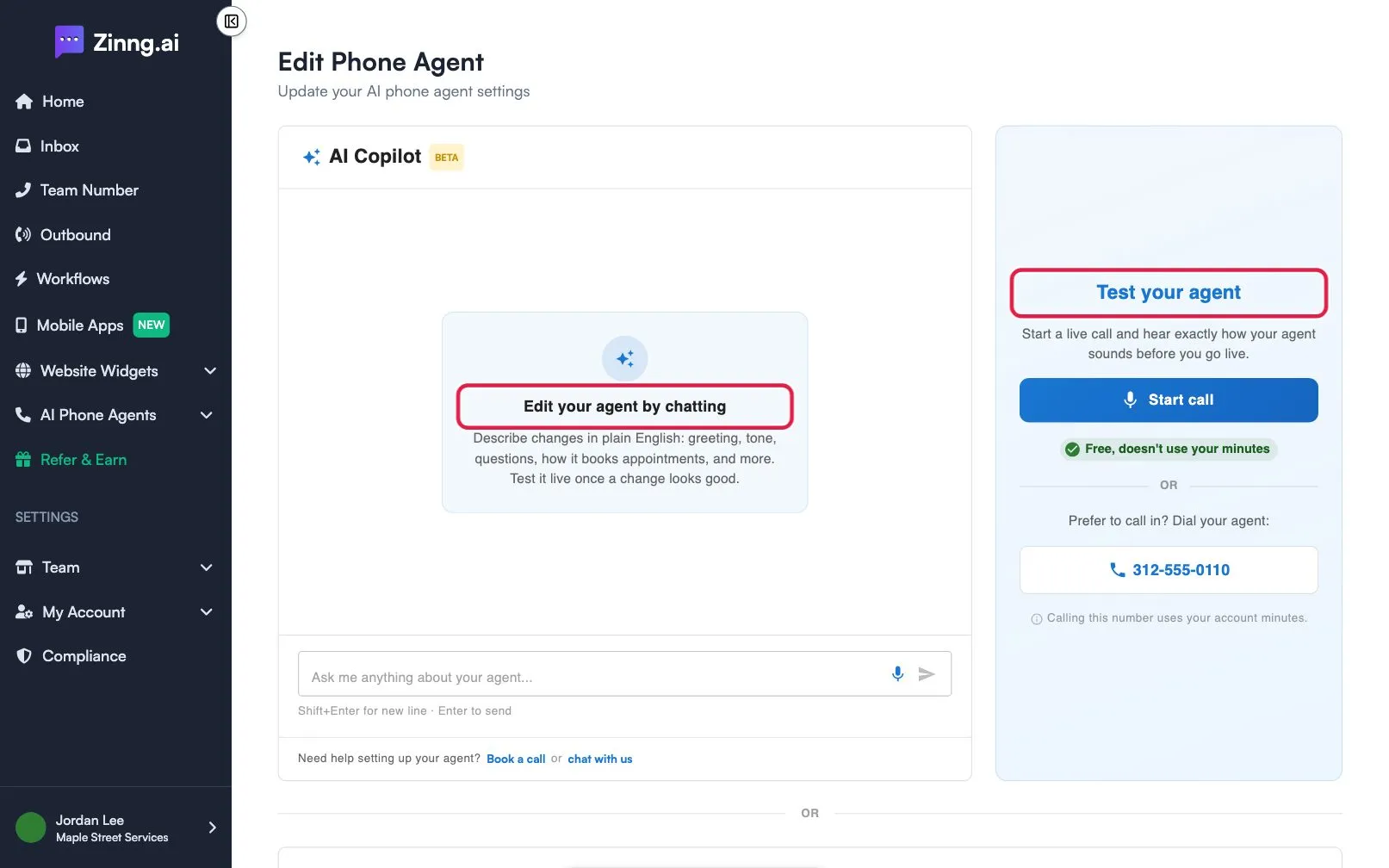
What is on your agent’s page?
Section titled “What is on your agent’s page?”| Section | What it does | Plan if limited |
|---|---|---|
| AI Copilot (BETA) | A chat where you describe changes in plain English. It covers the greeting, tone, questions, how it books appointments, voice and more. See make changes to your agent with Chat with AI. | |
| Test your agent | Start call begins a live call from your browser so you can hear your agent. It shows Free, doesn’t use your minutes. You can also dial the agent’s phone number, which uses your account minutes. | |
| Agent Settings | A card you can collapse and expand. It has the tabs Instructions and Blocked Numbers. | |
| Instructions tab | Voice, welcome message, call settings, the agent’s instructions, post-call emails and add-ons, in that order. | |
| Blocked Numbers tab | Numbers the agent will not answer. See blocked numbers. | |
| Save Changes | A bar that appears with Unsaved changes as soon as you change something. |
The settings inside the Instructions tab each have their own page:
- Agent voice settings
- Welcome message settings
- Agent call settings
- Agent instruction settings
- Post-call settings
- Agent add-ons
Common tasks
Section titled “Common tasks”Change your agent by chatting
Section titled “Change your agent by chatting”Type a request in the box that says Ask me anything about your agent… and press Enter. Follow make changes to your agent with Chat with AI.
Test your agent
Section titled “Test your agent”- Save any changes first, so the call uses your latest settings.
- Select Start call and allow microphone access if your browser asks.
- Talk to the agent as a caller would.
For more on testing, see test your AI phone agent with a web call.
Edit the instructions by hand
Section titled “Edit the instructions by hand”Scroll to Agent Instructions, change the text, then select Save Changes. Details are in edit your agent’s instructions.
Save your changes
Section titled “Save your changes”Select Save Changes in the bar at the bottom. You see Changes saved successfully!