
Make outbound calls from your browser
Call a customer from your browser with the Outbound Calls page, using your team number as caller ID, and find the call in your inbox afterward.
You can call a customer without picking up a phone. The call goes out from your browser, and the person you call sees your team number.
Before you start
Section titled “Before you start”- The Pro plan or above.
- A team number. See what your Team Number is.
- A microphone, and a US or Canada number to call.
Place a call
Section titled “Place a call”-
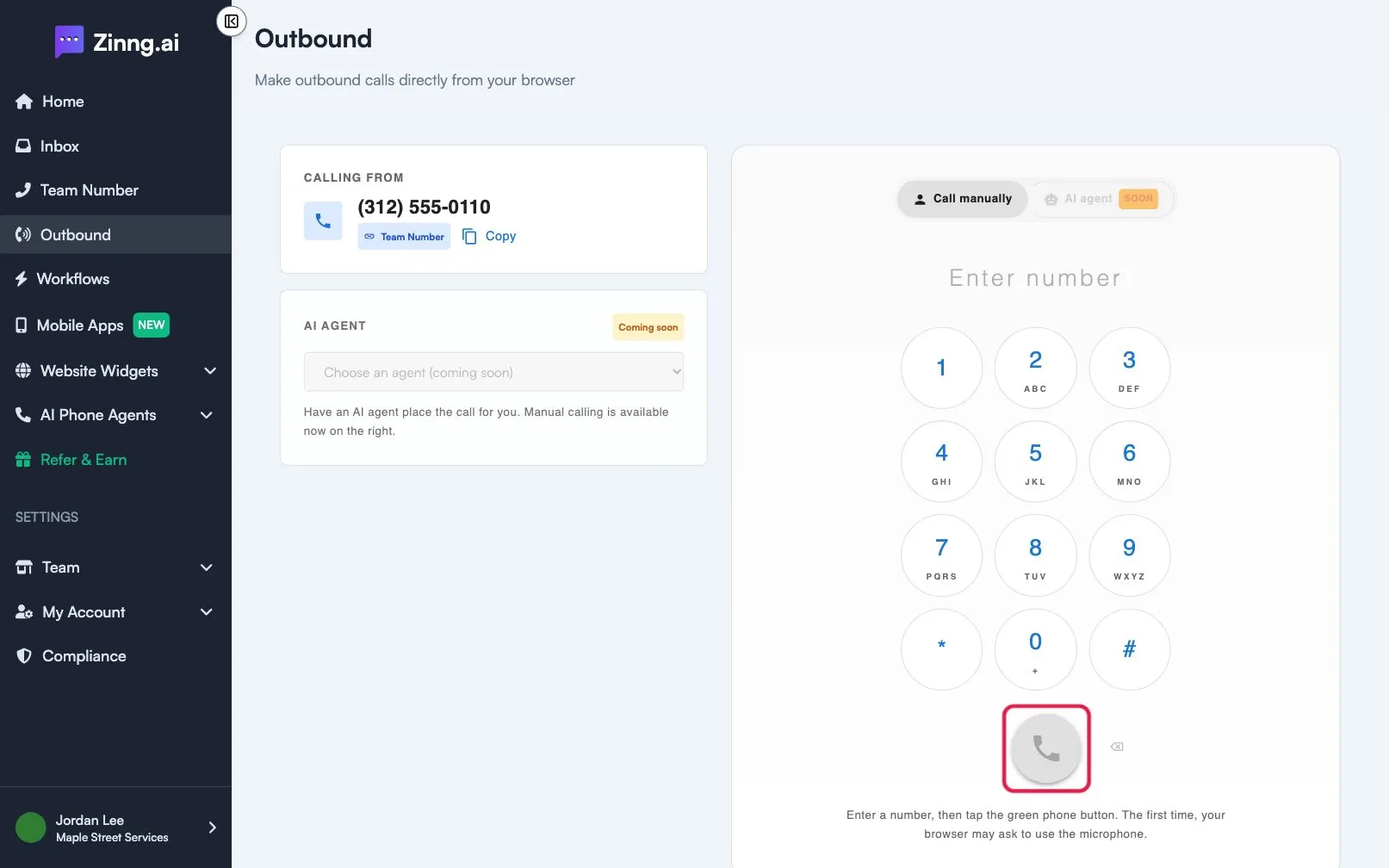
Open Outbound. In the left menu, select Outbound, or open the Outbound Calls page.
-
Enter the number. Under Enter number, type the number or use the dialpad. If the number matches a contact, their name appears above it.
-
Start the call. Select the green phone button. The first time, allow microphone access when your browser asks.
-
Talk. The page shows Outgoing call in progress. Use the dialpad keys to send tones if you reach a phone menu.
-
Hang up. Select the red phone button. Select Open conversation to see the messages and transcript in your inbox.
Troubleshooting
Section titled “Troubleshooting”Why is the dialpad disabled?
Section titled “Why is the dialpad disabled?”You need a team number first. Select Set up team number. If the page says Your account is currently being reviewed, outbound calling turns on when the review ends. Select Contact support with questions.
What do the call errors mean?
Section titled “What do the call errors mean?”Please enter a valid US or Canada phone number means the number is not accepted. Microphone access is required to place calls means you need to allow the microphone in your browser.