Live On-Call Appointment Scheduling with Cal.com
Let your AI agent check availability and book appointments live during calls, using Cal.com. This is completely free for this use case.
1. Create a free Cal.com account
Cal.com powers the scheduling, and it's free for what we need here. Head to cal.com and sign up, then set up at least one event type (for example a "Phone Consultation") that callers can book.
2. Get your Cal.com API key
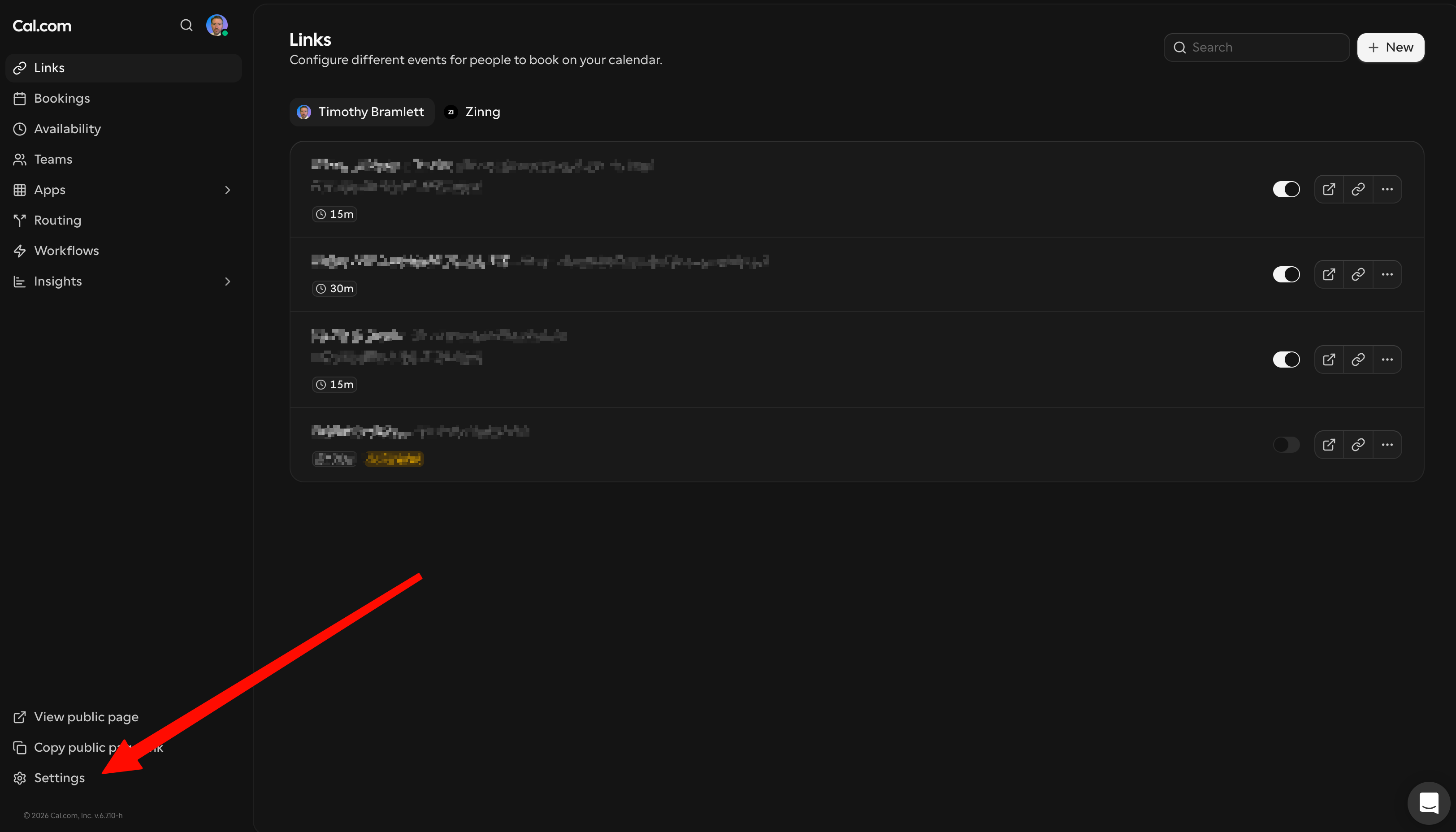
a. In Cal.com, click Settings in the bottom-left.
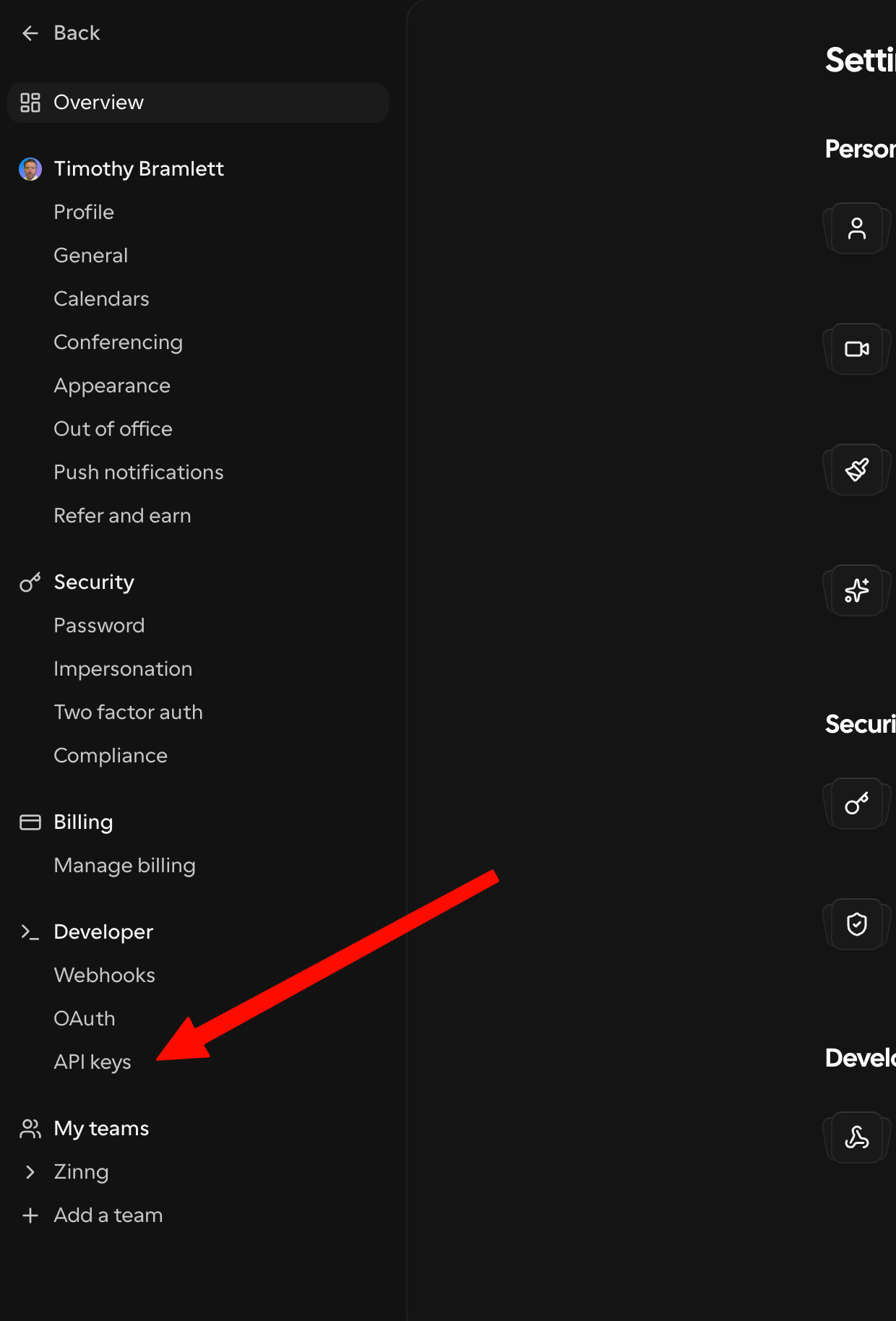
b. In the settings menu, under Developer, click API keys.
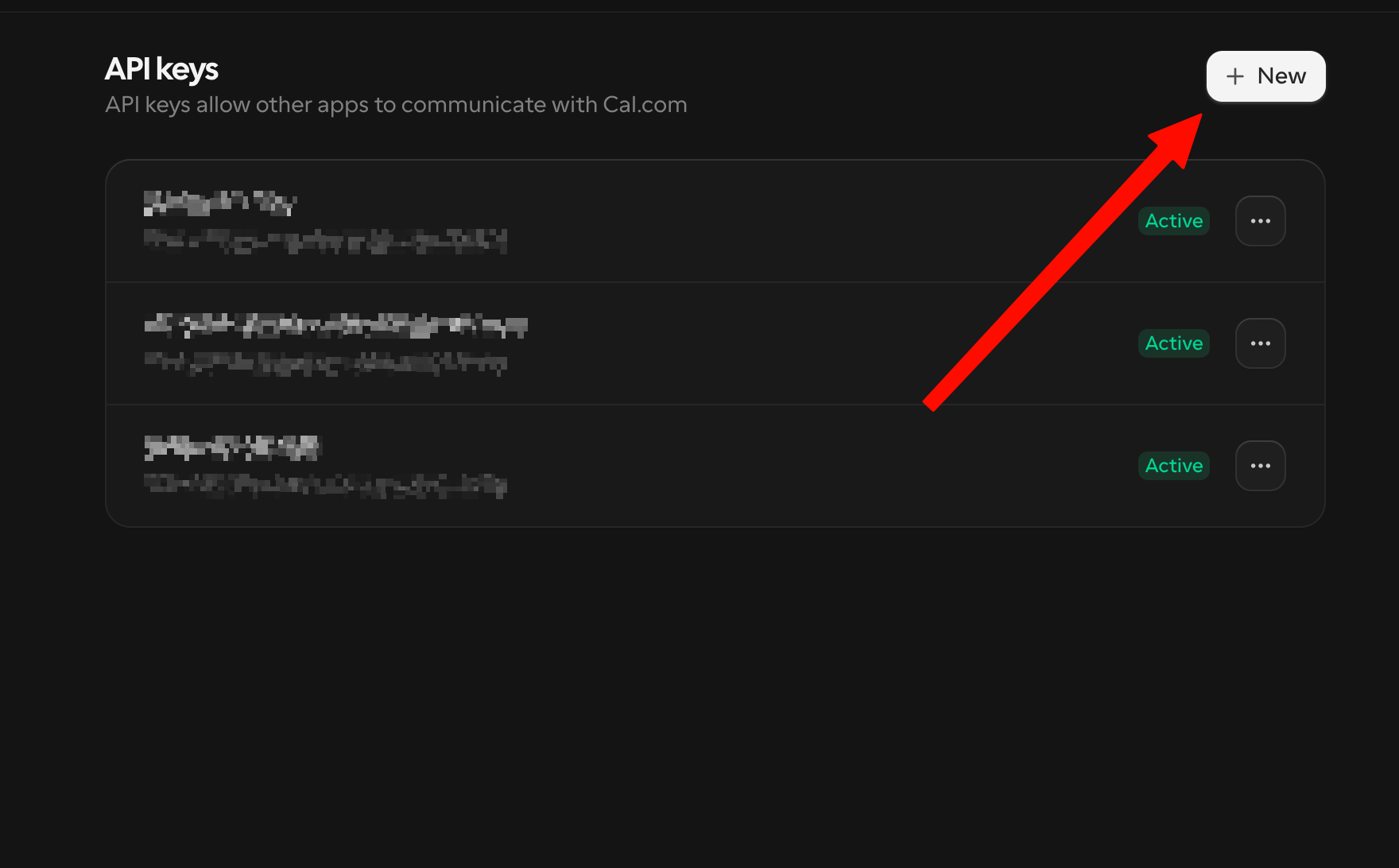
c. Click + New in the top-right.
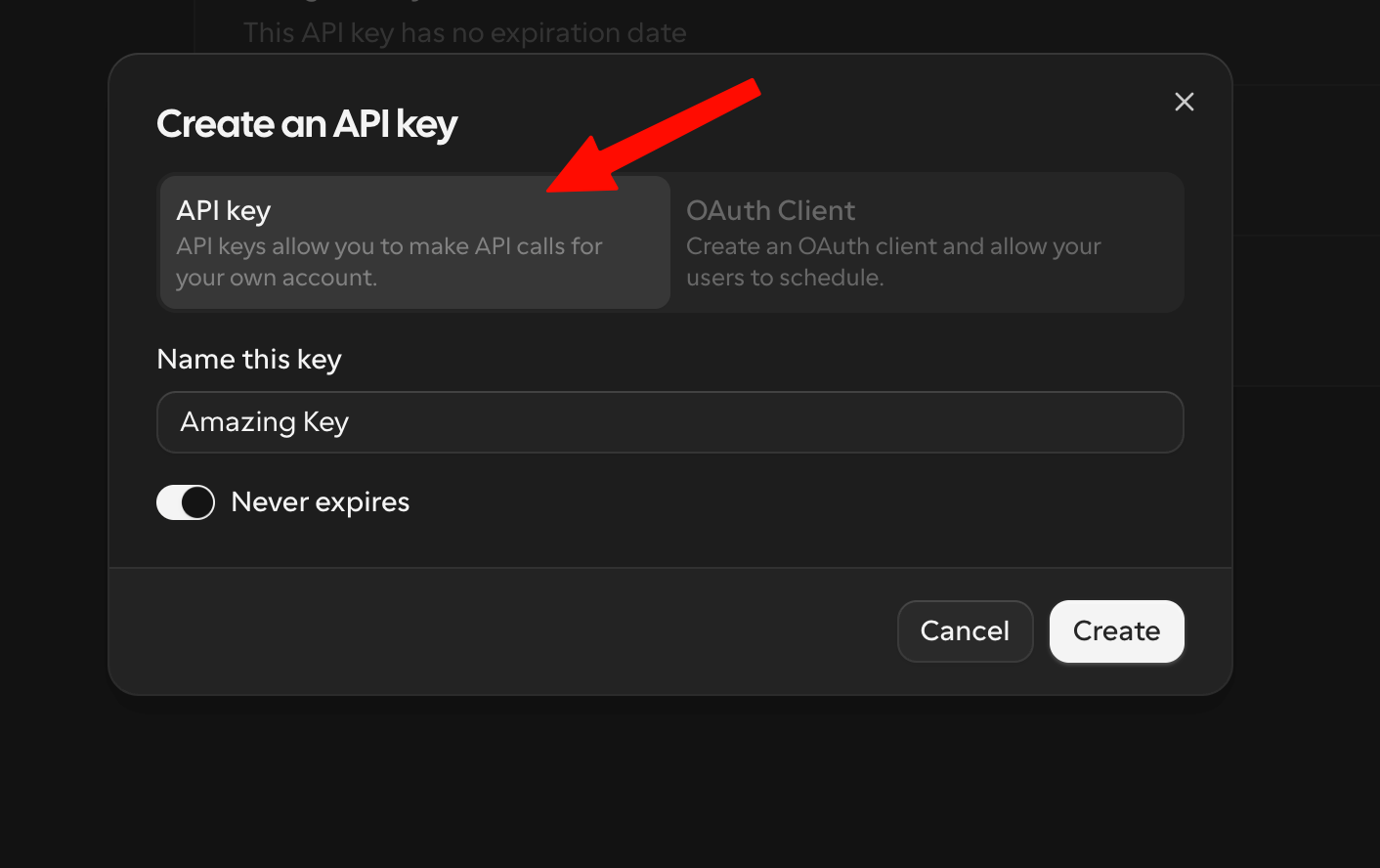
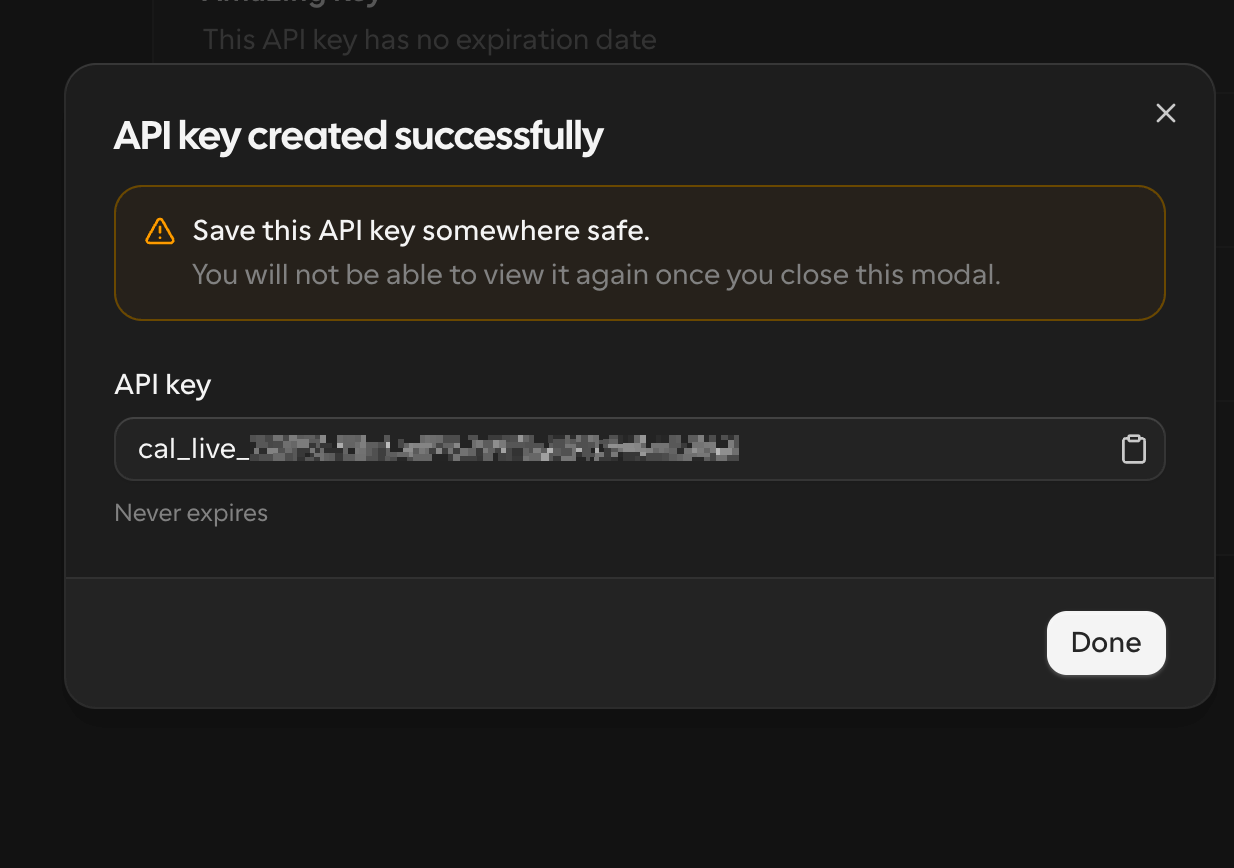
d. Choose API key (not OAuth Client), give it a name (anything you like), leave Never expires on (or set an expiration if you prefer), then click Create.
e. Copy the key that appears. Save it somewhere safe, Cal.com won't show it again once you close this window.
3. Find your Event Type ID
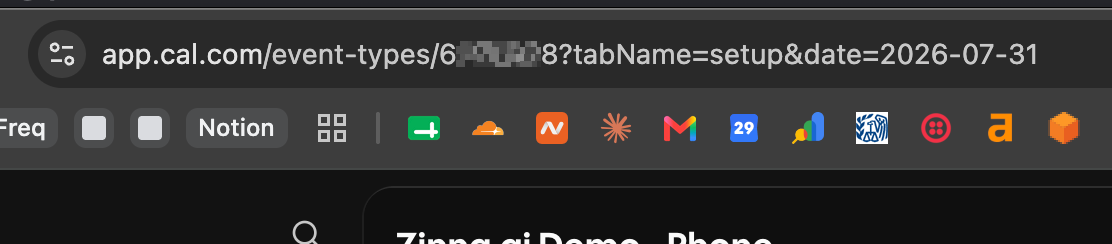
You also need the ID of the event you want callers to book. In Cal.com, click the event to open it, then look at your browser's address bar. The number right after /event-types/ is your Event Type ID.
In that example, 1234567 is your Event Type ID.
4. Add it to your agent in Zinng
Back in Zinng, open your agent's settings (from AI Phone Agents → Agents, then click your agent) and scroll down to the Add-on Capabilities section.

Under Live On-Call Appointment Scheduling, find the Cal.com Integration and turn it on. Then fill it in:
- Cal.com API Key — paste the key you copied.
- Event Type ID — paste the number from your event URL.
- Timezone — choose the timezone used for availability and booking.
- Booking Tool Description and Availability Tool Description (optional) — these tell the agent what to do. Simple defaults are already filled in; you can keep them as-is or use the ones below.
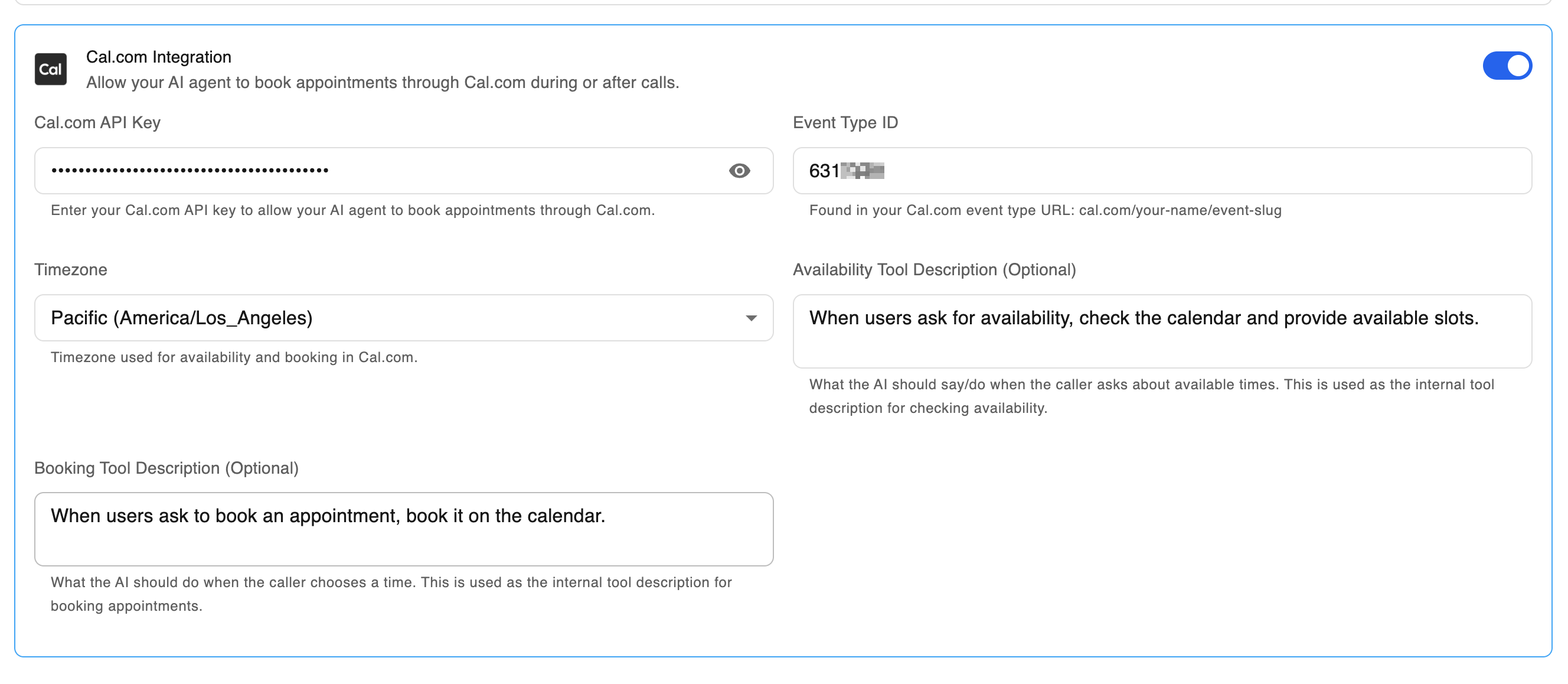
When users ask to book an appointment, book it on the calendar.
When users ask for availability, check the calendar and provide available slots.
5. Save
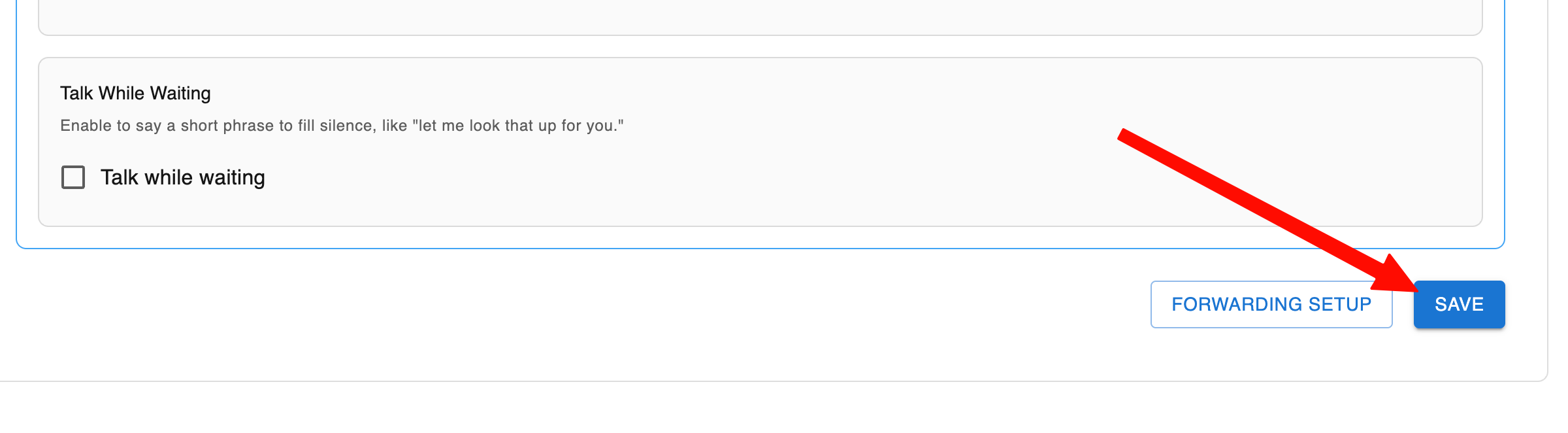
Scroll to the bottom and click Save. Your agent can now check availability and book appointments on your Cal.com calendar, right on the call.
A quick note on your agent's instructions
As soon as you turn on live on-call appointment scheduling, most agents are smart enough to know they can check availability and book appointments on their own. In some cases, though, you may want to tweak your agent's Instructions so it knows exactly how you want it to handle scheduling, like when to offer to book and what to confirm.
The easiest way to do that is with the Chat with AI assistant on the agent settings page. Just tell it how you'd like appointment scheduling to behave and it will update the instructions for you. If your agent is behaving strangely and adjusting the prompt doesn't fix it, or you'd rather we handle it, email us or message us in the chat widget and let us know you'd like help enabling or tuning appointment scheduling. We'll get it done for you.