SMS-Based Appointment Scheduling
Have your AI agent text callers a link to book an appointment. It takes about a minute to set up.
1. Open the Agents page
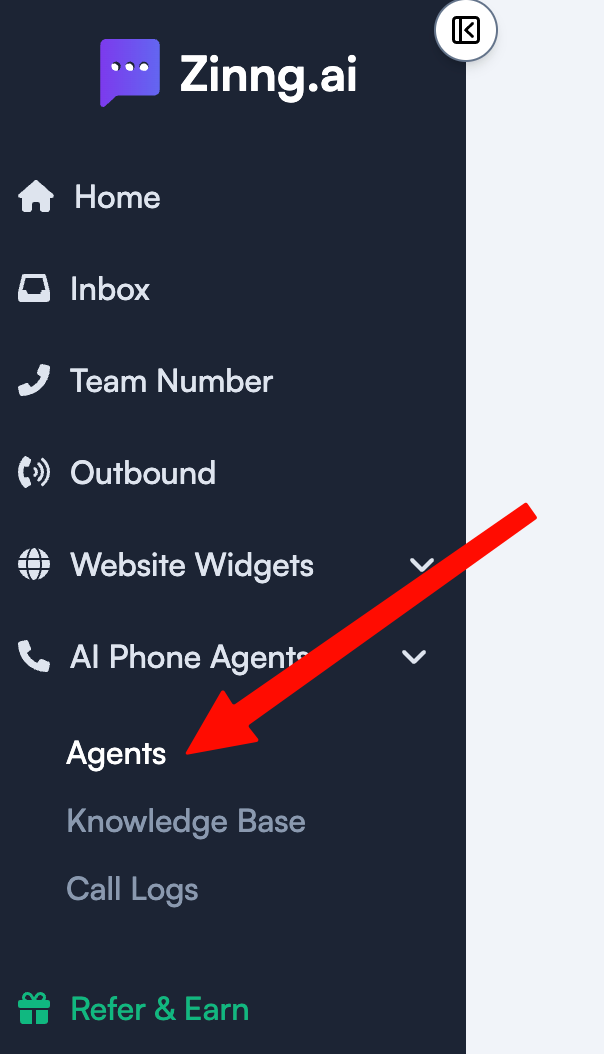
Sign in to your Zinng dashboard. In the left sidebar, expand AI Phone Agents and click Agents.
2. Open your agent's settings
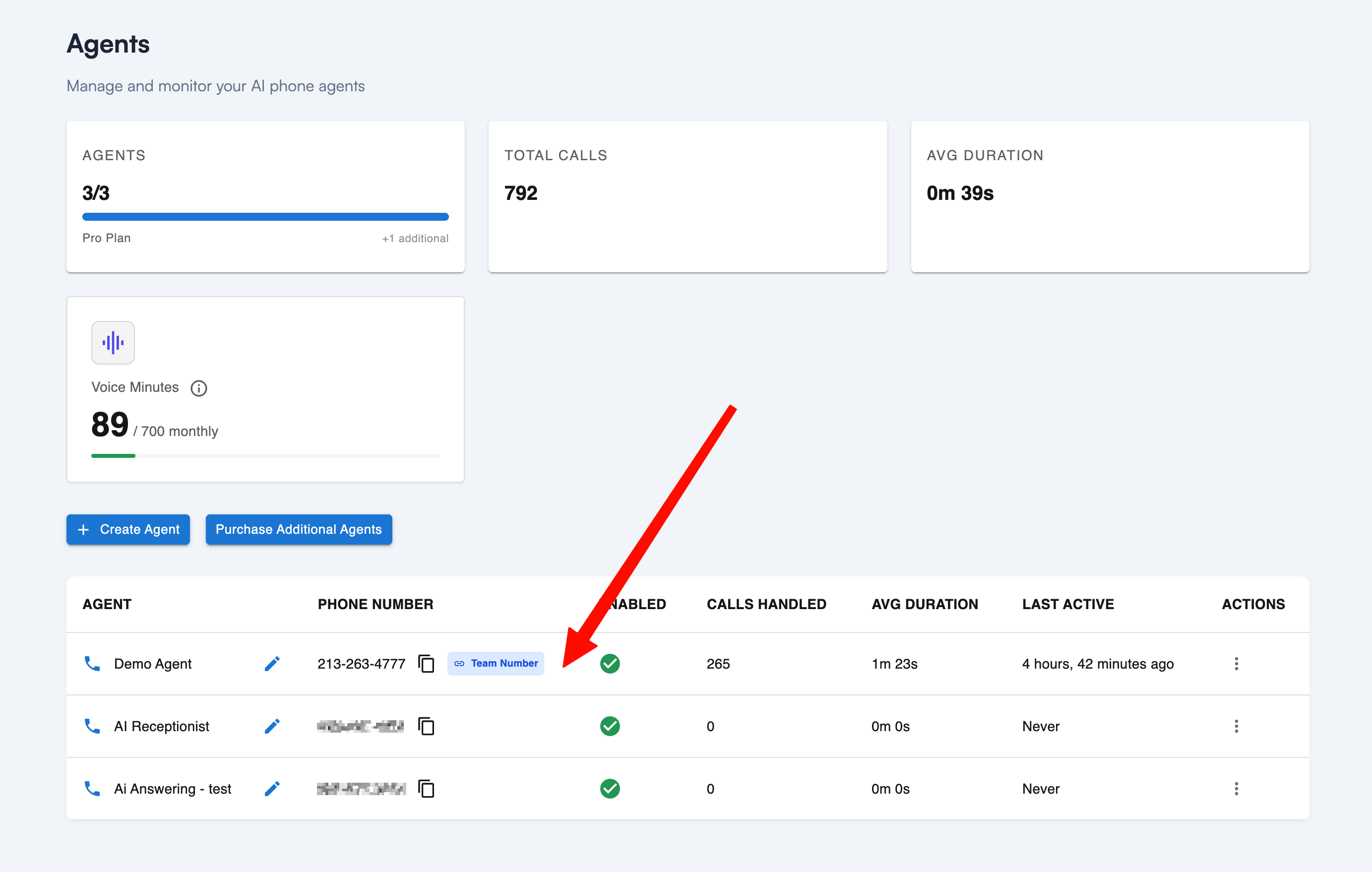
On the Agents page, click the agent you want to update. You can click anywhere on its row to open its settings.
3. Scroll to Add-on Capabilities
Scroll down the agent's settings until you reach the Add-on Capabilities section.

4. Turn on Send SMS and add your instructions
In that section, scroll down to Send SMS and turn it on. Under Send From, choose Team Number so the text comes from your own dedicated number (it defaults to this). The Zinng Number option sends from the shared Zinng number instead.
Then, in the Instructions box, tell the agent when to text and what to send. Copy the starter below and swap in your business name and booking link:
When the caller wants to book an appointment, schedule a visit, or asks about availability, offer to text them a link to book. Confirm the phone number you have on file before sending. Then send this exact message: "Thanks for calling [Your Business Name]! Here's the link to book your appointment: [your booking link]"
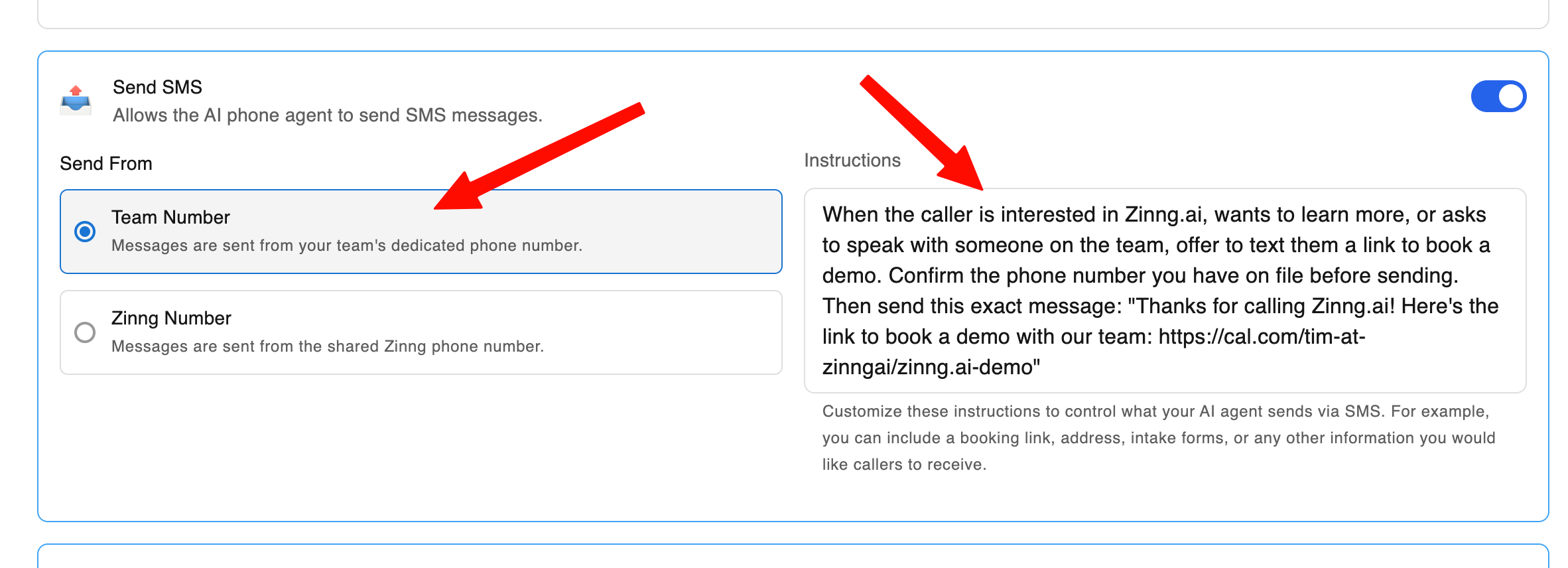
You can customize these instructions however you like, for example include an address, intake form, or any other info you want callers to receive.
5. Save
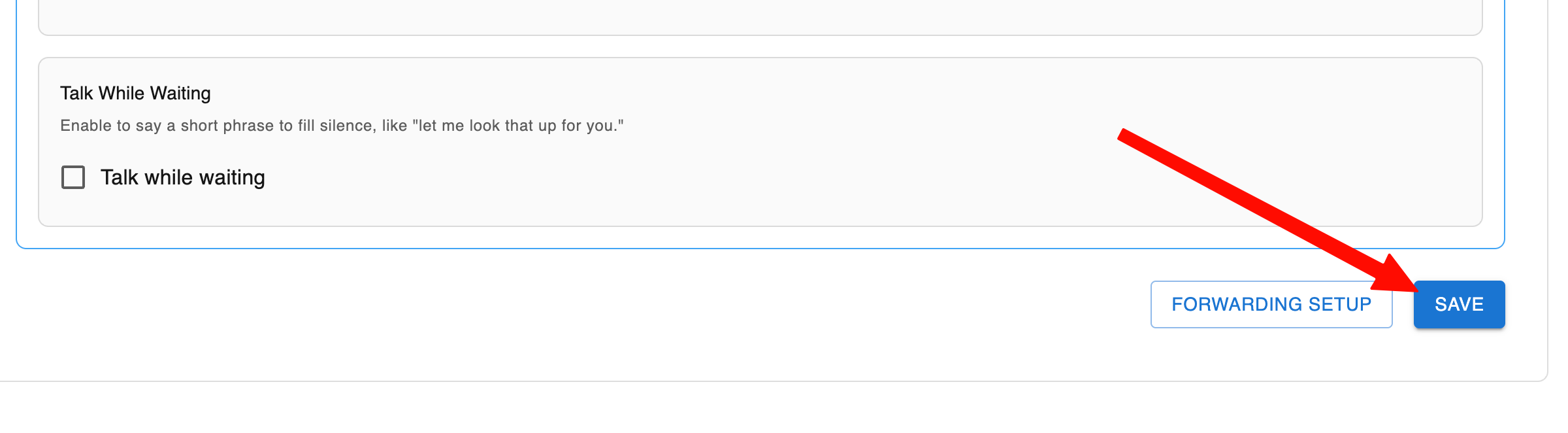
Scroll to the bottom and click Save. That's it, your agent will now text callers your booking link.
Need help?
If you run into any issues, contact our team and we'll help you get it set up.