How to Change Your AI Agent's Voice
A quick walkthrough of how to swap the voice your AI phone agent uses on calls.
1. Open the Agents page
Sign in to your Zinng dashboard. In the left sidebar, expand AI Phone Agents and click Agents.
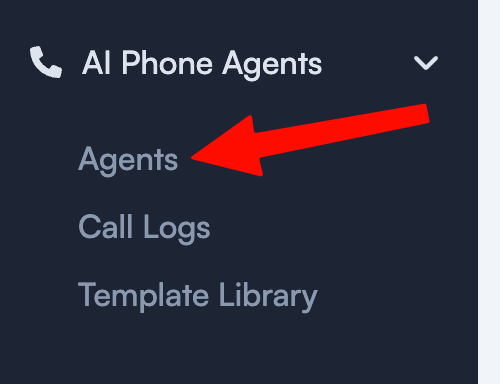
The Agents page lists every AI phone agent on your account.
2. Click the agent you want to update
On the Agents page, find the agent you want to change the voice for and click its row to open its settings.
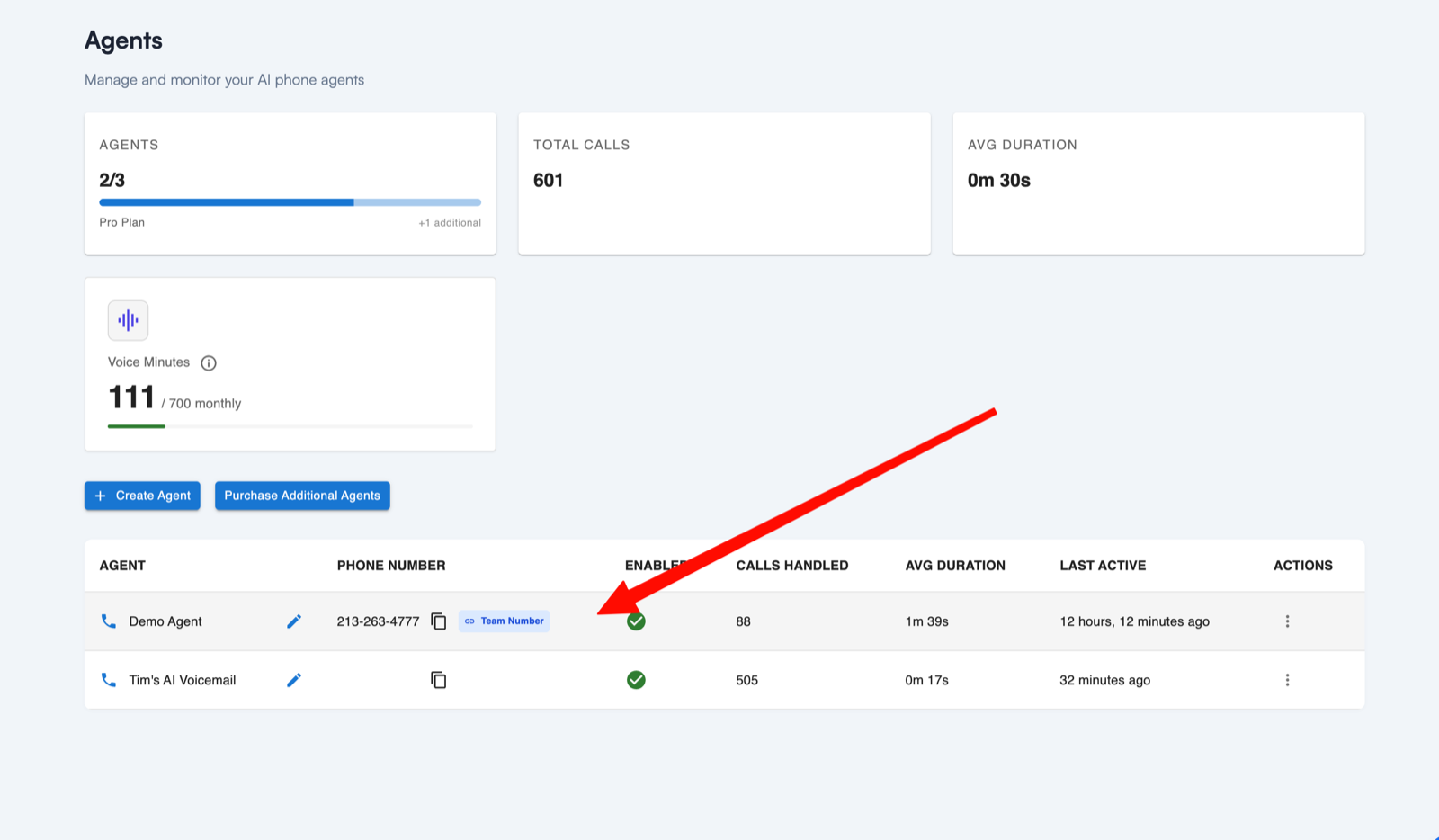
If you only have one agent, just click that one.
3. Open the voice picker
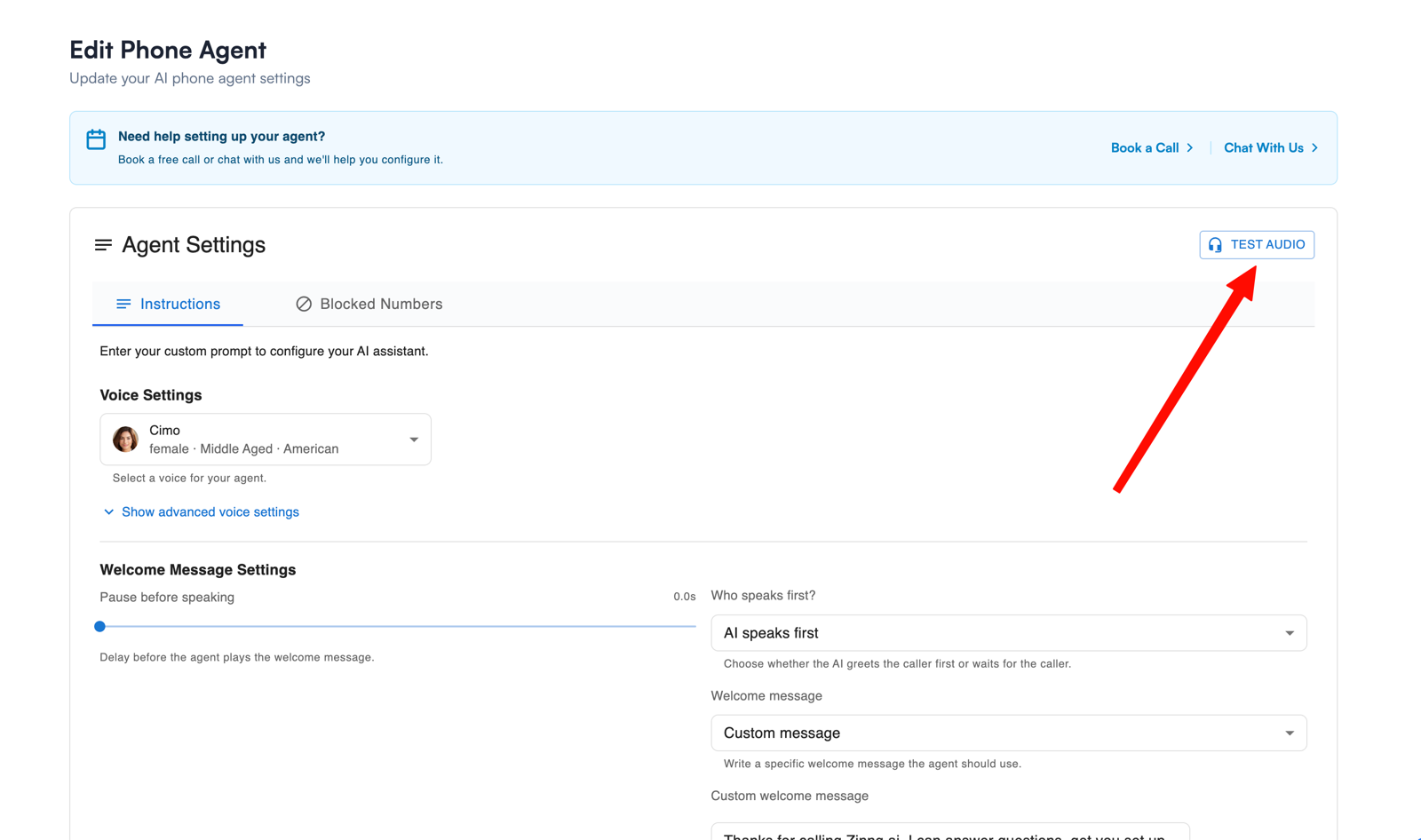
On the Edit Phone Agent page, scroll down to the Voice Settings section. You'll see your agent's current voice with its name, gender, age, and accent (for example, "Cimo · female · Middle Aged · American"). Click the dropdown to open the voice picker.
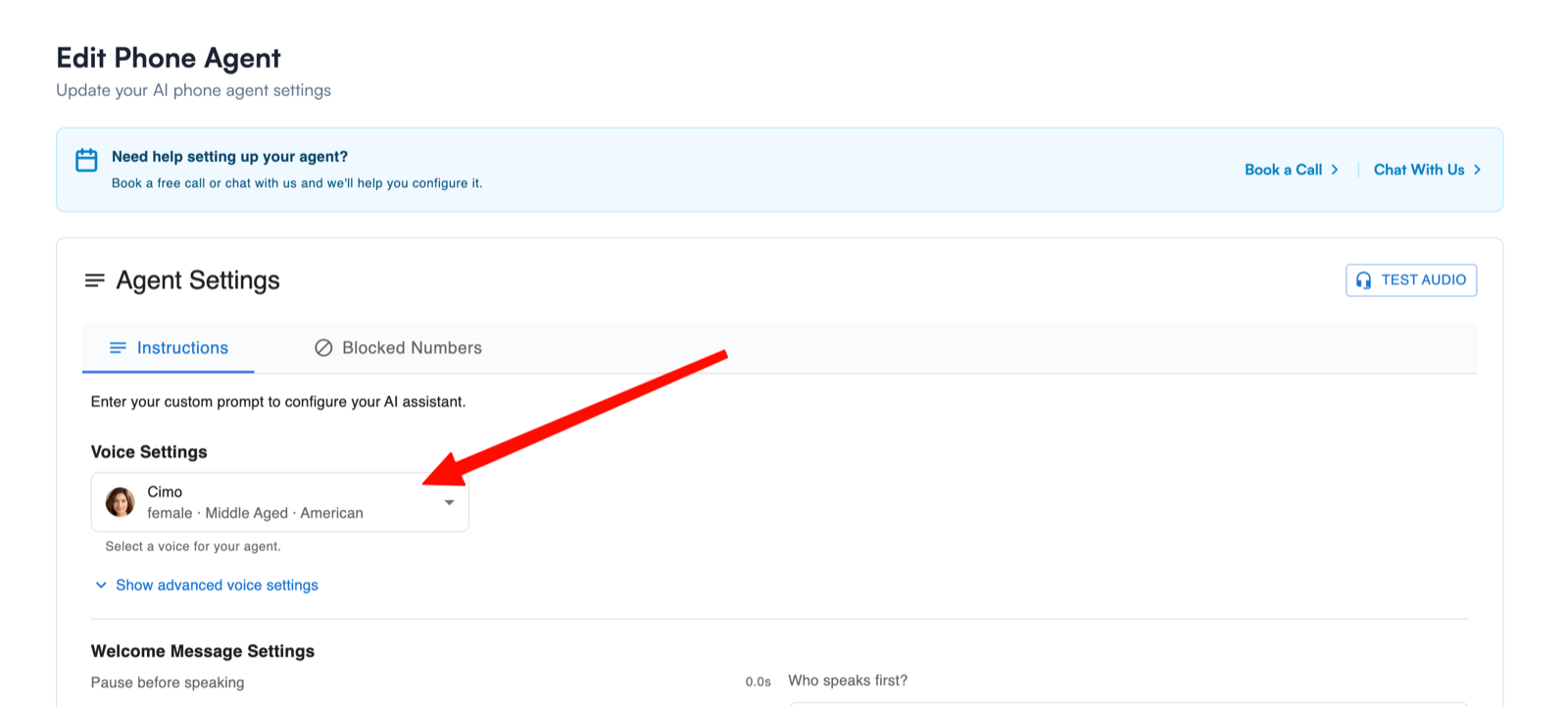
You can also click Show advanced voice settings below the picker to fine-tune things like speaking speed and pause behavior.
4. Preview voices and pick one
The dropdown opens a searchable list of every available voice. Each entry shows a photo, the voice's name, and its gender, age, and accent (for example, "Willa · female · Middle Aged · British" or "Alejandro · male · Young · Mexican").
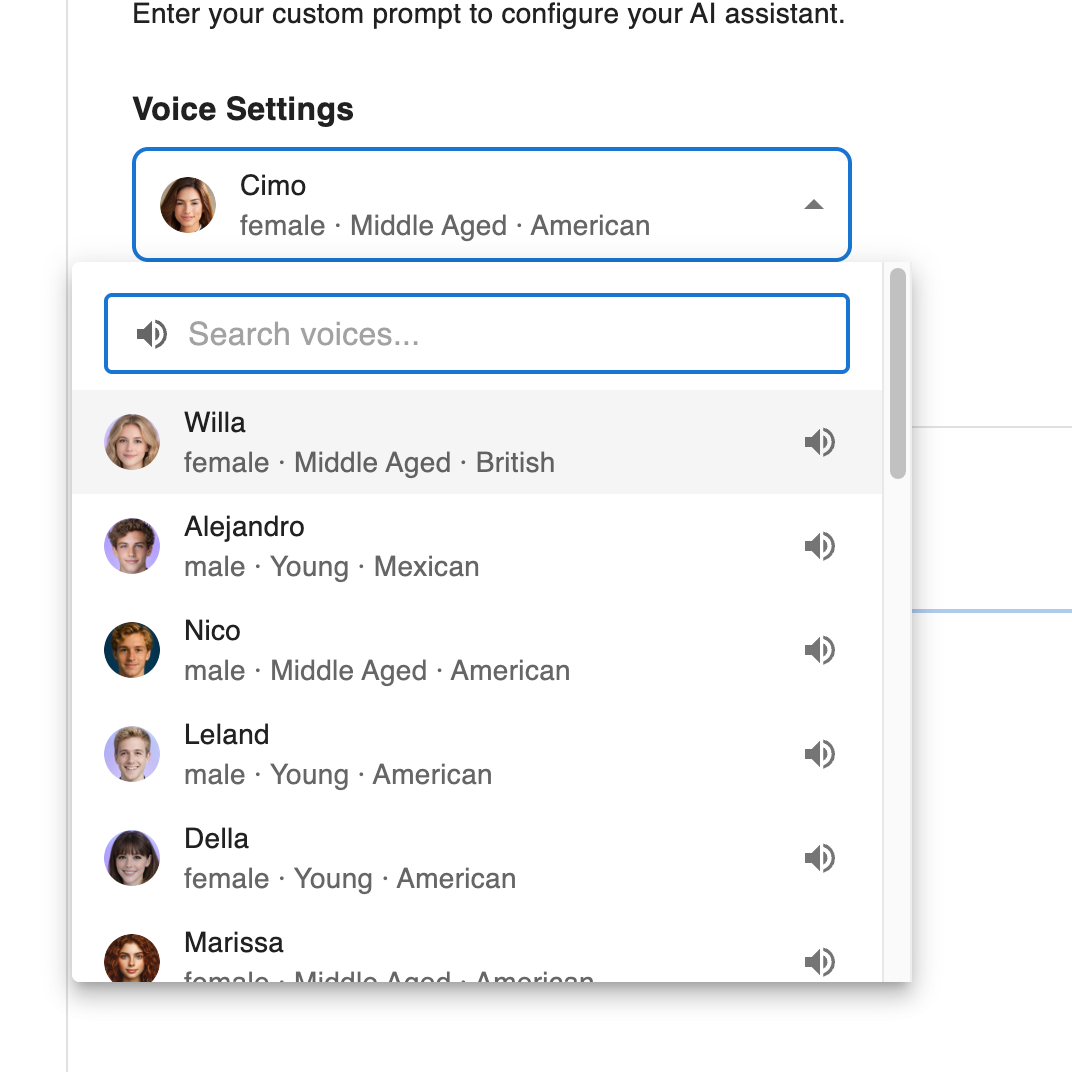
- Click the speaker icon on the right side of any voice to play a short audio preview so you can hear how it sounds.
- Use the Search voices box at the top to filter by name, gender, age, or accent (try "British", "young", "male", etc.).
- When you find one you like, click the voice's row to select it.
5. Test the voice live in the UI
Once you've selected a voice, click the Test Audio button in the top right of the Agent Settings panel. This lets you hear the voice you just picked read your actual welcome message and prompt, so you can confirm it sounds the way you want before going live.
If you don't love how it sounds, just open the voice picker again and try another one. There's no limit on how many times you can switch.
Need help?
If you run into any issues or have questions, contact our team. We're happy to help you get your agent sounding the way you want.