How to Update the Zinng Android App
Keeping the app up to date is quick. It all happens inside the Google Play Store, and it is the same process you would use to update any other app on your phone. Here is exactly where to look.
Why update?
We ship improvements and fixes to the Android app regularly. Updating makes sure you have the latest version, so it is worth checking every so often. Google Play often updates apps for you automatically, but if you want the newest version right now, or automatic updates are turned off, you can do it by hand in a few taps.
Step 1: Open your profile in the Play Store
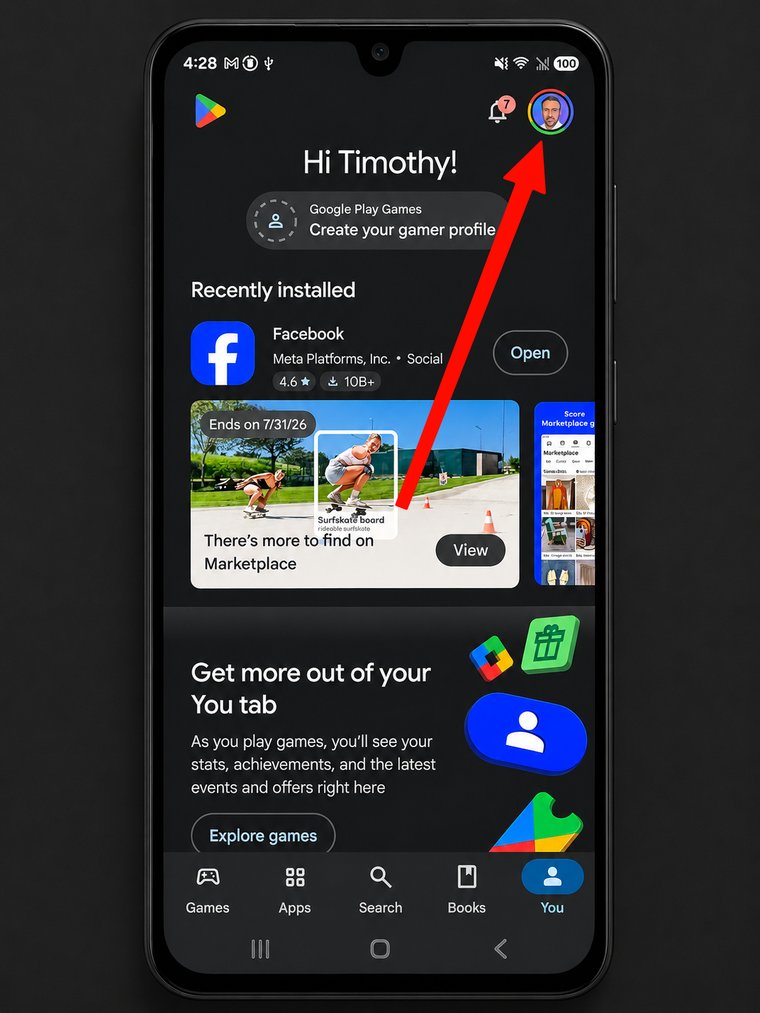
Open the Play Store app on your Android phone, then tap your profile picture in the top right corner.
Step 2: Tap "Manage apps and devices"
In the menu that opens, tap Manage apps & devices.
Step 3: See which apps have updates
This screen shows the status of your apps. One of two things will be true:
- If updates are waiting, you will see Updates available and a list of the apps that can be updated.
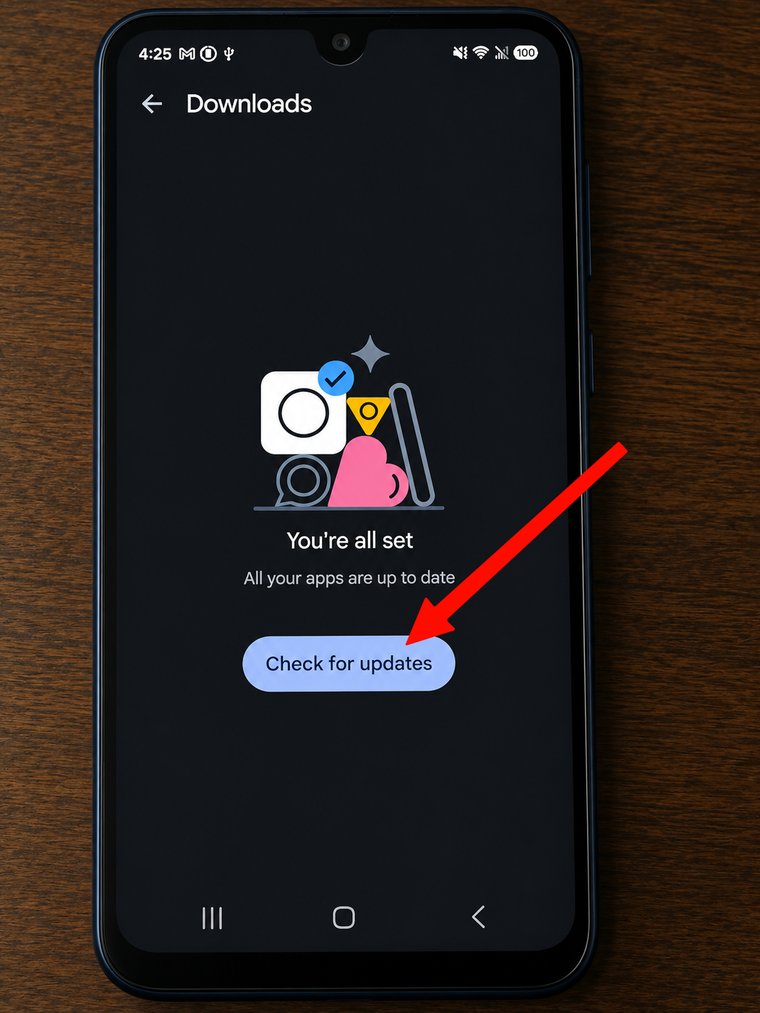
- If nothing is waiting, you will see All apps up to date. To be sure, tap Check for updates and let it look again.
Step 4: Update Zinng
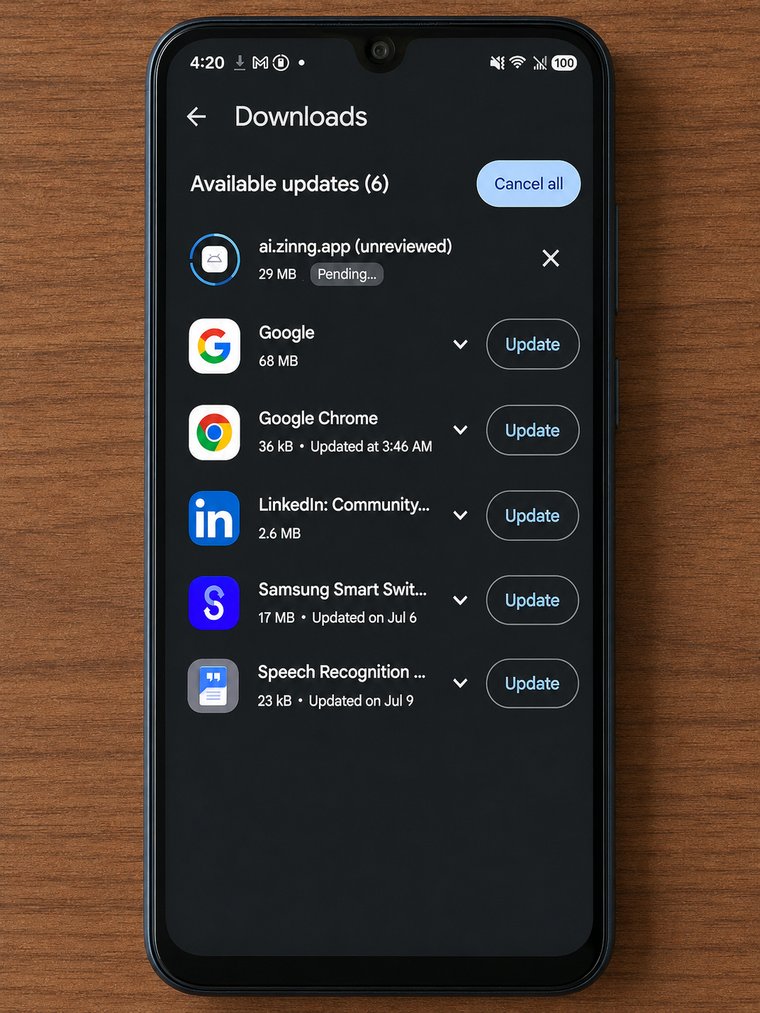
Tap See details (or See updates) to open the list of apps with updates. When Zinng has an update available, it appears in that list as ai.zinng. Tap Update next to it.
If you would rather update everything at once, you can tap Update all instead. Either way, once it finishes, you are on the latest version and there is nothing else to do.
Do not see an update?
That usually just means you are already on the latest version, or Google Play updated the app for you automatically. If you tapped Check for updates and Zinng is not in the list, there is nothing to do. You are current.
Do not have the app yet?
If you have not installed the Zinng Android app in the first place, start here instead.