How to Get the Zinng Android App
The Zinng Android app is available now by invitation. Getting it takes two things from you: send us the email address on your Google Play account, then open the invite link on your Android phone. Here is the whole process.
Available now, by invitation
The Android app is live and working. It is not listed publicly in the Play Store yet, so you cannot search for it and find it. We add you to the tester list by hand, and then it installs from the Play Store exactly like any other app.
There is no cost and nothing extra to sign up for. If you have a Zinng account, you can have the app.
Step 1: Tell us the email on your Google Play account
Email us and let us know you want Android access. In that email, include the email address you are signed in with on the Google Play Store.
This is the part people get wrong, so it is worth a moment. The address you use to log in to Zinng and the address on your phone's Google Play account are often not the same. Your Zinng login might be your work email while your phone is signed in to a personal Gmail account. We can only send the invitation to a Google account, and it has to be the one your phone is actually using.
How to check which account your phone uses
- Open the Play Store app on your Android phone.
- Tap your profile picture in the top right corner.
- The email address shown there, right under your name, is the one to send us.
Step 2: We send you an invitation
Once we have your Google Play address, we add it to the tester list and send you a link by email. This is usually quick, but give us a little time to get to it.
If the email does not turn up, check your spam or promotions folder before assuming something went wrong.
Step 3: Open the link on your Android phone
This matters: open the link on the Android device you want the app installed on, not on your computer. Opening it on a desktop browser will not install anything, and it can leave you looking at a page that does not seem to do much.
Open it from the Gmail app, not from a text message
This is the single most common reason the link does not work. Open the invitation in the Gmail app on your Android phone and tap it there.
When you tap the link inside Gmail, your phone already knows which Google account you are signed in to, so Google Play recognizes you and shows the invitation. If you instead forward the link to yourself and open it from a text message, it can launch in a browser where you are not signed in to your Google account, and Google Play will not recognize the invitation. We have seen this trip people up more than anything else in this process.
The email looks like this:
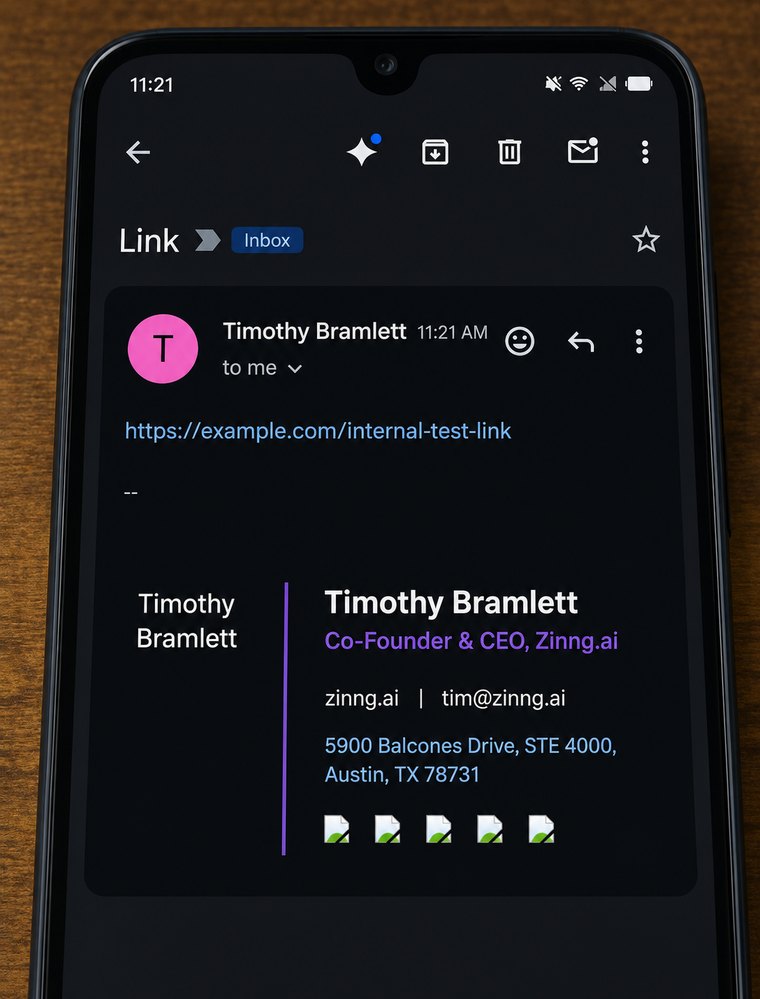
The link opens a Google Play page that confirms your invitation. At the top it says:
You're a tester for ai.zinng.app (unreviewed)
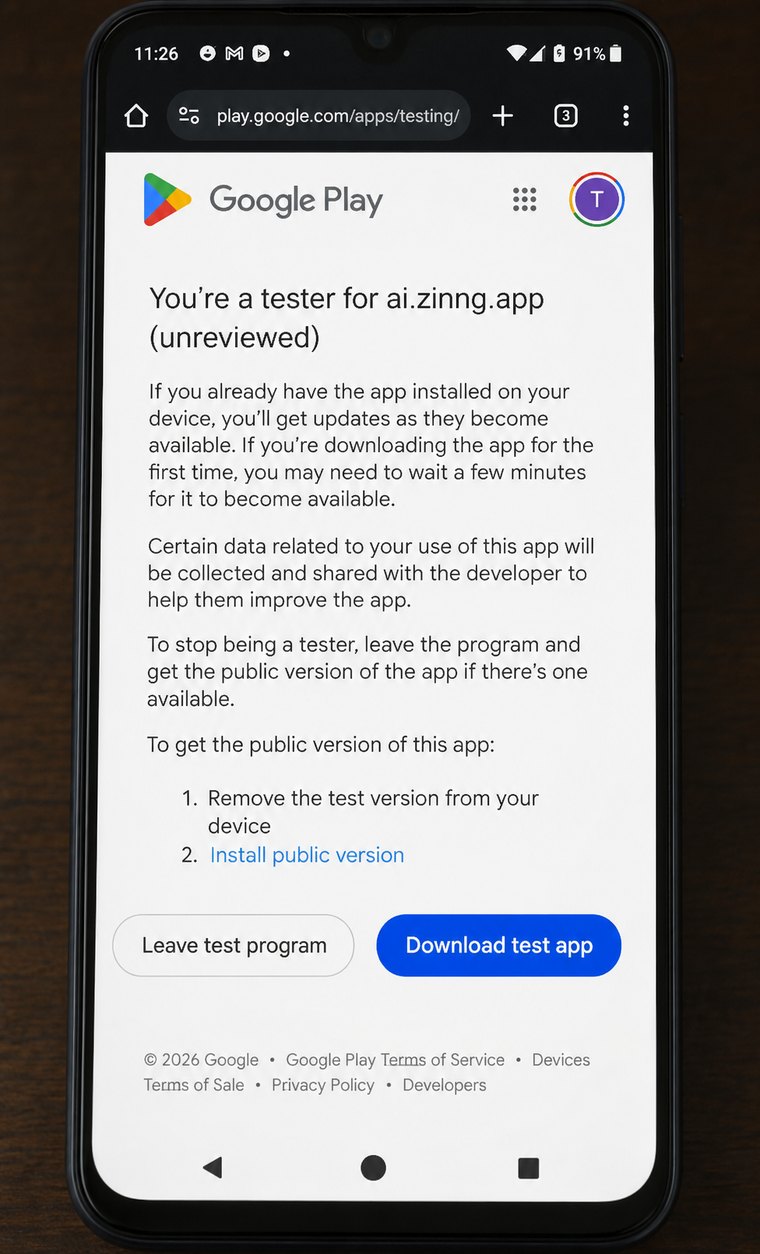
If you reach that page, everything has worked. Tap the blue Download test app button.
About the word "unreviewed"
The heading says ai.zinng.app (unreviewed), and that wording throws people off. It is not a warning about the app being unsafe. It is simply how Google labels an app that is in testing and has not gone through public Play Store review yet. Once we publish the app publicly, that label goes away.
You can ignore the Leave test program button and the "get the public version" instructions on that page. Those are for later, once there is a public version to move to.
Step 4: Install the app
Tapping Download test app takes you into the Play Store listing. Tap Install.
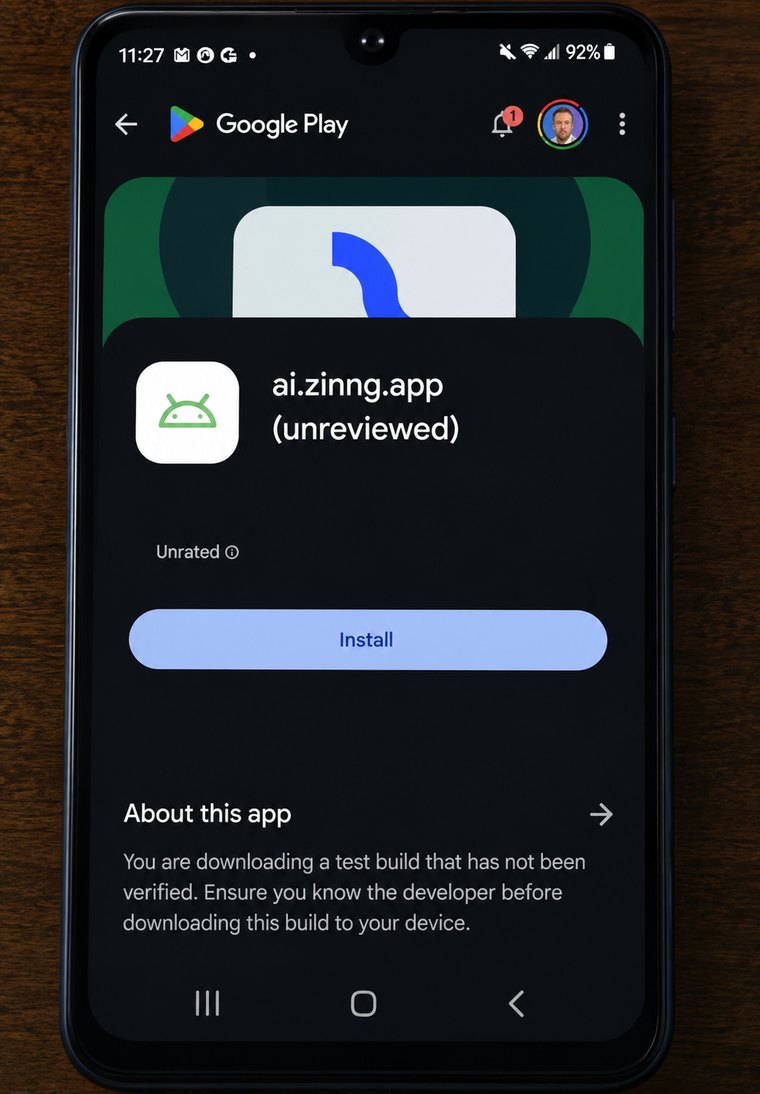
What you will see on this screen, and why
A few things on this listing look alarming and are not. They are all just consequences of the app being in testing rather than published publicly.
- A plain green Android icon instead of the Zinng logo. Test builds show a placeholder icon. The real Zinng icon appears once you install it and see the app on your home screen.
- "Unrated." Content ratings are assigned during public review, which this build has not been through.
- "You are downloading a test build that has not been verified. Ensure you know the developer before downloading this build to your device." Google shows this on every test build from every developer. It is not specific to Zinng and it does not mean anything is wrong. You do know the developer in this case, it is us.
If you are downloading it for the first time, Google may need a few minutes before the app becomes available to you. This is normal and it is mentioned on the invitation page itself. If the Play Store says the app is not available, wait a couple of minutes, then close the Play Store completely and reopen it.
Step 5: Sign in
Open the app and sign in with your existing Zinng account. There is nothing new to create.
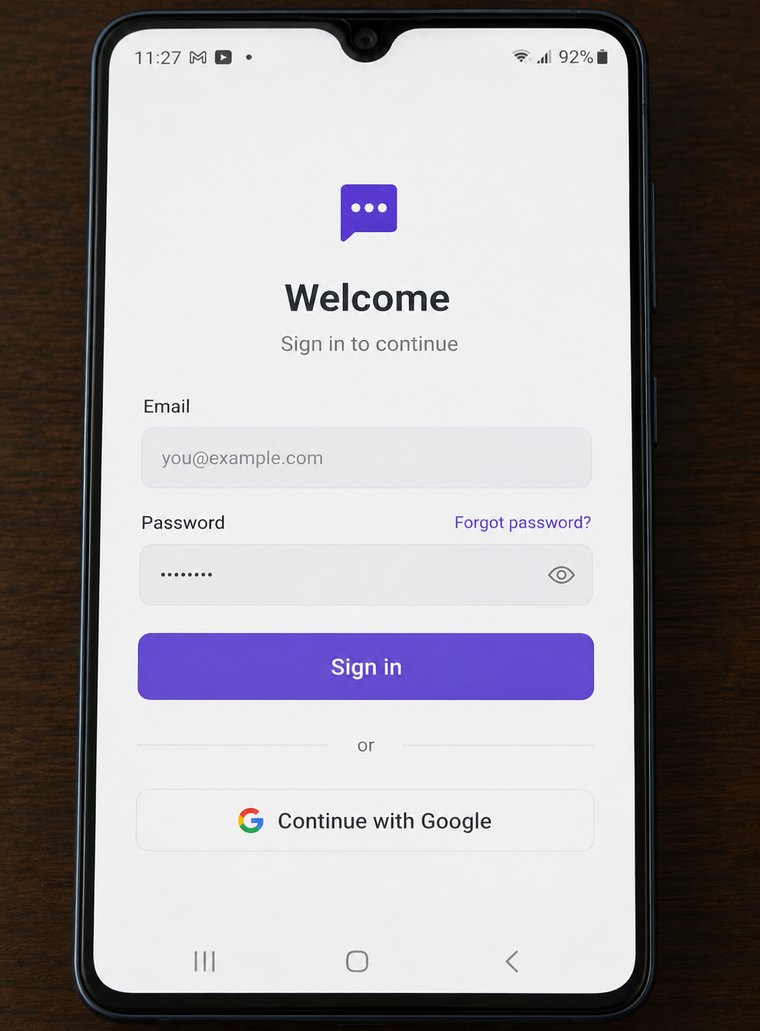
You have two options, whichever one you already use:
- Continue with Google, if that is how you sign in to Zinng on the web.
- Your email address and password, if you created your Zinng account that way. There is a Forgot password? link on this screen if you need it.
Use the same account you use on the web. Everything is there when you open it: your inbox, your conversations, and your call history.
Remember that your Zinng login and your Google Play address can be different, and that is completely fine. The Play Store address is only used to deliver the app to your phone. It has nothing to do with which account you sign in to inside the app.
If something does not work
- The invite email never arrived. Check spam and promotions. If it is genuinely not there, reply to us and we will confirm which address we sent it to.
- You opened the link from a text message and it did not work. Go back to the Gmail app on your phone and tap the link from inside the email instead. Opening it from a text message can land you in a browser that is not signed in to your Google account, and Google Play will not recognize the invitation.
- The link says you are not eligible, or you do not see the "You're a tester" page. Almost always this means your phone is signed in to a different Google account than the one you sent us. Check the Play Store profile again and send us the address you find there.
- The app is not available yet after you tap Download test app. Give it a few minutes. Google needs a short while to make a first time download available, then close and reopen the Play Store.
- You have more than one Google account on the phone. Android can switch between them. Make sure the Play Store is on the account we invited before you tap the link.
- The app installed but your account looks empty. You are probably signed in to a different Zinng account than the one you use on the web. Sign out and sign back in with the account you use at zinng.ai.
If none of that sorts it out, email us and tell us where you got stuck. Include the address on your Google Play account and we will take a look.
Using an iPhone?
The iPhone app is available now too, through TestFlight. We have a separate guide that walks through requesting access and installing it.