How to Update Your Payment Details
If a payment did not go through, your subscription is not cancelled. Stripe automatically retries over the next couple of weeks, and you can update your card at any time to get things back on track. Here is exactly how.
How you will know your payment is behind
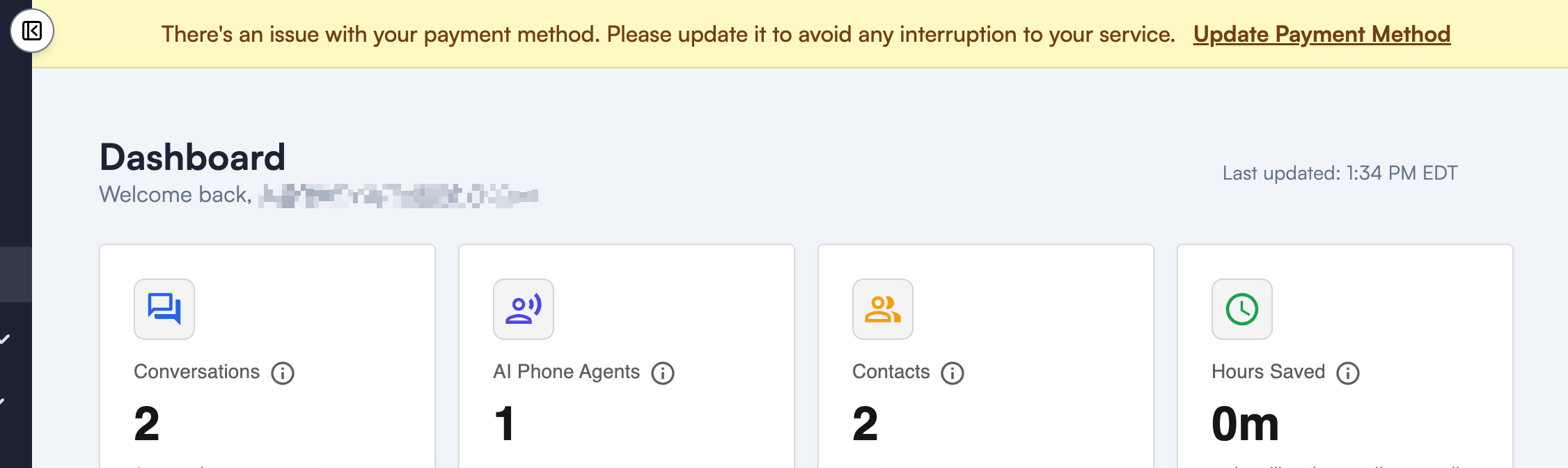
When a payment fails, a banner appears across the top of the app: "There's an issue with your payment method. Please update it to avoid any interruption to your service." Your AI phone agent keeps working while you sort it out, but it is worth updating your card promptly so nothing gets interrupted.
Step 1: Look for the payment banner
You will see this yellow banner at the top of your dashboard. You can click Update Payment Method right there in the banner, or follow the menu route in Step 2. Both go to the same place.
Step 2: Go to Team → Subscription
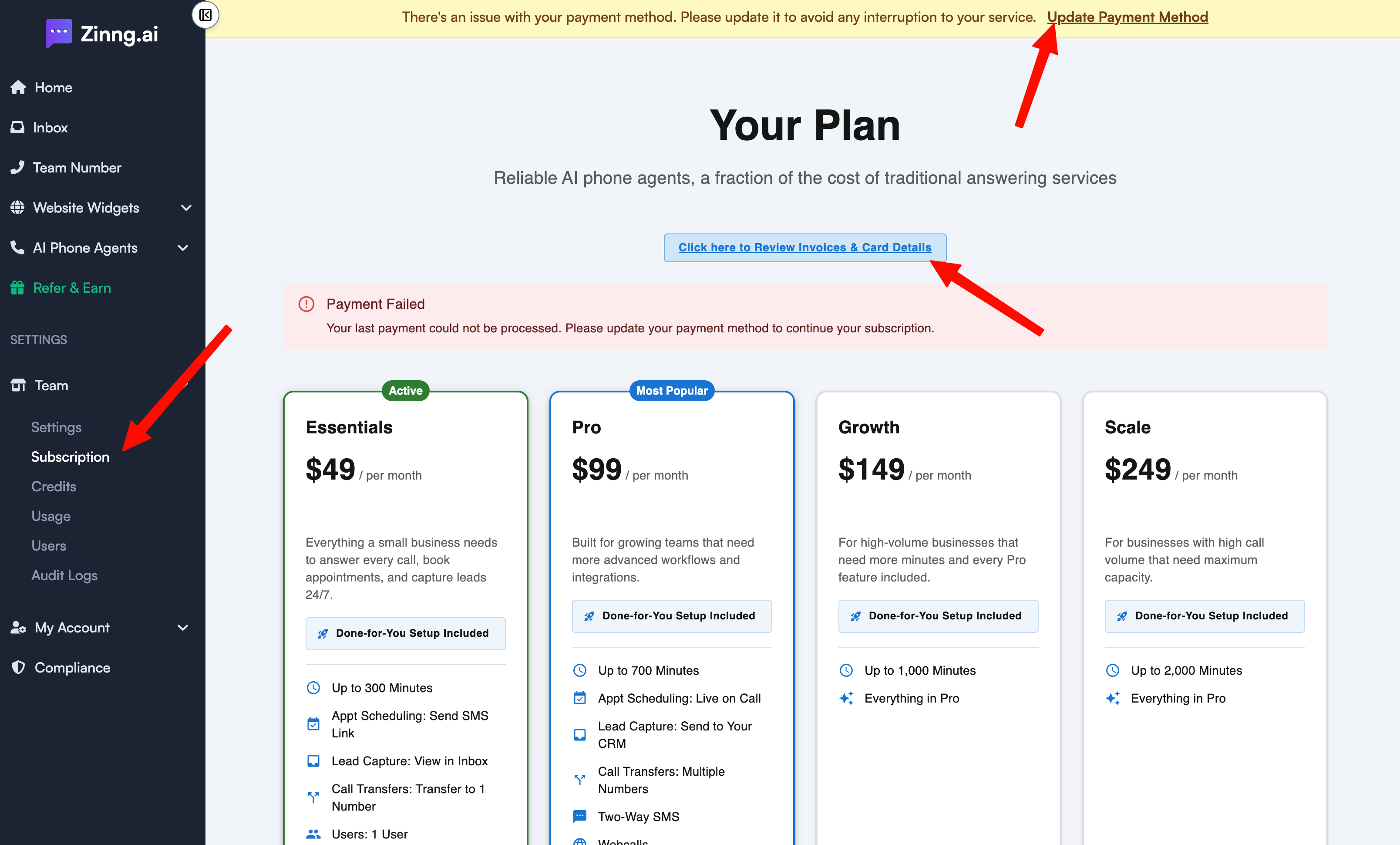
In the left-hand navigation, open Team, then click Subscription. This is your plan and billing page.
On that page you have two ways to reach the billing portal, and they both take you to the exact same place:
- The Update Payment Method link in the banner at the top, or
- The Click here to Review Invoices & Card Details button.
Step 3: Update your card on the billing page
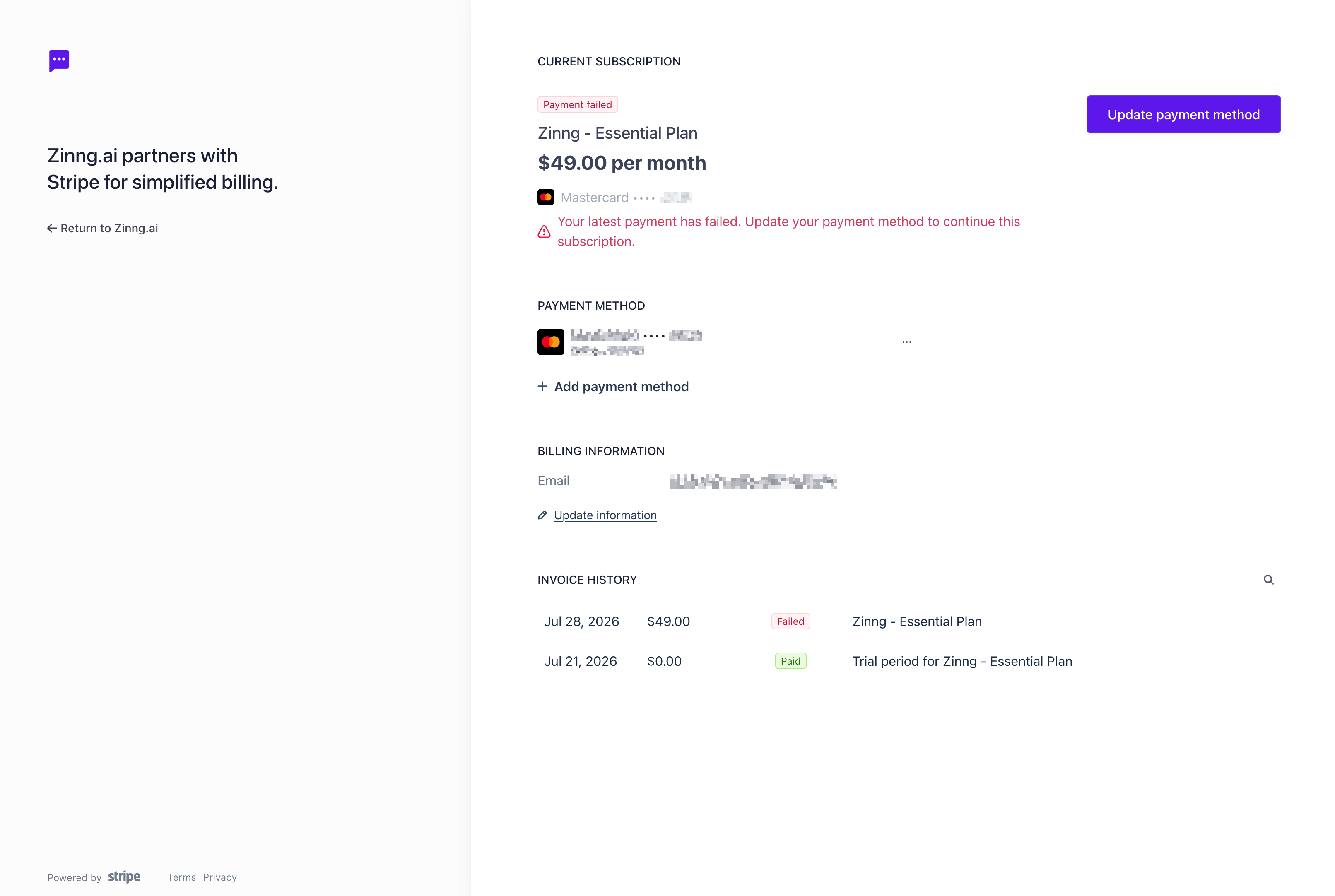
Either option opens our secure billing page, hosted by Stripe, our payment processor. Here you can see your current subscription, your payment method, and your invoice history.
Click the Update payment method button (or Add payment method) and enter your new card details.
Your card details are safe
Zinng never sees or stores your full card number. Payments are handled entirely by Stripe, the same processor trusted by millions of businesses. You can also review your past invoices right on this page.
Step 4: You are back on track
Once your new payment method is saved, that is it. Stripe will retry the outstanding charge, the payment banner goes away, and your subscription continues without interruption.
Need a hand?
If your payment still will not go through, or you are not sure what happened, just reply to any email from us or reach out at [email protected] and we will help you get it sorted.