Not Getting Emails from Zinng? Check Spam and Quarantine
Where to look when verification codes, password resets, or other Zinng emails do not arrive in your inbox.
The Quick Check
Most missing-email cases come down to the same handful of causes. Run through these first:
- Wait 2 to 3 minutes. Email delivery is usually fast but not instant, and first-time-sender mail can be delayed a few extra minutes by spam filters.
- Confirm you used the right email address when signing up or requesting the email. Typos are common (e.g., gmaill.com, hotmial.com).
- Check your Spam or Junk folder, not just the Inbox.
- Search your full mailbox for "zinng" or "from:zinng.ai" rather than scrolling. Many email apps hide messages that match an existing rule, but search still finds them.
- If you use a business email behind Microsoft 365 or GoDaddy, also check the quarantine portal (sections below). The quarantine is a separate system from the Junk folder.
If none of those surface the email, jump to the section below for your email provider.
Gmail (Consumer and Google Workspace)
Gmail rarely fully blocks legitimate transactional email. The most common case is the message landing in Spam, or being filtered into another label by a rule you set up at some point.
Find a missing email in Gmail
- Open Gmail. In the left sidebar, click Spam. If you don't see Spam directly, click More to expand the folder list.
- Search your full mailbox for
from:zinng.aiusing the search bar at the top. Gmail's search covers Spam and All Mail in addition to your Inbox. - If the message appears in Spam, open it and click Report not spam (or "Not spam") at the top of the message. Future Zinng emails will land in your Inbox.
Email is in "All Mail" but not Inbox
This usually means a Gmail filter is moving Zinng mail somewhere else (a label, the archive, or trash). Check filters at Settings (gear) → See all settings → Filters and Blocked Addresses. Look for any rule that matches "zinng.ai" or the from address you receive Zinng mail from, and either edit or delete it.
Make Zinng a trusted sender
For consumer Gmail: open a Zinng email, click the three-dot menu on the message, and add the sender to Contacts. Mail from contacts is much less likely to be filtered.
For Google Workspace (your business email is on Workspace and your IT admin manages it): ask your admin to add zinng.ai to the Workspace Approved Senders List in the Admin console. That bypasses Gmail's spam filter for everyone in the org. (Source: Google Workspace admin docs.) Note that Workspace also offers an IP allowlist, but Google warns that messages allowed by IP can still display a "This email looks suspicious" banner, even though they bypass the Spam label. Domain-level allowlisting is the cleaner fix.
Outlook.com and Hotmail (Consumer)
Outlook.com handles spam in a Junk Email folder. The action button for marking a message as "not junk" has moved as Microsoft rolls out the new Outlook UI.
Find a missing email
- Open Outlook.com. In the left folder list, click Junk Email.
- Search your full mailbox for
from:zinng.ai. - Check the Deleted Items folder. The Sweep feature or a rule may have moved mail there.
Mark a message as not junk
If you find the email in Junk:
- Classic Outlook.com: Open the message and click It's not junk at the top of the message.
- New Outlook.com: Right-click the message in the list, then Report → Not Junk. (Microsoft confirmed this UI change in support docs and community threads in 2025-2026.)
Add Zinng to Safe Senders
Open Outlook.com Settings → Mail → Junk email. Under Safe senders and domains, add zinng.ai. Future mail from any zinng.ai address bypasses the Junk filter.
Check for a Sweep rule or inbox rule
Sweep can auto-delete or auto-move messages from a sender. Open Settings → Mail → Rules and review any rules that mention zinng.ai or the from address. Delete or edit anything that looks wrong.
Microsoft 365 / Outlook for Business
If your business email runs on Microsoft 365 (Exchange Online), filtered mail can be in two different places and they are independent. You may need to check both.
1. The Junk Email folder in Outlook
Same as Outlook.com. Open Outlook (web, desktop, or mobile), go to Junk Email, search for zinng.ai, and if found, mark Not Junk.
2. The Microsoft 365 Defender quarantine
This is the one most users don't know about. Mail flagged by Microsoft Defender or Exchange Online Protection is held in a quarantine that's separate from the Junk folder. Your IT admin can configure whether you get emailed about it.
- Go to https://security.microsoft.com/quarantine and sign in with your Microsoft 365 work email and password.
- You'll see a list of messages held for your mailbox. Search for "zinng" or filter by sender.
- If you find the Zinng email, select it and click Release. The message is delivered to your Inbox.
What you can and cannot release: By default, end users can release messages quarantined as bulk, spam, high-confidence spam, phishing, spoof intelligence, and impersonation. You cannot release messages quarantined as high-confidence phishing, malware, by Safe Attachments, or by mail flow rules. Those require admin approval. (Source: Microsoft Learn docs, updated June 2026.)
If the Release button is greyed out: This is expected behavior. Your organization's quarantine policy may only allow you to request release. Click Request release and your admin will get a notification to approve or deny. The portal will show the status as Release requested, Approved, or Denied.
3. End User Spam Notification digest
Your admin can enable a periodic email digest that lists messages held in quarantine for you. The digest can be sent every 4 hours, daily, or weekly. Each entry shows the sender, subject, and date (in UTC) and offers per-message actions (Review, Release, Request release, Block Sender) depending on policy.
If you've never received one of these digests, your admin may not have it turned on. If transactional mail is going missing regularly, ask your IT admin to enable End User Spam Notifications or to add zinng.ai as an allowed sender at the org level.
GoDaddy Email (the Most Common SMB Pain Point)
GoDaddy sells three different email setups and the troubleshooting steps differ for each. Find yours below.
Which GoDaddy email do you have?
- GoDaddy Professional Email: GoDaddy's own hosted email product. You sign in at a GoDaddy webmail page.
- Microsoft 365 from GoDaddy: Microsoft 365 mailboxes that you bought through GoDaddy's resold plan. Your inbox is the real Microsoft 365 (Outlook on the web at outlook.office.com, etc.).
- Microsoft 365 from GoDaddy with Advanced Email Security (AES): A paid GoDaddy add-on that sits in front of your M365 mailbox. AES is a Proofpoint-based filter that quarantines or tags suspicious mail before it reaches your Inbox.
GoDaddy Professional Email
This product uses a basic spam filter that delivers junk to the Junk folder. There's no separate quarantine portal. Check Junk in your GoDaddy webmail, mark legitimate mail as Not Spam, and consider asking GoDaddy support to add zinng.ai to your allow list. Note: GoDaddy is increasingly pushing customers off Professional Email and onto Microsoft 365, so the Professional Email UI may change.
Microsoft 365 from GoDaddy (without AES)
Even though you bought through GoDaddy, your mailbox is real Microsoft 365. The quarantine and digest mechanics are exactly the same as the Microsoft 365 / Outlook for Business section above.
- Go to https://security.microsoft.com/quarantine.
- Sign in with your Microsoft 365 email and password, not your GoDaddy account. GoDaddy support explicitly notes: "your GoDaddy username and password won't work here."
- Find the message, click Release.
Microsoft 365 from GoDaddy with Advanced Email Security (AES)
This is the configuration most likely to drop transactional Zinng emails. Two things to know up front:
- Most spam and bulk mail under modern GoDaddy AES now goes to your Junk Email folder, not a held quarantine. GoDaddy rolled out a "Tag and Deliver" model that lets you see filtered mail in Junk with banners rather than holding it. Check Junk first.
- Malicious mail and some categories are still quarantined in the GoDaddy AES portal at https://productivity.godaddy.com/encryptiondetails. Some tenants also still have traditional quarantine-only behavior, so check both the Junk folder and the portal.
First, check your Quarantine Digest email
The most direct path is the digest email that GoDaddy AES sends to your inbox. It is titled "GoDaddy Advanced Email Security" with the subject line Quarantine Digest, and it lists every currently quarantined message with action links next to each one.
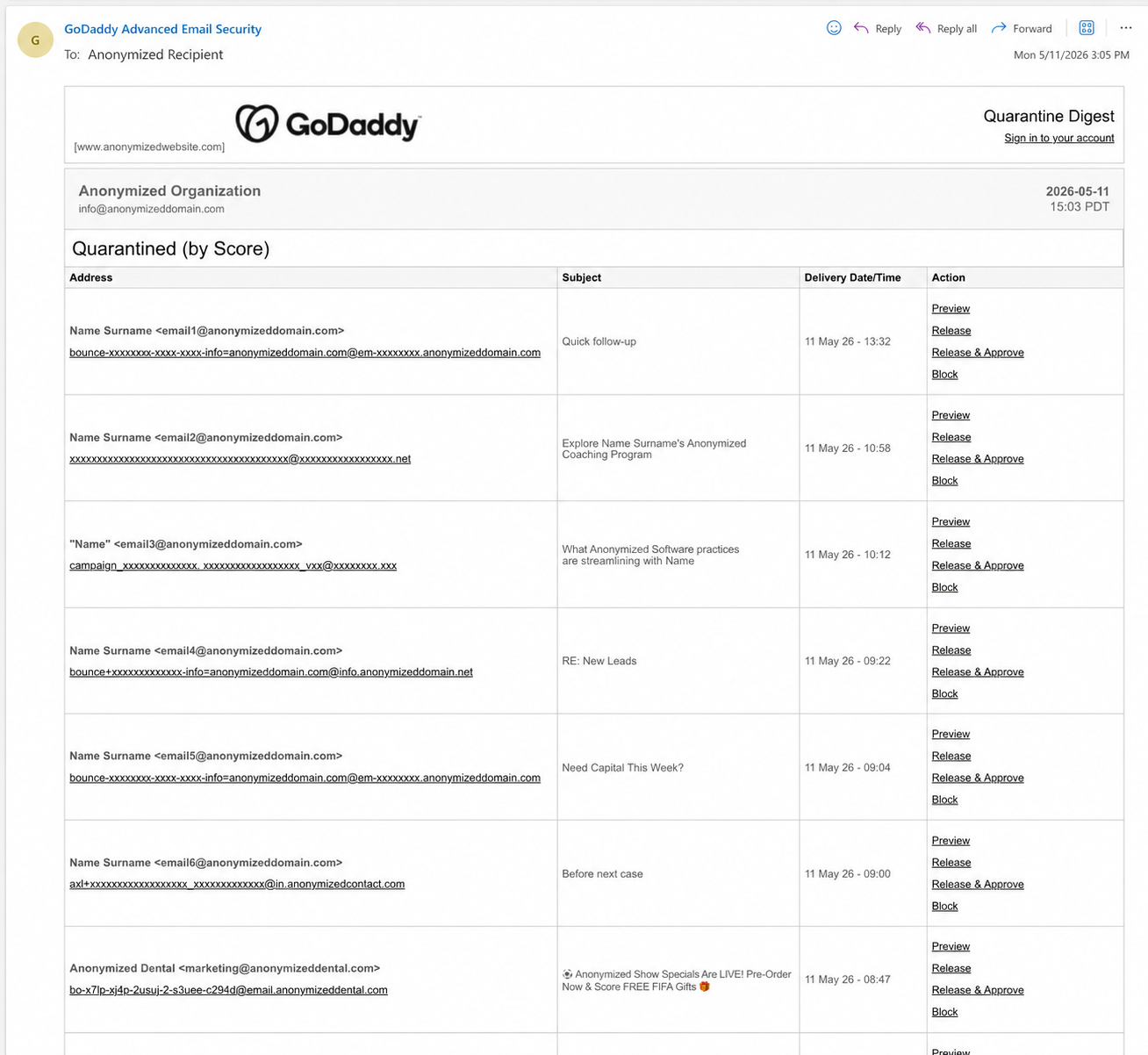
Each quarantined message in the digest has four action links you can click directly from the email, without signing in to the portal:
- Preview: Opens the message in a safe viewer so you can confirm it's the Zinng email you're looking for.
- Release: Delivers that single message to your inbox right now. Future mail from the same sender is still subject to filtering.
- Release & Approve: Delivers the message AND adds the sender to your Allow List so future Zinng mail bypasses the filter. This is the action you want for transactional mail you'll keep receiving.
- Block: Adds the sender to your Block List (don't use this for Zinng mail).
For Zinng verification codes and password resets, Release & Approve is the single best click. If you didn't get a digest (or it isn't coming often enough), see Quarantine digest settings below.
Sign in to the GoDaddy AES portal
If you don't have a recent digest, or you want to manage your allow list directly, sign in to the portal:
- Go to https://productivity.godaddy.com/encryptiondetails (also reachable via the Sign in to your account link in the top right of the digest email).
- Sign in first with your GoDaddy username and password.
- Then click Sign In With Microsoft and enter your Microsoft 365 email and password. Two-step authentication is required.
- You're now in the GoDaddy AES portal (Proofpoint-backed under the hood). Browse the quarantine list, find the Zinng message, and use the same actions you'd see in the digest: Preview, Release, Release & Approve, or Block.
Add zinng.ai to your Allow List
- In the GoDaddy AES portal, navigate to Email > Allow List.
- Click Add Allow Entry.
- Enter
zinng.ai(or specific addresses like[email protected]). You can add multiple values separated by commas, semicolons, or new lines. - Click Save.
(Source: GoDaddy Help article 41946.)
Quarantine digest settings
You can configure how often GoDaddy AES emails you a digest of held items: the interval, the delivery start time, and whether the digest lists only new messages or all currently quarantined messages. Find these under the digest settings in the AES portal. (Source: GoDaddy Help article 42013.)
Yahoo Mail
Yahoo handles filtered mail in a Spam folder.
- Open Yahoo Mail and click Spam in the folder list.
- Search for zinng.ai or browse for the message.
- If found, open the message and click Not Spam at the top.
- To add Zinng to your contacts so future mail is treated as trusted: from a Zinng email, open the sender details and click Add to Contacts. Or go to Contacts in the Yahoo Mail sidebar and add a new contact for the Zinng sender address.
iCloud Mail and Apple Mail
iCloud filtered mail goes to a Junk folder. The exact steps differ between iCloud.com webmail, the Mail app on Mac, and the Mail app on iPhone, but the concepts are the same.
- Open Mail and navigate to the Junk folder.
- Search for zinng.ai or browse for the message.
- If found, mark the message as Not Junk (Mail menu or right-click on the message). The message moves back to Inbox and Apple's filter learns from your action over time.
- Add the Zinng sender to your Contacts. From a Zinng message, click the sender's name and Add to Contacts. Apple Mail favors senders who are in your Contacts.
You can also create a rule under iCloud Mail settings at iCloud.com to ensure messages from zinng.ai are never filtered as junk.
Corporate Email Filters (Mimecast, Proofpoint, Barracuda, Cisco)
If your business uses one of these enterprise email security gateways, your inbound mail is filtered before it ever reaches Outlook or Gmail. You usually can't bypass these filters yourself, but you can either check a quarantine portal or ask your IT admin to allow zinng.ai.
Mimecast
If your company uses Mimecast, you should be receiving a periodic digest email titled something like "Mimecast Held Message Notification" or signing into the Mimecast Personal Portal. Look in your inbox for that digest and use it to release the Zinng message and add zinng.ai to your Managed Senders. If you don't have access, contact your IT department.
Proofpoint
If your company uses Proofpoint, you typically receive a daily End User Digest from Proofpoint listing quarantined mail. The digest itself includes Release and Safelist links per message. Look for it in your Inbox or Junk. If you don't see one, contact IT and ask them to allow zinng.ai at the Proofpoint level.
Barracuda
Barracuda's end-user interface is the Message Log / User Quarantine. Your company will usually provide you a URL pattern like quarantine.barracudanetworks.com. Look in your inbox for "Barracuda Networks: Email Quarantine Summary" or a similar digest, or ask IT for the portal URL.
Cisco Secure Email (IronPort)
Cisco's end-user quarantine is accessed via a per-org portal. Look for a digest email titled "Spam Quarantine" with Release / Whitelist links per message. Without IT involvement you generally can't add a sender to the allow list, so contact your admin.
What to ask your IT admin
If you can't find a digest or can't release the message yourself, send your IT team this request:
Could you please allow inbound mail from zinng.ai in our [Mimecast / Proofpoint / Barracuda / Cisco] filter? They send transactional emails (verification codes, password resets) that are being held in quarantine. If you can release the current held messages and whitelist the domain, that would solve it. Thanks.
Adding Zinng to Your Safe Senders (All Providers)
The most reliable cross-provider approach is to add zinng.ai as a domain to your safe-sender or allow list, rather than adding individual email addresses. Domain-level allowlisting means any current or future Zinng sending address is covered.
Quick summary of where each provider's allow list lives:
- Gmail (consumer): Add the Zinng sender to Contacts.
- Google Workspace (business): Admin adds zinng.ai to Approved Senders List in the Admin console.
- Outlook.com / Hotmail: Settings → Mail → Junk email → Safe senders and domains → Add zinng.ai.
- Microsoft 365 (work): Add to your personal Safe Senders, or ask admin to allow zinng.ai org-wide in Microsoft 365 Defender.
- GoDaddy AES: productivity.godaddy.com/encryptiondetails → Email > Allow List > Add Allow Entry → zinng.ai.
- Yahoo: Add Zinng's sender address to Contacts.
- iCloud / Apple Mail: Add Zinng's sender address to Contacts; optionally create a rule that bypasses junk filtering for zinng.ai.
- Enterprise filters: Contact IT.
Notes for Mobile Email Apps
Your Spam or Junk folder usually contains the same messages on mobile and web, since both apps connect to the same mailbox. A few things specific to mobile:
- iOS Mail (built-in): The Junk folder may not show by default if you only added the iCloud account. Pull the folder list down or tap Edit to enable additional mailbox folders. The "Move to Junk" / "Move to Inbox" actions are under the message's share/action menu.
- Gmail app (iOS and Android): Tap the hamburger menu, then Spam. Mark a message Not Spam from the message's three-dot menu.
- Outlook mobile app (iOS and Android): Junk Email is in the folder list (tap the folder icon in the bottom bar or hamburger menu). Mark Not Junk from the message's three-dot menu. The mobile app does not give access to the Microsoft 365 Defender quarantine portal at security.microsoft.com/quarantine, so for that you'll need a desktop browser.
- GoDaddy AES portal: Best accessed from a desktop browser. The portal works on mobile but the two-step sign-in flow (GoDaddy then Microsoft) is awkward on small screens.
Still can't find it?
If you've checked Spam, Junk, your provider's quarantine portal, and any company-level filter, and the Zinng email still hasn't arrived, reach out to us. We can confirm the email was sent from our side and help diagnose where it got dropped. Use the chat widget in the bottom right of any Zinng page, call (213) 263-4777, or email [email protected] from a working address.