
Send post-call emails and capture custom call fields
Get an email after every call with a summary, transcript or caller details, and add custom fields so your agent captures exactly what you need.
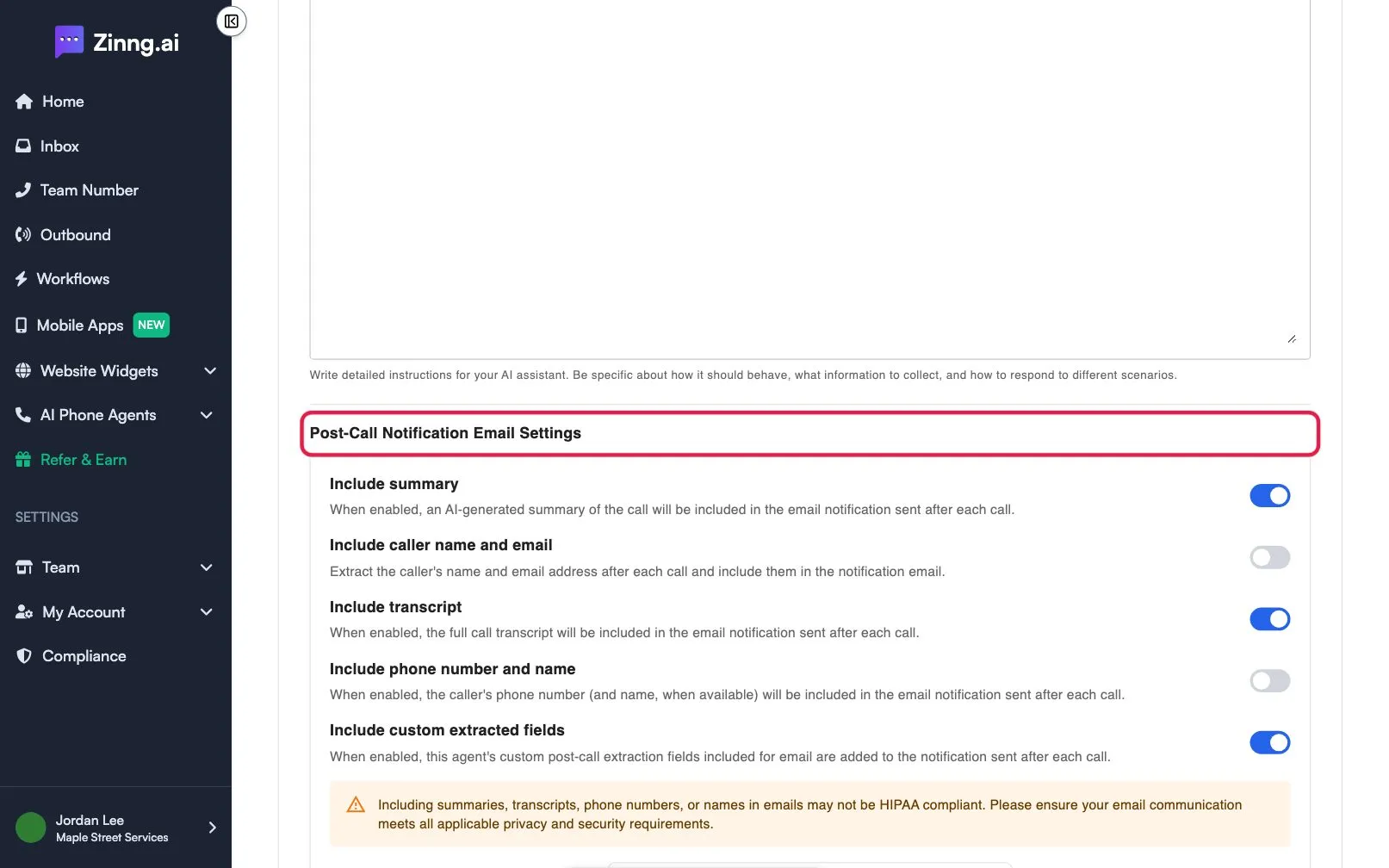
Turn on the items you want in the email, choose who receives it, and add custom fields for any detail you want captured on every call. Each agent has its own settings, in your agent’s Instructions tab.
Set up the email
Section titled “Set up the email”-
Open your agent’s settings.
Go to AI Phone Agents, select the settings icon on your agent, and scroll to Post-Call Notification Email Settings.
-
Choose what the email contains.
Turn on Include summary, Include caller name and email, Include transcript, Include phone number and name, or any mix. A warning appears when personal details are included, because they may not be HIPAA compliant in email.
-
Choose who receives it.
Under Additional email recipients, tick the people who should also get it. The account owner always receives it. Someone marked Awaiting confirmation cannot be selected until they confirm their address. Use Add or manage recipients in Team Users to add people.
-
Save.
Select Save.
Capture a custom field
Section titled “Capture a custom field”- Turn on Include custom extracted fields.
- Open the field list and select + Add custom field.
- Fill in Label, Name and Description, and pick a Type: Text, Selector, Boolean or Number.
- For a Selector, select Add choice and enter each option.
- Select + Add field, tick the new field in the list, then select Save on the settings page.
The name must use lowercase letters, digits and underscores and start with a letter. The names call_summary, call_successful, user_sentiment, caller_name, caller_email and is_emergency are reserved.
Troubleshooting
Section titled “Troubleshooting”I can’t select a recipient
Section titled “I can’t select a recipient”They have not confirmed their address yet. Ask them to confirm it, then select them again.
My field name is rejected
Section titled “My field name is rejected”Use snake_case, for example requested_service, and avoid the reserved names above. A Selector needs at least one choice, and choices must be different.
Related
Section titled “Related”- Post-call settings lists every setting on this screen.
- Agent add-ons covers sending call details to a webhook or Zapier.
- Review calls, recordings and transcripts