
Notes, quick messages and search in the inbox
Leave notes on a conversation, save quick messages you send often, and search for contacts or message text in your inbox.
Three small tools save time in the inbox: notes for your team, quick messages for answers you repeat, and search.
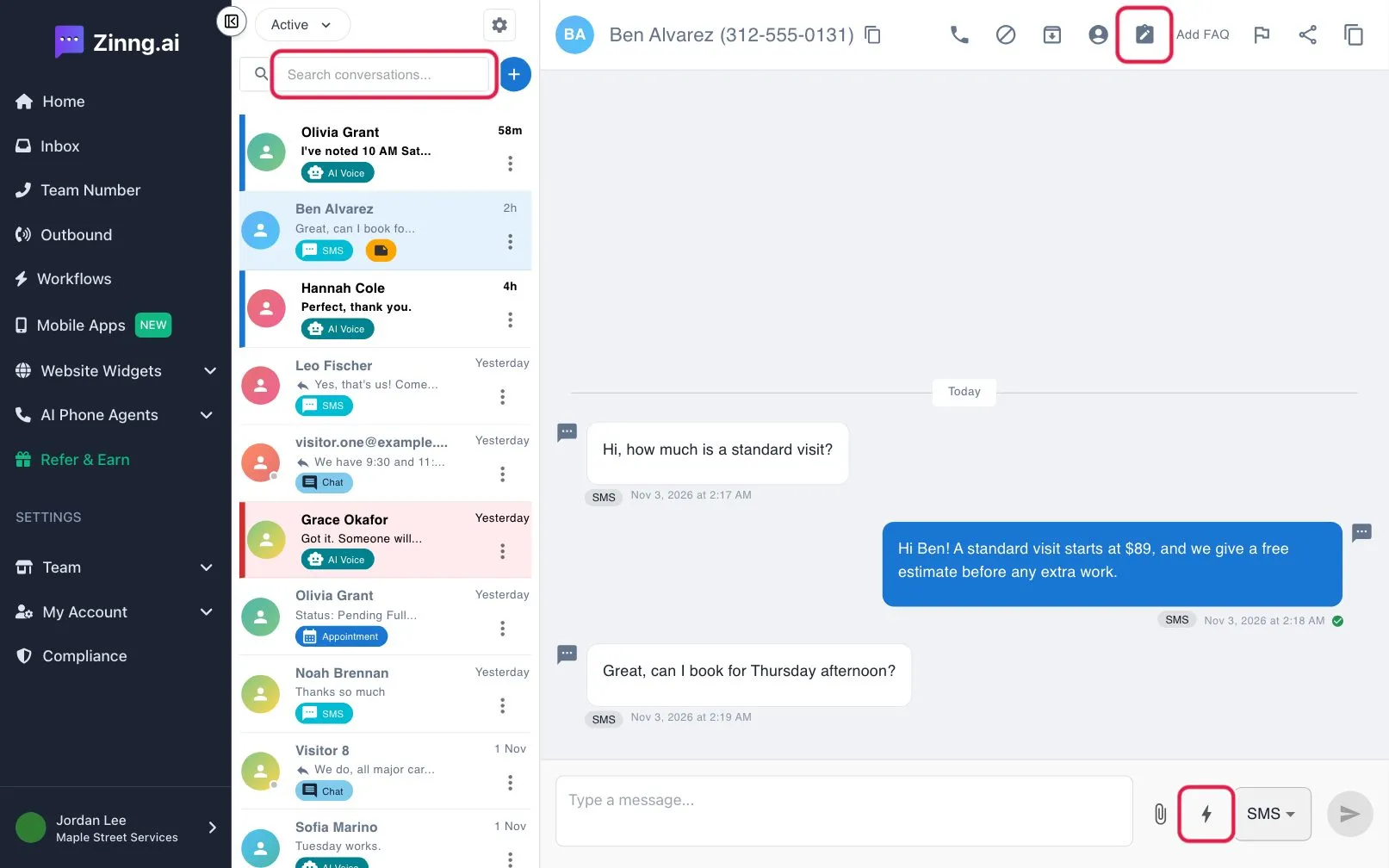
How do I add a note?
Section titled “How do I add a note?”- Open a conversation and select View Notes at the top.
- In Conversation Notes, type under Add a new note and add it.
- To change a note, use its menu: Resolve or Mark as Open, Delete or Restore Note.
Each note shows who wrote it and whether it is Open, Resolved or Deleted.
How do I save and send a quick message?
Section titled “How do I save and send a quick message?”- In the message box, select the lightning bolt (Quick messages).
- Open the Manage tab and select Add new shortcut.
- Enter a Name and the Message. You can add one file. Select Add shortcut.
- To use it, open the Quick send tab, search under Search shortcuts… and select the shortcut. It is inserted into your message and you send it as usual.
In Manage you can also drag shortcuts to reorder them. Quick messages need two-way texting.
How do I search the inbox?
Section titled “How do I search the inbox?”Type in Search conversations… above the list. Results include contacts and matching messages. Use the toggle in the search box to show contacts only. If nothing matches, select Create New Conversation.