
The Subscription page: plans, minutes and agents
Use the Subscription page to start a trial, change plan, buy extra minutes, add phone agents, cancel, and open your invoices and card details.
The Subscription page is where you choose and manage your plan. You can start a free trial, upgrade or downgrade, buy extra minutes, add phone agents, cancel, and open your invoices and card details.
Open the Subscription page
Section titled “Open the Subscription page”In the left menu, open Team, then select Subscription (open your Subscription page).
What you see on the page
Section titled “What you see on the page”Prices are shown on this page in the app. This Help Center does not list them.
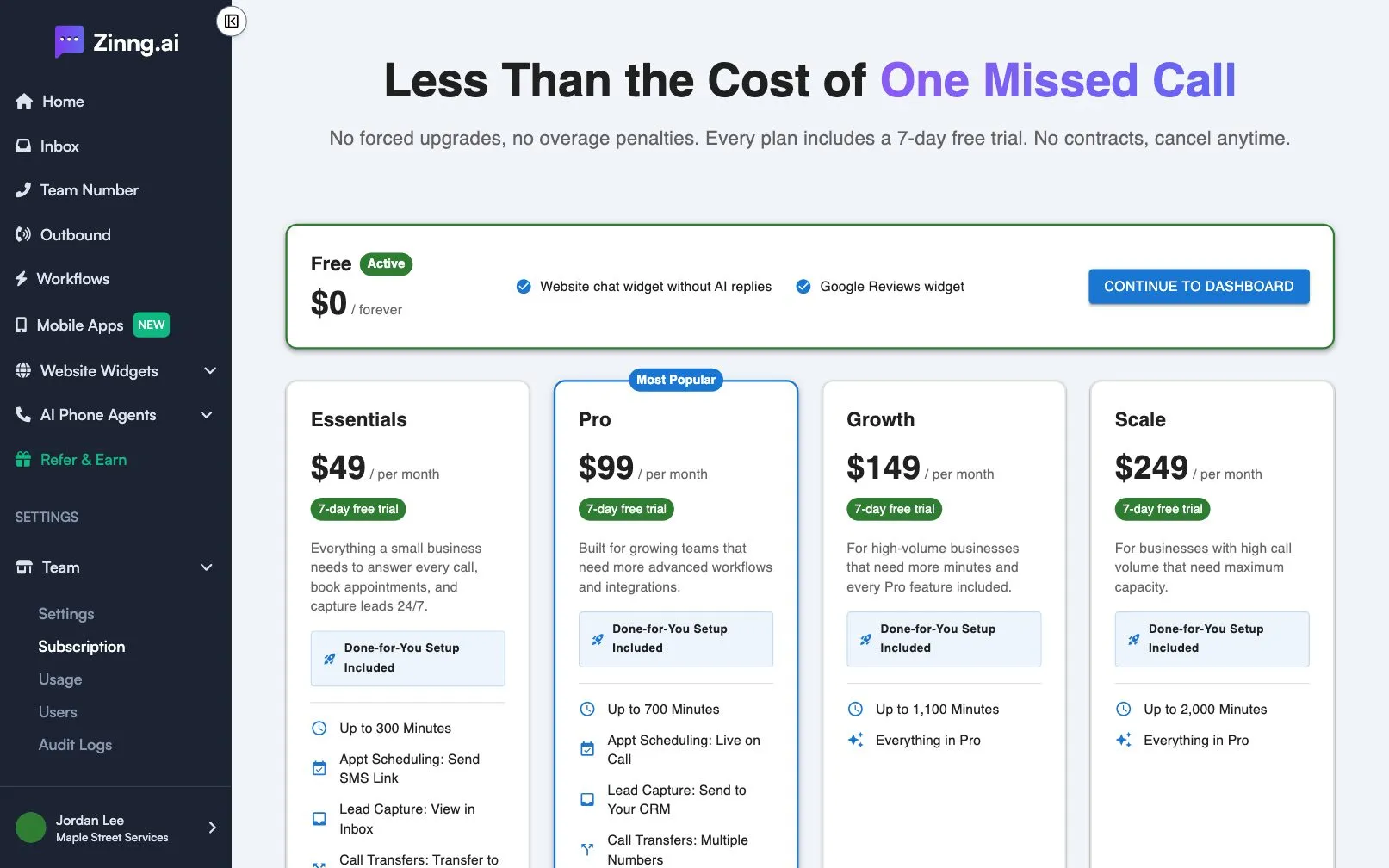
| Setting | What it does | Plan if limited |
|---|---|---|
| Click here to Review Invoices & Card Details | Opens your secure billing page in a new tab, where you update your card and download invoices. Shown once you have a trial or a subscription. | |
| Plan cards (Essentials, Pro, Growth, Scale) | Show each plan’s price, its included minutes and its main features. The Most Popular label marks the plan most people pick. | |
| Start 7-Day Free Trial | Starts your free trial on that plan. Shown when you have not had a trial before. | |
| Subscribe Now | Starts a paid plan. Shown when you have already used your trial. | |
| Upgrade or Downgrade | Switches your current subscription to another plan. | |
| Current Plan, Trial Active or Cancellation Scheduled | A disabled button that shows the state of the plan you are on. | |
| Cancel Subscription | A link under your current plan that starts cancelling. | |
| Add Minutes card | Buys extra minutes in blocks of 150, 300, 600 or 1,200 that never expire. Needs an active paid plan. | |
| Additional Phone Agents card | Shows the agents your plan includes, the extra ones you bought, the total available and how many are in use. Manage changes the number of extra agents. |
Banners you might see
Section titled “Banners you might see”- Free Trial Active: shows the days left in your trial.
- Payment Failed: your last payment did not go through. Update your card from the billing link at the top of the page.
- Pending upgrade: your new plan is waiting for payment. Select Complete payment. Your current plan stays active until the payment is confirmed.
Common tasks
Section titled “Common tasks”- Start a trial: see your free trial.
- Pick a plan and a number for the first time: see go live with a plan and a phone number.
- Compare plans: see plans compared.
- Switch plan or add agents: see upgrade, downgrade or add agents.
- Cancel: see cancel your subscription.
- Change your card or get an invoice: see update payment details and download invoices.
- Check what you have used: see the Usage page.
Buy extra minutes
Section titled “Buy extra minutes”- On the Add Minutes card, select one of the tiers. Each tier shows the number of minutes.
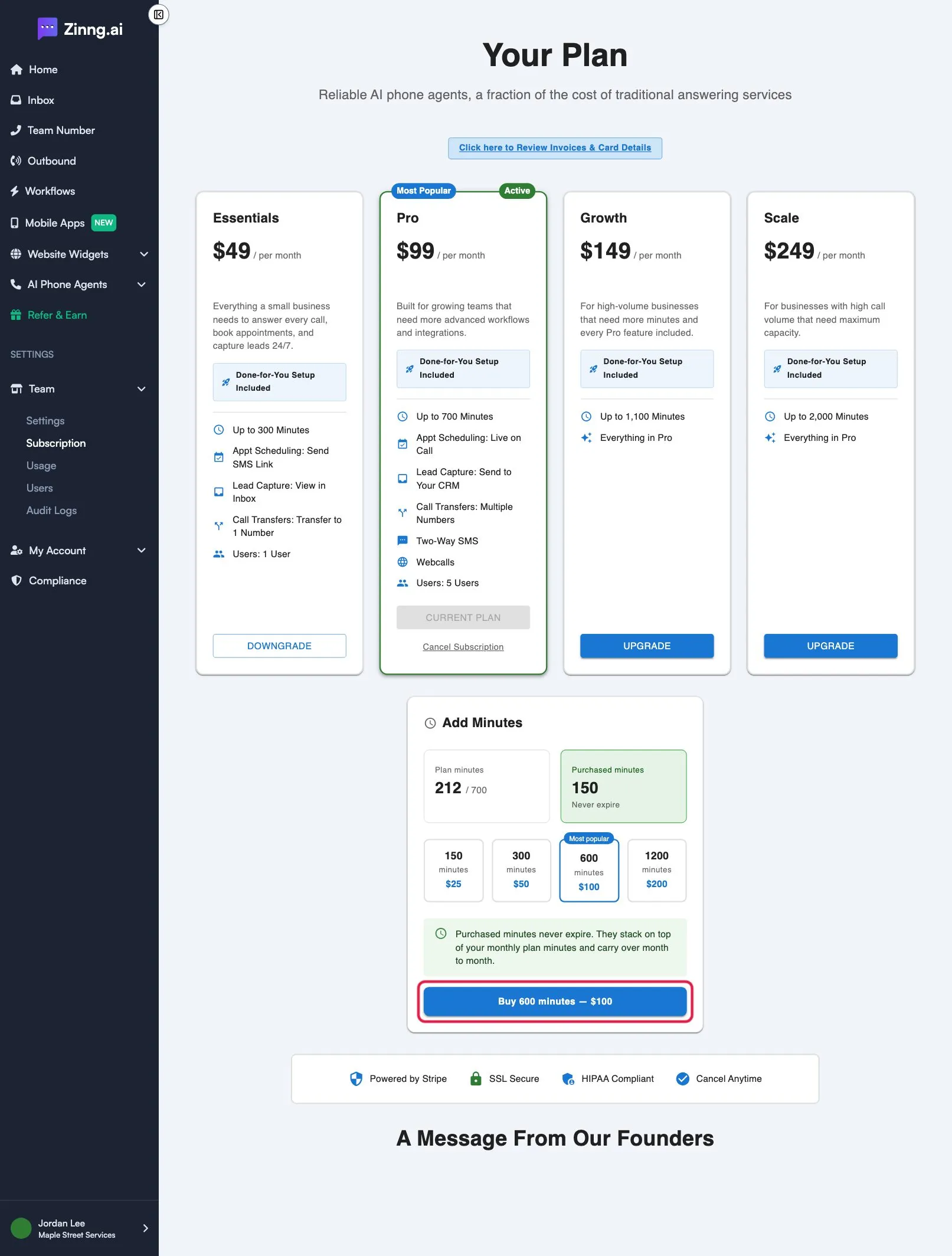
- Select the Buy button under the tiers. It shows the minutes and the price you will pay.
Minutes you buy are added on top of your monthly minutes and carry over from month to month. For how they are used, see how minutes work.