
The FAQ page
Add questions and answers your AI phone agents use to respond to callers, edit them any time and see when your changes are up to date.
The FAQ page holds the questions callers ask most, with the answers you want your agents to give. Short, exact answers help your agent respond the same way every time.
How do I open the FAQ page?
Section titled “How do I open the FAQ page?”Open FAQ, or expand AI Phone Agents in the left menu and select FAQ.
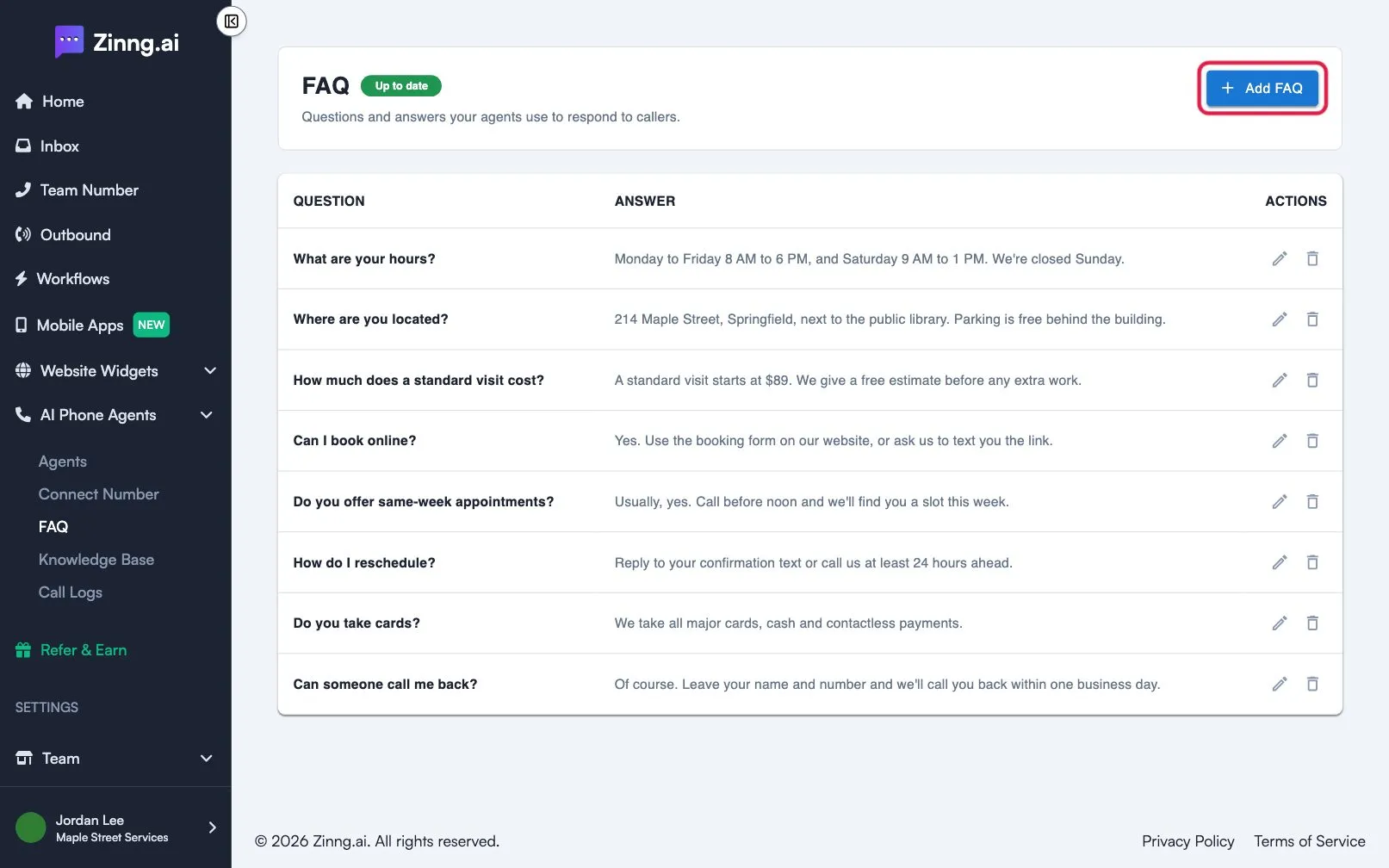
What is on the FAQ page?
Section titled “What is on the FAQ page?”| Setting | What it does | Plan if limited |
|---|---|---|
| Add FAQ | Opens Add a Frequently Asked Question, where you enter a Question and an Answer. | |
| QUESTION and ANSWER | The questions and answers you saved. | |
| Pencil icon | Opens Edit FAQ so you can change a question or answer. | |
| Trash icon | Deletes the question. | |
| Status next to FAQ | Up to date, Updating or Sync failed. It shows how far your latest changes have reached your agents. | |
| Check if ready | Checks whether your changes are ready while the status is Updating. | |
| Retry sync | Tries again when the status is Sync failed. |
Common tasks
Section titled “Common tasks”How do I add a FAQ?
Section titled “How do I add a FAQ?”- Select Add FAQ.
- Enter the Question and the Answer. Both are required.
- Select + Add FAQ. The page shows FAQ added.
Your agent uses it on calls within a few seconds.
How do I change an answer?
Section titled “How do I change an answer?”- Select the pencil icon on the row.
- Edit the text and select Save changes.
How do I delete a FAQ?
Section titled “How do I delete a FAQ?”Select the trash icon on the row and confirm.
Why does the page say my FAQs will not be used?
Section titled “Why does the page say my FAQs will not be used?”Your FAQs are stored in a Knowledge Base. If you see Your FAQs won’t be used by any agent until you link a Knowledge Base, select Set up a Knowledge Base and link it to your agent. See teach your agent with a Knowledge Base.
How do I turn a call into a FAQ?
Section titled “How do I turn a call into a FAQ?”Open the call in your Inbox and select Add FAQ from this call under the recording.