
The Mobile Apps page for iPhone and Android
Find the Zinng iPhone and Android apps from the Mobile Apps page, pick your phone and open the right store to install the app.
The Mobile Apps page is where you install the Zinng app on your phone. Pick iPhone or Android and select the store button. The app is live in both stores and does not need an invite.
With the app you can follow your conversations and calls and get push notifications on your phone. The bottom of the app has four tabs: Inbox, Agents, Calls and Profile.
Open the Mobile Apps page
Section titled “Open the Mobile Apps page”In the left menu, select Mobile Apps. Or open the Mobile Apps page directly. You need to be logged in with an active team.
What is on the page
Section titled “What is on the page”| Setting | What it does |
|---|---|
| Which phone do you have? | Two cards, iPhone (Apple App Store) and Android (Google Play Store). Both are marked Live. iPhone is selected when the page opens. |
| Download the app from the Apple App Store | Shown when iPhone is selected. The Download on the App Store button opens the app’s App Store page. |
| Download the app from the Google Play Store | Shown when Android is selected. The Get it on Google Play button opens the app’s Google Play page. |
| Contact support | Opens the support chat if you need help installing. |
Common tasks
Section titled “Common tasks”Install the app on your phone
Section titled “Install the app on your phone”- Open the Mobile Apps page in your browser.
- Under Which phone do you have?, select iPhone or Android.
- Select Download on the App Store or Get it on Google Play, then install the app from the store.
For the full steps on each phone, see get the iPhone app or get the Android app.
Install straight from your phone
Section titled “Install straight from your phone”You can also go to the store listing yourself: the Zinng app on the Apple App Store or the Zinng app on Google Play.
Turn on push notifications in the app
Section titled “Turn on push notifications in the app”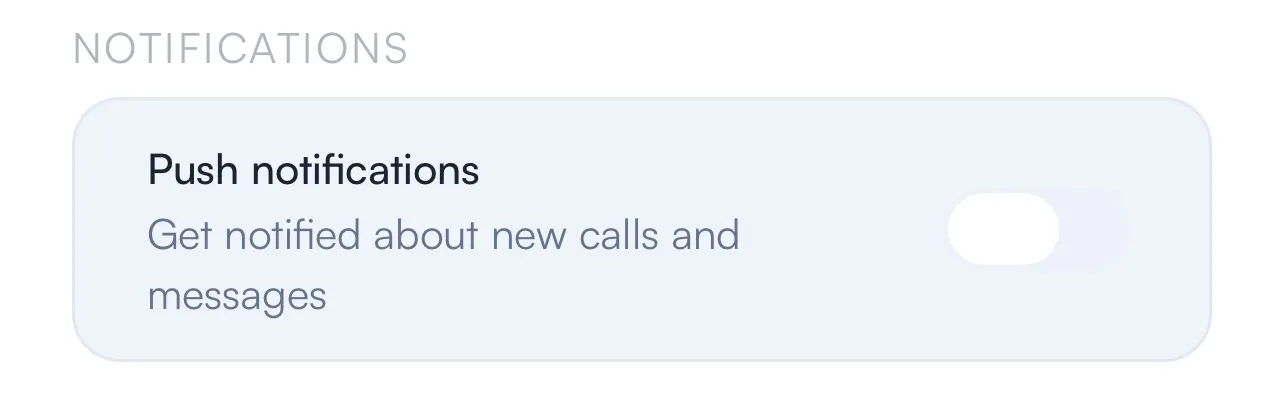
Open the app, go to the Profile tab and turn on Push notifications under Notifications. The app can also show a Turn on notifications banner in the inbox with a Turn on button. If notifications are blocked for Zinng in your phone settings, the app tells you so; turn them on in your phone settings and try again. To manage alerts from your computer, see notification settings.
Keep the app up to date
Section titled “Keep the app up to date”See update the iPhone app or update the Android app. The app version is shown in the Profile tab.