
The Workflows page
See and manage the automatic actions that run after your AI agent finishes a call, such as texting the caller a follow-up.
Workflows automate what happens after an AI call, like texting the caller a follow-up. Each workflow has one trigger (when it starts) and one or more actions (what it does).
To open it, select Workflows in the left menu or go to the Workflows page.
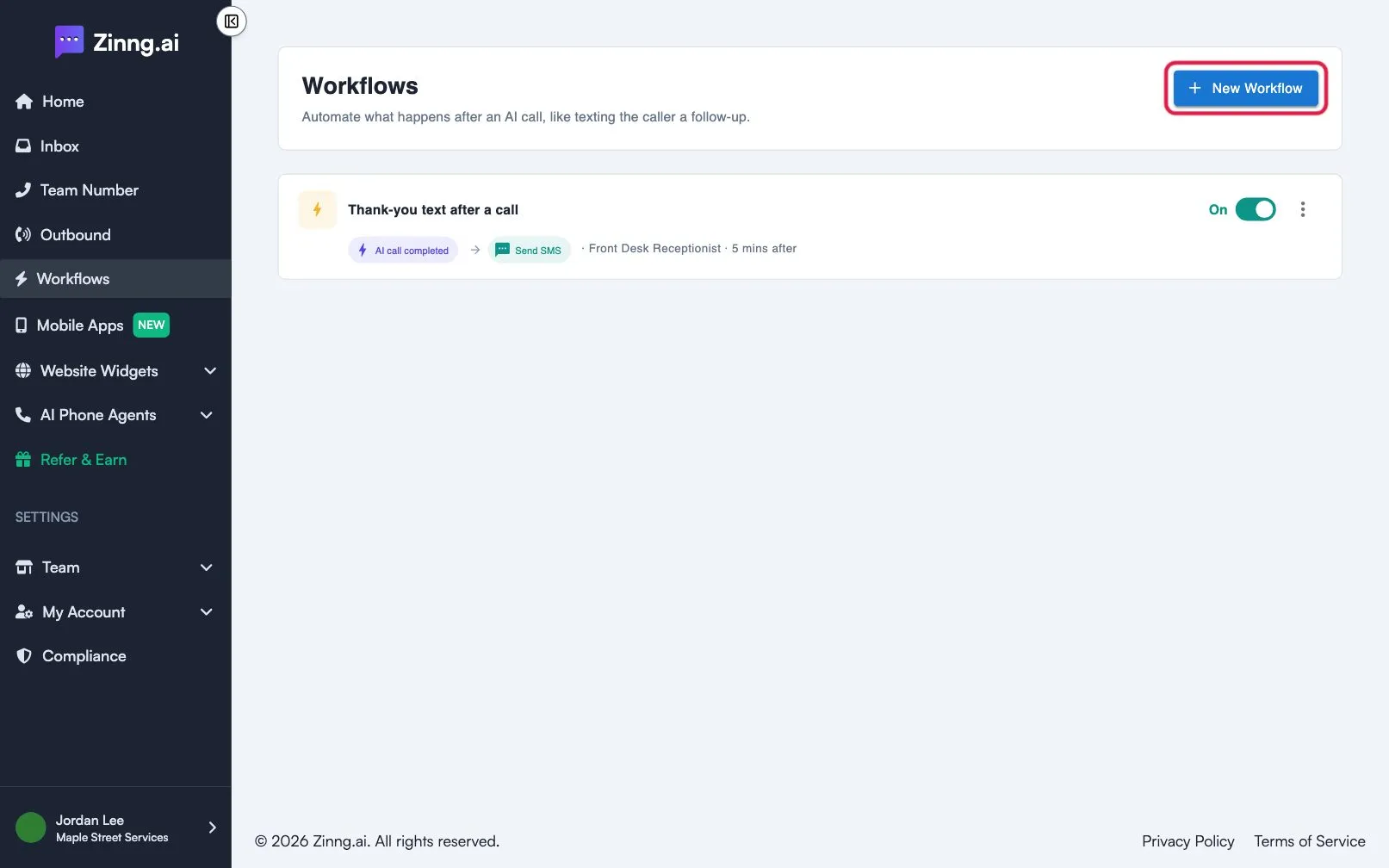
The workflow list
Section titled “The workflow list”Each row shows the workflow name, an on and off switch, the trigger, the action, the agent and the delay. Select the three dots on a row to choose Edit, Run history or Delete. A new account sees No workflows yet until you create one.
The workflow editor
Section titled “The workflow editor”Select New Workflow to open the editor. Rename the workflow by selecting its title at the top.
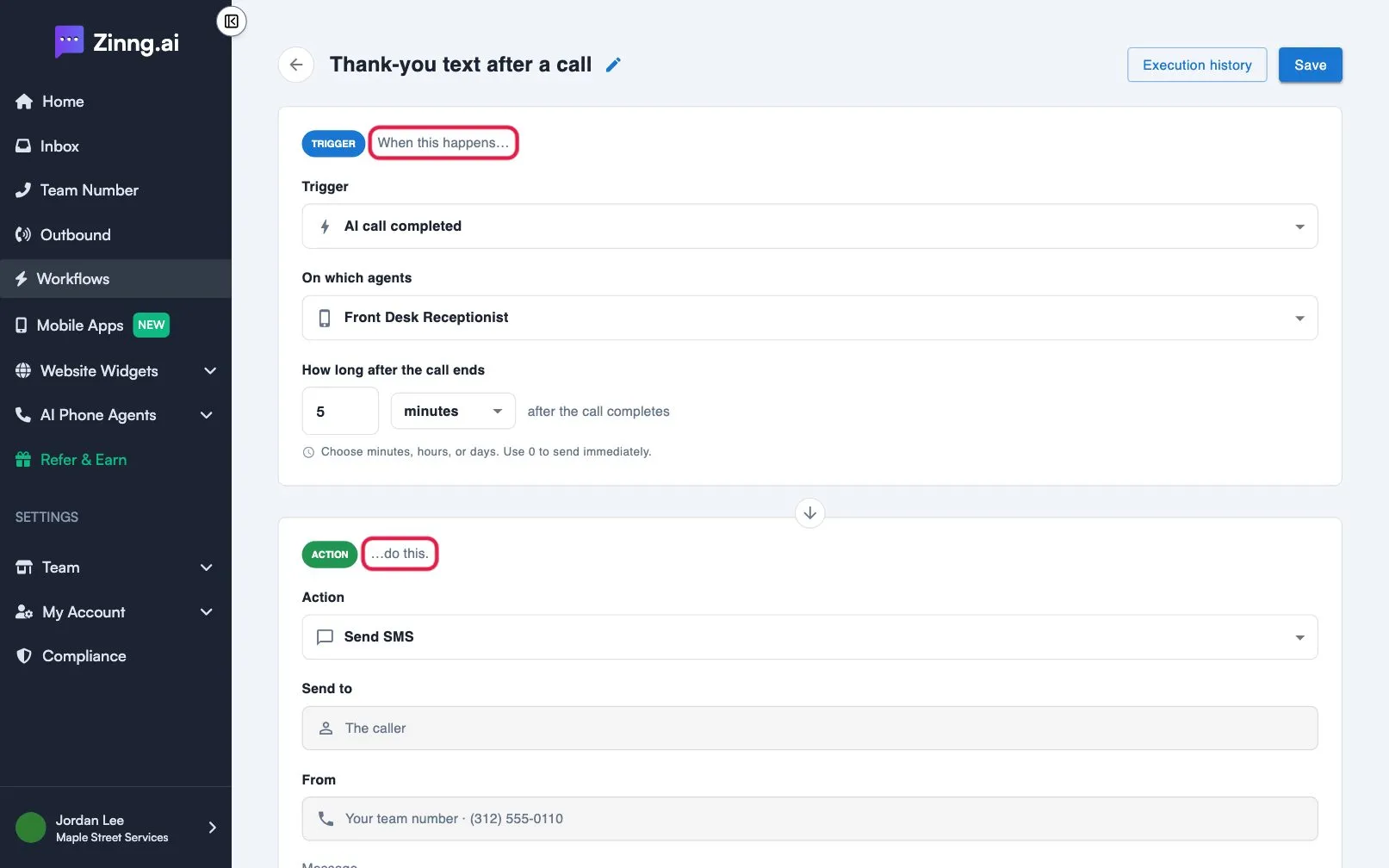
| Setting | What it does |
|---|---|
| Trigger | When the workflow starts. The only trigger today is AI call completed. |
| On which agents | The AI phone agents the workflow applies to. Pick at least one. |
| How long after the call ends | A number plus minutes, hours or days. Use 0 to send immediately. |
| Action | Send SMS sends a fixed message. Send SMS with AI lets the AI decide whether to text and what to say. |
| Send to | Always The caller. |
| From | Always Your team number. |
| Message or Prompt | The text to send, or your instructions for the AI. |
| Add action | Adds another action to the same workflow. |
| Execution history | Shows past runs of this workflow. |
| Save | Saves your changes. |
Common tasks
Section titled “Common tasks”Pause a workflow
Section titled “Pause a workflow”Switch the toggle on its row off. Switch it on again to resume.
Check what a workflow did
Section titled “Check what a workflow did”Select the three dots, then Run history. A run is Scheduled, Running, Completed, Partial or Failed. An action can be Pending, Success, Failed or Skipped.
Delete a workflow
Section titled “Delete a workflow”Select the three dots, then Delete, and confirm. This cannot be undone.