
The Usage page: see your minutes and call activity
Check your monthly and additional minutes, when your allowance resets, and every call that used them, with filters, on the Usage page.
The Usage page shows how many voice minutes you have left this month and how they were used. Open it to check your balance before it runs out.
Open the Usage page
Section titled “Open the Usage page”In the left menu, open Team, then select Usage (open your Usage page). The page subtitle reads “Track included and additional usage across resource types”.
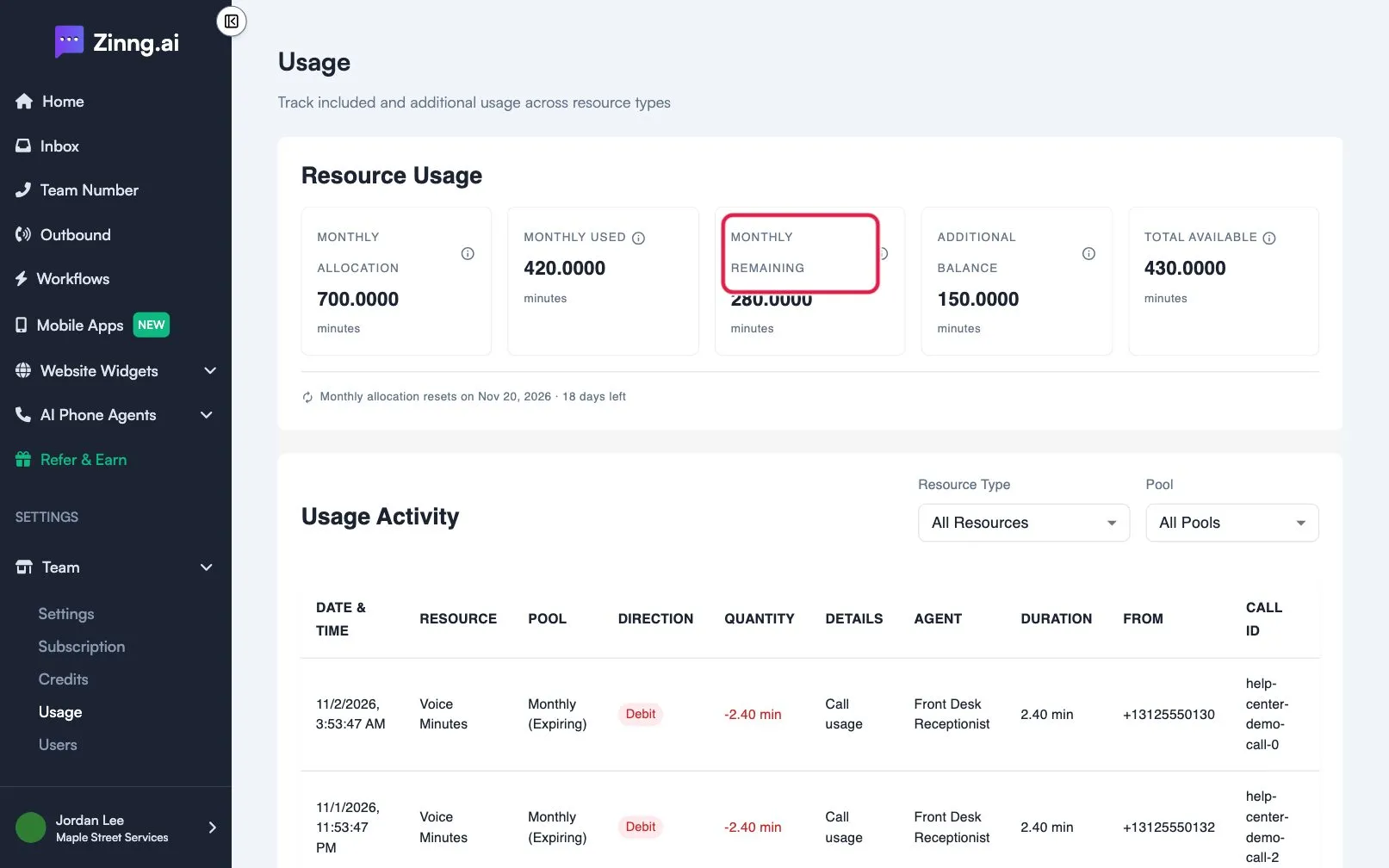
Resource Usage tiles
Section titled “Resource Usage tiles”The Resource Usage card shows five numbers in minutes.
| Setting | What it does | Plan if limited |
|---|---|---|
| Monthly Allocation | Minutes included with your plan for this billing cycle. | |
| Monthly Used | Minutes already used from this month’s allocation. | |
| Monthly Remaining | Minutes left this cycle before extra minutes are used. | |
| Additional Balance | Extra minutes that never expire, such as minutes you bought. | |
| Total Available | Monthly remaining plus additional balance. This is what you can use right now. |
Under the tiles, a line shows the date your monthly allocation resets and how many days are left.
Usage Activity
Section titled “Usage Activity”The Usage Activity table lists every change to your minutes. Use the Resource Type list (All Resources by default) and the Pool list (All Pools, Monthly or Additional) to narrow it.
| Column | What it shows |
|---|---|
| DATE & TIME | When it happened. |
| RESOURCE | What was used, such as Voice Minutes. |
| POOL | Monthly (Expiring) or Additional (Non-expiring). |
| DIRECTION | Debit when minutes were used, Credit when minutes were added. |
| QUANTITY | How many minutes. |
| DETAILS | The reason: Call usage, New billing cycle, Plan minutes updated, Bonus minutes added, Minutes adjusted or Purchase. |
| AGENT, DURATION, FROM, CALL ID | For a call: the agent that answered, how long it lasted, the caller’s number and the call’s ID. |
| BALANCE | Your balance after the change. |
Open the row actions menu in the ACTION column and select View conversation to open the call in your inbox.
Common tasks
Section titled “Common tasks”- See how many minutes are left: read Total Available.
- Find the date minutes reset: read the line under the tiles.
- Find the call that used minutes: filter Resource Type, then use View conversation.
- Learn what counts as a minute: see how minutes work.
- Get more minutes: see what happens when you run out of minutes.