
The Agents page
See every AI phone agent on the Agents page, check calls and plan limits, rename, delete or add agents, and open an agent's settings in one click.
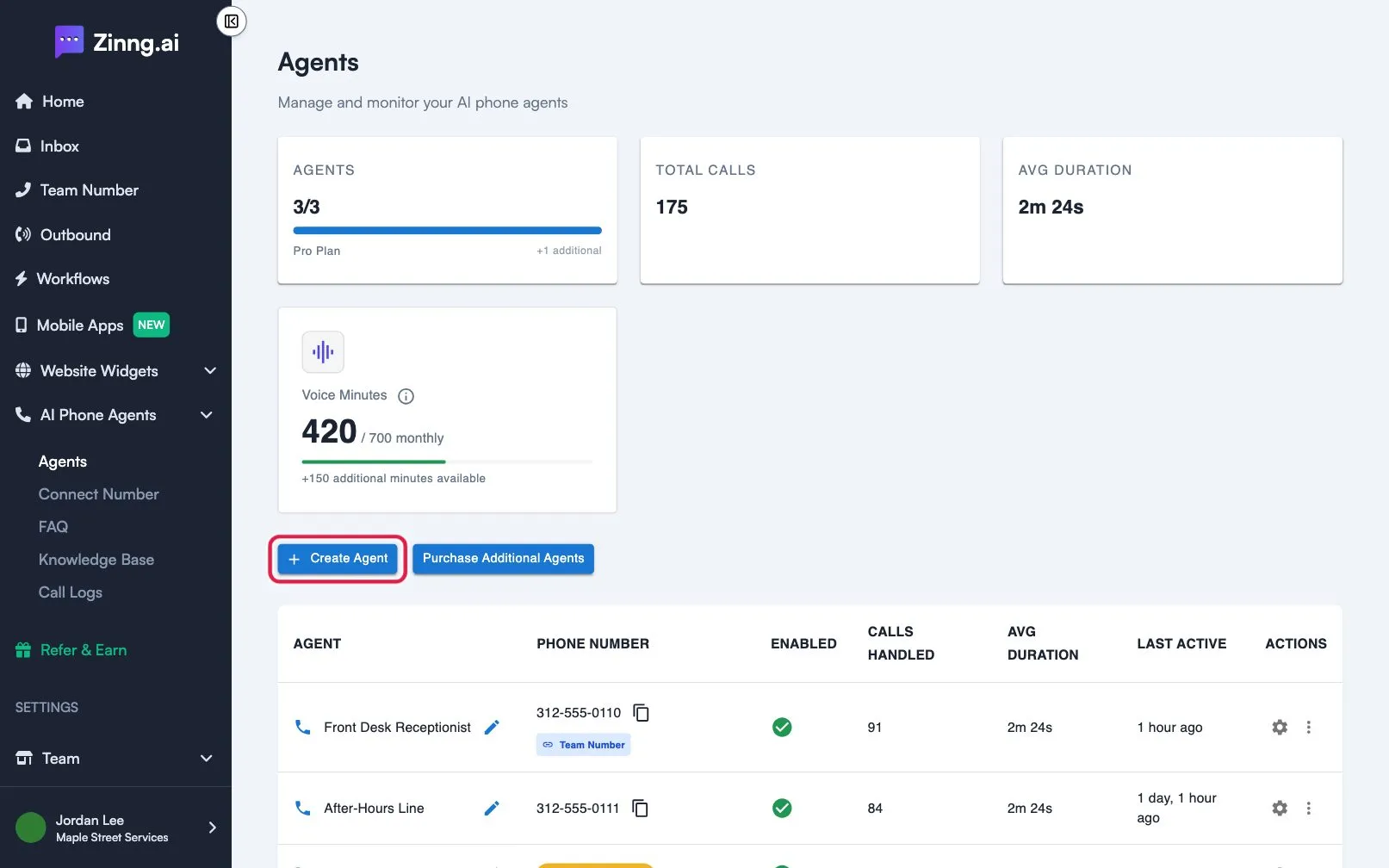
The Agents page lists all of your AI phone agents in one place. Use it to see how many calls each agent handles, create or delete agents, and open an agent to change how it answers.
How do I open the Agents page?
Section titled “How do I open the Agents page?”In the left menu, open AI Phone Agents, then select Agents. You can also go straight to the Agents page. The page subtitle reads Manage and monitor your AI phone agents.
What is on the Agents page?
Section titled “What is on the Agents page?”At the top are summary cards. Below them are two buttons and a table with one row per agent.
| Setting | What it does | Plan if limited |
|---|---|---|
| Agents card | Shows how many agents you have out of how many your plan allows, for example 3/3. It also shows your plan name and +N additional if you bought extra agents. | Essentials: 1 agent. Pro: 2. Growth: 5. Scale: 10. |
| Total Calls and Avg Duration cards | How many calls your agents handled and their average length. | |
| Voice Minutes card | How many voice minutes you have used out of your monthly amount. Select it to open your usage. | |
| Create Agent button | Starts a new agent. | Stops at your agent limit. |
| Purchase Additional Agents button | Opens the subscription page, where you can add agents beyond your plan. | |
| AGENT column | The agent’s name. Select the pencil to rename it. | |
| PHONE NUMBER column | The number callers dial. Select the copy icon to copy it. A Team Number tag marks an agent that uses your Team Number. | |
| ENABLED column | A green check means the agent is on. A red cross means it is off. | |
| CALLS HANDLED, AVG DURATION, LAST ACTIVE | How busy the agent is and when it last took a call. | |
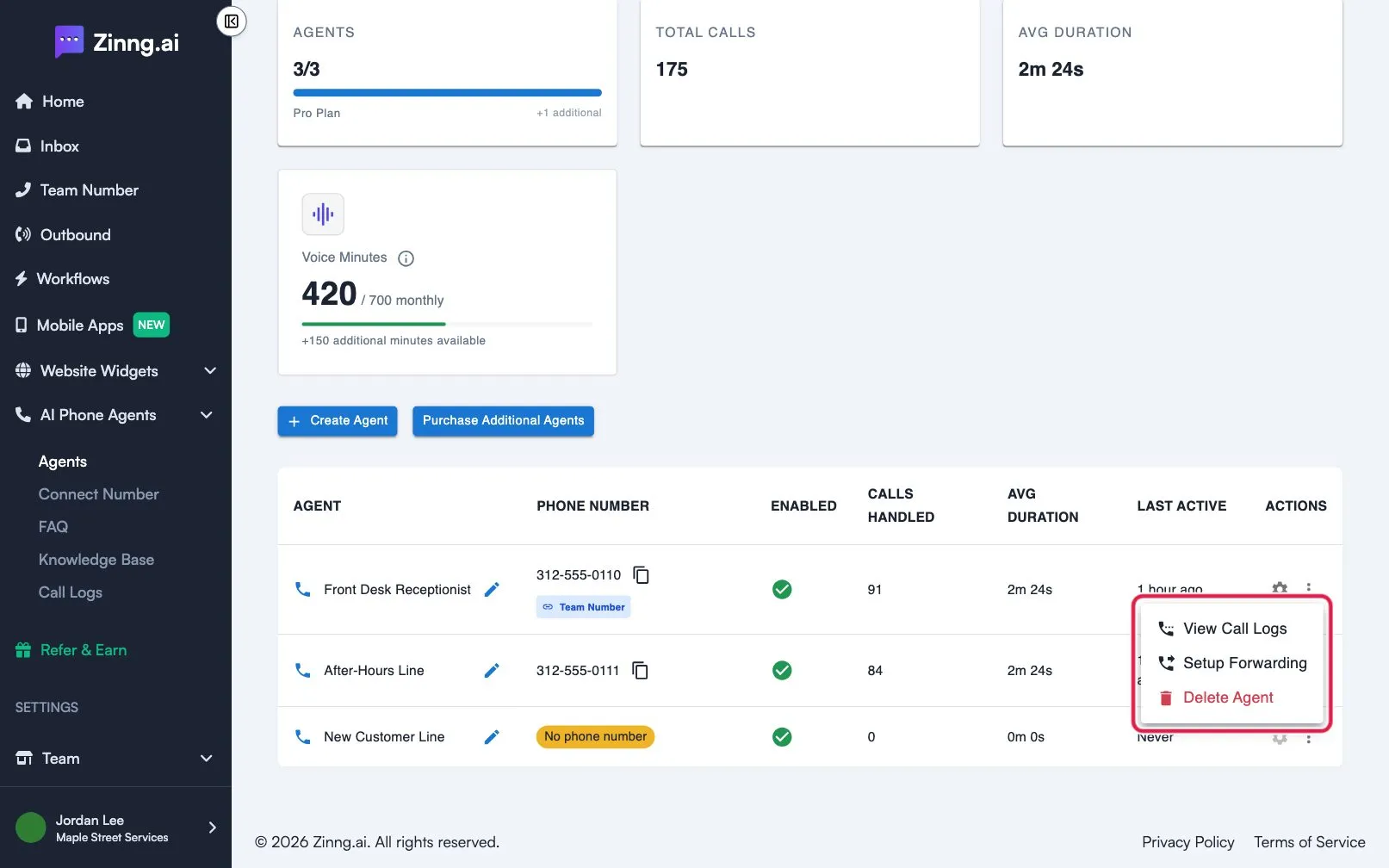
| ACTIONS column | The gear opens the agent’s settings. The three-dot menu has View Call Logs, Setup Forwarding and Delete Agent. |
Agents have these extra states:
- A yellow No phone number tag means the agent cannot take calls yet. Select the row to attach a number or finish setup. The gear stays off until the agent has a number.
- Setup Forwarding shows only for agents with a phone number.
- A banner reading Set up your AI phone agent or Your agent needs a phone number has a Complete Setup button that takes you back to setup.
Common tasks
Section titled “Common tasks”Rename an agent
Section titled “Rename an agent”- Select the pencil next to the agent’s name.
- Type the new name. Names are required and can be up to 100 characters.
- Press Enter, or click away from the field, to save. Press Escape to cancel. A message confirms Agent name updated successfully.
Open an agent’s settings
Section titled “Open an agent’s settings”Select the gear in the ACTIONS column, or select the agent’s row. This opens your agent’s page. Read your agent’s page for what you can change there.
See one agent’s calls
Section titled “See one agent’s calls”Select the three-dot menu, then View Call Logs. To review calls in detail, see the Call Logs page.
Add or remove an agent
Section titled “Add or remove an agent”Follow create a new AI phone agent or delete an agent.
What if I have reached my agent limit?
Section titled “What if I have reached my agent limit?”Selecting Create Agent shows: You have reached your agent limit. Please purchase additional agents from the subscription page. Select Purchase Additional Agents, or delete an agent you no longer use.