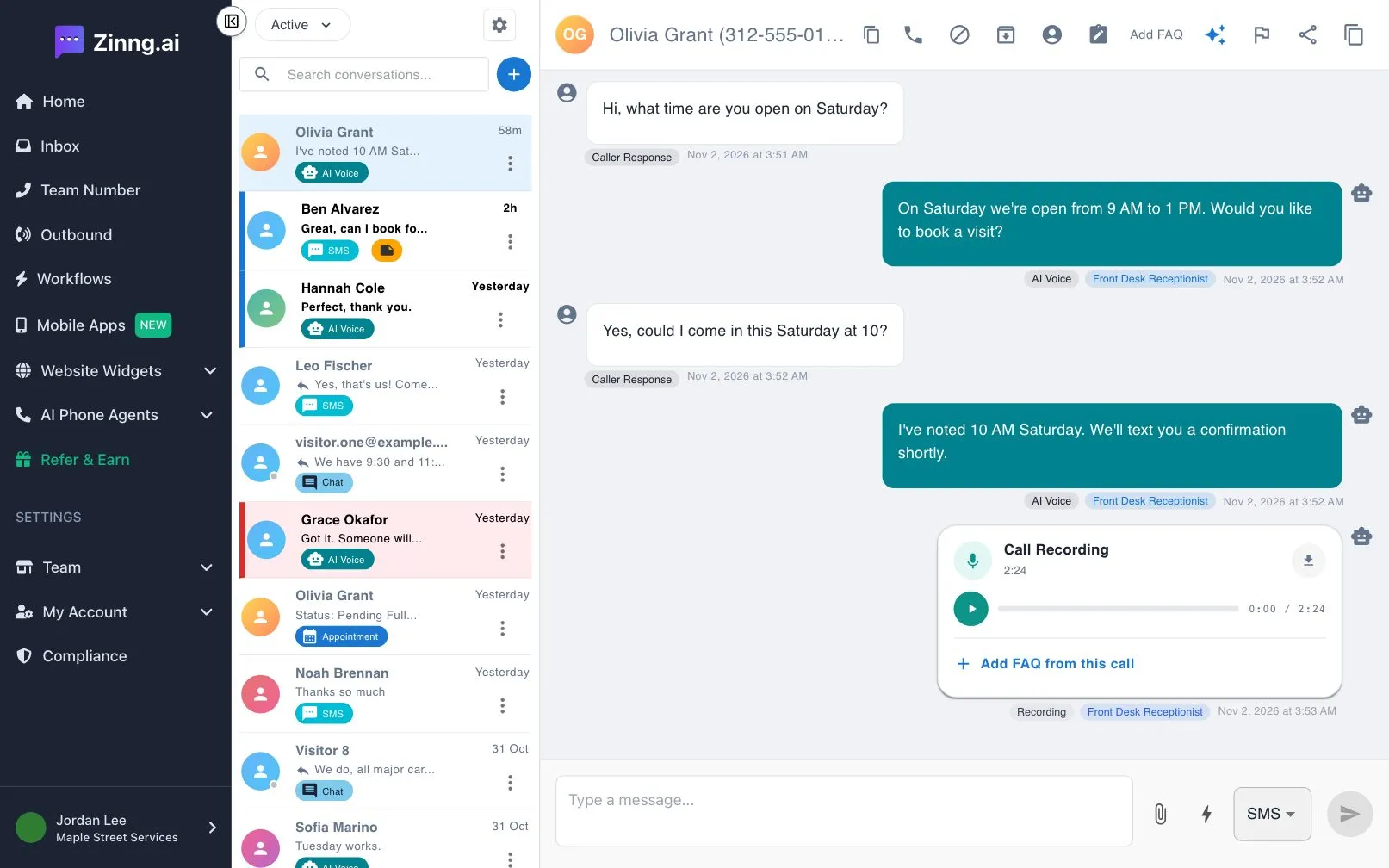
The Call Logs page
See every call your AI phone agents handled, with duration, minutes used and status, and find where to hear recordings and read transcripts.
The Call Logs page lists every call your AI phone agents handled. Use it to check how many calls came in, how long they ran and how many minutes they used. It is a summary list; recordings and transcripts live in your Inbox.
How do I open the Call Logs page?
Section titled “How do I open the Call Logs page?”Open Call Logs, or expand AI Phone Agents in the left menu and select Call Logs. Select Back to Agents at the top to return to your agents list.
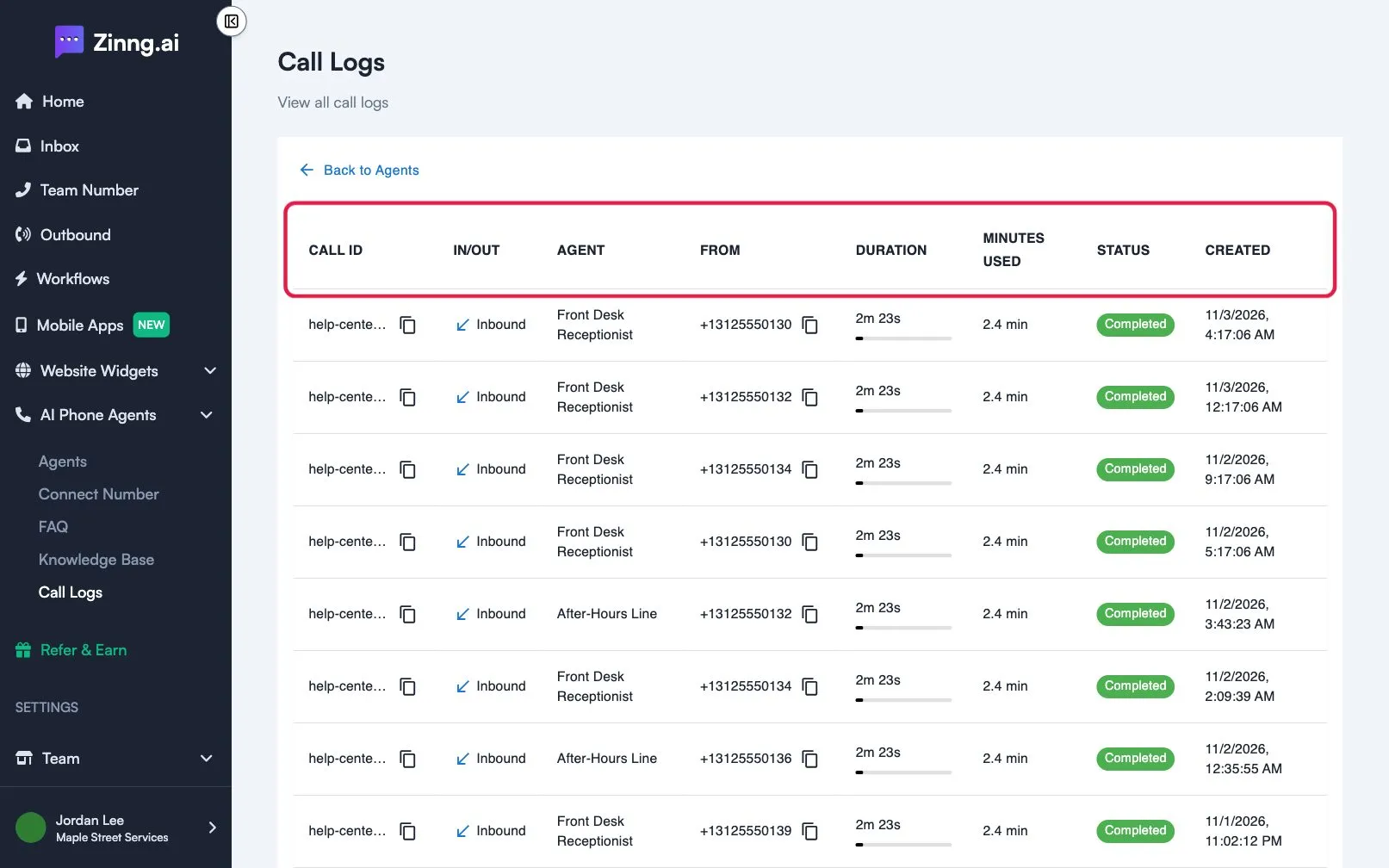
What do the Call Logs columns mean?
Section titled “What do the Call Logs columns mean?”| Column | What it shows | Plan if limited |
|---|---|---|
| CALL ID | The call’s identifier. Select the copy icon next to it to copy it. | |
| IN/OUT | Whether the call was Inbound or Outbound. | |
| AGENT | The agent that handled the call. | |
| FROM | The phone number the call came from. Select the copy icon to copy it. | |
| DURATION | How long the call ran, with a small bar that fills up to 30 minutes. | |
| MINUTES USED | The minutes the call used from your plan. | |
| STATUS | The result of the call: Completed, Failed, Busy, No Answer, Canceled or Unknown. | |
| CREATED | The date and time of the call, shown in your browser’s local time. |
Newest calls are first. Use the page controls under the table to move between pages and to show 10, 20, 50 or 100 calls per page. If there are no calls yet, the page shows No call logs found.
Calls handled by an agent you have deleted do not appear in this list.
Common tasks
Section titled “Common tasks”How do I see the calls for one agent?
Section titled “How do I see the calls for one agent?”- Open the Agents page and find the agent.
- Open the actions menu (the three dots) on the agent and select View Call Logs. The list then shows only that agent’s calls.
Without that filter, the page shows calls from all of your agents.
How do I copy a caller’s number?
Section titled “How do I copy a caller’s number?”Find the call in the FROM column and select the copy icon next to the number.
How do I check how many minutes my agents used?
Section titled “How do I check how many minutes my agents used?”Look at the MINUTES USED column for each call. Long calls show a fuller bar in DURATION.
How do I hear a recording or read a transcript?
Section titled “How do I hear a recording or read a transcript?”The Call Logs table does not play audio or show the conversation. Open the conversation in your Inbox instead. The steps are in review calls, recordings and transcripts.