
Welcome message settings
Set what your AI phone agent says first, who speaks first, and how long it waits before greeting callers, from your agent's settings.
The welcome message is the first thing a caller hears. These settings control whether your agent greets the caller or waits for them, what the greeting says, and how long the agent pauses first. A clear, friendly greeting tells callers they reached the right place.
How to open welcome message settings
Section titled “How to open welcome message settings”- Open AI Phone Agents in the left menu and select your agent.
- Scroll to Agent Settings (under EDIT YOUR SETTINGS MANUALLY) and stay on the Instructions tab.
- Find Welcome Message Settings, below Voice Settings.
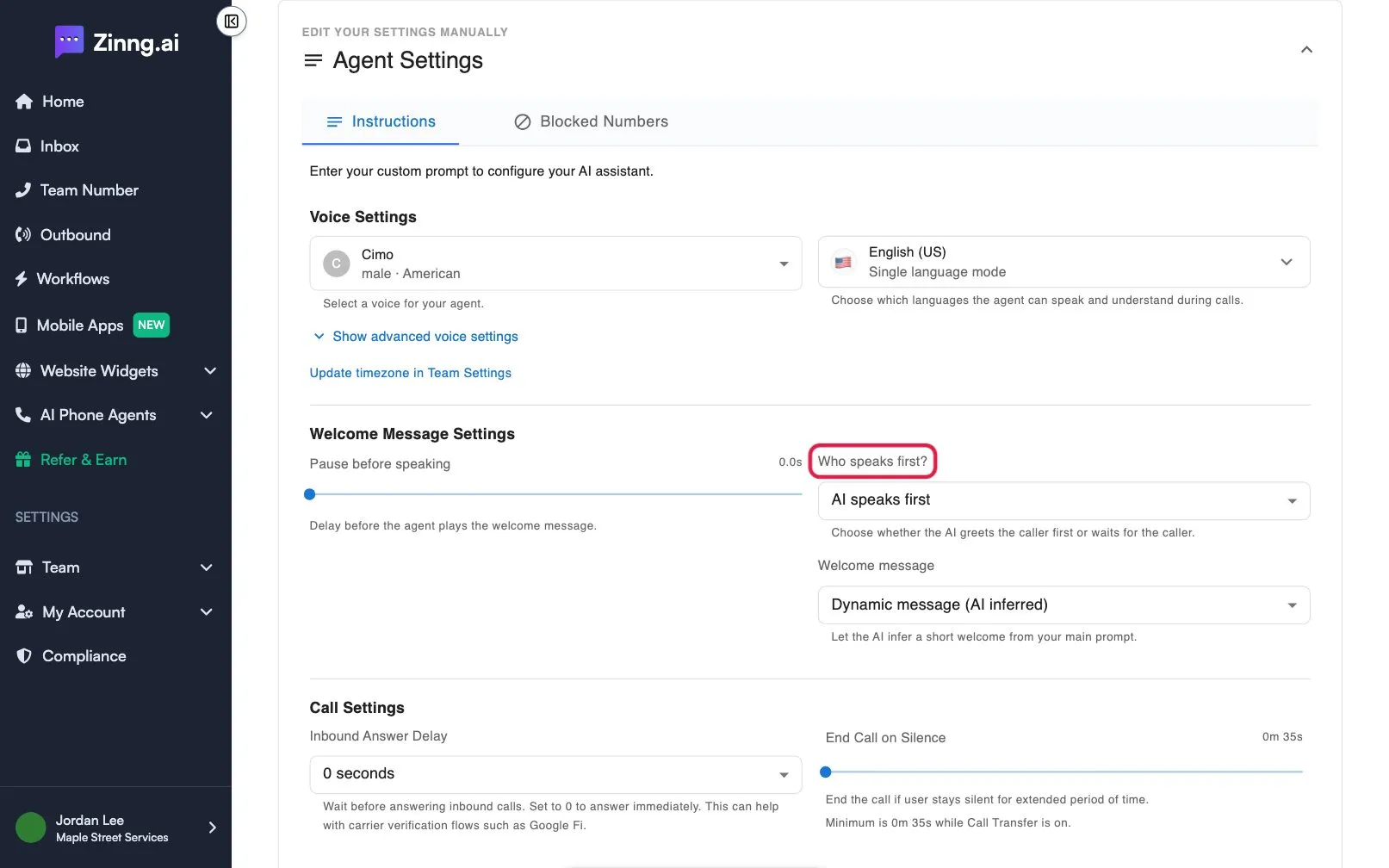
Welcome message settings reference
Section titled “Welcome message settings reference”| Setting | What it does | Plan if limited |
|---|---|---|
| Pause before speaking | Delay before the agent plays the welcome message. A slider from 0 to 5 seconds. | |
| Who speaks first? | Choose AI speaks first (the agent greets the caller) or Caller speaks first (the agent waits for the caller). | |
| Welcome message | Shown when the AI speaks first. Choose Dynamic message (AI inferred) to let the agent create a short welcome from your instructions, or Custom message to write your own. | |
| Custom welcome message | The exact greeting, shown when you pick Custom message. You can use variables such as {{business_name}}. |
|
| AI starts speaking after silence | Shown when the caller speaks first. When on, the agent speaks up if the caller stays quiet. | |
| Silence before AI starts | How long the agent waits in silence before it speaks, from 0 to 20 seconds. | |
| Welcome message after silence | The first message the agent uses after that silence: dynamic or custom. |
Common tasks
Section titled “Common tasks”Write your own greeting
Section titled “Write your own greeting”- Make sure Who speaks first? is AI speaks first.
- Set Welcome message to Custom message.
- Type your greeting in Custom welcome message.
- Select Save.
See change the welcome message and who speaks first for the full walkthrough.
Let callers speak first
Section titled “Let callers speak first”- Set Who speaks first? to Caller speaks first.
- Optional: turn on AI starts speaking after silence and set Silence before AI starts.
- Select Save.
Add a short pause before the greeting
Section titled “Add a short pause before the greeting”Move the Pause before speaking slider. A small pause can sound more natural on phones that take a moment to connect. Then select Save.
Hear the result
Section titled “Hear the result”Make a call to your agent and listen to the greeting. Test your agent shows how.