
Reply to a text and send photos and files
Answer a customer's text from your inbox, attach photos or files as a picture message, and see whether your message was delivered.
You can answer texts right from the inbox, and attach photos or files when a picture helps.
Before you start
Section titled “Before you start”- Two-way texting is on your plan. If it is not, the message box is disabled and tells you so.
- The contact needs a valid phone number. If they do not have one, you can still reply by Chat where the conversation is a web chat.
How do I reply and attach a file?
Section titled “How do I reply and attach a file?”-
Open the conversation in your inbox.
-
Check the send method.
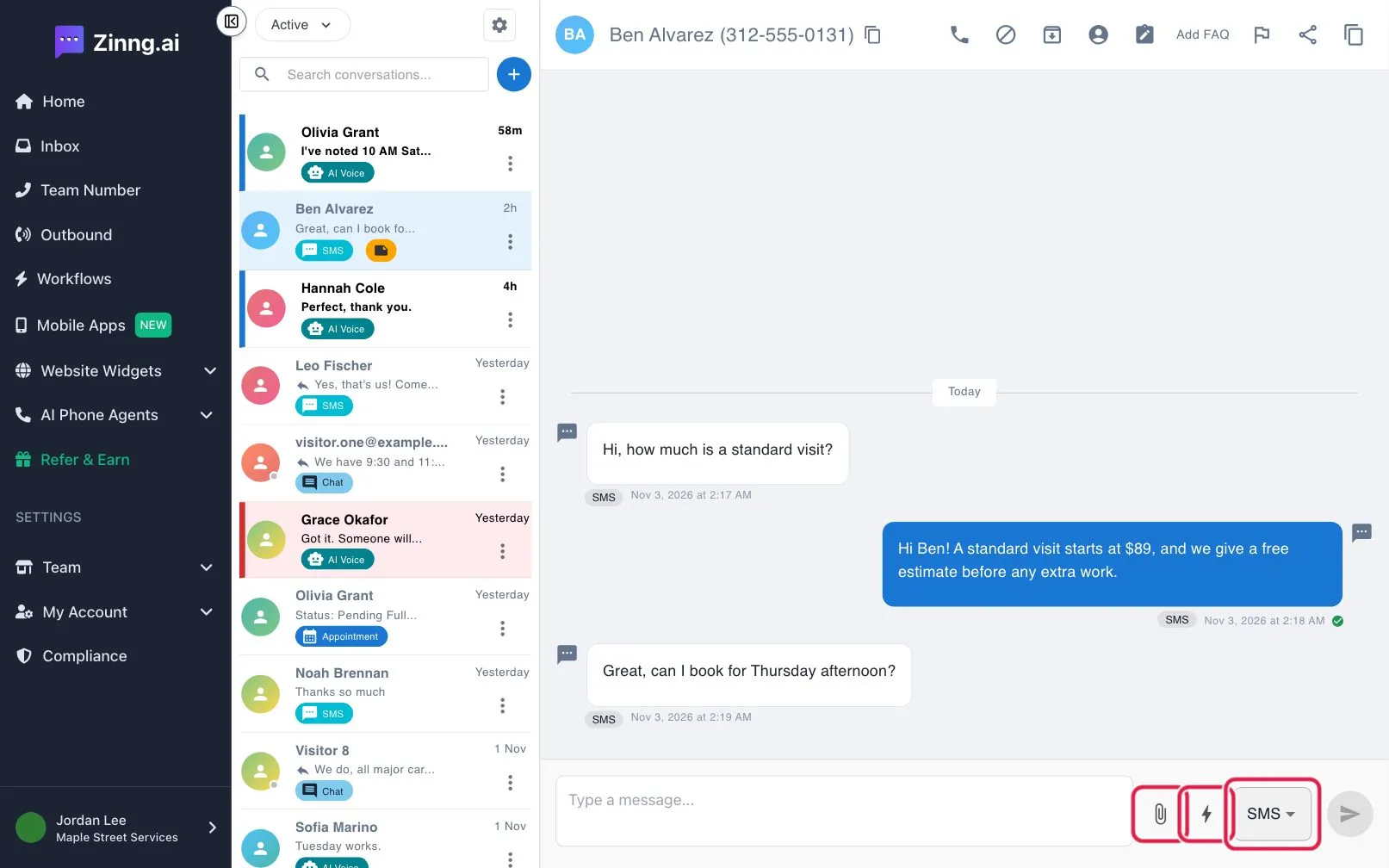
Next to the send button, the menu shows SMS for a text. Choosing Chat sends to a web chat instead. SMS and MMS are greyed out when the contact has no phone number or cannot receive texts.
-
Type your message under Type a message… Texts can be up to 1,600 characters.
-
Attach a file, if you want.
Select the paperclip, or paste an image into the box. You can attach up to 10 files, and the message plus files must total 5 MB or less. The method switches to MMS by itself when a file is attached.
-
Select the send button, or press Enter. Press Shift and Enter for a new line.
A green check under your message means it was delivered. A red warning icon means it failed; point at it to see why.