
Team settings
Change your team name, booking link name, timezone and texting options on the Team settings page, available to owners and admins.
Team settings is where you rename your team, set its timezone and booking link name, and choose a few texting options. Only the team’s owner and admins can open it. See roles and permissions.
Open Team settings
Section titled “Open Team settings”In the left menu, open Team and select Settings. The page is titled Organization Settings.
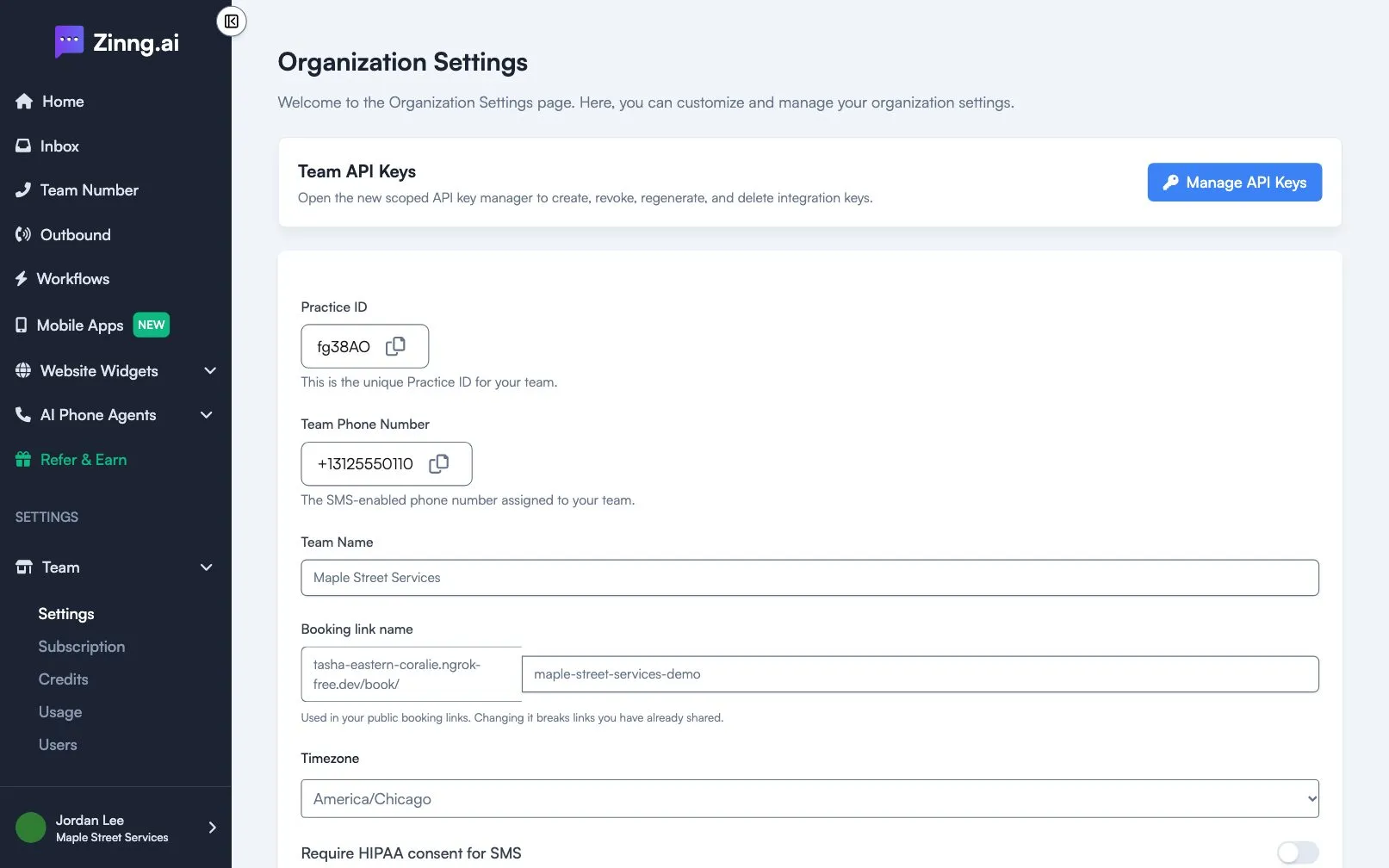
Settings
Section titled “Settings”| Setting | What it does |
|---|---|
| Practice ID | A unique ID for your team. You can copy it but not change it. It shows Not Assigned until one exists. |
| Team Phone Number | The text-enabled number assigned to your team. You can copy it but not change it. It shows Pending Assignment until a number is assigned. |
| Team Name | The name of your team. |
| Booking link name | The last part of your public booking link. Changing it breaks links you have already shared. Some words are reserved, and a name another team uses is rejected. |
| Timezone | The timezone for your team. Your agents are updated to match when you change it. |
| Require HIPAA consent for SMS | When on, users must give HIPAA consent before receiving SMS messages. |
| Auto-archive webhook conversations | When on, conversations created through a webhook that get no customer response are archived automatically. |
The page also has a Manage API Keys button under Team API Keys, for creating and revoking integration keys.
Common tasks
Section titled “Common tasks”Change your team name
Section titled “Change your team name”- Open Team, then Settings.
- Edit Team Name.
- Select Save Changes.
Change your timezone
Section titled “Change your timezone”- Open Team, then Settings.
- Pick your timezone from Timezone.
- Select Save Changes.
I get a permission error on this page
Section titled “I get a permission error on this page”Only owners and admins can open Team settings. Ask your team’s owner to change your role or make the change for you.