
Knowledge Base settings
Add web pages, files and text to a Knowledge Base, link it to your AI phone agents and check its status so callers get accurate answers.
A Knowledge Base is a set of reference material your agents use to answer caller questions accurately. It can hold pages from your website, files and text you type in. Your agent reads from it during calls, so it can answer questions you did not write into its instructions.
How do I open the Knowledge Base page?
Section titled “How do I open the Knowledge Base page?”Open Knowledge Base, or expand AI Phone Agents in the left menu and select Knowledge Base. Select a row to open that knowledge base and manage its sources.
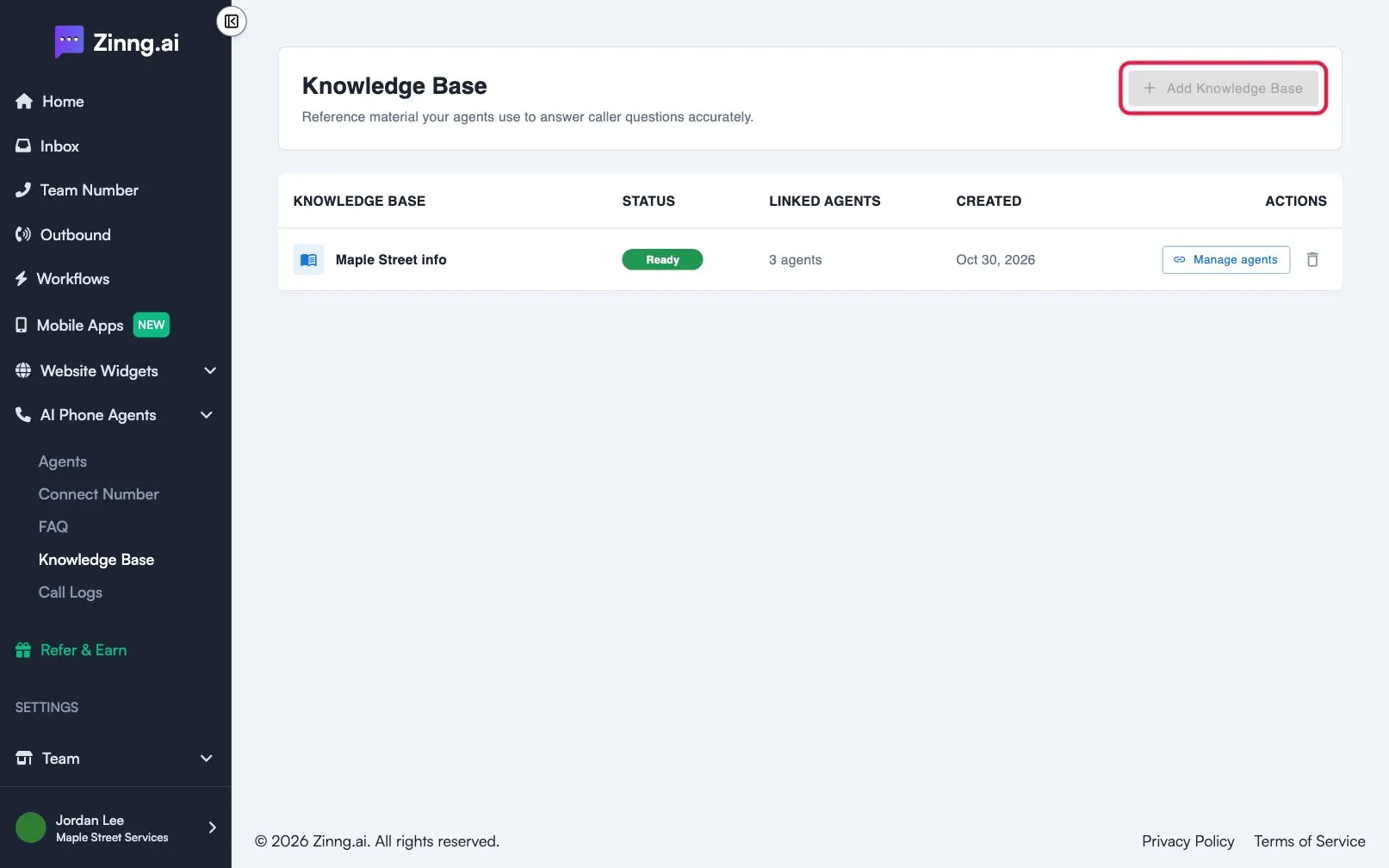
What is on the Knowledge Base list?
Section titled “What is on the Knowledge Base list?”| Setting | What it does | Plan if limited |
|---|---|---|
| Add Knowledge Base | Creates a new knowledge base. It is turned off once you reach the number your plan includes. | Each paid plan includes one knowledge base |
| KNOWLEDGE BASE | The name of each knowledge base. | |
| STATUS | Ready, Updating or Error. Only a Ready knowledge base can be linked or changed. | |
| LINKED AGENTS | How many agents use it. | |
| CREATED | The date it was made. | |
| Manage agents (or Link agent) | Opens Link to Phone Agent, where you choose which agents use it. | |
| Trash icon | Deletes the knowledge base. |
What can I change inside a knowledge base?
Section titled “What can I change inside a knowledge base?”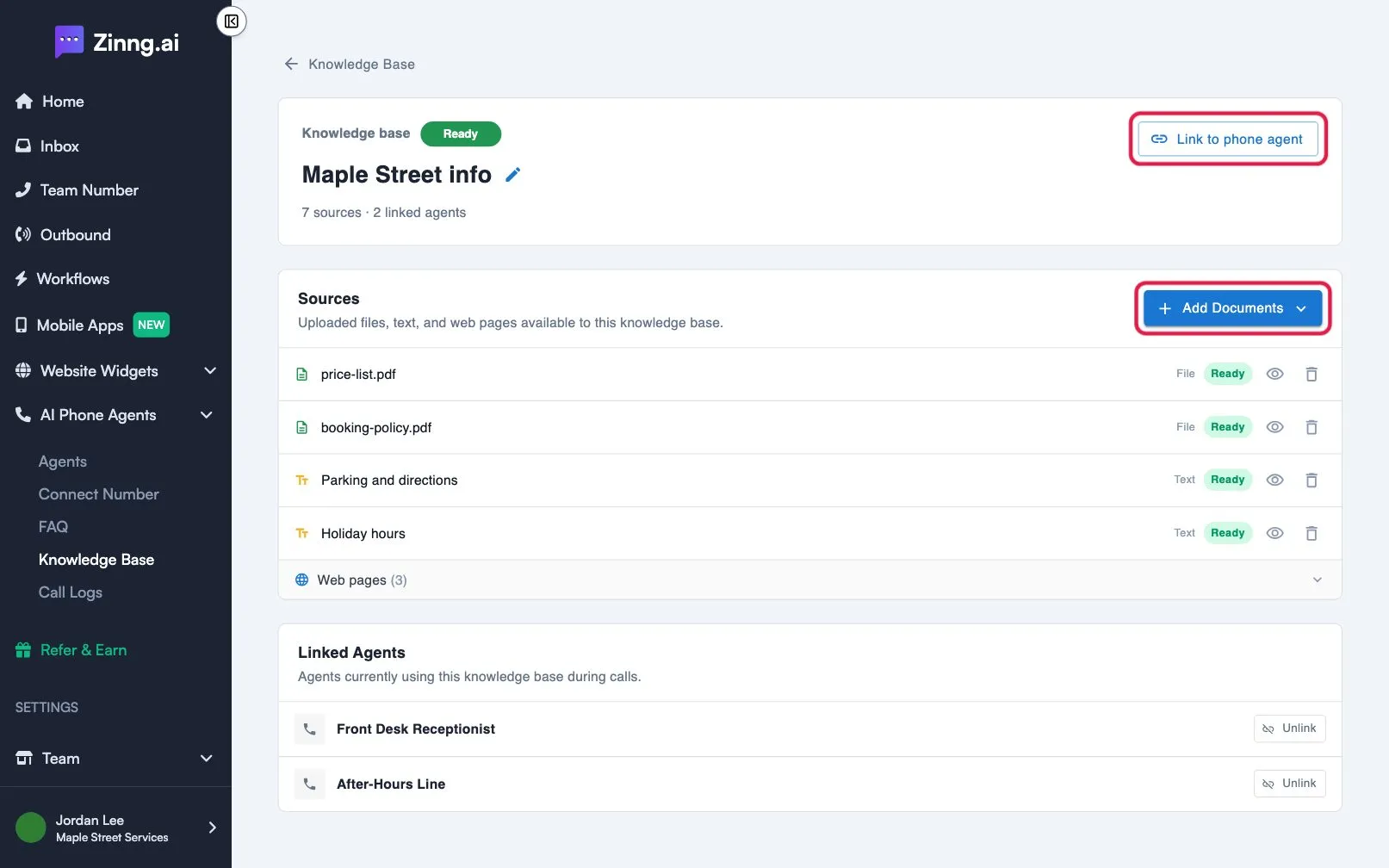
| Setting | What it does | Plan if limited |
|---|---|---|
| Name | Select the name to rename it. The name can be up to 40 characters. | |
| Link to phone agent | Choose which agents use this knowledge base. Select Linked to unlink, or use Unlink under Linked Agents. | |
| Add Documents | Opens a menu with Add web pages, Upload files and Add text. | |
| Add web pages | Paste a sitemap URL, or use the Discovery option with your website address to find pages. Select the pages to add, or use Add more URLs manually. A knowledge base holds up to 200 web pages. | |
| Upload files | Add files by browsing or dragging them in. Each file can be up to 50MB. Common types such as PDF, Word, Excel, PowerPoint, text and images are accepted. | |
| Add text | Type or paste content under File name and Text content, then select Save. | |
| Source icons | Preview or download a file or text source, or delete any source. |
How do I know when my knowledge base is ready?
Section titled “How do I know when my knowledge base is ready?”After you create it or change it, the status shows Updating. Agents may give incomplete answers until it shows Ready, usually after a few seconds. The page checks on its own. You can also select Check if ready. While it is updating, linking and editing are turned off.
Common tasks
Section titled “Common tasks”How do I create a knowledge base?
Section titled “How do I create a knowledge base?”- Select Add Knowledge Base.
- Enter a Name and select Create.
- Add your content with Add Documents.
How do I add my website to a knowledge base?
Section titled “How do I add my website to a knowledge base?”- Open the knowledge base and select Add Documents, then Add web pages.
- Choose Sitemap URL or Discovery, enter your address and select Fetch Pages or Discover.
- Select the pages you want and select the add button.
How do I make an agent use a knowledge base?
Section titled “How do I make an agent use a knowledge base?”Select Manage agents or Link agent, then choose the agent in Link to Phone Agent.
How do I remove a knowledge base?
Section titled “How do I remove a knowledge base?”Select the trash icon and confirm Delete Knowledge Base. This unlinks it from all agents and removes it permanently.
For the full walkthrough, see teach your agent with a Knowledge Base. For short question and answer pairs, use the FAQ page.