
Show Google reviews on your website
Connect your Google Business Profile, choose a layout and paste one line of code into your site to display your Google reviews and rating.
To show your Google reviews on your website, connect your Google Business Profile in Zinng, then paste the widget’s code into your site. Your rating and reviews appear in a carousel or slider.
Before you start
Section titled “Before you start”You need a Google Business Profile for your business, and access to edit your website’s code.
Add the widget
Section titled “Add the widget”-
Open the reviews widget page.
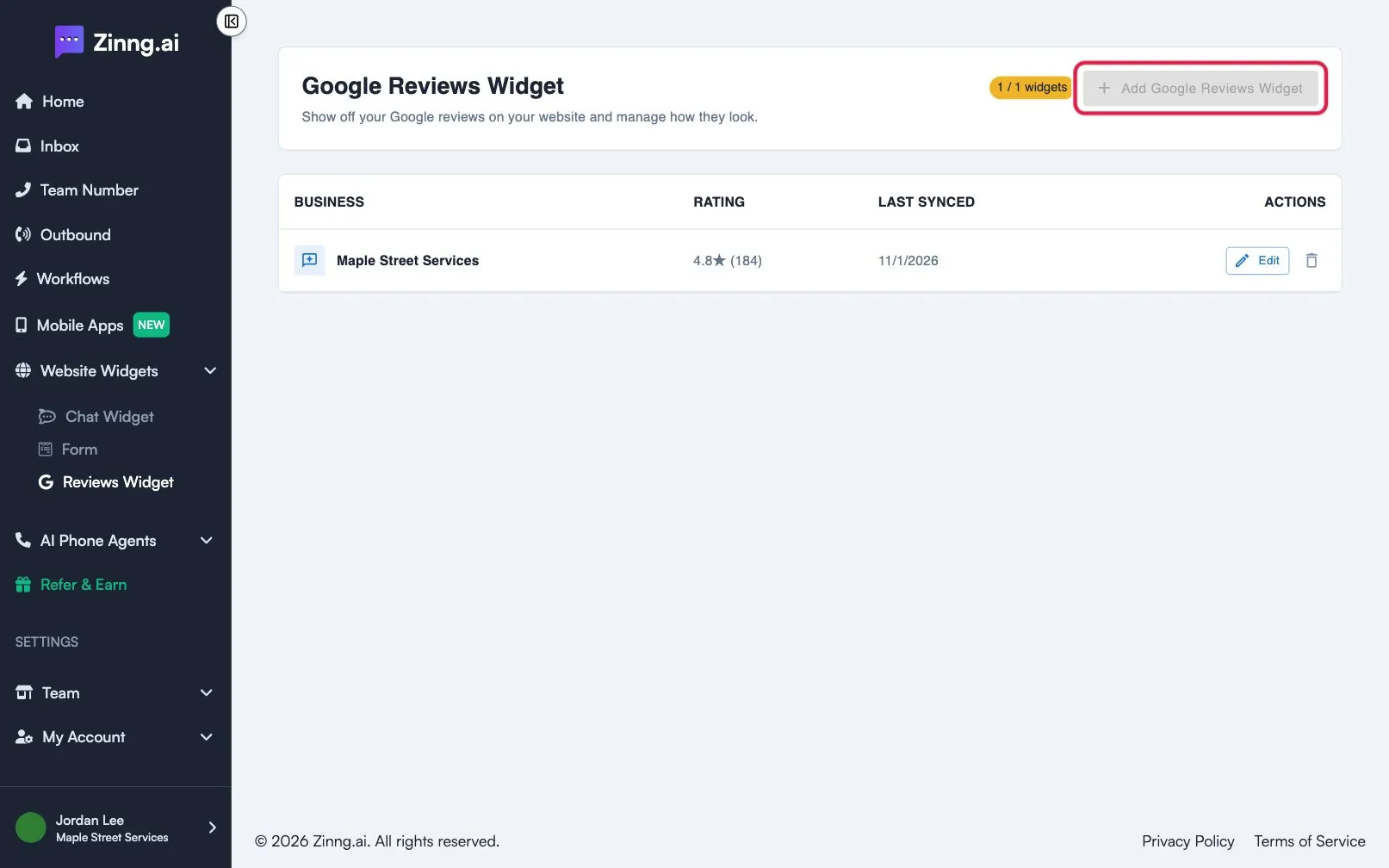
In the left menu, open Website Widgets and select Reviews Widget (open the Reviews Widget page).
-
Connect your business.
Select Add Google Reviews Widget, search for your business under Connect your Google Business Profile, and select it. We fetch your reviews right away.
-
Choose how it looks.
Select Edit, open the Settings tab, and set the Heading and Layout. Select Save.
-
Copy the embed code.
Open the Installation tab and copy the script.
-
Paste it into your website.
Place it in the
<head>or at the bottom of the<body>of your site. -
Save and refresh your website.
Open your site and check that your reviews appear.
What if the button is greyed out?
Section titled “What if the button is greyed out?”You have reached your plan’s widget limit. Delete a widget you no longer need, or see reviews widget settings for limits by plan.