
Review calls, recordings and transcripts
Review your AI agent's calls in Call Logs, then open the Inbox to play the recording and read the transcript of what the caller and agent said.
Use Call Logs to see which calls happened, then open the call in your Inbox to hear the recording and read what was said. Reviewing calls shows you what callers ask and where your agent needs better answers.
How do I find a call?
Section titled “How do I find a call?”-
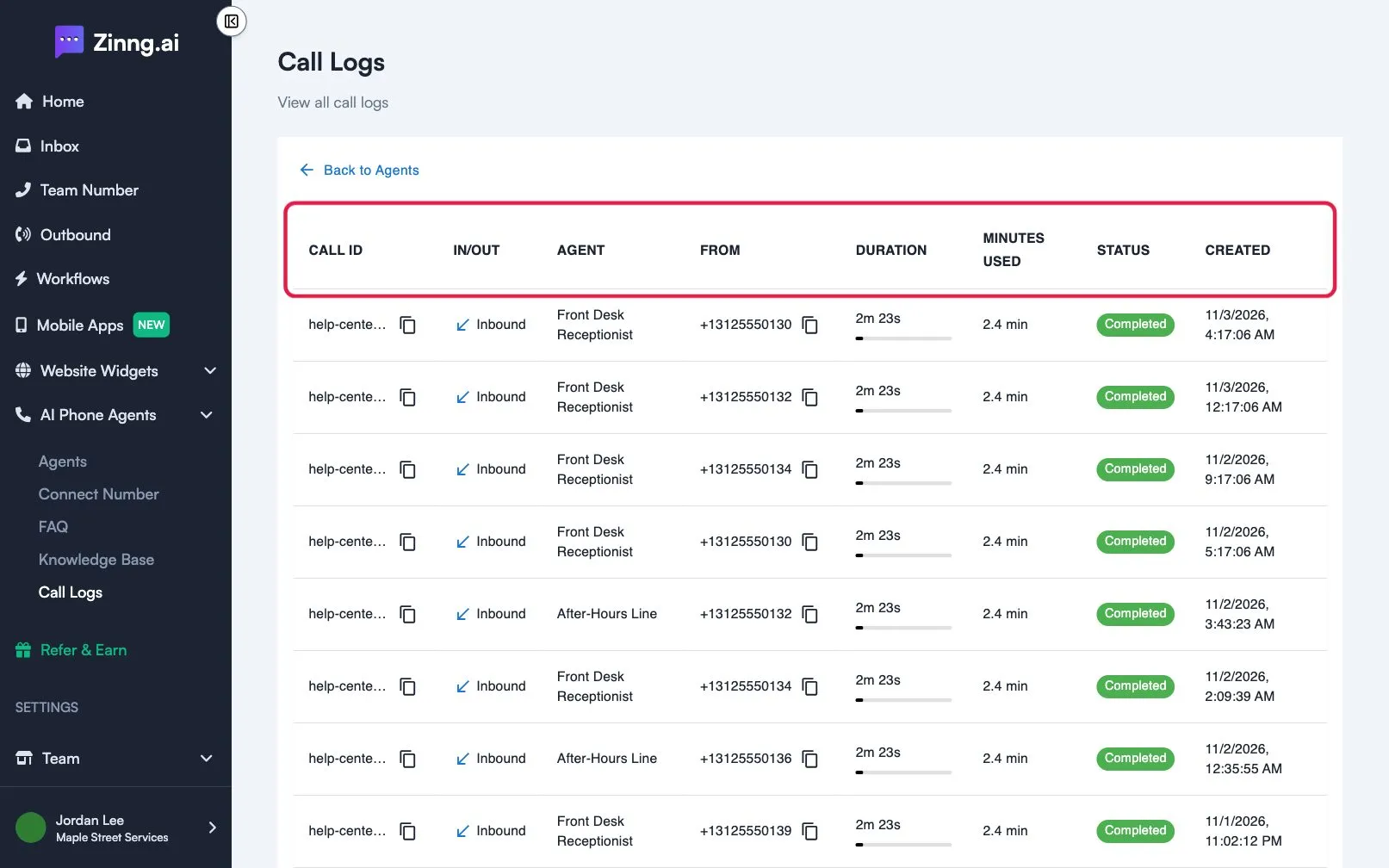
Open Call Logs.
Open Call Logs. Newest calls are first. Check AGENT, FROM, DURATION, STATUS and CREATED to spot the call.
-
Copy the caller’s number.
Select the copy icon next to the number in FROM.
-
Open the Inbox.
Select Inbox in the left menu (open the Inbox page) and search for that number or name in Search conversations….
-
Open the conversation.
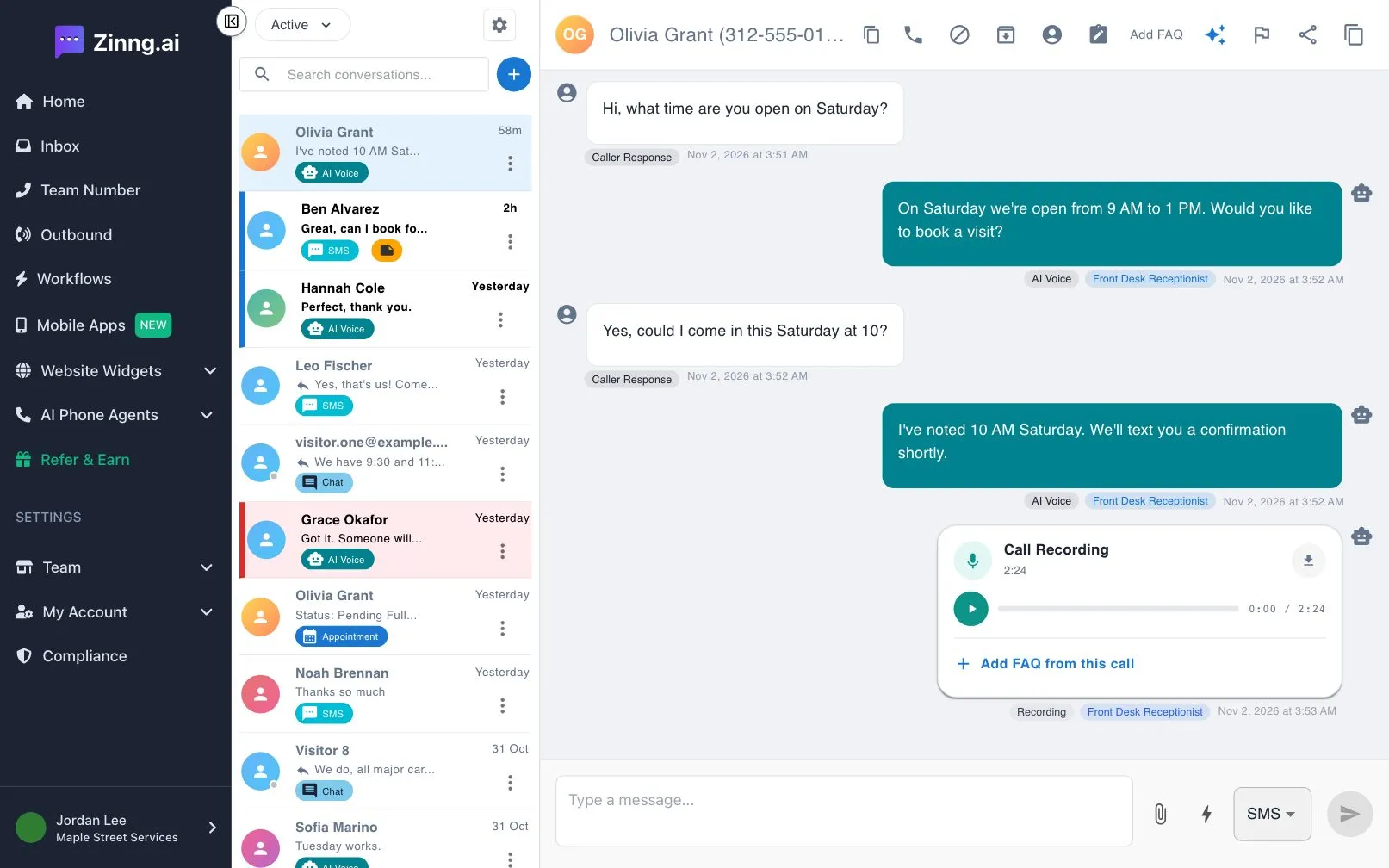
Calls handled by an agent appear with an AI Voice label. Select the conversation to read it.
How do I read the transcript of a call?
Section titled “How do I read the transcript of a call?”In the conversation, the call is shown as a transcript. The caller’s lines are labeled Caller Response, and the agent’s lines are labeled AI Voice with the agent’s name.
How do I play or download a recording?
Section titled “How do I play or download a recording?”Scroll to the Call Recording card in the conversation. Select the play button to listen, select the bar to jump to a point in the call, or select the download icon to save the audio.
Troubleshooting
Section titled “Troubleshooting”I cannot find a call in Call Logs
Section titled “I cannot find a call in Call Logs”Calls handled by an agent you have deleted do not appear there.
The recording will not play
Section titled “The recording will not play”If the card shows an error, try again in a moment. A recording can show Preparing recording… for a short time first.