
Teach your agent with a Knowledge Base
Create a Knowledge Base, add your website pages, files or text, and link it to your AI phone agent so it answers caller questions accurately.
Create a Knowledge Base, add your content and link it to an agent. The agent then uses that material to answer caller questions, such as services, policies and prices you list there.
Before you start
Section titled “Before you start”- You need at least one agent. If you have none, create an agent first.
- Each paid plan includes one knowledge base. If Add Knowledge Base is turned off, you have reached your limit.
Create a Knowledge Base and link it
Section titled “Create a Knowledge Base and link it”-
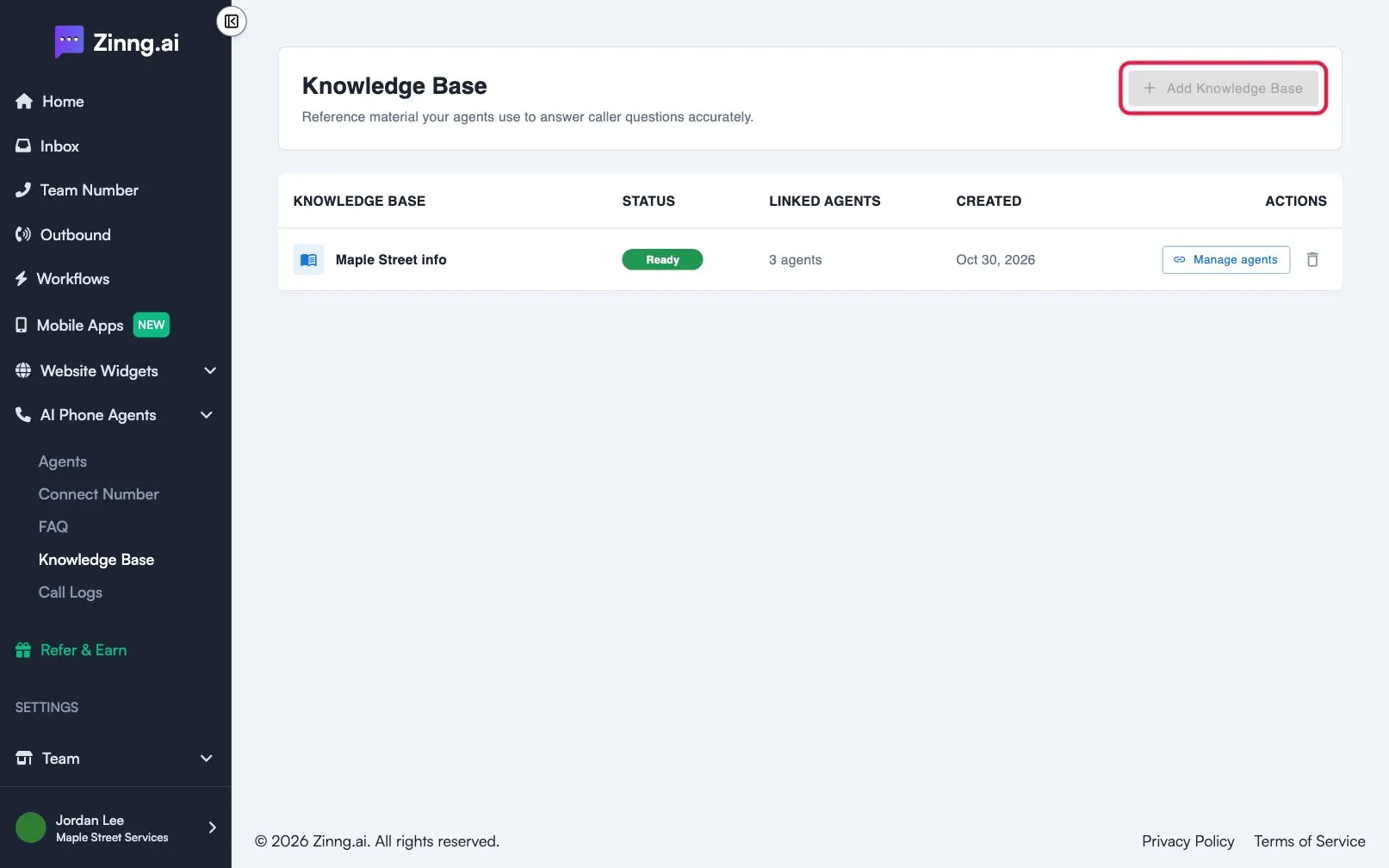
Open the Knowledge Base page.
Open Knowledge Base and select Add Knowledge Base.
-
Name it.
Enter a Name (up to 40 characters) and select Create.
-
Add your content.
Open the new knowledge base, select Add Documents and choose one:
- Add web pages to bring in pages from your website.
- Upload files to add documents (up to 50MB each).
- Add text to type a File name and Text content, then select Save.
-
Wait for Ready.
The status shows Updating for a few seconds. Wait until it shows Ready, or select Check if ready.
-
Link it to your agent.
Select Link to phone agent, then choose your agent in Link to Phone Agent. The agent shows as Linked.
Troubleshooting
Section titled “Troubleshooting”I cannot link or add anything
Section titled “I cannot link or add anything”The knowledge base is still Updating. Wait until it shows Ready.
A file was not added
Section titled “A file was not added”Files larger than 50MB, or of an unsupported type, are rejected. The upload window shows the reason next to the file. Select the retry icon next to the file after fixing it.
My web page address is rejected
Section titled “My web page address is rejected”For Sitemap URL, enter an address like https://example.com/sitemap.xml. If you do not have one, use the Discovery option with your website address.
See every setting in Knowledge Base settings.