
The Home page: your Dashboard at a glance
Use the Home page Dashboard to see conversations, contacts, agents and voice minutes, finish setup and read the latest updates.
The Home page is the Dashboard. It shows how your agents and inbox are doing, what is left to set up and what is new. Select Home at the top of the left sidebar to open it.
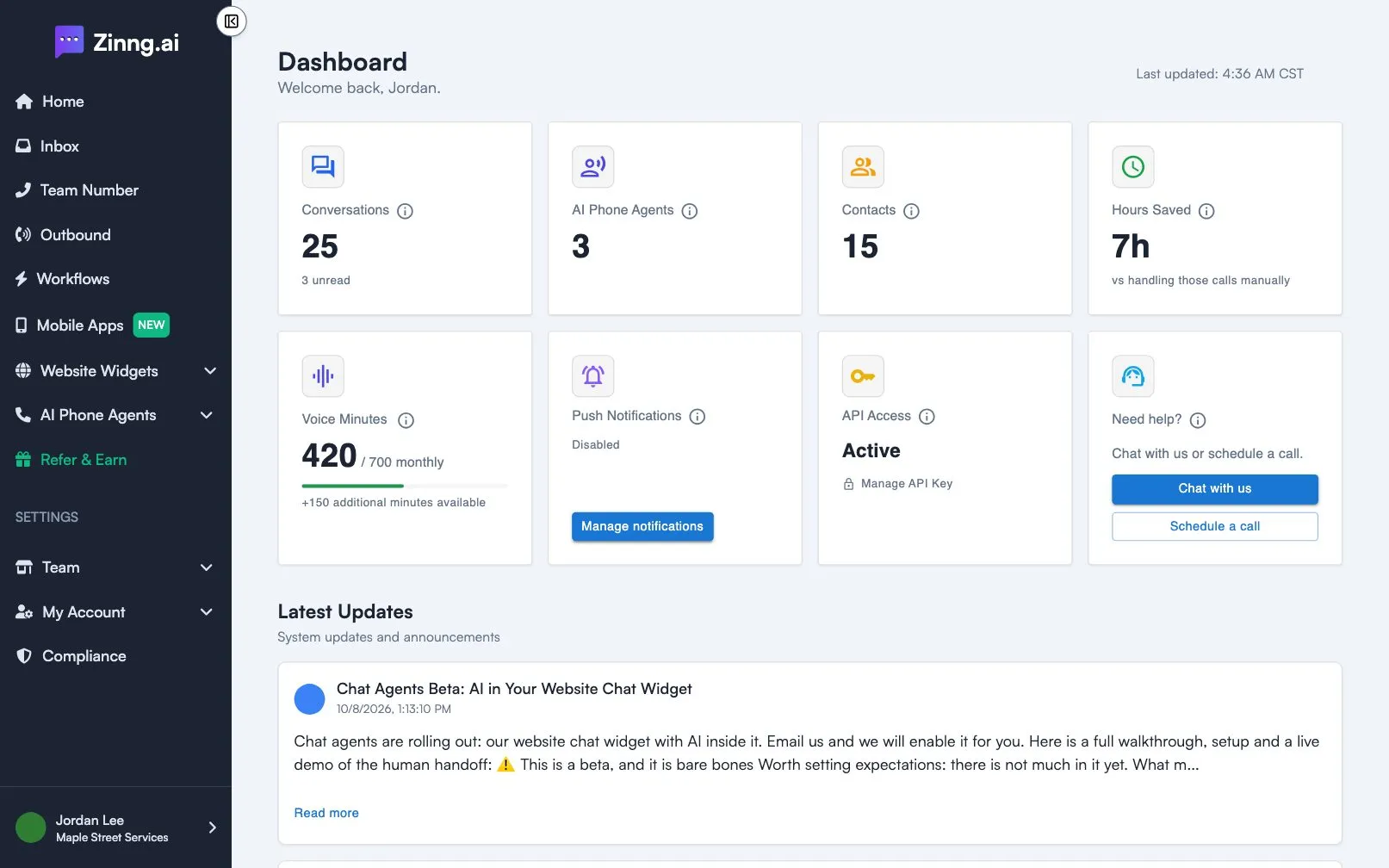
What the Dashboard shows
Section titled “What the Dashboard shows”The top of the page says Dashboard and Welcome back with your first name. Last updated shows when the numbers were last refreshed; they update every 30 minutes.
| Card | What it shows |
|---|---|
| Conversations | Conversations that are not archived, with how many are unread (or “All caught up”). |
| AI Phone Agents | The number of AI phone agents in your account. |
| Contacts | Unique people who have contacted your team. |
| Hours Saved | Total AI call time converted to hours. |
| Voice Minutes | Voice minutes your agents used this month, out of your monthly allowance, plus any additional minutes available. |
| Appointments | Appointments requested through your agents. Shown only when appointment scheduling is available to you. |
| Push Notifications | Whether push notifications are Enabled or Disabled, with a Manage notifications button. |
| API Access | Whether API access is active, with a link to manage your API key. |
| Need help? | Chat with us and Schedule a call. |
Which cards you see depends on your plan and access. On the free plan you see Conversations, Contacts and More with a paid plan, which lists the features a paid plan adds and a Start 7-day free trial button.
Finish setting up
Section titled “Finish setting up”While setup is incomplete, a Finish setting up card appears above the numbers. It shows how many steps are complete and a button for each next step. Select the close button to hide it for now.
Latest updates
Section titled “Latest updates”Latest Updates at the bottom lists product announcements. Select Read more to open one.
Common tasks
Section titled “Common tasks”See how many minutes you have left
Section titled “See how many minutes you have left”- Open Home from the sidebar.
- Find the Voice Minutes card. The bar shows how much of your monthly allowance you have used.
Check for unread conversations
Section titled “Check for unread conversations”On the Conversations card, read the unread count, then open Inbox from the sidebar.
Start your free trial
Section titled “Start your free trial”Select Start 7-day free trial. See go live with a plan and a phone number.