
Set business hours and after-hours behavior
Tell your AI phone agent your business hours and what to do after hours by writing them into its instructions, using the current time variable.
Your agent has no separate hours switch. You set business hours and after-hours behavior by writing them in its Agent Instructions. Your agent then shares your hours when callers ask and follows your after-hours wording.
Before you start
Section titled “Before you start”Check your time zone. The {{current_time}} variable uses your agent’s time zone, and the Instructions tab has an Update timezone in Team Settings button that opens your team settings.
Add hours to your instructions
Section titled “Add hours to your instructions”-
Open the instructions.
On the Agents page, select your agent, then find Agent Instructions on your agent’s page.
-
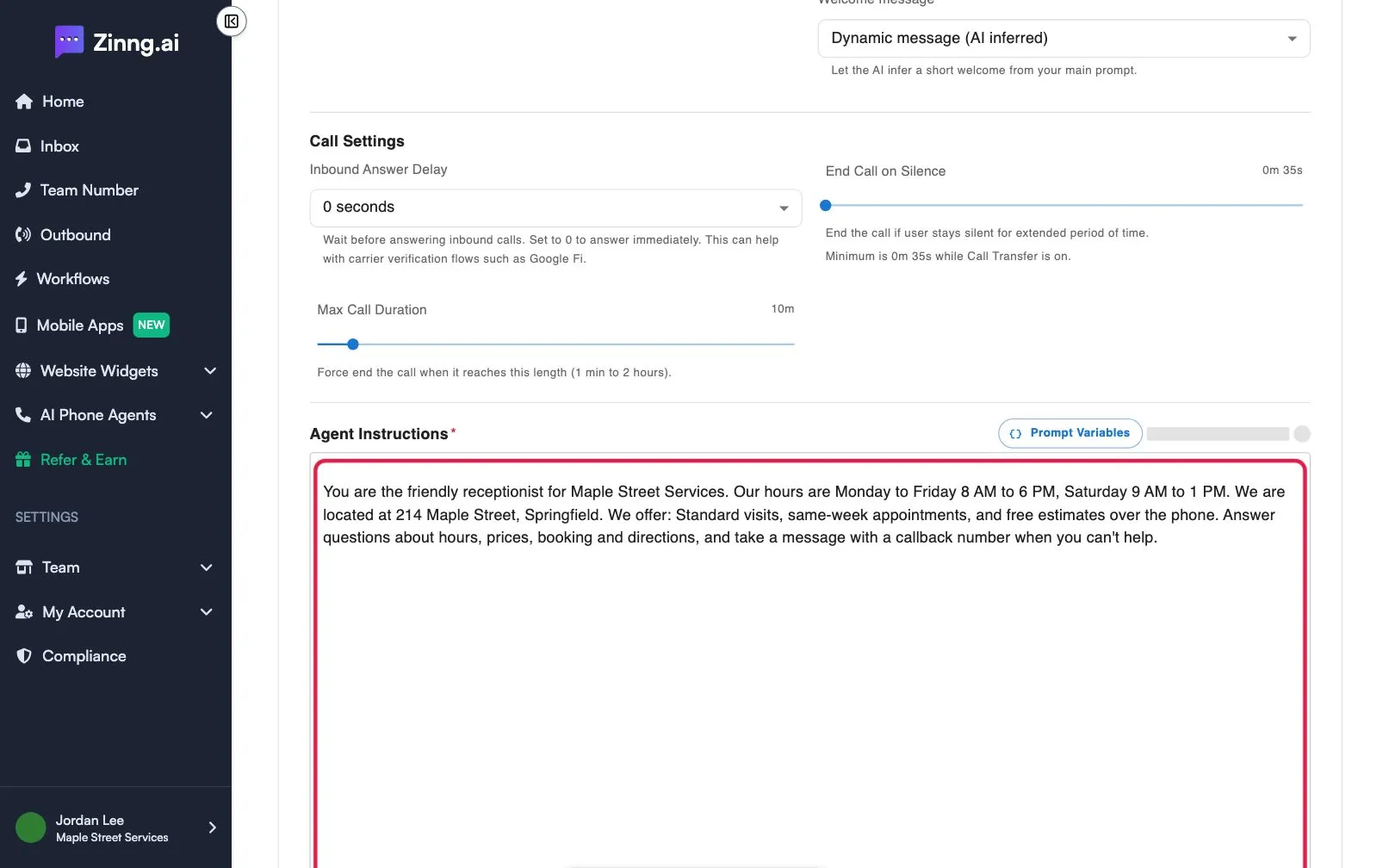
Write your hours.
State them in plain words, for example: “Our hours are Monday to Friday 8 AM to 6 PM, Saturday 9 AM to 1 PM.”
-
Write what to do after hours.
Say what you want callers to hear and do, for example: “Tell callers our office opens at 8 AM, take their name, number and reason for calling.”
-
Use the current time if you need it.
Select Prompt Variables, click
{{current_time}}to copy it, and paste it into your instructions. It is described as useful for holiday or vacation hours. -
Save and test.
Select Save Changes, then test with Start call.
Where else can I set hours?
Section titled “Where else can I set hours?”- When you first build your agent in the setup wizard, Business hours is a required field. See set up your first AI phone agent.
- You can also ask Chat with AI to add your hours and review its suggestion.