
Audit Logs
Review who did what in your team with Audit Logs, and filter the record of actions by category or by a specific team member.
Audit Logs is a record of actions your team members took in Zinng, such as sending an invite, changing settings or removing a member. Use it to check who changed something and when.
Open Audit Logs
Section titled “Open Audit Logs”In the left menu, open Team and select Audit Logs (open your Audit Logs page).
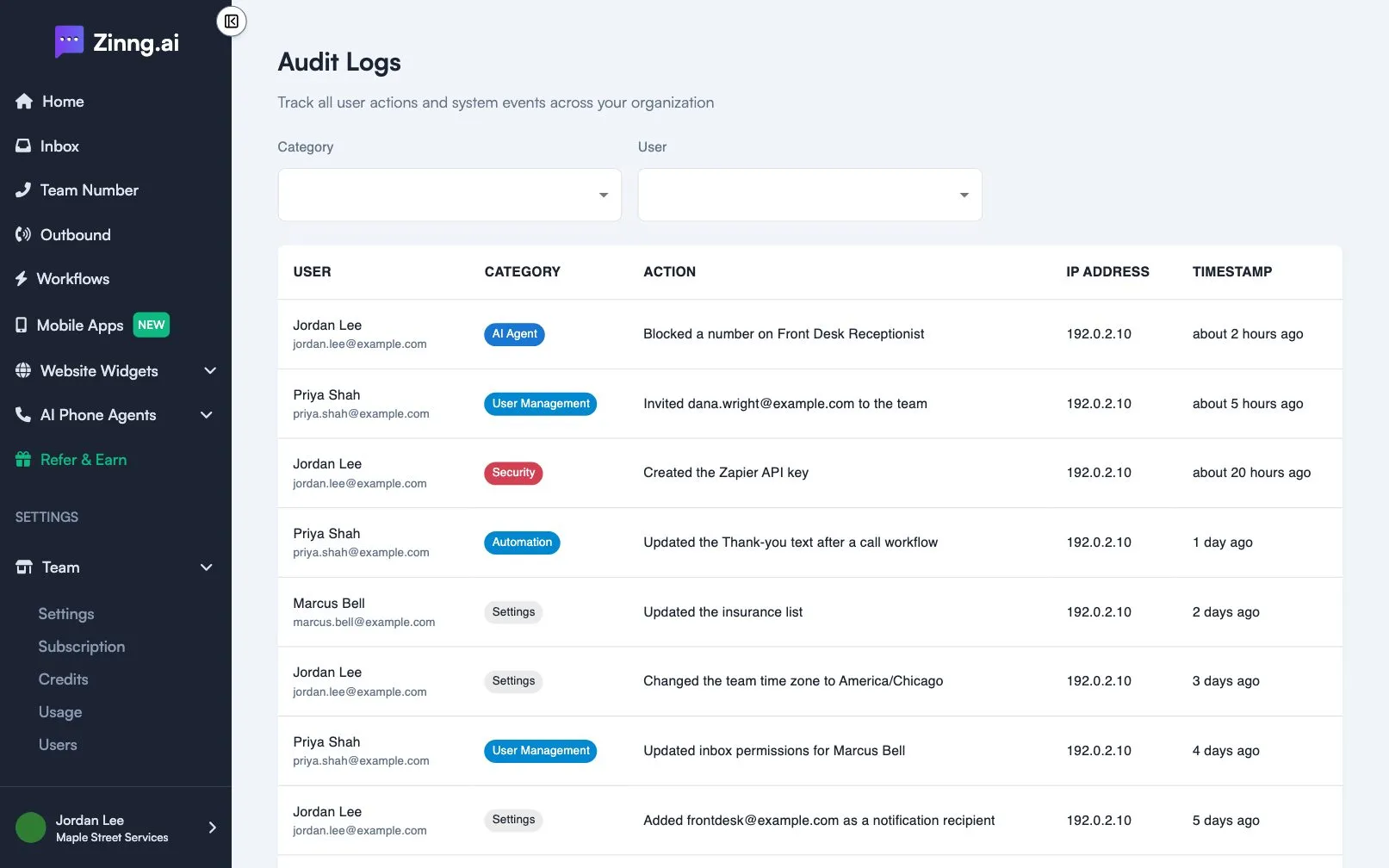
What the table shows
Section titled “What the table shows”| Column | What it shows |
|---|---|
| USER | The name and email of the person who took the action. |
| CATEGORY | The area the action belongs to, such as User Management, Settings, Billing or Security. |
| ACTION | A short description of what happened. |
| IP ADDRESS | The address the request came from. |
| TIMESTAMP | When it happened. Hover over it to see the full date. |
The newest entries are first. Only actions taken by members of your team are listed. If nothing matches, the table shows No audit logs found.
Common tasks
Section titled “Common tasks”Find out who changed something
Section titled “Find out who changed something”- Open Team, then Audit Logs.
- Under User, choose the team member.
- Under Category, choose an area such as Settings to narrow the list.
- Read the ACTION and TIMESTAMP columns.
Clear the filters
Section titled “Clear the filters”Select Clear Filters to go back to All Categories and All Users.
See more entries
Section titled “See more entries”Use the page controls under the table to move between pages or to show 10, 20, 50 or 100 entries per page.