
Edit your agent's instructions
Change what your AI phone agent says and does by editing its instructions, saving the change, and testing it with a call from your browser.
To edit your agent’s instructions, open your agent from the Agents page, change the text in Agent Instructions, and select Save Changes. The new instructions apply to your agent’s next calls.
Edit the instructions
Section titled “Edit the instructions”-
Open your agent.
On the Agents page, select the agent’s row or its gear icon. The gear is off until the agent has a phone number.
-
Find Agent Instructions.
On your agent’s page, open the Agent Settings card, stay on the Instructions tab and scroll to Agent Instructions.
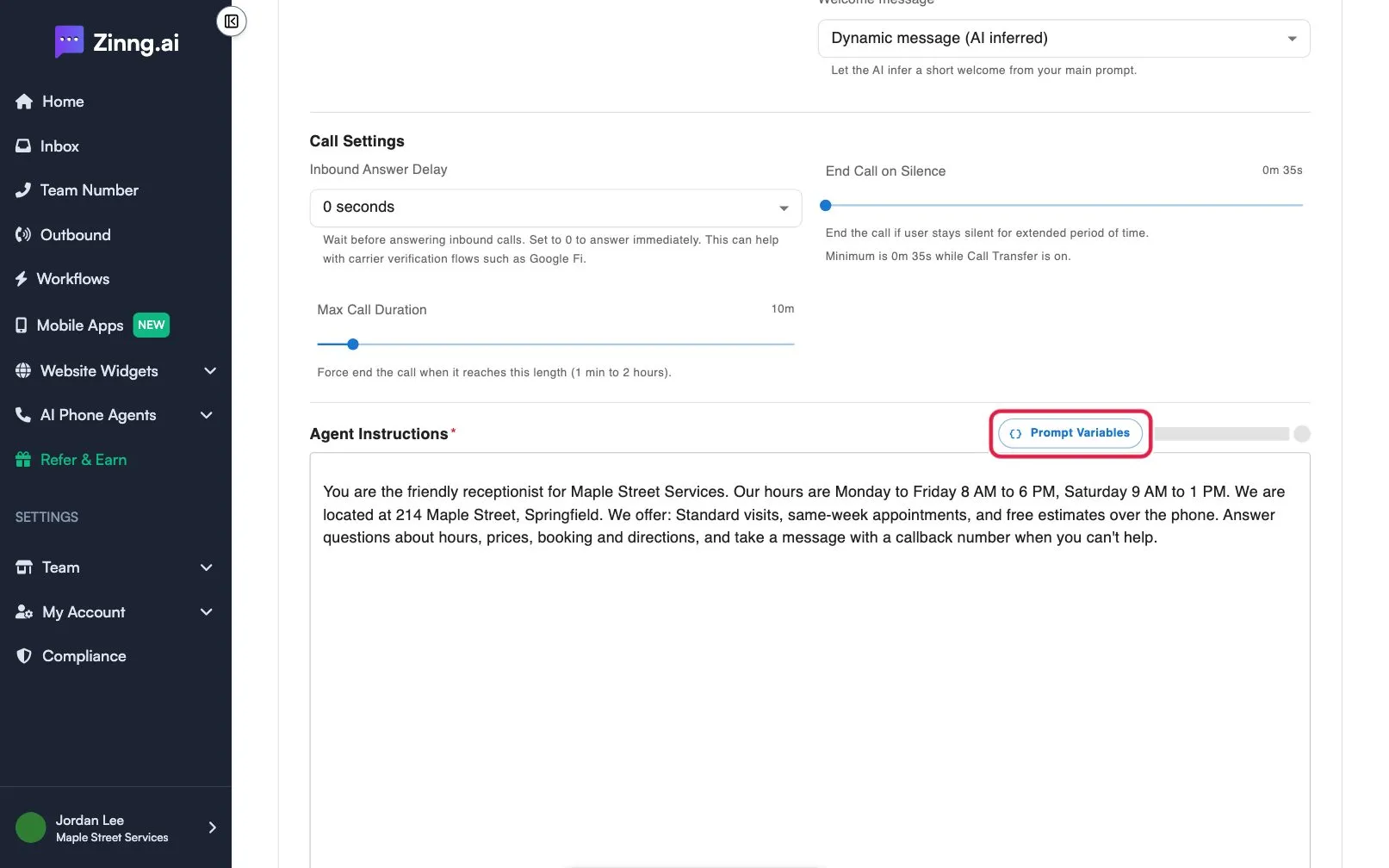
-
Change the text.
Be specific about how the agent should behave, what information to collect and how to respond to different situations. To insert caller details or the current time, select Prompt Variables and click a variable to copy it.
-
Save.
Select Save Changes in the Unsaved changes bar. You see Changes saved successfully!
-
Test the change.
Under Test your agent, select Start call and ask the agent something your new instructions cover.
Troubleshooting
Section titled “Troubleshooting”I don’t see Agent Instructions
Section titled “I don’t see Agent Instructions”Agent Instructions is inside the Agent Settings card. If the card is collapsed, select its heading to expand it.
I saved a change I want to undo
Section titled “I saved a change I want to undo”Open View change history next to Prompt Variables, select Restore on the earlier version, then save. Steps are in agent instruction settings.
I would rather describe the change than write it
Section titled “I would rather describe the change than write it”Use Chat with AI and review the suggestion before you accept it.