
Add the chat widget to your website
Create your chat widget, copy its embed code and paste it into your website so visitors can chat with your business. Works on every plan.
To add the chat widget, create it in Zinng, copy the embed code and paste it into your website. Visitors then see a chat button on every page. Their messages arrive in your Inbox.
Before you start
Section titled “Before you start”You need access to edit your website’s code, or someone who has it. Most website builders have a spot for custom code in their settings.
Install the widget
Section titled “Install the widget”-
Open the chat widget page.
In the left menu, open Website Widgets and select Chat Widget (open the Chat Widget page). If you have no widget yet, select Create a New Chat Widget.
-
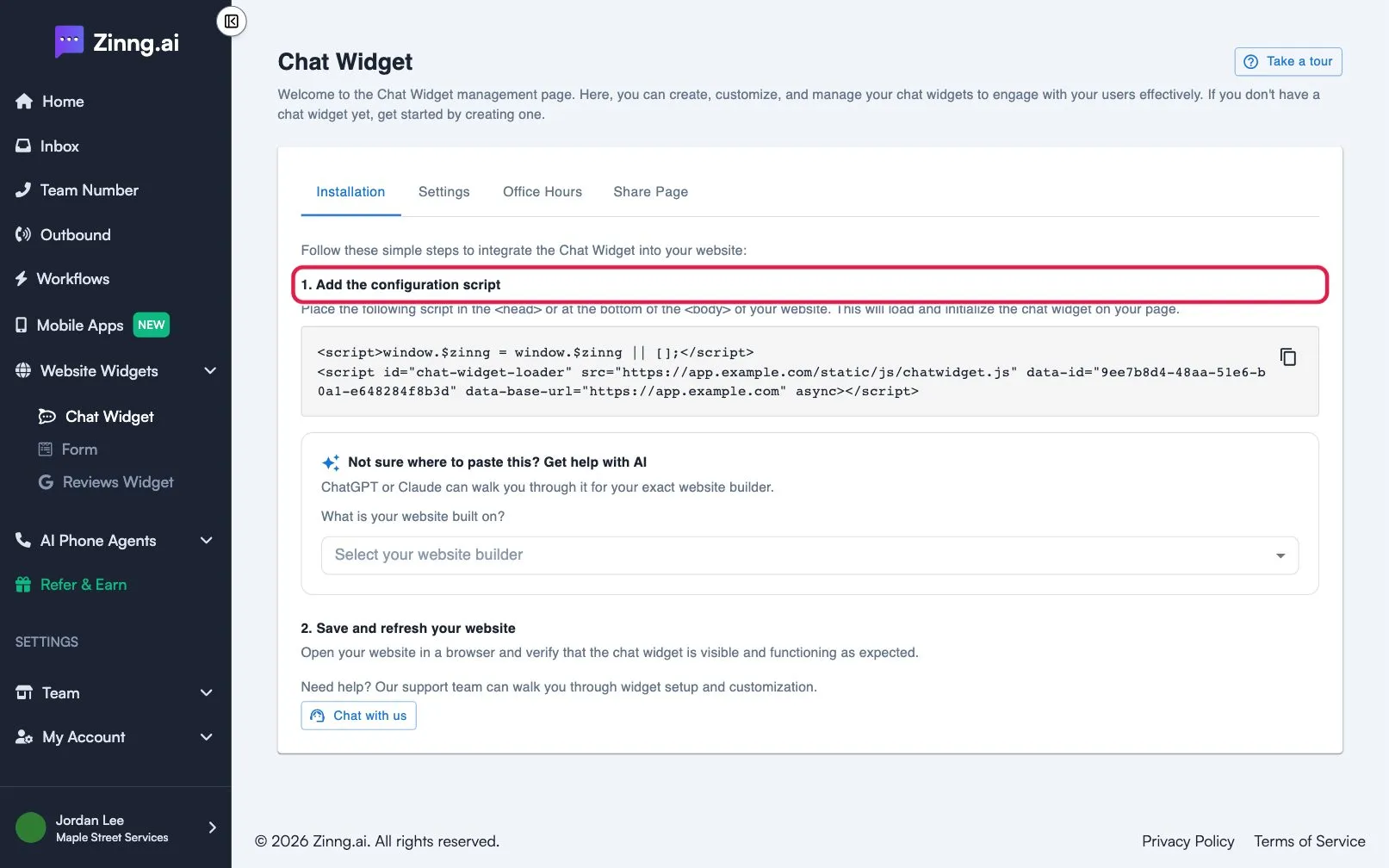
Copy the embed code.
On the Installation tab, copy the script under Add the configuration script.
-
Paste it into your website.
Place the script in the
<head>or at the bottom of the<body>of your site. Not sure where? Use the AI install help below the code, or select Chat with us for help from support. -
Save and refresh your website.
Open your site and check that the chat button appears and opens the chat.
Make it look like your business
Section titled “Make it look like your business”Before you finish, open the Settings tab to set your name, logo, start message and office hours. See chat widget settings for every option.