
Profile settings: your name, photo and security
Open Profile Settings to change your name, email, profile picture and phone number, manage two-factor authentication or delete your account.
Profile Settings is where you manage your personal login: your name, email address, profile picture, phone number and two-factor authentication. It covers you as a person, not your business or your team.
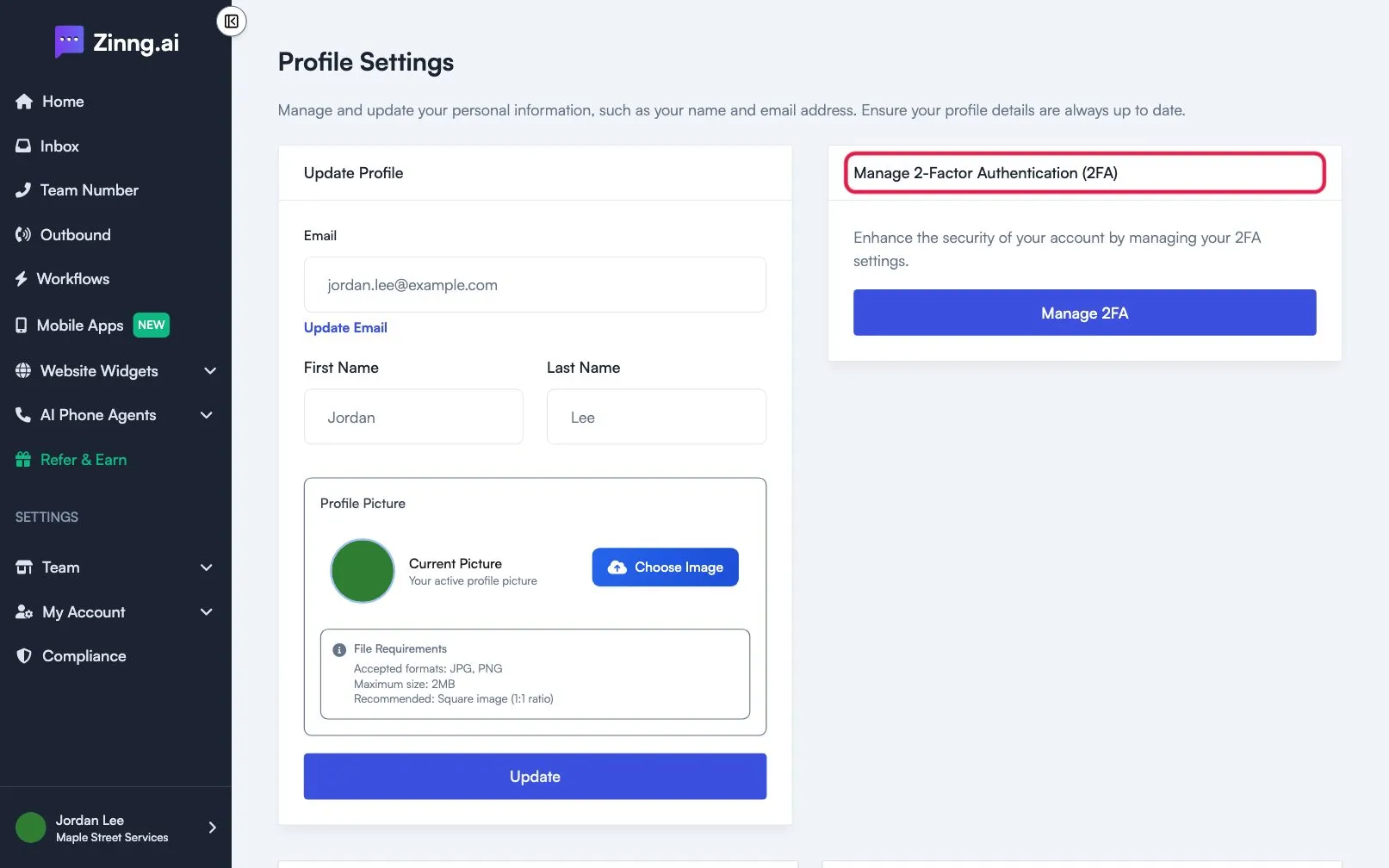
How to open Profile Settings
Section titled “How to open Profile Settings”Open the Profile Settings page, or in the left menu open My Account and select Profile. You can also select Profile in the menu that opens from your name at the bottom of the left menu.
What is on the page
Section titled “What is on the page”| Section | What it does |
|---|---|
| Update Profile: Email | Shows your login email. Select Update Email to add, verify or switch your primary email. |
| Update Profile: First Name and Last Name | The name shown for you in the app. |
| Update Profile: Profile Picture | Shows your current picture. Select Choose Image to pick a new one. |
| Update | Saves your name and picture changes. |
| Manage 2-Factor Authentication (2FA) | Select Manage 2FA to turn two-factor authentication on or off. |
| Phone Number | Add or change the phone number on your account, and verify it with a code. |
| Danger Zone | Delete Account permanently removes your account. |
The page also has cards for push notifications. Notification settings are covered in their own section.
Common tasks
Section titled “Common tasks”Change my name or profile picture
Section titled “Change my name or profile picture”Edit the fields and select Update. Full steps are in Update your profile, photo and phone number.
Change my password
Section titled “Change my password”Your password is not on this page. Use Change Password in the menu that opens from your name at the bottom of the left menu. See Reset or change your password.
Make my account more secure
Section titled “Make my account more secure”Turn on two-factor authentication. See Turn on two-factor authentication.
Close my account
Section titled “Close my account”See Delete your account.