
Create and manage API keys for integrations
Create, rename, revoke, regenerate or delete the API keys your team uses to connect integrations such as Zapier, and keep each key safe.
The API Keys page is where your team creates and manages the keys that let outside tools, such as Zapier, connect to your account. A key works like a password for one integration, so you can turn off one tool without affecting the others.
How to open API keys
Section titled “How to open API keys”- Open Team settings (the Team group in the left menu).
- Next to Team API Keys, select Manage API Keys.
Any active member of your team can open this page.
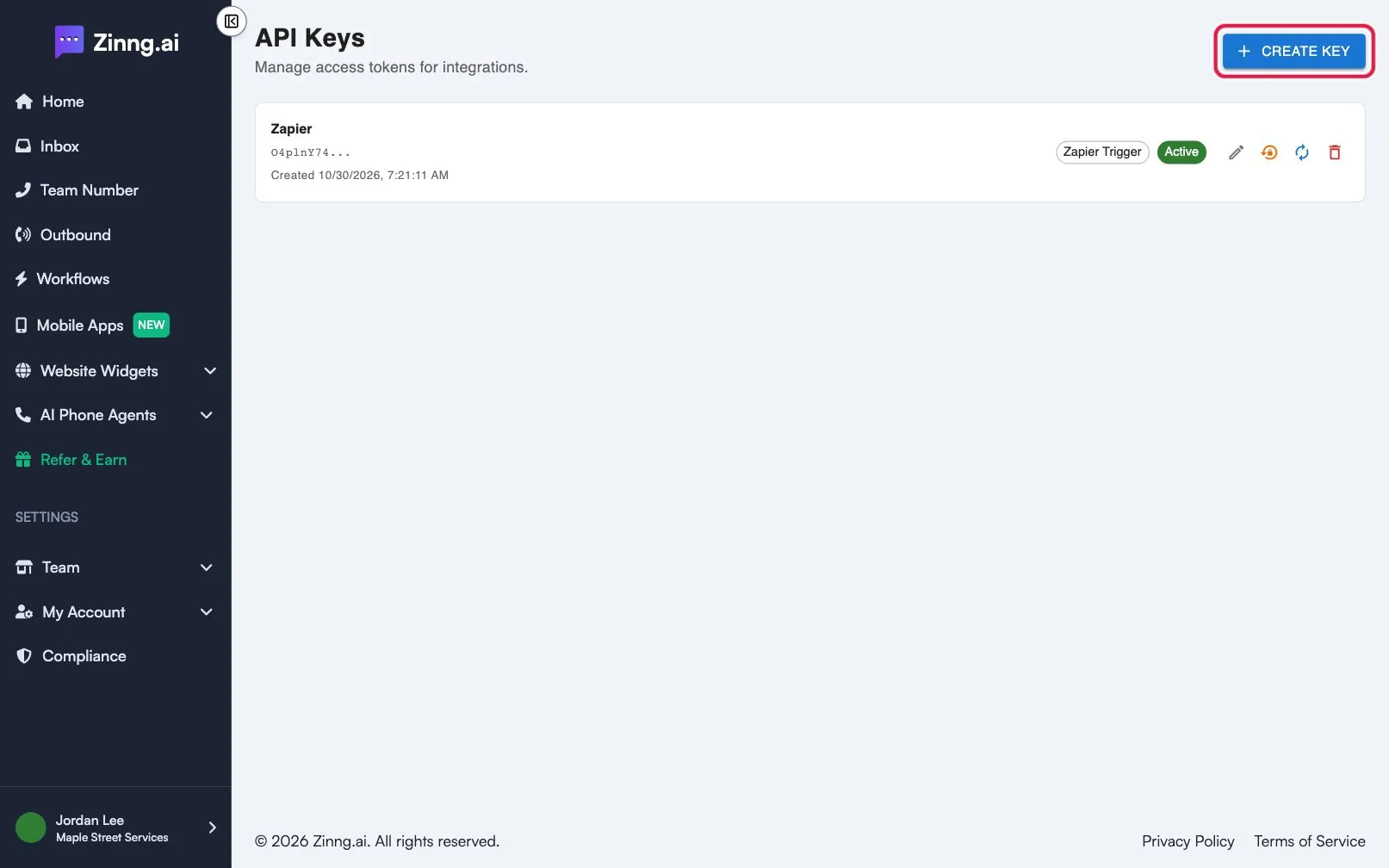
What you see on the page
Section titled “What you see on the page”Each key is a row showing its name, the first characters of the key (the prefix), when it was created, its permission and its status.
| Setting | What it does |
|---|---|
| Create Key | Adds a new key. You give it a name and see the full key once. |
| Edit (pencil icon) | Renames the key. |
| Revoke key | Turns the key off. Integrations using it stop working right away. The key stays in the list as Revoked. |
| Regenerate key | Replaces the key with a new one. The old key stops working right away. |
| Delete key | Removes the key record permanently. |
| Zapier Trigger label | The permission the key has. Today keys are used to connect Zapier. |
| Active or Revoked | The current status of the key. |
Common tasks
Section titled “Common tasks”Create a key
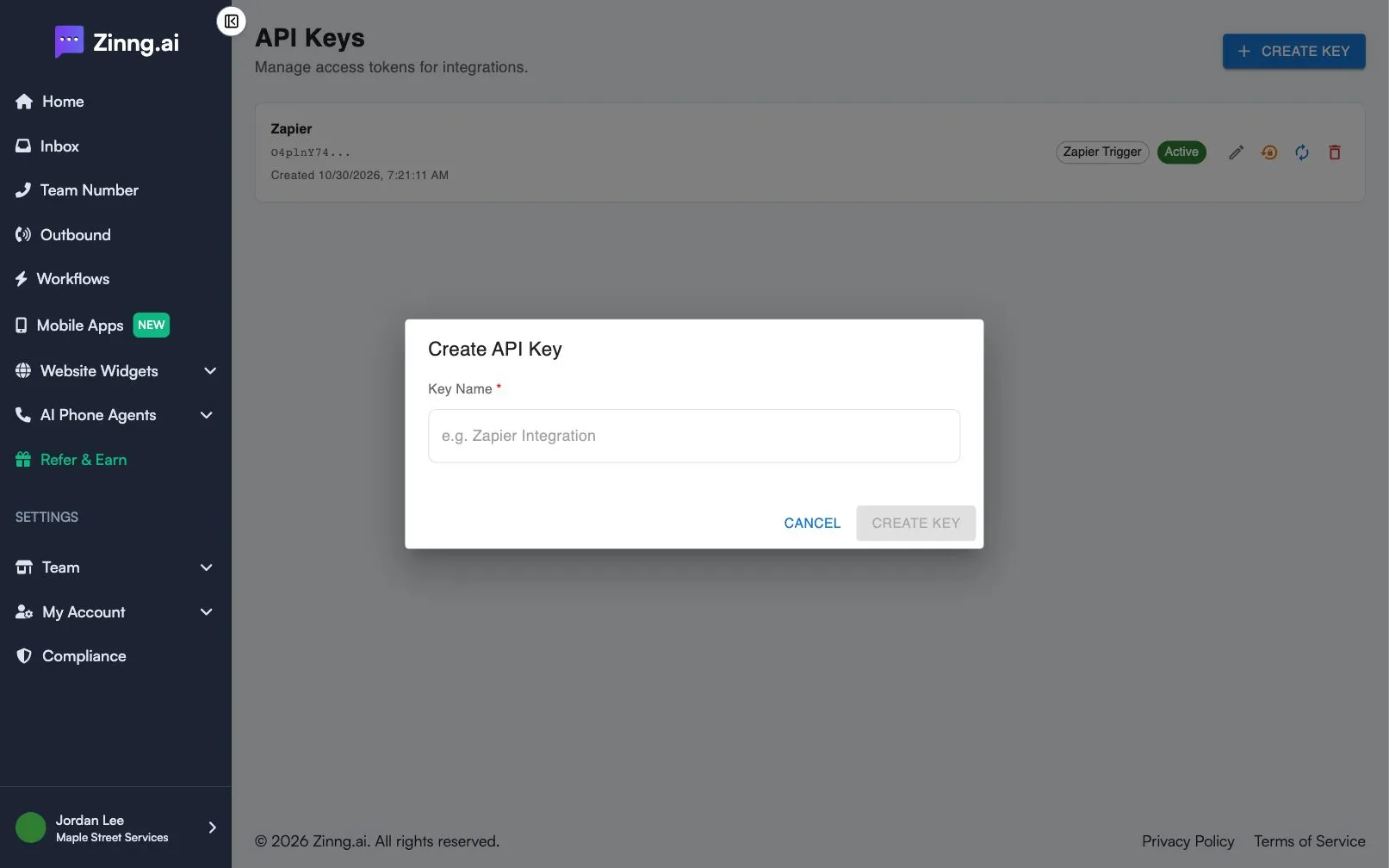
Section titled “Create a key”- Select Create Key.
- Under Key Name, type a name such as “Zapier Integration”. It can be up to 100 characters.
- Select Create Key.
- Copy the key from Your New API Key, tick I have copied my API key and stored it safely., then select Done.
Rename a key
Section titled “Rename a key”Select the pencil icon on the key’s row, change Key Name, then select Save Changes.
Replace a key you lost or shared by mistake
Section titled “Replace a key you lost or shared by mistake”Select the regenerate icon, then Regenerate to confirm. Copy the new key from the window that appears, then update the tool that used the old one.
Turn a key off
Section titled “Turn a key off”Select the revoke icon, then Revoke. Use Delete only when you no longer need the record.