
The Inbox page
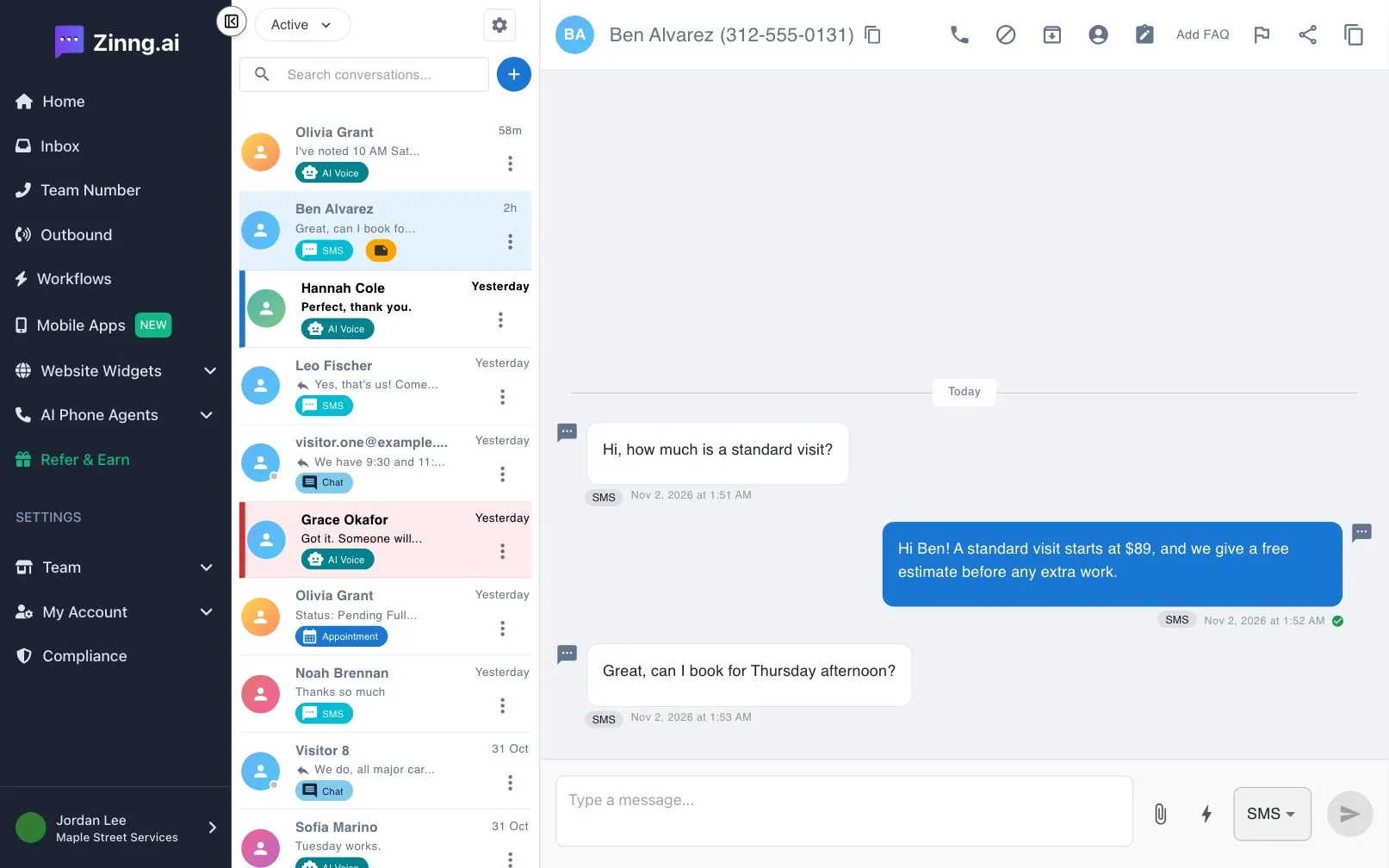
Find calls, texts and chats in one list, filter and search your conversations, and use the buttons above each open conversation.
The Inbox is where you read and answer your customers. Each person has one conversation that holds their AI call transcripts, text messages and website chats, so you see the full story in one place.
To open it, select Inbox in the left menu or go to the Inbox page.
What you see
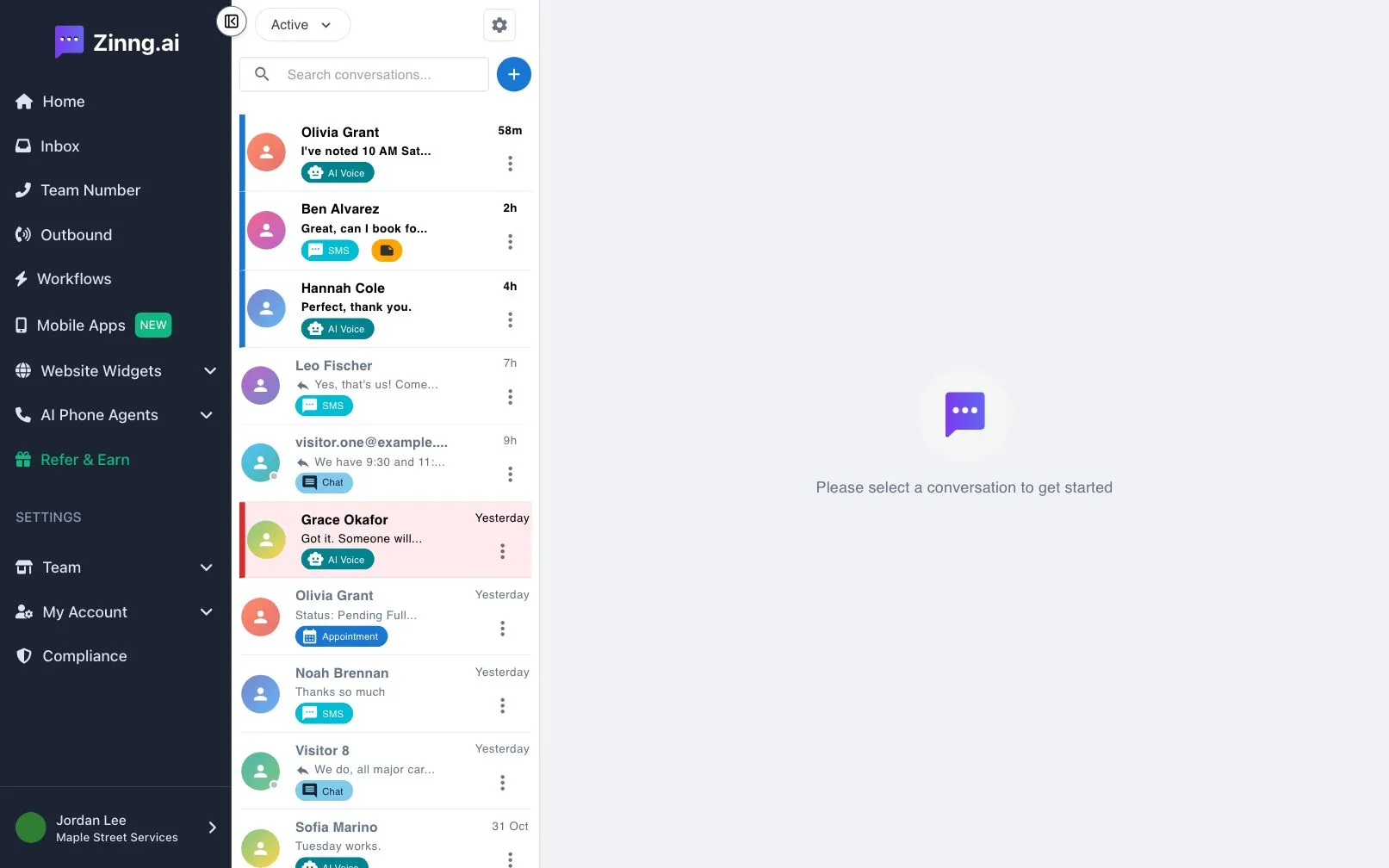
Section titled “What you see”- Left side: your conversations. Each row shows the contact, the latest message and a tag for where it came from, such as AI Voice, SMS or Chat. The filter menu and the settings gear sit above the list.
- Right side: the open conversation, with the contact’s name and number and a row of buttons at the top. The message box is at the bottom.
Settings and controls
Section titled “Settings and controls”| Setting | What it does | Plan if limited |
|---|---|---|
| Filter menu | Switches the list between Active, Archived, Urgent and Unread. | |
| Settings gear (Inbox Settings) | Holds Auto-archive conversations, which archives incoming conversations when no customer reply exists, and Always show user details, which opens contact details for every conversation you view. | |
| Search conversations… | Finds conversations by name, phone number or message text. | |
| New Conversation (plus button) | Starts a conversation with a new contact. | |
| Share conversation | Creates a read-only link to a conversation. | |
| Copy conversation history | Copies the full conversation. | |
| User Details | Opens the contact’s details. | |
| View Notes | Opens the notes for this conversation. | |
| Add FAQ | Adds a FAQ from this conversation. | |
| Report a problem | Lets you report a problem with this conversation. | |
| Block number | Blocks the contact’s number. | |
| Message box | Type a message and choose Chat, SMS or MMS next to the send button. The paperclip attaches files and the lightning bolt opens quick messages. | Essential |
Common tasks
Section titled “Common tasks”Find a conversation
Section titled “Find a conversation”- Type a name, number or word in Search conversations….
- Select a result. Use the contacts-only toggle in the search box to hide message matches.
See only what needs attention
Section titled “See only what needs attention”- Open the filter menu above the list.
- Choose Unread or Urgent.
Start a conversation with a new contact
Section titled “Start a conversation with a new contact”- Select the plus button next to the search box.
- Enter the contact details (phone number and name) in the window that opens.