
Agent voice settings
Choose your AI phone agent's voice and languages, then fine-tune speed, volume, background sound and how quickly it responds to callers.
Voice settings decide how your agent sounds and which languages it speaks and understands. Pick a voice that fits your business, then tune the details if you want.
How to open voice settings
Section titled “How to open voice settings”- Open AI Phone Agents and select your agent.
- Scroll to Agent Settings and stay on the Instructions tab.
- Find Voice Settings at the top.
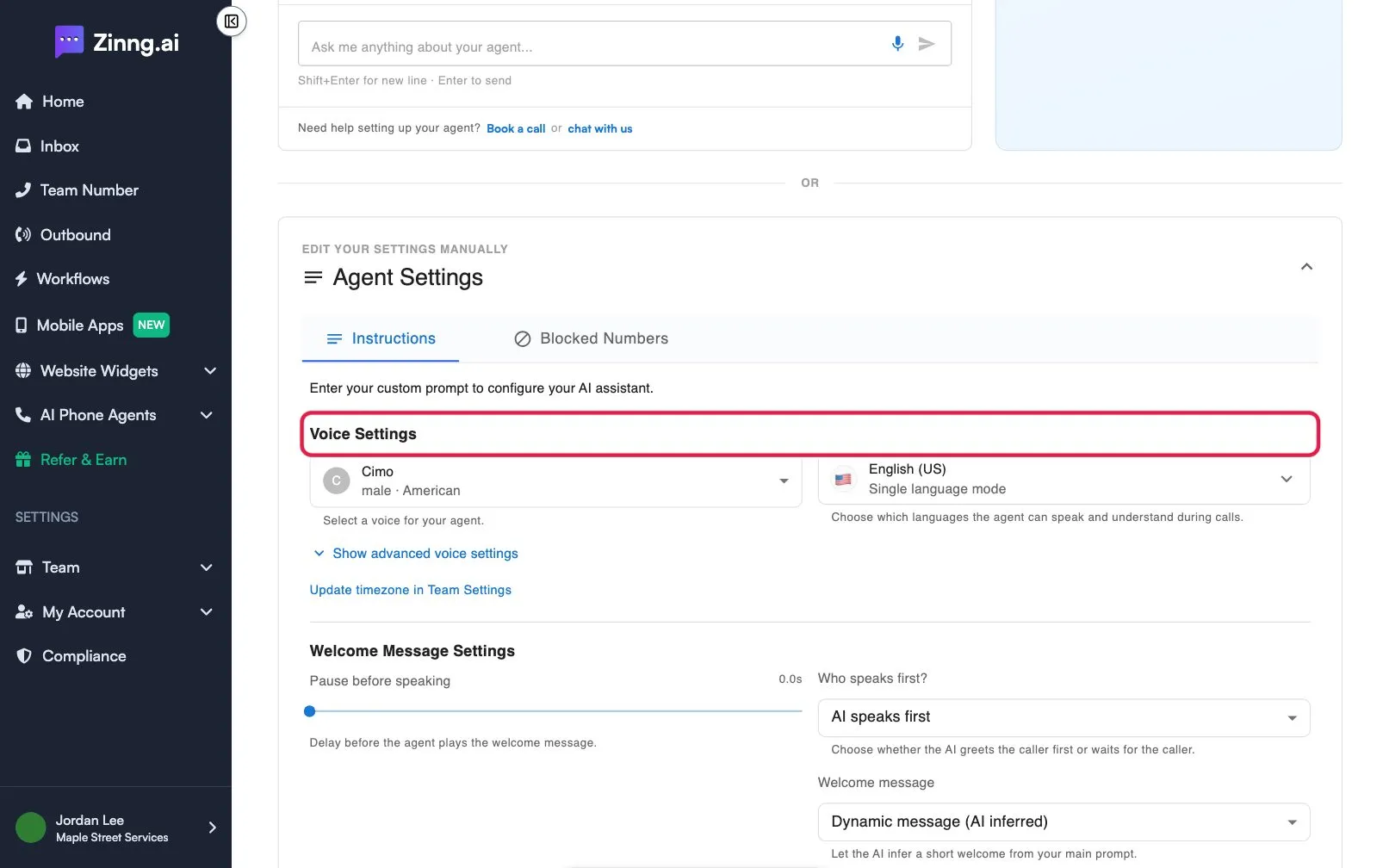
Voice settings reference
Section titled “Voice settings reference”| Setting | What it does | Plan if limited |
|---|---|---|
| Voice (Select a voice for your agent.) | Pick a voice. Each shows its name, gender, age and accent. Search the list, and select the play icon to hear a sample. | |
| Languages (Choose which languages the agent can speak and understand during calls.) | Opens Speech Language. Pick one language, or switch to Multiselect to allow several. | |
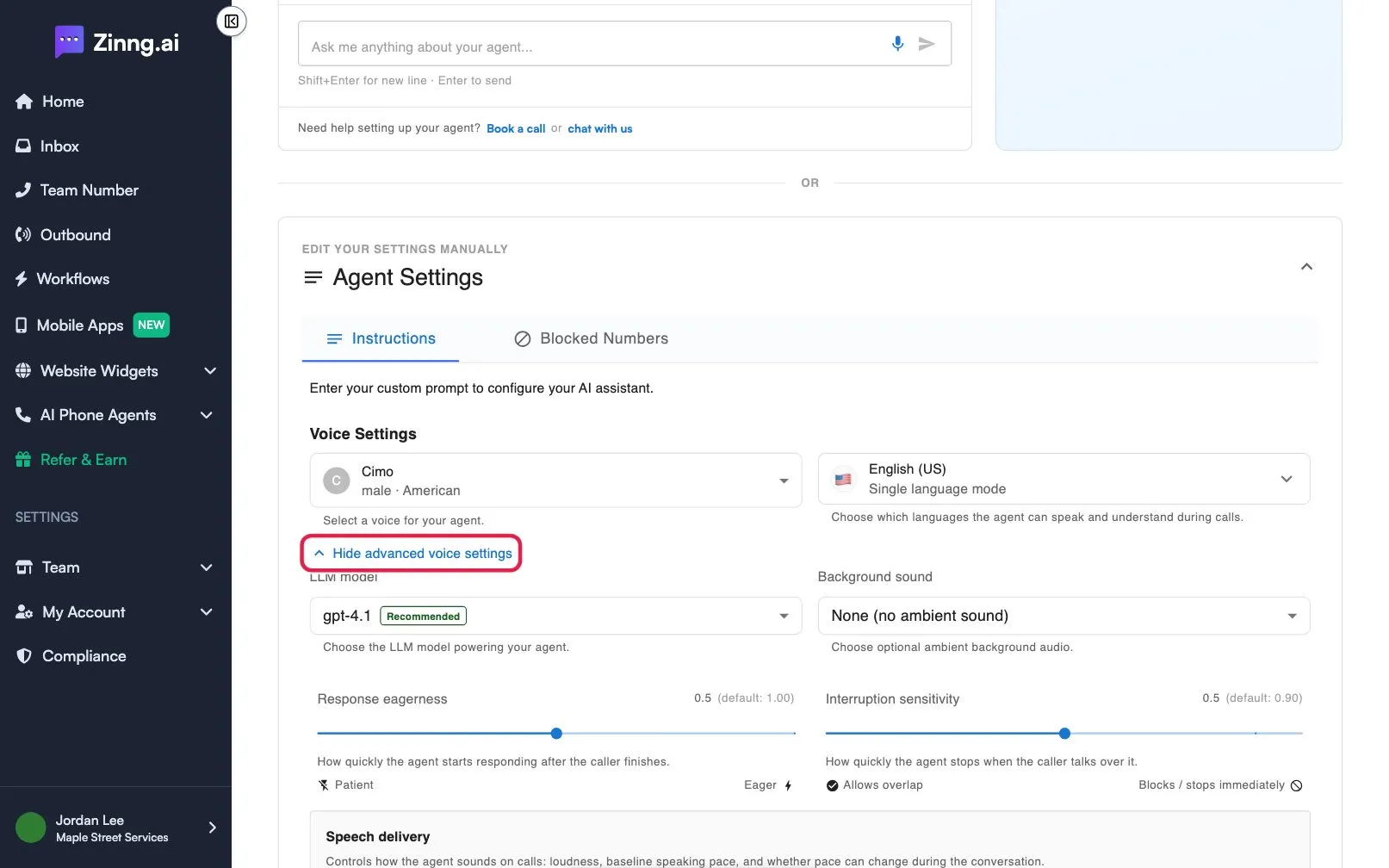
| LLM model | Choose the model that powers your agent. One is marked Recommended. | |
| Background sound | Optional ambient audio behind the agent. None (no ambient sound) is one choice. | |
| Response eagerness | How quickly the agent replies after the caller finishes. Runs from Patient to Eager. | |
| Interruption sensitivity | How quickly the agent stops when the caller talks over it. Runs from Allows overlap to Blocks / stops immediately. | |
| Voice speed and Volume | Under Speech delivery: the agent’s pace and loudness. | |
| Dynamic voice speed | Lets the agent speed up or slow down during a conversation. | |
| Expressive mode | A more natural delivery. It is not available for every voice or language, and the page says when it is off. |
Select Show advanced voice settings to see everything from LLM model down.
Common tasks
Section titled “Common tasks”Change the voice
Section titled “Change the voice”Open the voice dropdown, play a few samples, pick one, and select Save. See change your agent’s voice.
Add a second language
Section titled “Add a second language”Open the language picker, select Multiselect, tick each language, and select Save. See make your agent speak more than one language.
Make the agent less likely to talk over callers
Section titled “Make the agent less likely to talk over callers”Open Show advanced voice settings and move Response eagerness toward Patient.
Let callers interrupt more easily
Section titled “Let callers interrupt more easily”Move Interruption sensitivity toward Allows overlap.