
Create a new AI phone agent
Add another AI phone agent from the Agents page using guided setup or advanced settings, and see what to do when you reach your plan's agent limit.
Create a new agent from the Agents page by selecting Create Agent, then choosing Guided setup or Advanced settings. A second agent is useful when you want a different greeting or instructions on another number.
Before you start
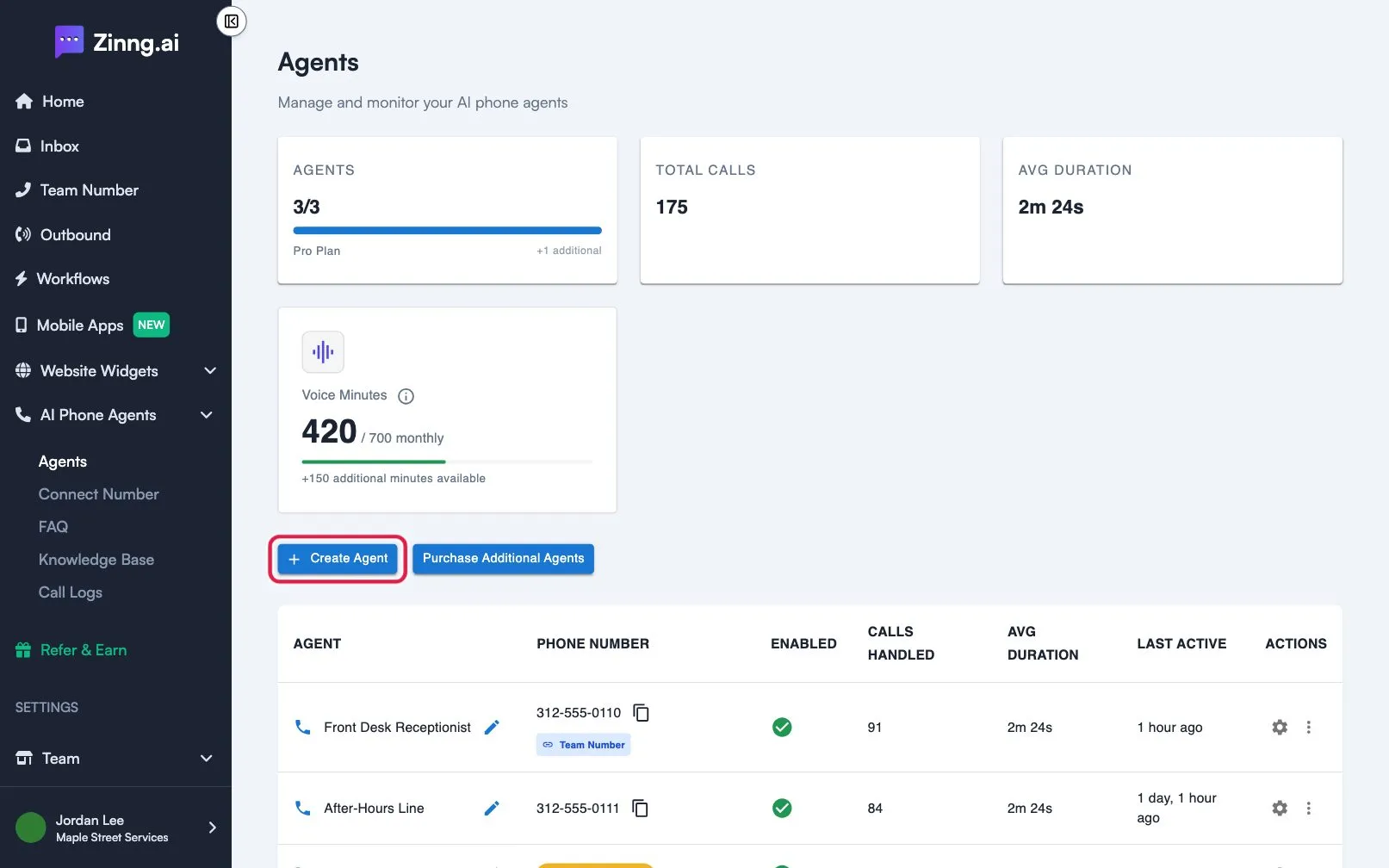
Section titled “Before you start”Check the Agents card on the Agents page. It shows how many agents you have out of your plan’s limit. Essentials allows 1 agent, Pro 2, Growth 5 and Scale 10. If you are at the limit, Create Agent shows an error instead of opening setup.
Create the agent
Section titled “Create the agent”-
Select Create Agent.
It is the blue button above the agents table.
-
Choose how to create it.
A window titled How would you like to create your agent? opens with two choices:
- Guided setup (marked RECOMMENDED): a step-by-step walkthrough for your phone number, welcome message, voice, scheduling and more.
- Advanced settings: purchase a number and configure your agent manually. It uses three steps: Assign Number, Agent Instructions and Route Calls.
-
Finish the steps.
With Guided setup, follow the screens until the agent is ready. If you already have an agent that still needs setup, the window says so and guided setup picks up where you left off. With Advanced settings, work through the three steps in order.
-
Check the Agents page.
Your new agent appears in the table. If it shows No phone number, select its row to finish setup.
Troubleshooting
Section titled “Troubleshooting”I see “You have reached your agent limit”
Section titled “I see “You have reached your agent limit””Your plan has no free agent slots. Select Purchase Additional Agents on the Agents page, or delete an agent you no longer need.
I see “Failed to start guided setup. Please try again.”
Section titled “I see “Failed to start guided setup. Please try again.””Close the window and select Create Agent again.