
Log in with a password, Google or an email code
Log in with your email and password, your Google account or a one-time email code, and reset your password if you forgot it.
Go to the login page and use the same method you signed up with: your email and password, Continue with Google, or a one-time code sent to your email. If you forgot your password, you can reset it from the same page.
Log in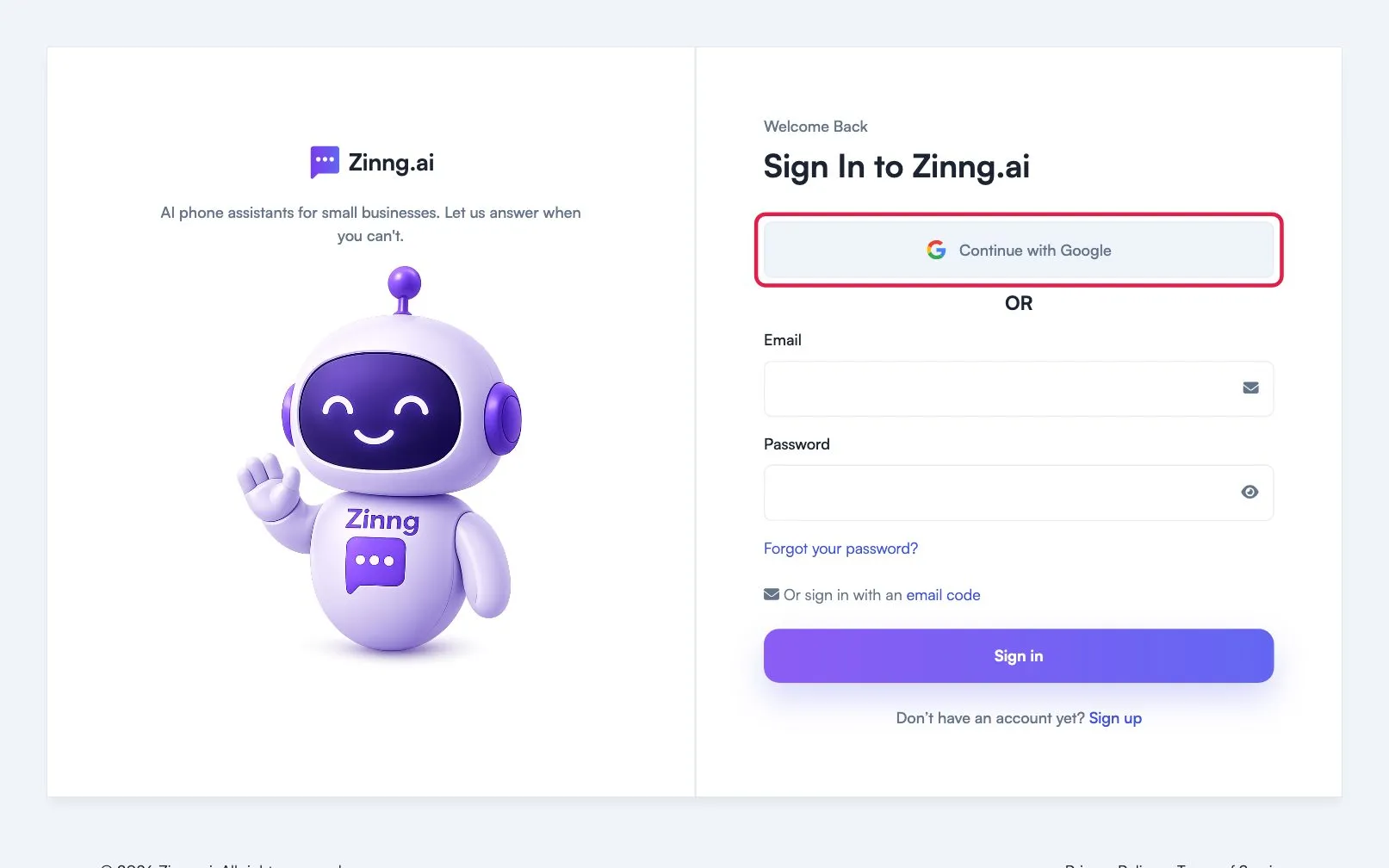
Before you start
Section titled “Before you start”- An account. If you do not have one, create your account.
- Access to the email address on the account, for the email code and password reset.
Log in with your email and password
Section titled “Log in with your email and password”- Open the login page.
- Enter your email address and your password.
- Select Sign in.
Log in with Google
Section titled “Log in with Google”- Open the login page.
- Select Continue with Google.
- Choose the Google account you registered with.
Log in with an email code
Section titled “Log in with an email code”Use this when you cannot remember your password but can open your email.
- On the login page, select email code (next to “Or sign in with an”).
- Enter your email address and select Send me a sign-in code.
- Open the email, then enter the code under Enter Sign-In Code.
The code is valid for 5 minutes. To go back to the other options, select Use a different sign-in method.
Reset a forgotten password
Section titled “Reset a forgotten password”- On the login page, select Forgot your password? to open the Reset your password page.
- Enter the email address on your account and select Send reset link.
- Open the email and follow the link to choose a new password.
- Go back to the login page and sign in.
Troubleshooting
Section titled “Troubleshooting”My password is not accepted
Section titled “My password is not accepted”Check that you are using the email address on the account, then use Forgot your password? to set a new one.
The email code or reset email did not arrive
Section titled “The email code or reset email did not arrive”Check spam and junk folders, and confirm the email address. Request a new code if 5 minutes have passed.
I was invited by a teammate
Section titled “I was invited by a teammate”Log in with the email address that received the invitation.