
Change the welcome message and who speaks first
Change your AI phone agent's welcome message, pick a custom or dynamic greeting, and choose whether the agent or the caller speaks first.
You change the greeting in your agent’s Welcome Message Settings. Pick who speaks first, choose a dynamic or custom message, and save.
Before you start
Section titled “Before you start”You need an agent. If you have none, see set up your first AI phone agent.
Change the welcome message
Section titled “Change the welcome message”-
Open your agent’s settings.
Open AI Phone Agents, select your agent, and scroll to Agent Settings. Stay on the Instructions tab.
-
Choose who speaks first.
Under Welcome Message Settings, set Who speaks first? to AI speaks first or Caller speaks first.
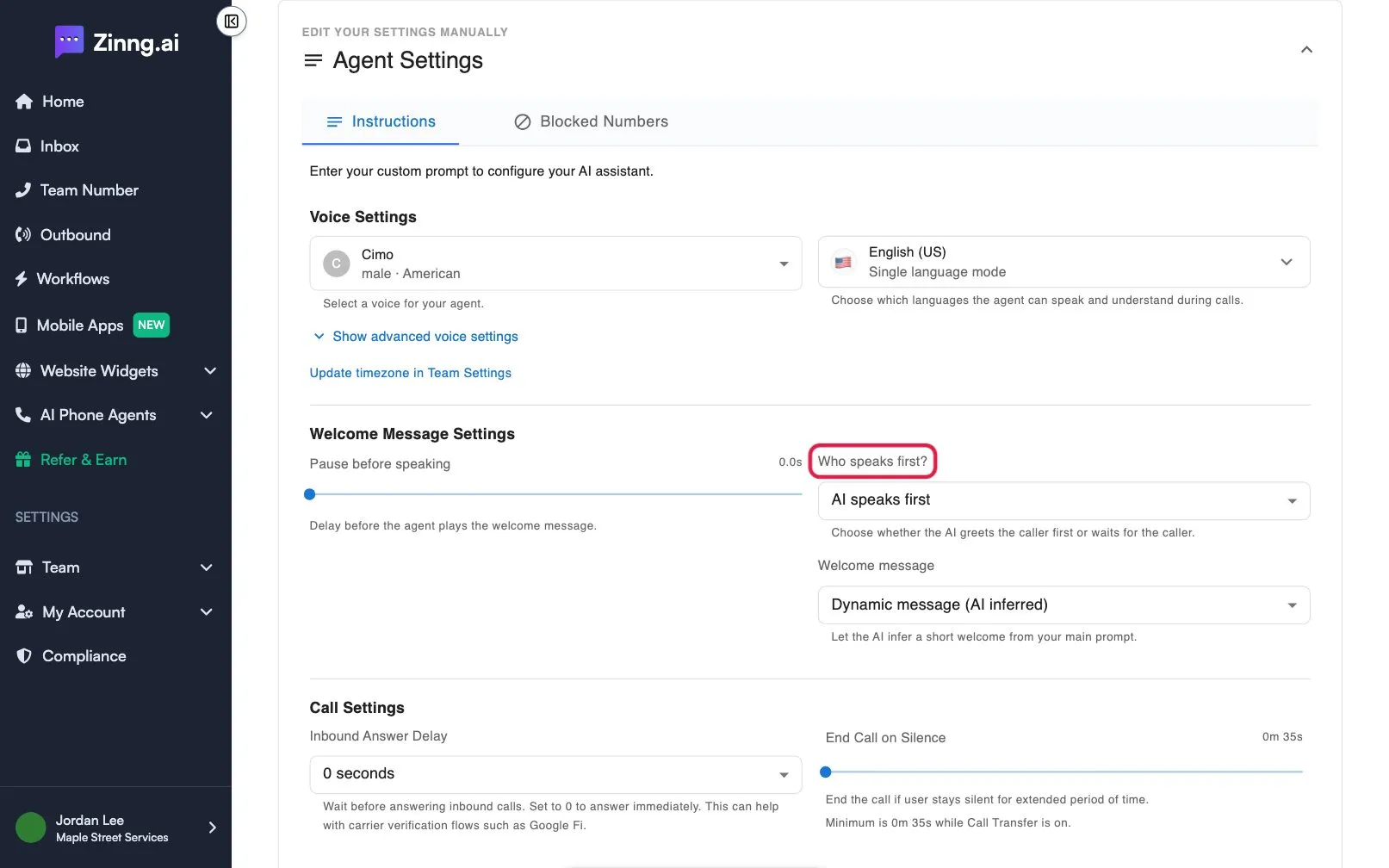
-
Pick the message type.
If the AI speaks first, set Welcome message to Custom message and type your greeting in Custom welcome message. Choose Dynamic message (AI inferred) to let the agent write a short greeting from your instructions.
If the caller speaks first, you can turn on AI starts speaking after silence, set Silence before AI starts, and choose the Welcome message after silence.
-
Adjust the pause, if you like.
Move Pause before speaking to delay the greeting by up to 5 seconds.
-
Save.
Select Save at the bottom of the Instructions tab, or Save Changes when the unsaved changes bar appears.
Check your greeting
Section titled “Check your greeting”Call your agent and listen to the first few seconds. Test your agent explains how.