
Build and embed a form on your website
Create a contact form, choose its questions and alerts, then copy the embed code onto your website so visitors can send you their details.
To add a form to your website, create it under Website Widgets, choose its questions, then paste its embed code into your site. Submissions arrive in your Inbox.
Before you start
Section titled “Before you start”Create a chat widget first. Forms need one before you can set one up. See add the chat widget to your website.
Build and embed the form
Section titled “Build and embed the form”-
Create the form.
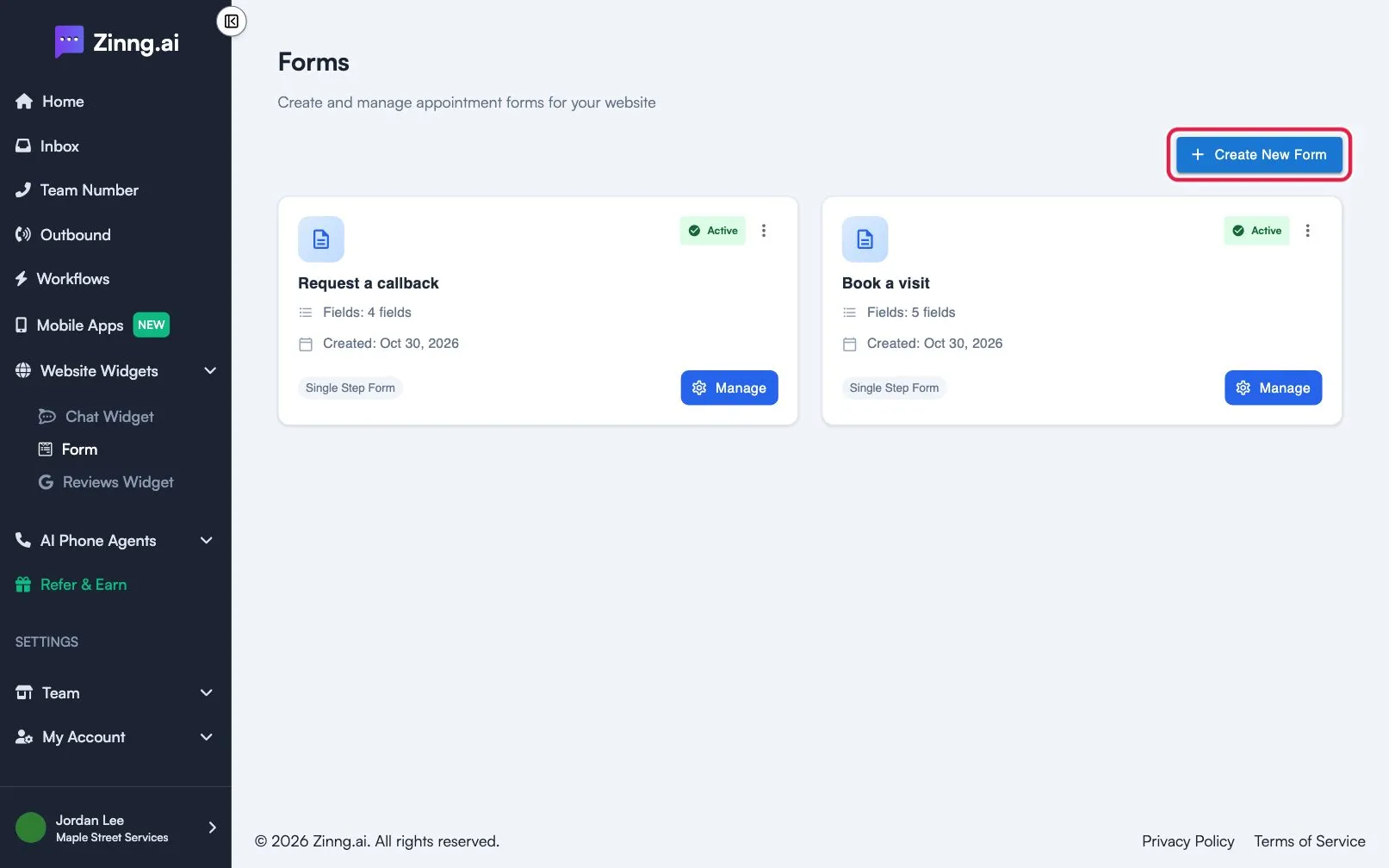
In the left menu, open Website Widgets, select Form (open your Forms page), then select Create New Form.
-
Open the builder.
Select Manage on your form, then open the Builder tab.
-
Set the title and questions.
Enter a Form title. Select + Add field to add questions and mark the important ones Required field.
-
Choose who is alerted.
Under Notifications, add one or more Email recipients. See form settings for SMS alerts, the success message and the consent text.
-
Save the form.
Select Save form.
-
Copy the embed code.
Open the Installation tab and select Copy under the script.
-
Paste it where the form should appear.
Place the script on the page of your website where you want the form to show.
-
Save and refresh your website.
Open the page and send a test submission.