
The Teams page
See every team you belong to and your role in each one, then open its user list or rename it from the Teams page in Zinng.
The Teams page lists every team you belong to or own, with your role and the status of your invitation. Use it to open a team’s user list or, if you are the owner, to rename the team.
Open the Teams page
Section titled “Open the Teams page”In the left menu, open My Account and select Teams (open your Teams page). The page is titled Organizations.
What the table shows
Section titled “What the table shows”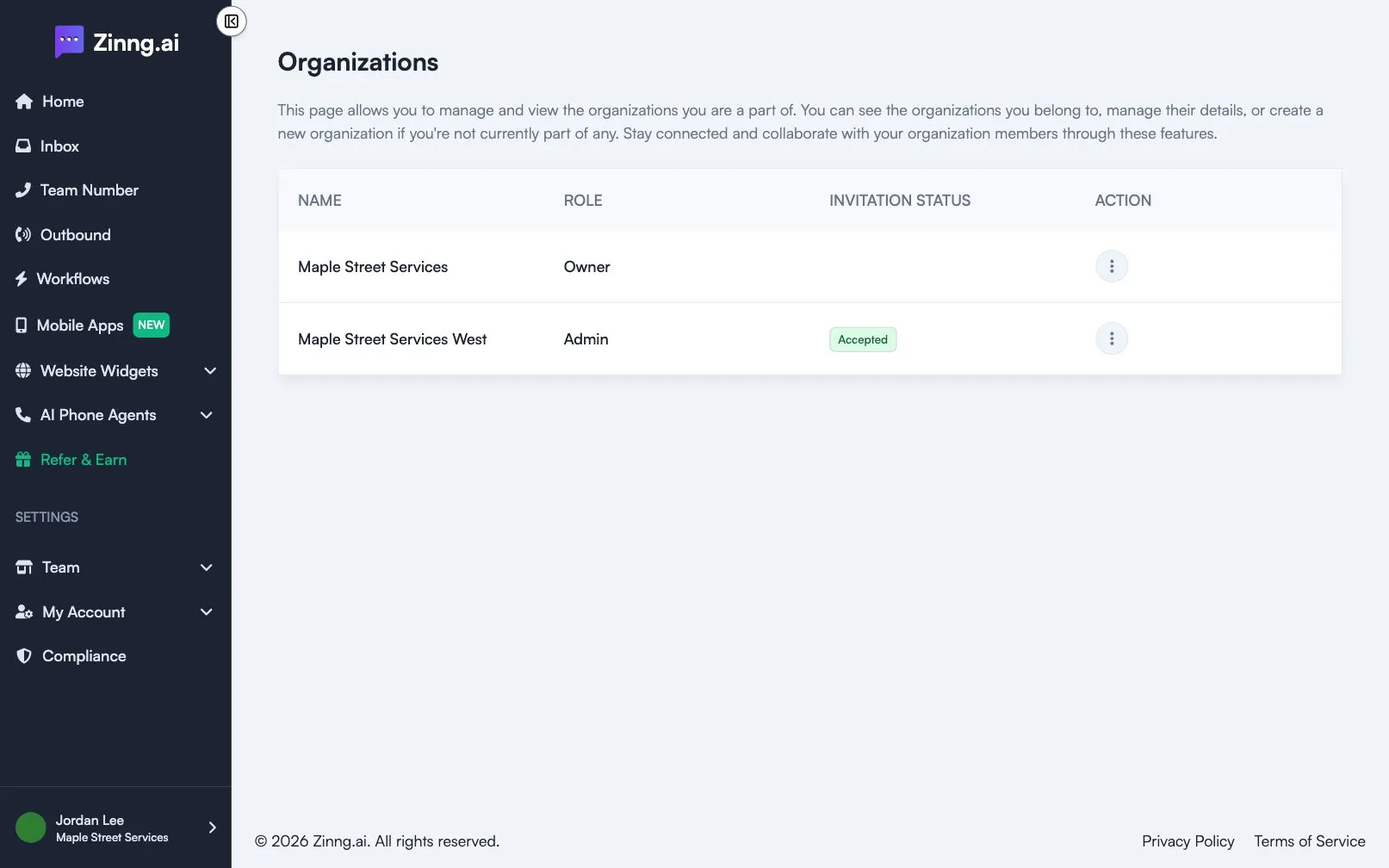
| Column | What it shows |
|---|---|
| Name | The team’s name. |
| Role | Your role in that team: Owner, Admin or User. See roles and permissions. |
| Invitation Status | The status of your invitation: Pending, Accepted or Rejected. It is empty for teams you own. |
| Action | A menu (the three dots) with the actions below. |
The three-dot menu has:
- View Users: opens the team’s user list, where you can see members and, if your role allows it, invite or manage them.
- Edit organization: only for teams you own. See below.
Create your team
Section titled “Create your team”If you do not own a team yet, a Create a New Organizations button appears above the table. Select it, type a name under Enter your Organization Name, then select Create Organization. You can own one team.
Common tasks
Section titled “Common tasks”Rename your team
Section titled “Rename your team”- Open My Account, then Teams.
- In the row for your team, open the three-dot menu and select Edit organization.
- Change Name. You can also use Require HIPAA consent for SMS: when it is on, users must give HIPAA consent before receiving SMS messages.
- Select Save Changes.
For more settings, such as timezone and booking link, see team settings.
See who is on a team
Section titled “See who is on a team”In the row for the team, open the three-dot menu and select View Users. To add people, see invite teammates.
Work in a different team
Section titled “Work in a different team”If you belong to more than one team, see switch teams.