
Accept an invite and set your password
Accept a team invitation by email, set your password if you are new to Zinng, or accept from the Invitations page if you have an account.
Open the invitation email, then follow the steps for your situation. New users set a password; people with an account accept from the Invitations page.
If you are new to Zinng
Section titled “If you are new to Zinng”- Open the email and select Create Your Account.
- On the You’ve been invited screen, select Accept invitation to your team. If you would rather have your own account, select Create my own organization instead. Your invitation stays waiting either way.
- Under Set Up Your Password, enter a password.
- Select Activate Account.
If you already have an account
Section titled “If you already have an account”- Open the email and select View Invitation, then log in if asked.
- On the Invitations page, find the invitation.
- Select Accept, then Accept Invite.
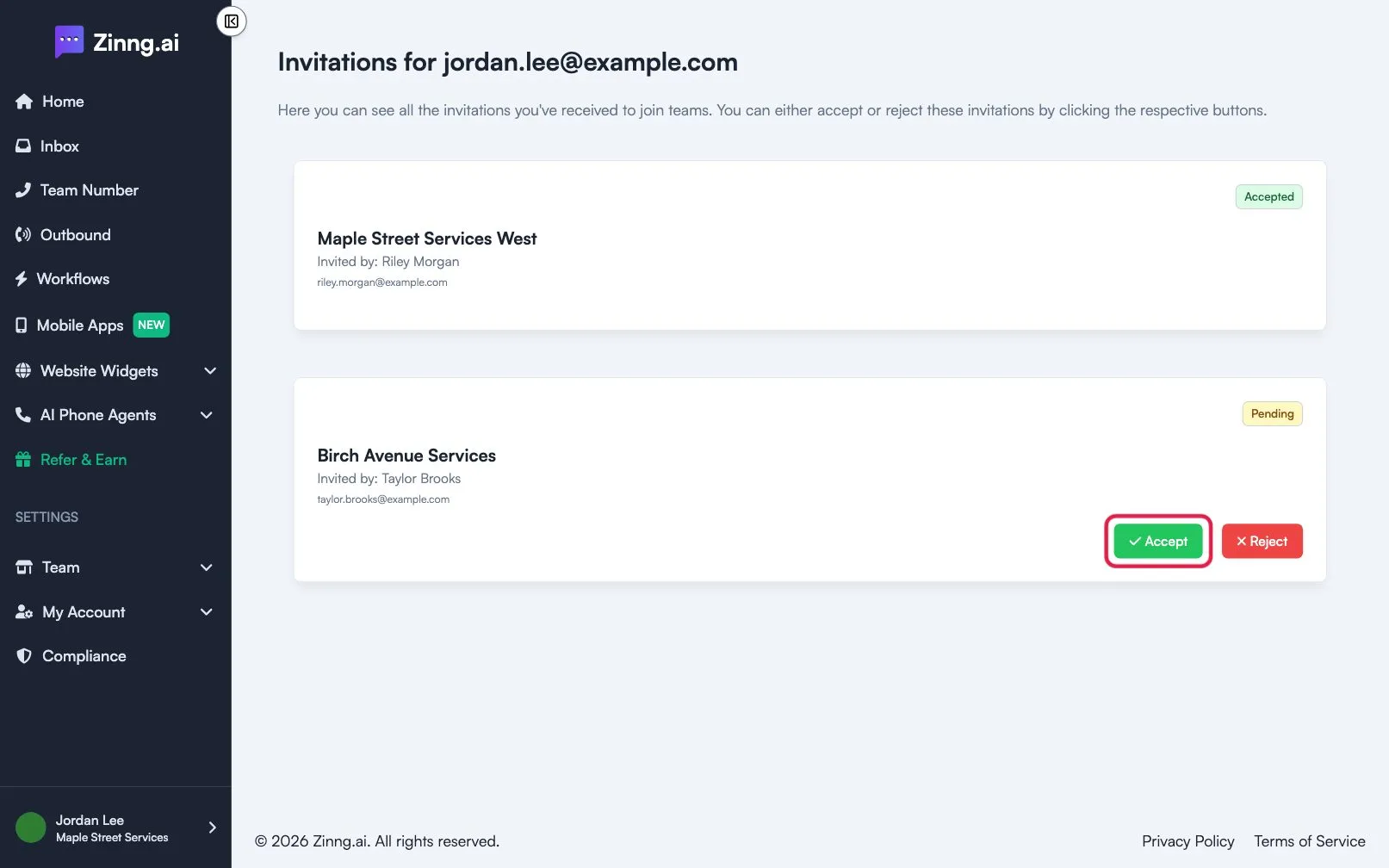
The team becomes your active team. To go back to another team later, see switch teams.
Troubleshooting
Section titled “Troubleshooting”The link does not work
Section titled “The link does not work”The link may have expired. Ask the team owner to resend the invitation.
I cannot accept
Section titled “I cannot accept”The team may have reached its user limit. Ask the owner to make room.
I do not see the email
Section titled “I do not see the email”Check your spam or junk folder.