
Reset or change your password
Change your password while logged in, or reset a forgotten one with an emailed link. Steps for both, plus what to do if you signed up with Google.
If you know your password, change it from the user menu. If you forgot it, request a reset link by email from the login page.
Change your password while logged in
Section titled “Change your password while logged in”- Select your name at the bottom of the left menu, then select Change Password.
- Enter your current password under Old password.
- Enter the new password in New password and again in New password confirmation.
- Select Save Changes.
You return to Profile Settings with a confirmation message. Choose a password that is not too short, not too common and not only numbers, or it will be rejected.
Reset a forgotten password
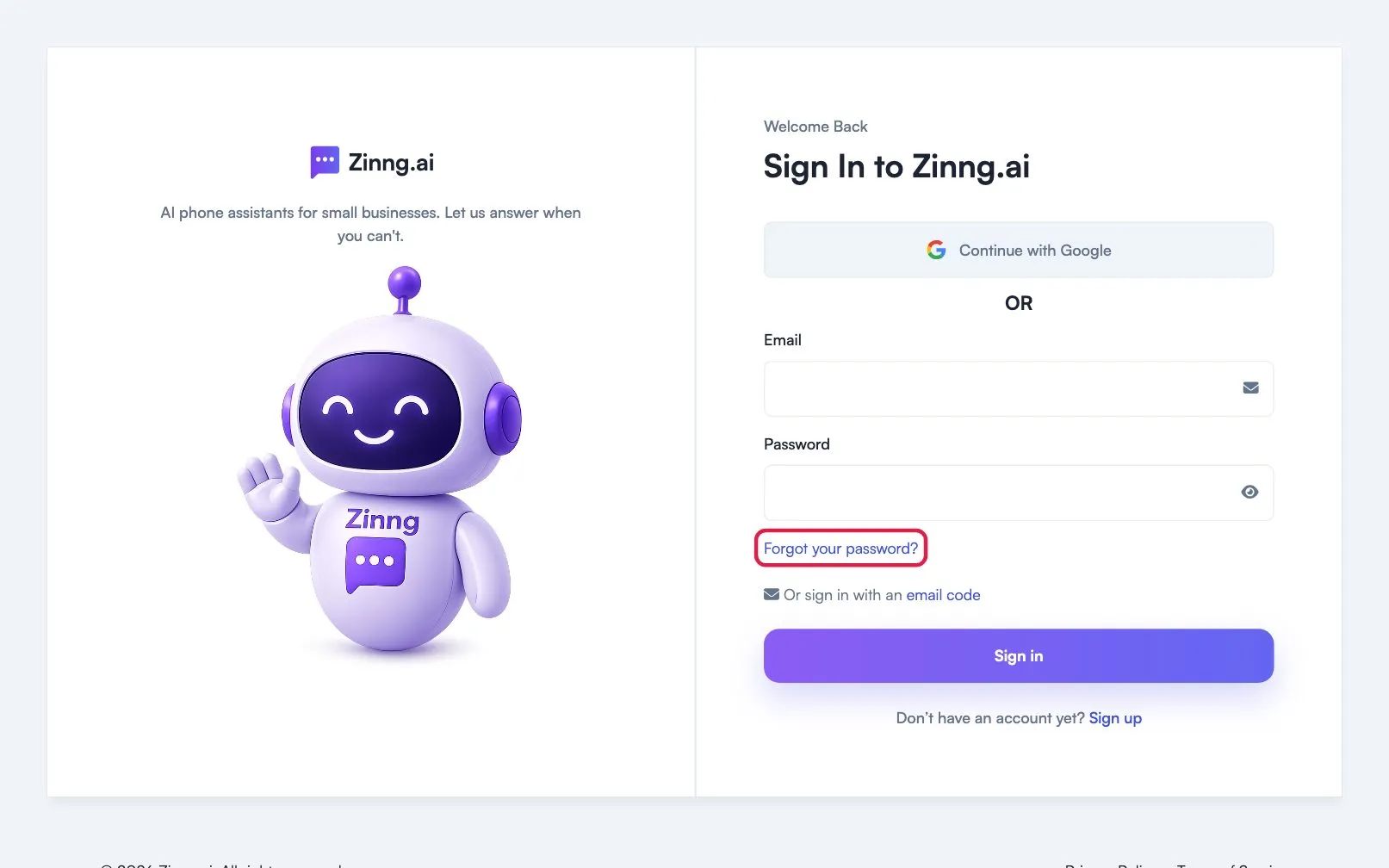
Section titled “Reset a forgotten password”- On the login page, select Forgot your password? to open Reset your password.
- Enter your Email address and select Send reset link.
- Open the email and follow the link. The Set a new password page opens.
- Enter New password and Confirm new password, then select Change password.
- Log in with your new password.
If the page says This reset link expired, request a new link from step 1.
The reset email did not arrive? Check spam and junk folders and confirm the address. More sign-in help is in Log in.