
Transfer calls to a person
Set up call transfer so your AI phone agent can pass a live caller to you or your team, with one number or several, and choose cold or warm transfer.
Turn on the Call Transfer add-on and your agent can hand a live call to a real person when a caller asks for one. You choose the number, or several numbers, and how the handoff works.
Before you start
Section titled “Before you start”- If the Call Transfer toggle is locked, your account is still under review. See Why you can’t turn on call transfer.
- Multiple Numbers needs the Pro plan or above.
Turn on call transfer
Section titled “Turn on call transfer”-
Open the add-ons.
Go to AI Phone Agents, select the settings icon on your agent, and scroll to Call Tools & Integrations.
-
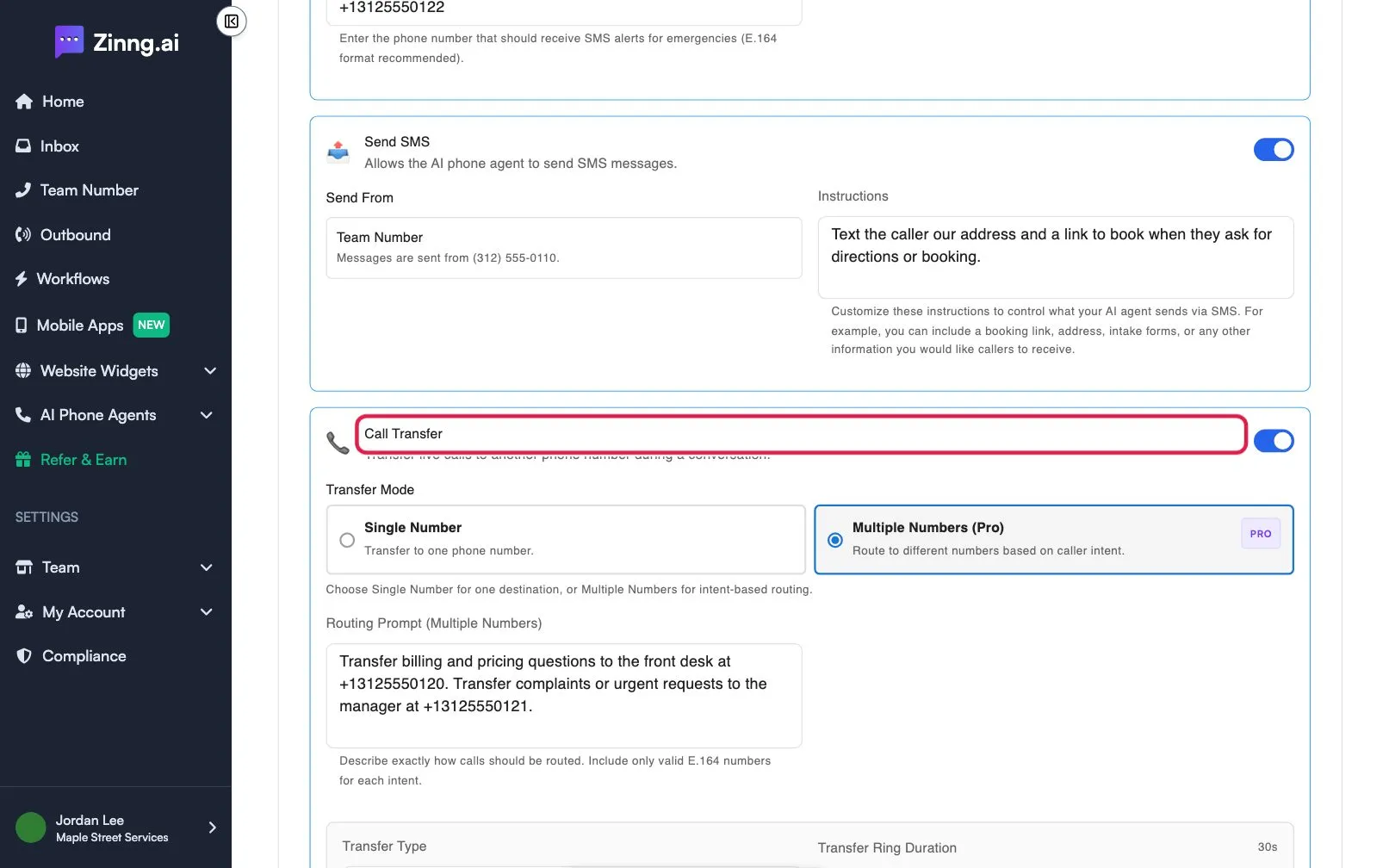
Turn on Call Transfer.
Use the toggle on the Call Transfer card.
-
Choose a Transfer Mode.
Single Number sends every transfer to one number: enter it in Transfer Phone Number. Multiple Numbers (Pro) sends callers to different numbers by intent: describe the rules in Routing Prompt (Multiple Numbers), using full phone numbers with country code.
-
Choose a Transfer Type.
Cold Transfer connects the caller to the person straight away. Warm Transfer has the agent briefly tell the receiving person about the call first.
-
Set the ring time.
Move the Transfer Ring Duration slider, from 5 to 90 seconds.
-
Choose the Displayed Caller ID.
Pick your agent’s number or Caller’s Number. Showing the caller’s number works on cold transfers only.
-
Optional: fill the silence.
Tick Talk while waiting so the agent says a short phrase while the call connects, as a Prompt or a Static Sentence.
-
Save.
Select Save.
Troubleshooting
Section titled “Troubleshooting”Multiple Numbers is greyed out
Section titled “Multiple Numbers is greyed out”It requires a Pro plan or above. The card shows that message.
Caller’s Number is unavailable
Section titled “Caller’s Number is unavailable”It is turned off while Warm Transfer is selected. Switch to Cold Transfer to use it.