
Notification settings for push, text and email
Turn push notifications on or off for each browser and phone, pick which teams alert you, and set the number and alerts used for texts and email.
Zinng can alert you about new calls, messages and appointments three ways: push notifications on your browsers and phones, text messages and email. Push notifications and your phone number are managed on your profile page. Text and email alerts are chosen in the inbox.
Open the notification settings
Section titled “Open the notification settings”In the left menu, open My Account and select Profile, or open Profile Settings. The Push Notifications and Phone Number cards are below the profile and two-factor sections.
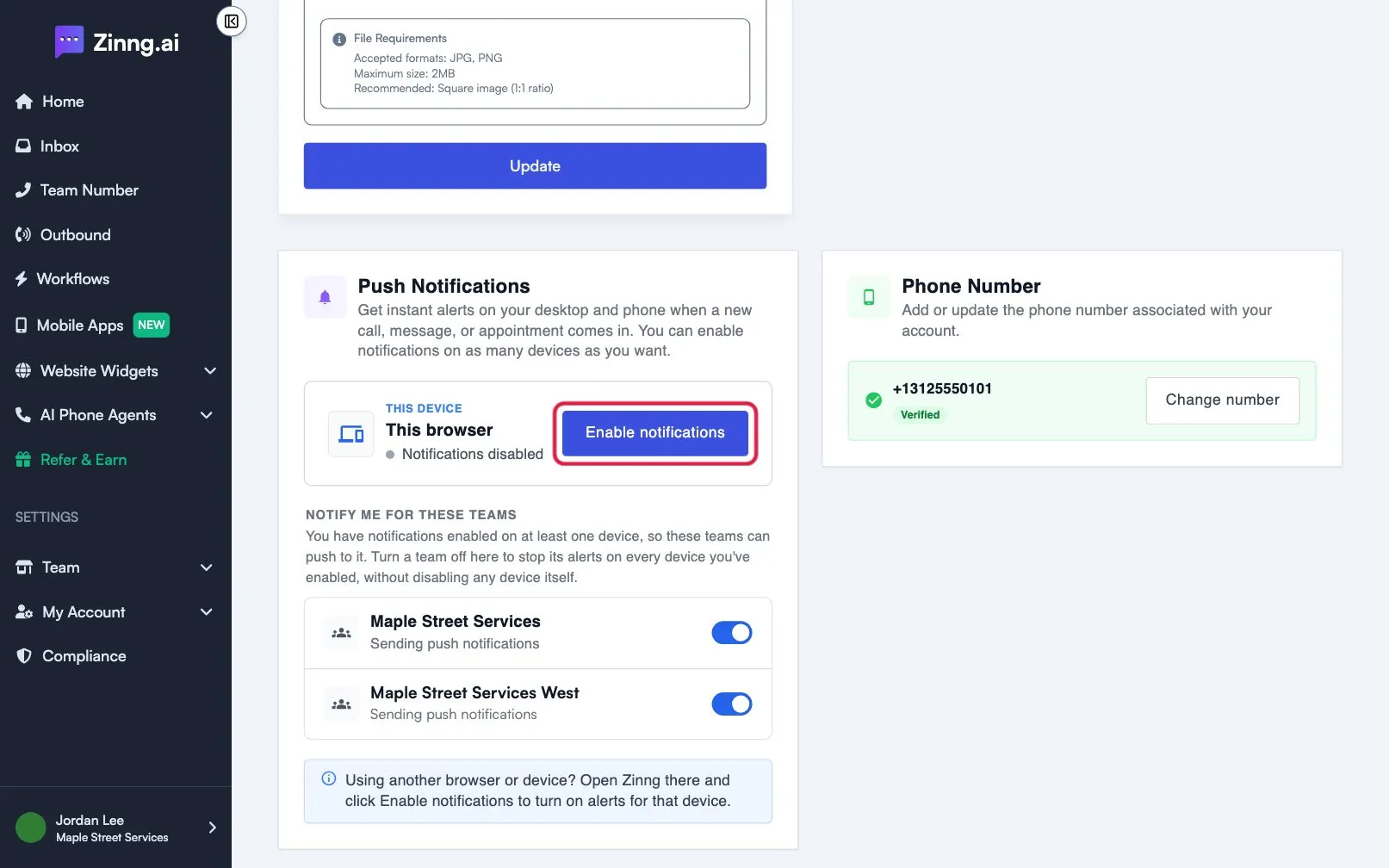
Push notifications and phone number (Profile Settings)
Section titled “Push notifications and phone number (Profile Settings)”| Setting | What it does |
|---|---|
| This device | Shows the browser you are using and whether it says Notifications enabled or Notifications disabled. |
| Enable notifications / Disable on this device | Turns push alerts on or off for this browser. Your browser asks for permission the first time. |
| OTHER DEVICES | Lists other browsers and phones with push turned on and when each was last Active. Select Revoke and confirm to stop alerts to one of them. |
| NOTIFY ME FOR THESE TEAMS | Appears only when you belong to more than one team and push is on for at least one device. Turn a team off to stop its alerts on every device without disabling the devices. |
| Phone Number | Add phone number or Change number. The number shows a Verified badge once confirmed. Used for text alerts. US and Canada only. |
You can turn push notifications on for as many devices as you like. To use another browser or device, open Zinng there and select Enable notifications.
Text and email alerts (Inbox Settings)
Section titled “Text and email alerts (Inbox Settings)”In the inbox, select the gear button next to the conversation filter to open Inbox Settings.
| Setting | What it does |
|---|---|
| SMS Notifications: AI call completed | A text when an AI agent finishes a call. |
| Include caller details | Adds the caller’s number, and name if saved, to that text. Shown when AI call completed is on. Not encrypted, so avoid it if the details are sensitive. |
| SMS Notifications: New SMS conversation | A text when a new number messages your team for the first time. |
| SMS Notifications: Chat agent handoff requested | A text when your chat agent hands a conversation to the team. |
| Email Notifications | Separate toggles for New SMS conversation, New SMS reply, New chat widget conversation, New chat widget reply and Chat agent handoff requested. |
| Full preview / Link only | Whether emails include the sender, number and message text, or only the message type and a secure link. |
These choices are per team and per person. Each teammate sets their own.
Common tasks
Section titled “Common tasks”Turn on push notifications in your browser
Section titled “Turn on push notifications in your browser”- Open Profile Settings.
- Under Push Notifications, select Enable notifications.
- Choose Allow when your browser asks. You see “Notifications enabled on this device.”
Stop alerts from one team
Section titled “Stop alerts from one team”Under NOTIFY ME FOR THESE TEAMS, switch the team’s toggle off. It changes from Sending push notifications to Push notifications off.
Remove a device you no longer use
Section titled “Remove a device you no longer use”Under OTHER DEVICES, select Revoke next to the device, then Revoke again in the Revoke notification access window.
Turn on text alerts
Section titled “Turn on text alerts”See turn on text alerts.
Get alerts on your phone
Section titled “Get alerts on your phone”Install the app, then see the Mobile Apps page. Turn on push in the app’s Profile tab.